

Overview #
The OneDrive Report Provider lets you use report files stored in the connected Microsoft 365 service account’s personal OneDrive (/me/drive) as the source for Distribution Jobs. Reportworq uses the same Azure App Registration and authentication tokens as the plugin’s other Microsoft 365 features, so once the account is connected your OneDrive files become available through the Report Selection dialog when configuring a job. The documents you can see are those accessible to the authenticated Microsoft 365 account.
Note: Unlike the SharePoint provider, OneDrive has no site or document-library layer to choose from — a personal OneDrive has a single root — so there is no site checklist to configure. You browse the account’s folders directly.
Configuration #
Prerequisite: An administrator must create an Azure App Registration in the same tenant as the Microsoft 365 account, and note down the Tenant Id, Client Id, and authentication Secret. This is the same registration used by the SharePoint, Teams, and Outlook features — if Microsoft 365 is already connected, you can reuse it.
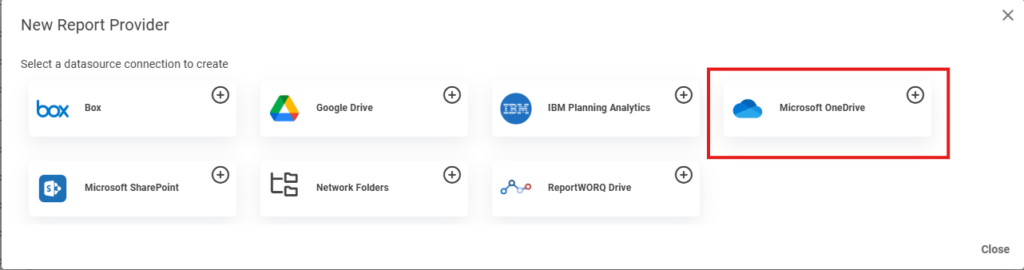
- Select the add (+) icon beside the Report Providers heading.
- Select Microsoft OneDrive.
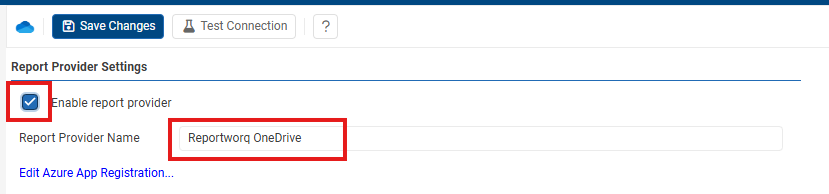
- Provide a Report Provider Name.
- Select the Save icon.
- Select the Edit Azure App Registration… link.
- Enter the Tenant Id, Client Id, and Secret (or reuse the existing Microsoft 365 connection).
- Select Authenticate in the Graph API section and sign in with the service account.
- Confirm the OneDrive Report Provider shows as Configured.
- Select the Save icon.
- Select your OneDrive Report Provider from the left sidebar.
- Select Test Connection to verify the settings.
- Tick Enable report provider and Save Changes.
Using OneDrive Document Storage #
Once the provider is enabled, open the Edit Jobs screen and choose Add a Report. Expand the OneDrive item to browse the account’s folders and select a report file.