
This article describes how to connect to an Amazon Bedrock AI model.
After you create an AI connection, you can add AI Generated Insights to Distribution Job messages. For more information, see AI Generated Insights.
Before you Begin:
- Create either a standalone AWS account or a member account in your organization.
- Create an AWS Access Key and make note of the following credentials:
- Access Key
- Secret Access Key
- Obtain a Session Token if required by your AWS security configuration.
- Determine which AWS Region and Anthropic model you want to use, and make note of its Inference Profile ID and Source Region.
Note: Only Anthropic/Claude models are currently supported.
To add and configure an Amazon Bedrock connection:
- In the Reportworq Administration interface, select the add icon
 beside the AI Connections heading.
The New AI Connection dialog appears: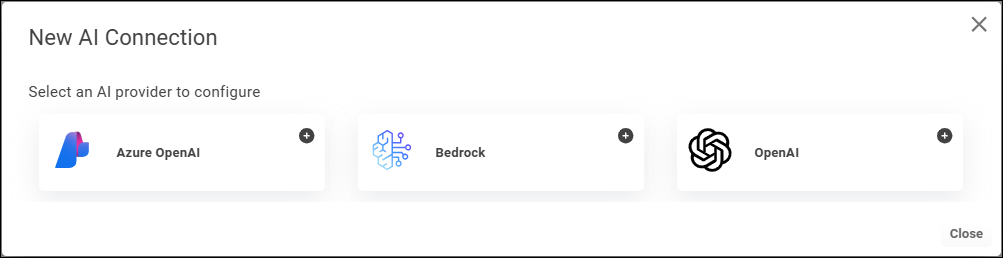
- Select Bedrock.

The Bedrock Settings appear. The following example shows fully configured settings.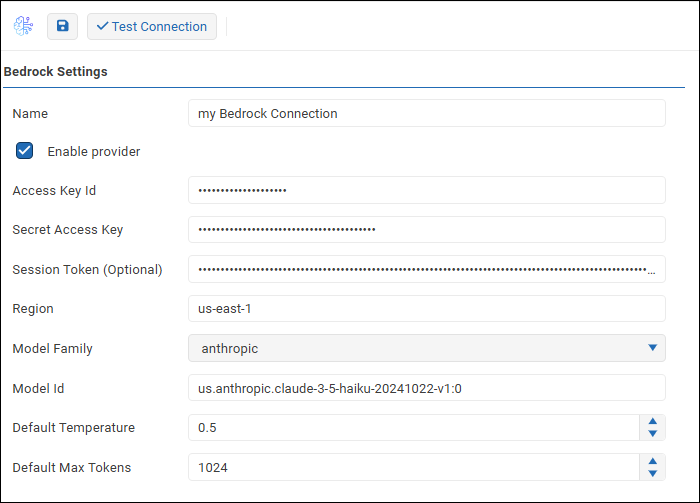
- Configure the following settings as required:
- Name: A name for the connection.
Job creators will see this name when they create an AI Generated Insight prompt. It may also appear in messages to report recipients. - Access Key ID: An authentication credential required to access Amazon Bedrock AI services through your AWS account.
- Secret Access Key: An authentication credential required to access Amazon Bedrock AI services through your AWS account.
- Session Token: An optional authentication credential that may be required, depending on your AWS security configuration.
- Region: The Source Region from which you want your request to originate.
- Model Family: The group of foundational AI models that contains the model you want to query against.
- Model Id: The specific AI model you want to query against, expresed as an Inference Profile ID consisting of a region, model provider, and model name and version.
The syntax is region.provider.model-name-version, for example, us.anthropic.claude-3-5-haiku-20241022-v1:0. - Default Temperature: A value between 0 and 1 that controls how random the generated AI responses may be:
- A lower temperature makes the results more deterministic, which is ideal when factual accuracy, consistency, and predicatability are desired.
- A higher temperature makes the results more random, which is ideal when creativity, variety, and originality are desired.
The default value is 0.5.
- Default Max Tokens: The default maximum number of AI tokens consumed per AI prompt. The default value is 1024.
Job creators can override this value when configuring individual AI Generated Insight prompts.
Tip: An AI token is a small chunk of data, such as a word or part of a word, that the AI model processes to understand an AI prompt. AI services typically charge fees based on the number of AI tokens consumed.
- Name: A name for the connection.
- To confirm that the settings are properly configured, select Test Connection.

If the test fails, edit the settings as required and then test again. - Select the Enable provider checkbox.

- Select the Save icon
 to save and apply the settings.