

OneDrive #
The OneDrive distributor delivers the files a job generates straight into a folder of the configured Microsoft 365 service account’s personal OneDrive (/me/drive), with an optional toggle to share each delivered file with recipients.
OneDrive uses the same delegated Microsoft 365 authentication as the plugin’s SharePoint, Teams, and Outlook features. If you have already connected Microsoft 365, no additional credentials are required — OneDrive is ready to use.
Configuration #
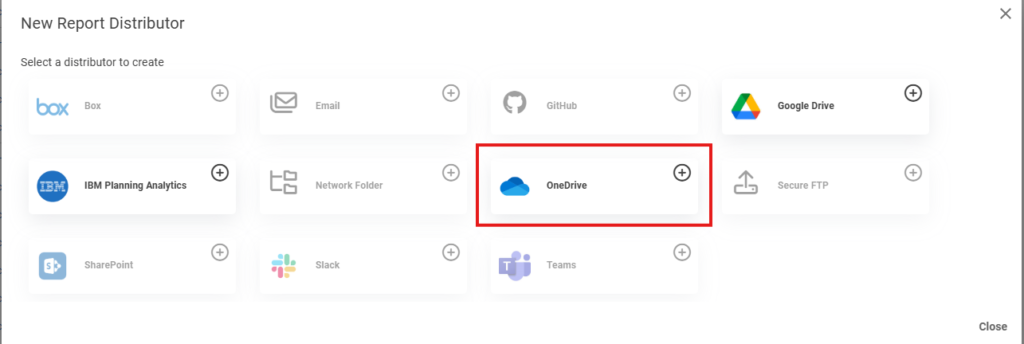
Open Administration → Distributors → OneDrive.
- Enable distributor — turns the OneDrive distributor on so it can be selected in a job.
- Edit Azure App Registration… — opens the shared Microsoft 365 connection. A warning icon appears here until Microsoft 365 has been authenticated. This is the same connection used by SharePoint, Teams, and Outlook, so it only needs to be set up once.
- Test Folder Path — a folder path within the connected account’s OneDrive used by the Test Connection button.
Select Test Connection to verify Reportworq can reach the connected account’s OneDrive, then select Save Changes.
Note: Files are written to the OneDrive of the connected (delegated) Microsoft 365 service account — the single signed-in account — not to other individual users’ drives.
Adding OneDrive to a Job #
In a job’s distribution step, choose OneDrive and configure the destination.
- OneDrive Folder — the destination folder within the account’s OneDrive. The field accepts variables/tokens (for example
Reports/{Date}), and any folders in the path are created automatically if they do not already exist. - Share With (optional) — one or more recipient email addresses, separated by semicolons or commas, to share each delivered file with.
- Allow recipients to edit shared files — when ticked, recipients receive edit access; otherwise they receive view-only access.
The Options sidebar also lets you Zip Files (with an optional exclusion list) before delivery.
Behavior #
- Folders are created automatically. Nested folder paths are created as needed; existing folders are reused and their contents are left untouched.
- Re-runs replace the file. Delivering a file with the same name to the same folder replaces the previous copy.
- Sharing is optional and non-blocking. If a share invitation fails, the file is still delivered to OneDrive and the step still succeeds (the failure is logged as a warning).
- Illegal characters are sanitized. Characters that OneDrive does not allow in a file name (
\ / : * ? " < > | # { } % ~ &) are replaced with an underscore, and the change is logged.
See also: OneDrive Documents (using OneDrive files as report sources).