
Overview#
Reportworq runs as a standalone web application that users access through a Chromium-based web browser such as Google Chrome or Microsoft Edge. This article contains all the information you need to install Reportworq and get it up and running. It includes system requirements, software download and installation, and initial configuration. Steps for uninstalling Reportworq are also provided.
After you finish installing and configuring Reportworq, please see the Quick Start Tutorial for a walk-through of how to create and run Reportworq report distribution jobs.
Note: This article describes how to perform a full installation of Reportworq 5. If Reportworq 5 is already installed and you simply want to update it, you can update to the latest version from within Reportworq.
System Requirements#
Recommended minimum system requirements to run Reportworq are as follows:
- Operating System:
- Any Microsoft Windows operating system that is currently supported by Microsoft and has not reached its Microsoft End of Support date. Confirm that the latest critical Windows updates have been applied before installing Reportworq. Reportworq requires modern Windows graphics components that depend on DirectX 12. As a result, Windows Server 2012 R2 and earlier are not supported. Windows Server 2016 or later is required.
- Processors:
- 4 core 2 GHz or faster x64-bit processors.
- Memory:
- 32 GB of installed RAM is recommended. 16 GB is acceptable for light use. More memory may be needed if you plan to work with large Excel reports.
- Disk Space:
- 10 GB of free disk space. Reportworq uses disk space for its application files, settings repository, log files, and any temporary file storage needed while creating job output content such as PDF and Excel files.
- Display:
- 1280x720 or higher screen resolution is strongly recommended.
- Firewall (optional):
- If a firewall is active, open port 8300 to allow users to access Reportworq via a local web browser.
- SSL (optional):
- Optionally, the Reportworq server can be configured to operate under SSL if a certificate is provided.
- Web Browser:
- A Chromium-based web browser such as Google Chrome or Microsoft Edge.
- Optional Software:
- Microsoft Excel
- Adobe Acrobat Reader, or equivalent PDF reader
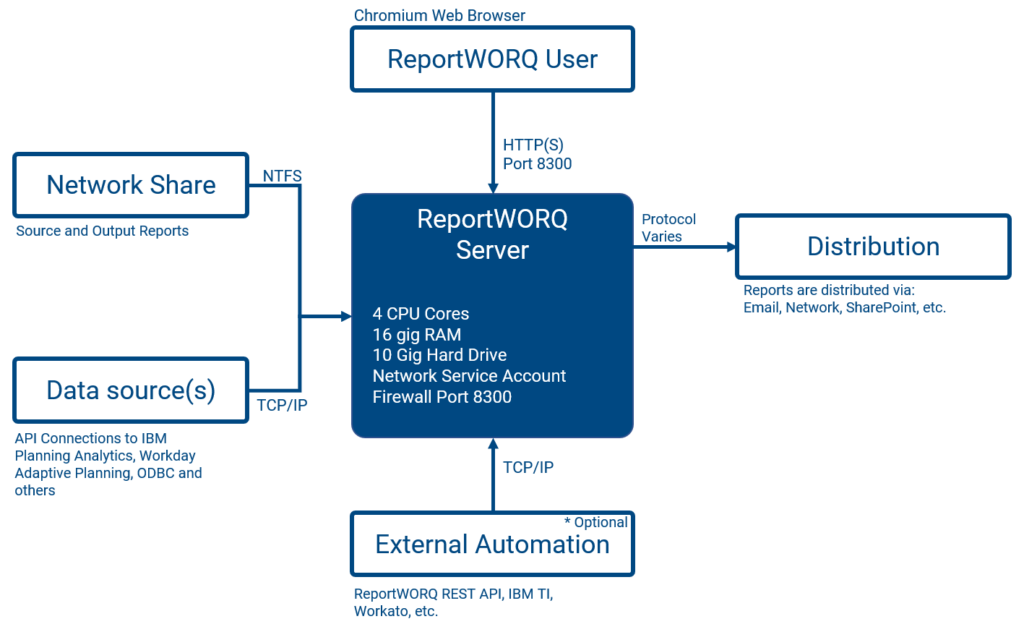
Architecture Diagram#
Select the image to expand.
Download Reportworq#
Select a link below to download the latest Reportworq installation package.
Please select Reportworq 5.0 Official Release unless instructed otherwise. Preview releases include the very latest changes to the product, but only official releases are fully regression-tested.
Install Reportworq#
Local administrative privileges are required to install the Reportworq application. The Reportworq computer must have internet access during installation, configuration, and usage.
The installation process copies required files locally and then registers and starts an instance of the Reportworq Bootstrap Service, which hosts the Reportworq web application.
Before you begin, ensure that your computer meets the minimum system requirements.
To install the Reportworq application:
- In the Downloads folder, open the Reportworq_Installer.exe file. If a message appears, asking whether to allow the Reportworq app to make changes to your device, select Yes. The Reportworq Setup Wizard appears.
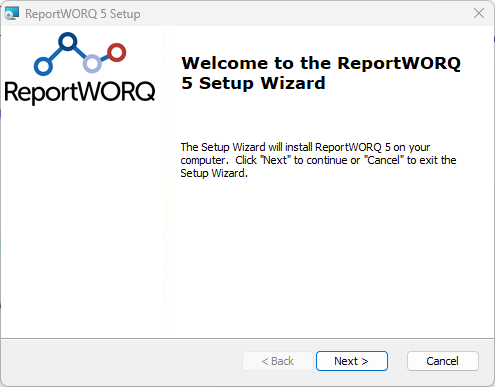
- Select Next. The End-User License Agreement appears.
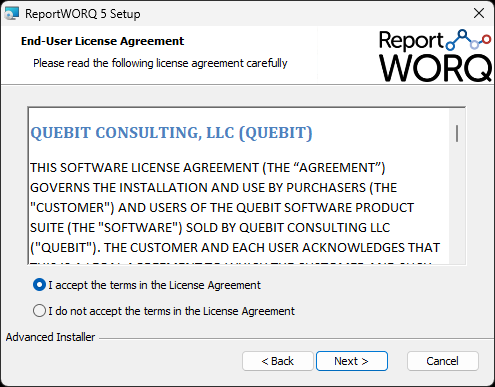
- Read the End-User License Agreement. If you accept all the terms, select I accept the terms in the License Agreement and then select Next. Note: You cannot install Reportworq without accepting the terms in the license agreement. The Select Installation Folder page appears.
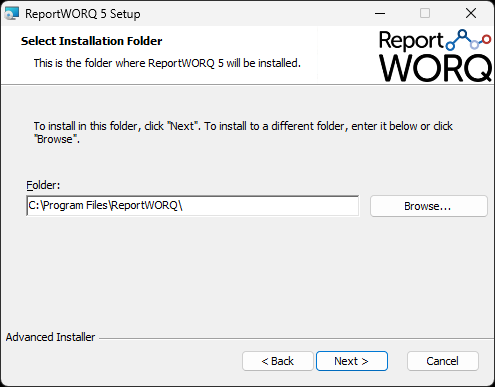
- Specify an installation folder and then select Next. You can accept the default installation folder (C:\Program Files\Reportworq) or Browse to select a different one. When the Ready to Install page appears, select Install. When installation is complete, select Finish to exit the wizard.
Initial Configuration
This section contains steps for the following tasks:
- Test Connectivity and Set Up an Administrative Account
- Review Service Settings
- Activate Reportworq License
- Review Application Settings
Test Connectivity and Set Up an Administrative Account#
The first time you connect to Reportworq, a configuration wizard prompts you to enter your license key and set up an administrative account.
To test connectivity and set up an administrative account:
- In a supported web browser, test that you can connect to the Reportworq web server locally by navigating to http://localhost:8300 . If the test is successful, the Reportworq configuration wizard appears.
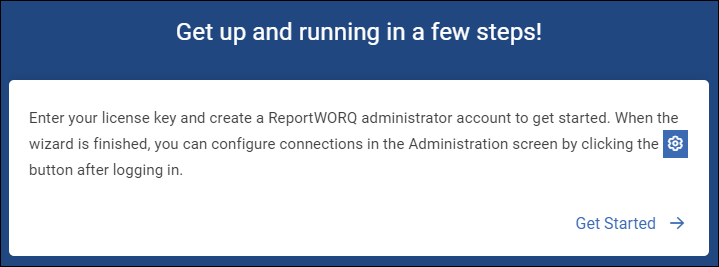
- Select Get Started. The license page appears.
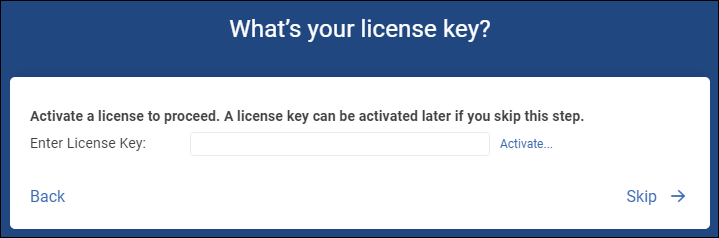
- Do one of the following:
- If you have a Reportworq license and want to activate it now, enter the license key and select Activate. After the license is activated, select Next.
- If you want to activate your Reportworq license later, select Skip. The administrator setup page appears.
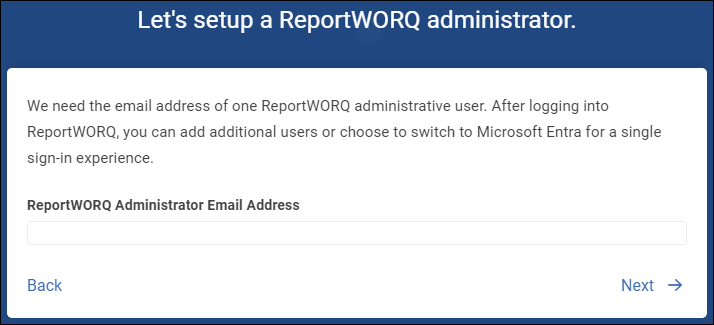
- Provide an existing email address for an administrator account, and then select Next. The congratulations page appears.
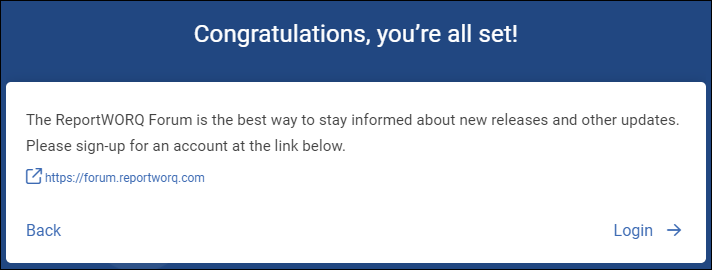
- Select Login. The login page appears.
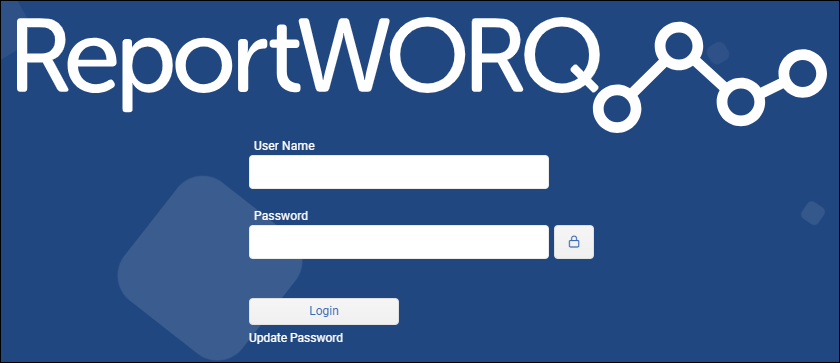
- In the User Name box, type the administrator email address you provided in Step 4, and then select Login. Do not type a password at this time. After you click Login, you will be prompted to create a password. The password reset page appears.
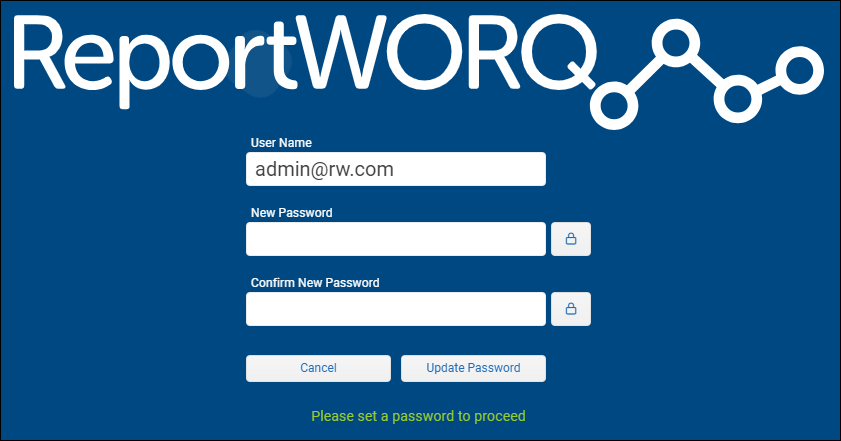
- Type the same password in both Password boxes and then select Update Password. The password must contain at least six characters and include upper case, lower case, numeric, and non-numeric characters. IMPORTANT: Remember the User Name and Password for future logins. The Reportworq login page appears, pre-populated with the User Name and Password you created.
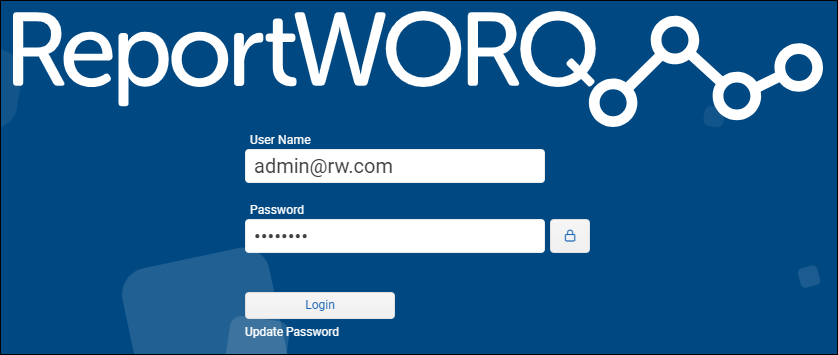
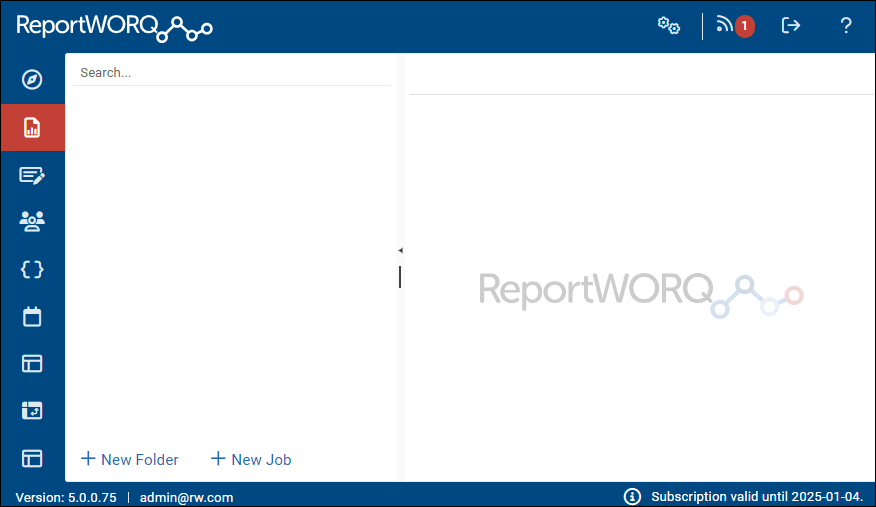
- Select Login. Reportworq opens.
- From a different computer on the network, test that you can connect to Reportworq remotely by opening a supported web browser and navigating to http://
:8300, where is the name of the computer hosting Reportworq. Typically, remote access to Reportworq is initially blocked by a firewall application. A firewall exception rule to allow traffic from other computers through the Reportworq server's configured TCP port may be required. Reportworq's default TCP port is 8300. The port number can be changed later by a Reportworq administrator. Tip: If you are reinstalling Reportworq and the previous installation used SSL and/or a different port number, the URLs required for web access must be adjusted accordingly. If the test is successful, the Reportworq login page appears. Return to the Reportworq computer for the next procedure.
Review Service Settings#
Review the properties of the Reportworq Bootstrap Service and configure a service account logon if needed.
Steps:
- Using the Windows Search bar, find and open Services.
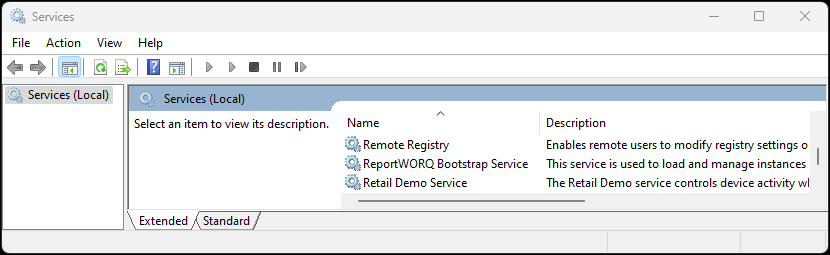
- Right-click Reportworq Bootstrap Service and select Properties. The Properties window appears.
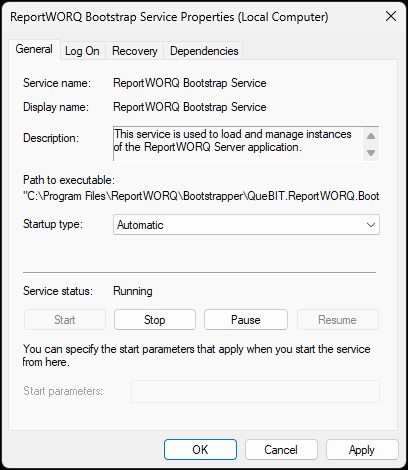
- Review the properties on each tab and modify if necessary:
- General - By default, the service is set to start automatically each time the computer reboots.
- Log On - If the Reportworq server will need to read from or write to network locations, select This account and specify the domain account that the Reportworq instance can log on as upon startup. When you Apply the change or select OK, Windows automatically grants the account Logon as a Service permission.
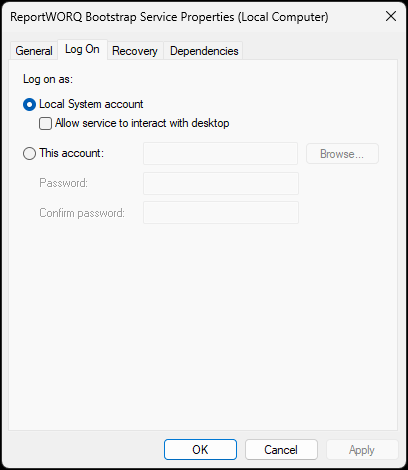 Regardless of whether the log on account is the local system account or a different account, it requires the following permissions at a minimum:
- Logon as a Service permission.
- Read/write permissions to the root folder where Reportworq is installed (default is C:\Program Files\Reportworq).
- Read/write permissions to the configured Repository folder if it is located outside of the root installation folder.
- Read/write permissions to any report output destinations that will be defined in Reportworq Jobs.
- Read permissions to any source report provider locations.
Activate License#
If no Reportworq license is active, the following message is visible in the lower right status bar:

Reportworq licenses can be activated automatically or manually. If the computer is on an isolated network that does not have Internet access, manual activation is required. The steps in this section describe both automatic and manual activation.
IMPORTANT: Reportworq must be used in accordance with the license agreement that you agreed to upon installation, and only by users who are covered by that license agreement. Please consult that licensing agreement and contact us at support@reportworq.com if you have any technical or sales-related questions.
To activate a Reportworq license:
- In the lower right corner of Reportworq, select the Reportworq requires a license message. The Edit Reportworq License pane appears.
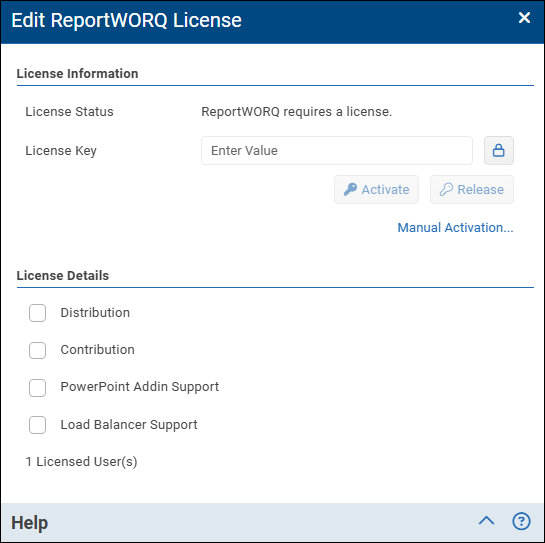
- Provide your Reportworq License Key and then select Activate. If activation is successful, skip the remaining steps in this procedure. If activation fails or the computer is on an isolated network that does not have internet access, manual activation is required. Manual activation requires the use of an additional computer that has internet access.
- Select Manual Activation. The Manual Activation dialog appears.
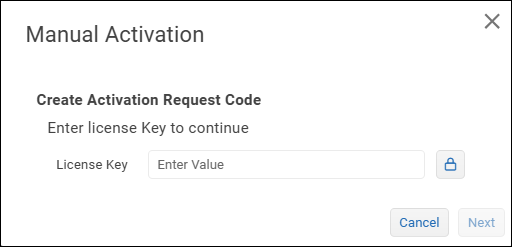
- Provide your Reportworq License Key and then select Next. The Manual Activation -- Activation Request Code dialog appears.
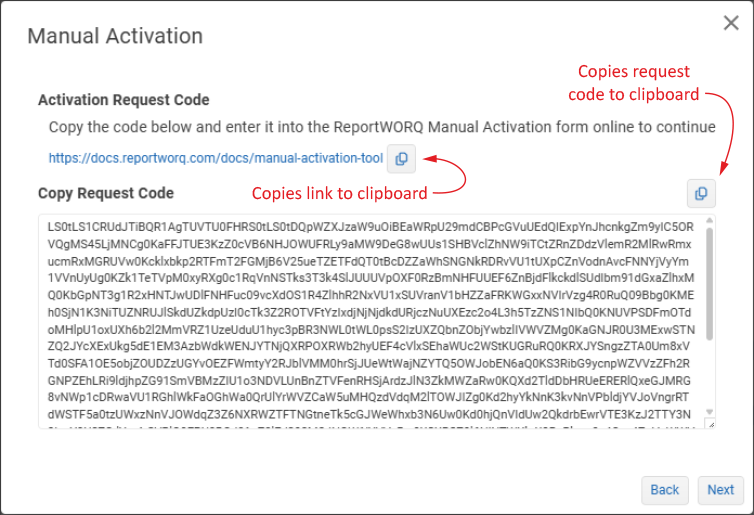
- Copy and paste the Activation Request Code and the website link for the Reportworq Manual Activation form into an email, and then send it to yourself so you can retrieve it on the computer that has internet access. Tip: You can use the copy buttons
 to copy the code and the website link. Note: IT policies in some organizations do not allow software applications full access to the clipboard. If you receive an error message when you select a copy button , manually copy the Request Code text by clicking anywhere in the code and then pressing CTRL+A and then CTRL+C.
 - On the computer that has internet access, open the email you sent yourself and then do the following:
- Navigate to the Reportworq Manual Activation form website.
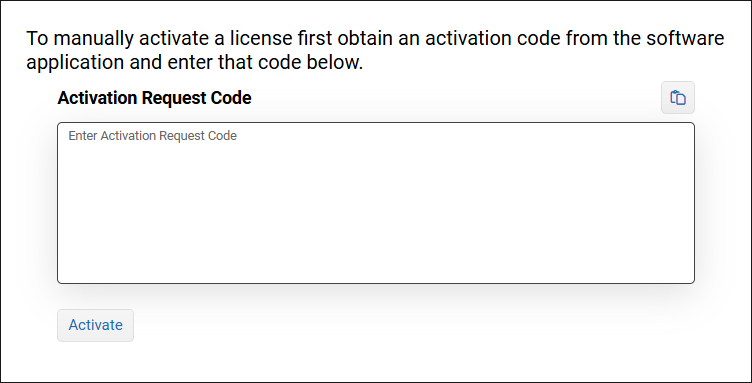
- Paste the code into the Activation Request Code box, and then select Activate. The Activation Response Code appears.
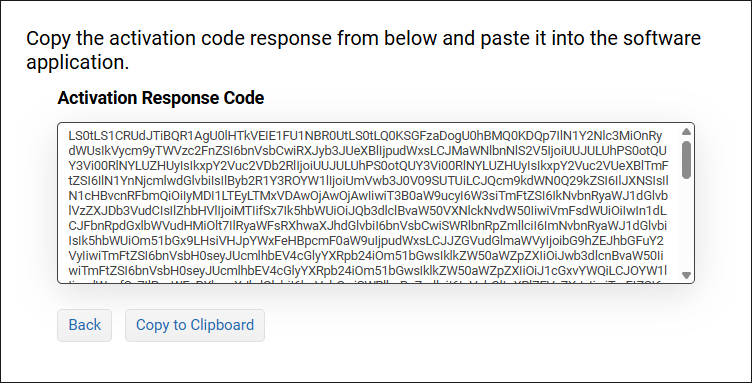
- Select Copy to Clipboard, or manually select the code by clicking anywhere in the code text and then pressing CTRL+A and then CTRL+C. Note: Some borwser or IT policies do not allow software applications full access to the clipboard. If you receive an error message when you select Copy to Clipboard, manually copy the Response Code text by clicking anywhere in the code and then pressing CTRL+A and then CTRL+C.
- Paste the Activation Response Code into an email and send it to yourself so you can retrieve it on the Reportworq computer.
- On the Reportworq computer, open the email.
- In the Manual Activation -- Activation Request Code dialog, select Next. The Manual Activation -- Activation Response Code dialog appears.
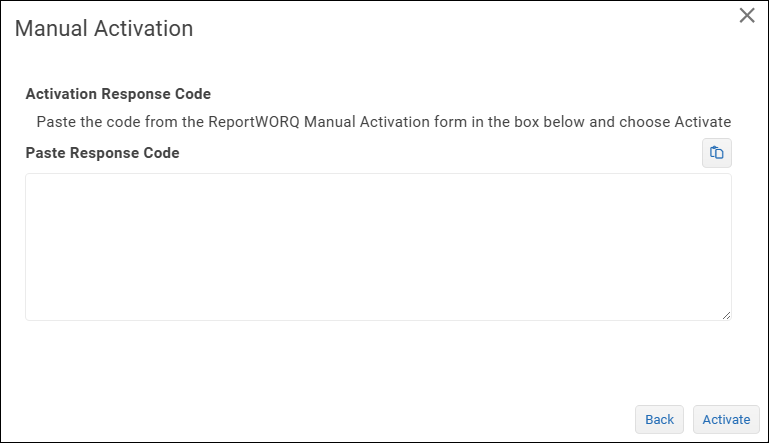
- Copy and paste the response Activation Response Code from the email into the Activation Response Code box and then select Activate. The license is activated.
Review Application Settings#
To access the application settings, select the Administration (gear) icon in the top right corner of Reportworq.
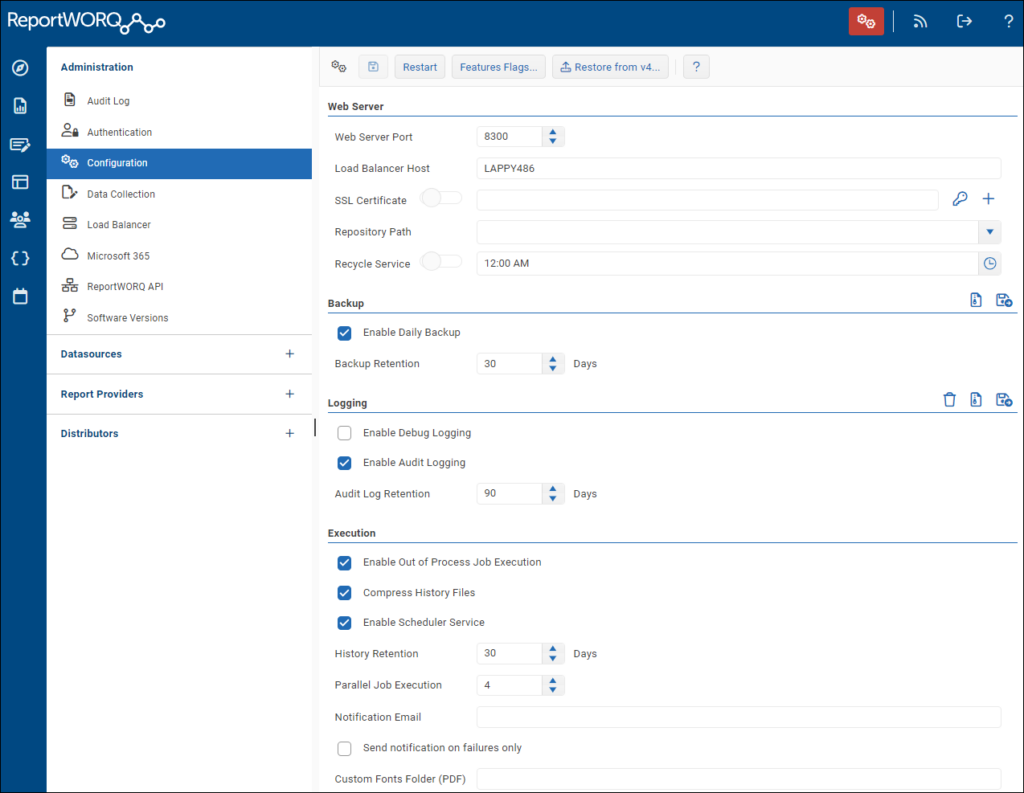
Settings for specifying the Web Server Port and SSL Certificate (optional) determine how users access Reportworq from their web browser and should be reviewed after initial installation. These and other settings are described in further detail in the Application Settings topic.
Uninstalling Reportworq#
After you uninstall Reportworq, some files remain in the installation location. If you intend to reinstall Reportworq or migrate Reportworq to a different computer, do not delete these files.
If you do not plan to reinstall Reportworq on this computer, record and release the license key so you can activate Reportworq on a different computer later.
To release the Reportworq license:
- In the lower right corner of Reportworq, select the license status message, which is similar to this:
 The Edit Reportworq License page appears.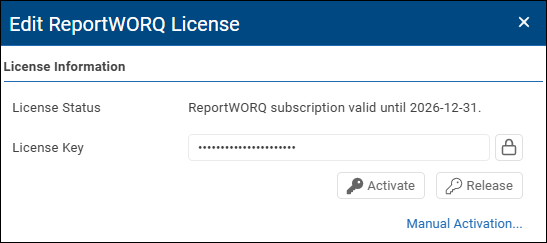
- If you plan to use the license key later, select the lock icon
 to reveal the key. Record the key value.
 - Select Release. The Reportworq license is released.
To uninstall Reportworq:
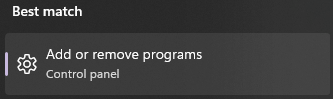
- In the Windows Search box, start to type uninstall, and then when Add or remove programs appears as a match, select it.
- In the list of Installed apps, find Reportworq, select its ellipsis
 , and then select Uninstall.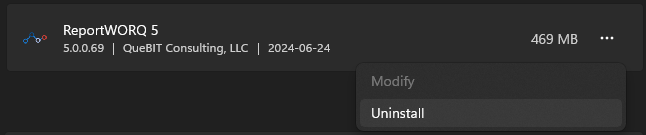
- Select Uninstall again.
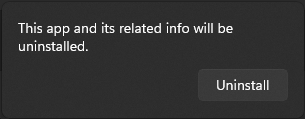
- If a message appears, asking whether to allow the Reportworq app to make changes to your device, select Yes. Reportworq is uninstalled. This may take a moment.
Feedback on this page
Comments, questions, requests, or something missing or unclear? Email us - the page you are on is filled in for you.
Email feedback on this pageOr write to support@reportworq.com directly.