
Upgrading Reportworq 5#
There are three methods of upgrading Reportworq:
- Online Software Version Update -- Updates software on the Reportworq server to a newer version. The Reportworq server requires Internet access.
- Offline Patch File Update -- Updates software on the Reportworq server to a newer version, for cases where the server does not have Internet access.
- Full Installation Upgrade -- Perform this type of upgrade only if one of the following is true:
- You need to move Reportworq to a different server.
- Reportworq Support staff has advised you to perform a full installation upgrade because the core Reportworq Bootstrap service is updated in a new release.
Online Software Version Update#
This section describes how to update Reportworq to a newer software version.
To perform this update, the Reportworq server requires Internet access. If the server does not have Internet access, perform an Offline Patch File Update instead.
To perform an online software version update:
- Log in to Reportworq as a system administrator and then select the Administration icon.
 Tip: Alternatively, you can access administrative settings locally on the Reportworq server without a password.
 - From the Administration menu, select Software Versions. A list of software versions appears.
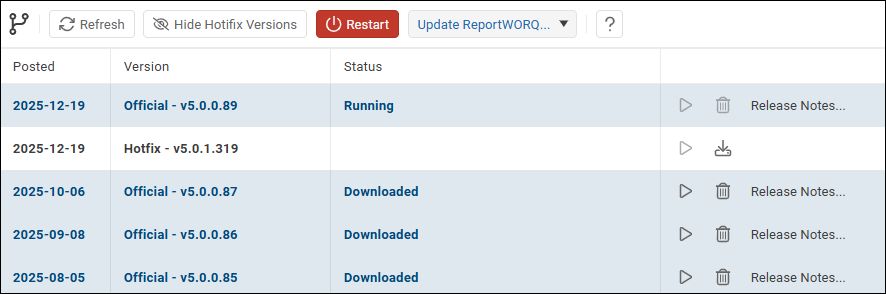
- Select Refresh to update the list.

- Do one of the following:
- If you want to update to the latest version, do the following:
- Expand the Update Reportworq list and then select one of the following:
- Update to the latest official version
- Update to the latest hotfix version Hotfix versions are fully tested updates to the current official version. They contain only critical fixes and no new features or experimental changes. Hotfix versions are safe to use in production and adhere to the same standards as official releases.
- When prompted to update Reportworq, select OK. Reportworq restarts, and runs the selected version.
- Expand the Update Reportworq list and then select one of the following:
- If you want to update to a version shown on the list, do the following:
- If the Status box for the version is blank, select the Download Version icon.
 The download may take a few minutes.
 - Select the Run Version icon.

- When prompted to Set Active Version, select OK. Reportworq restarts, and runs the selected version.
- If the Status box for the version is blank, select the Download Version icon.
- If you want update to a version that is not shown on the list, do the following:
- Expand the Update Reportworq list and then select Download a specific version.
- When prompted, specify the version number and then select OK. If the version exists, Reportworq downloads it and adds it to the list. The download may take a few minutes.
- Find the requested version in the list and then select its Run Version icon.
- When prompted to Set Active Version, select OK. Reportworq restarts, and runs the selected version.
Offline Patch File Update#
Perform an offline patch file update if you want to use the latest version of Reportworq on the same computer, but that computer does not have Internet access.
To perform an offline patch file update:
- On a computer that has Internet access, download the latest Reportworq patch file by selecting the Download offline patch file link. Please choose the Official version unless instructed otherwise. Preview versions include the very latest changes to the product, but only Official and Hotfix versions are fully regression-tested.
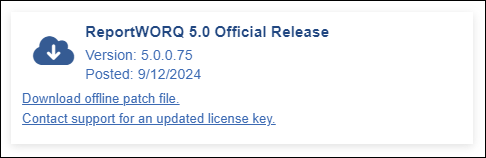 The patch file is downloaded and saved to the Downloads folder. The download may take a few minutes. The filename is similar to the following: Reportworq_Patch_5.0.0.75.zip.
 - Transfer the patch file to the Reportworq computer.
- In the Reportworq Administration interface, navigate to the Software Versions page.
- Expand the Update Reportworq list and then select Update with a patch file.
- Navigate to the patch file and then select Open.
- When a message appears, indicating that the upload was successful, select Close. The uploaded version appears on the list.
- Find the uploaded version in the list and then select its Run Version icon.
- When prompted to Set Active Version, select OK. Reportworq restarts, and runs the selected version.
Full Installation Upgrade#
Perform this type of upgrade if you need to move Reportworq to a different server, or if Reportworq Support has advised you to do so because the core Reportworq Bootstrap service is updated in a new release.
If you do not plan to reinstall Reportworq on the same computer, record and release the license key so you can activate Reportworq on a different computer later.
To release the Reportworq license:
- In the lower right corner of Reportworq, select the license status message, which is similar to this:
 The Edit Reportworq License page appears.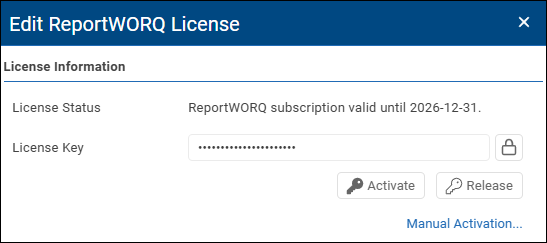
- If you plan to use the license key later, select the lock icon
 to reveal the key. Record the key value.
 - Select Release. The Reportworq license is released.
To perform a full installation upgrade:
- Download the latest Reportworq Installation package.
- Open the Windows Services console, view the Properties of the Reportworq Bootstrap Service, and take note of the current Startup type (Automatic vs. Manual) and the Log on as account details.
- Back up Reportworq data:
- In the Reportworq Administration interface, navigate to the Configuration page.

- In the Backup area, select the Create Backup icon.
 A time-stamped backup zip file is created in the Downloads folder. The filename resembles the following: Reportworq_Backup_2024-10-05 20.41.38.zip
- In the Windows Services console, stop the Reportworq Bootstrap Service.
- Install the new version of Reportworq (to the same installation directory if upgrading an existing installation). For detailed steps, see Install Reportworq.
- In the Windows Services console, update the Reportworq Bootstrap Service settings to match those from Step 2.
- Start the Reportworq Bootstrap Service.
- Log in to Reportworq to verify that the application is running properly.
- Restore Reportworq application data:
- Navigate to the backup zip file you created in Step 3 and extract the folders and files it contains.
- Copy all the folders and files into the Reportworq Repository folder. The default path is C:\Program Files\Reportworq\Repository.
- On the Configuration page of the Administration interface, select Restart, and then select OK to confirm.

- Confirm that your settings have been restored.
Feedback on this page
Comments, questions, requests, or something missing or unclear? Email us - the page you are on is filled in for you.
Email feedback on this pageOr write to support@reportworq.com directly.