
This article describes how to connect to an OpenAI model.
After you create an AI connection, you can add AI Generated Insights to Distribution Job messages. For more information, see AI Generated Insights.
Before you Begin:
- On the OpenAI Platform, create an OpenAI account.
- Obtain an API Key and an Organization ID (optional).
- Decide which OpenAI model you want to use and make note of the exact name of the model, for example, gpt-5-mini.
To add and configure an OpenAI connection:
- In the Reportworq Administration interface, select the add icon
 beside the AI Connections heading.
  The New AI Connection dialog appears: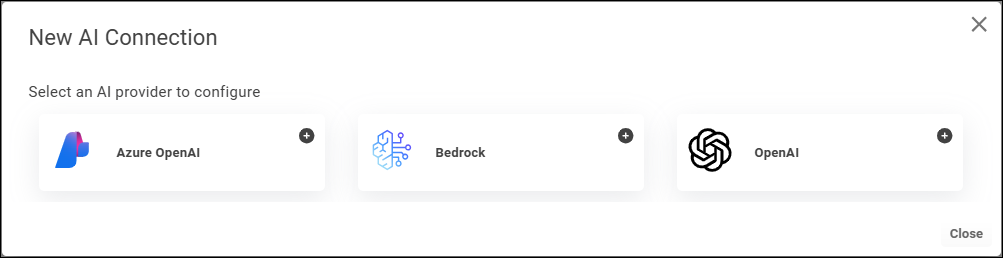
- Select OpenAI.
 The OpenAI Settings appear. The following example shows configured settings.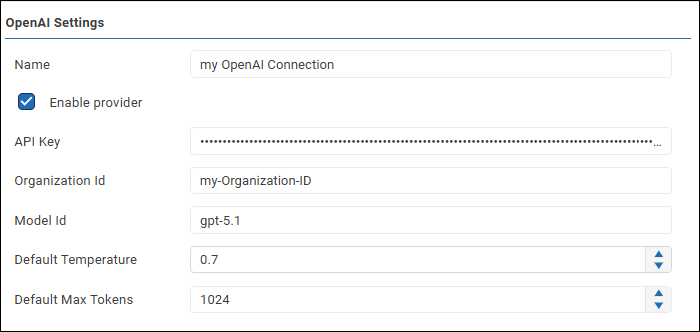
- Configure the following settings as required:
- Name: A name for the connection. Job creators will see this name when they create an AI Generated Insight prompt. It may also appear in messages to report recipients.
- API Key: The secret token required for authenticating to your deployed model.
- Organization Id: A unique identifier for your organization, defined on the OpenAI Platform. This setting is optional.
- Model Id: The name of the model you want the connection to query against. The default model is gpt-5.1.
- Default Temperature: A value between 0 and 2 that controls how random the generated AI responses may be:
- A lower temperature makes the results more deterministic, which is ideal when factual accuracy, consistency, and predicatability are desired.
- A higher temperature makes the results more random, which is ideal when creativity, variety, and originality are desired. The default value is 0.7.
- Default Max Tokens: The default maximum number of AI tokens consumed per AI prompt. The default value is 1024. Job creators can override this value when configuring individual AI Generated Insight prompts. Tip: An AI token is a small chunk of data, such as a word or part of a word, that the AI model processes to understand an AI prompt. AI services typically charge fees based on the number of AI tokens consumed.
- To confirm that the settings are properly configured, select Test Connection.
 If the test fails, edit the settings as required and then test again.
 - Select the Enable provider checkbox.

- Select the Save icon
 to save and apply the settings.
Feedback on this page
Comments, questions, requests, or something missing or unclear? Email us - the page you are on is filled in for you.
Email feedback on this pageOr write to support@reportworq.com directly.