
Overview#
Microsoft Excel supports several different types of data connections, data models, and power query modeling features. These data connections are often used to load relational database data into an Excel Table (List Object), Pivot Table, or Pivot Chart. Reportworq is not currently able to reuse these Excel-defined data connections, but Reportworq does support loading data into a Table or Range using proprietary Reportworq Excel functions, such as RWSQL, that can extract, load, or refresh data from SQL-based datasources such as Microsoft SQL Server, Oracle, DB2, and more.
Because RWSQL functions can dynamically reference values in Excel workbooks, you can use Reportworq Parameters to copy sheets and adjust values referenced in SQL queries in your Excel reports. Reportworq additionally supports SQL-specific Parameter types, driven by SQL queries.
This article describes how to create a Reportworq Datasource connection to an SQL database, via ODBC or OleDB drivers. It includes the following topics:
Prerequisites#
ODBC and OleDB Drivers#
ODBC Connections are the most common SQL connection type because most databases have at least one supported ODBC driver available. OleDB Connections are less common than ODBC and are most commonly used for Microsoft-supported data sources such as Excel and SQL Server.
To create connections to SQL datasources in Reportworq, you must have any required ODBC or OleDB drivers installed and configured on the computer where Reportworq is installed and running. Many databases such as Microsoft SQL Server have ODBC and OleDB drivers, installed by default along with the operating system. Check with your specific database vendor for supported ODBC or OleDB drivers. Download and install them if you do not already have them.
Service Account Configuration#
If your SQL connections need to be defined using a specific domain user account (versus a database-specific username and password), you will need to make sure the Reportworq Server application is configured to run as a user account that has been granted permissions to that database. Information about configuring the Reportworq Service account are available in the Installation article, under Service Settings.
Database Connection Strings#
It is important to understand how to construct the connection string required for the database that you will connect to Reportworq. Connection string syntax for OleDB and ODBC sources have a wide variety of options, too numerous to list here. Different SQL datasources support the following parameters in a connection string, but often with different parameter names:
- Stored vs. trusted credentials (i.e., a user id and password stored in the string versus running as the currently logged-in user)
- Specific drivers and driver versions
- Default database/catalog
- Other driver-specific connection properties
Crafting these strings manually can be very challenging, so included here are a few tips for obtaining a valid connection string to use with Reportworq.
Tip 1: Use Online SQL Connection String Resources#
Because not all drivers and databases are alike, we recommend referring to your specific database's documentation or general connection string reference sources for examples of connection string options. The latter has sample connection strings for practically any SQL datasource, and Reportworq should support any of them, provided you have the specified drivers and use an example for an ODBC or OleDB sample connection string.
Tip 2: Use System or File DSNs#
Another timesaver is to create a System or File Data Source Name (DSN) in Windows for the database connection Reportworq will use. This is done via the 64-bit ODBC Data Source Administrator tool from the computer where Reportworq is installed. The tool provides helpful wizards to define and test connections to databases. The advantage of this approach is that it also helps verify that the driver Reportworq will use is installed and configured properly on the computer.
When using a System or File DSN, Reportworq can be configured using a very simple connection string (compared to non-DSN connection strings). For example, if you've created a DSN called "AdventureWorks", your connection string might look like this:
- Windows Authentication/Trusted Connection: DSN=AdventureWorks;Trusted_Connection=yes
- Specific User ID + Password: DSN=AdventureWorks;Uid=sa;Pwd=EyeLoveRep0rtWORQ!;
Datasource Configuration#
To create a new SQL Datasource via ODBC or OleDB drivers:
- In the Reportworq Administration interface, select the add icon
 beside the Datasources heading. The New Datasource Connection pane appears: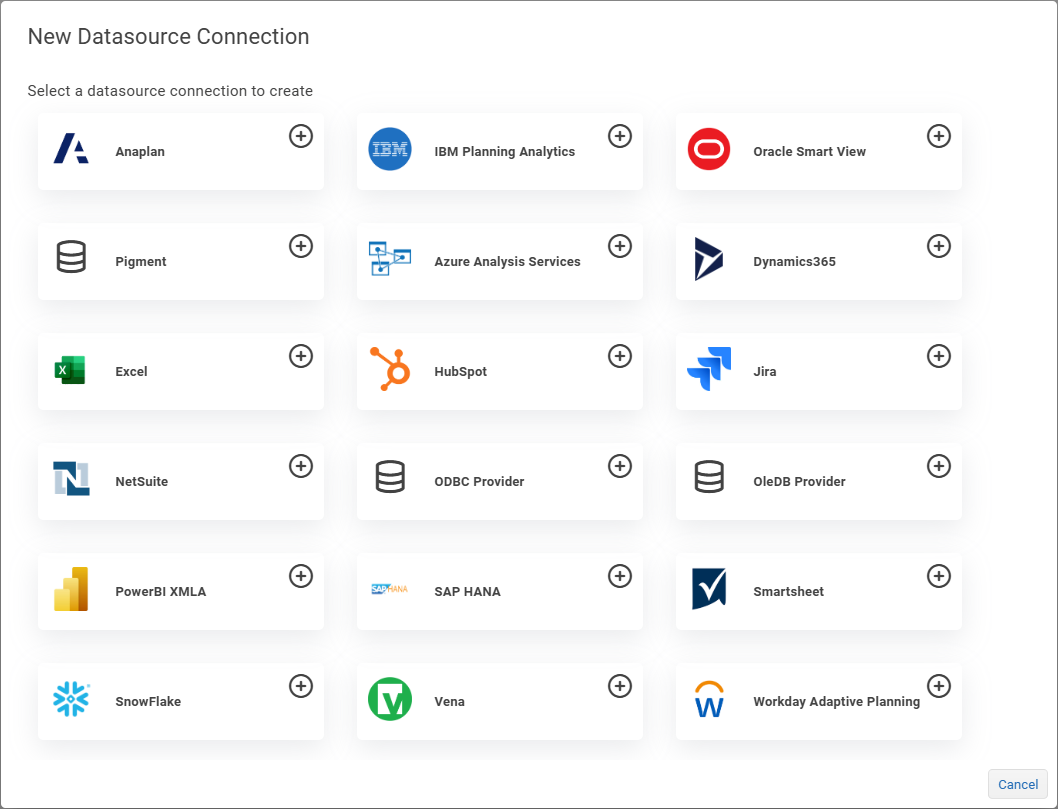
- Depending on the type of drivers used to connect to the SQL database, select the ODBC Provider button or the OleDB Provider button.
 The Datasource configuration interface appears.
 - If you selected ODBC Provider, configure the Datasource Settings as required. The following figure shows an example of completed ODBC Datasource settings.
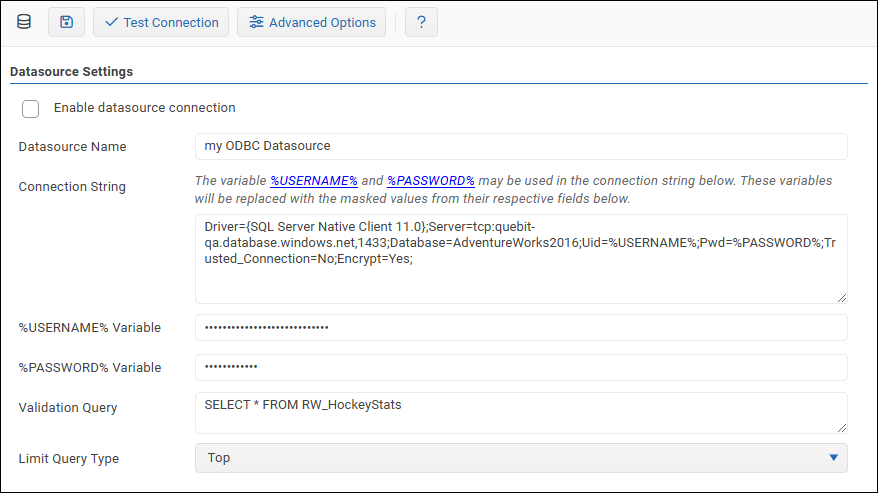
- Datasource Name: This is the name that will be used to identify the connection by Reportworq in RWSQL, RWSQLUPDATE, and RWSQLUPSERT formulas found in Reportworq Excel reports. This name is visible to all Reportworq users when they use Parameters. The Datasource Name must be unique across all Reportworq Datasources.
- Connection String: This is the connection string that Reportworq will use to connect to your database. See Database Connection Strings for more information.
- %USERNAME% Variable and %PASSWORD% Variable: If a username and password are required as part of the connection string, you can use variables to hide the actual credentials, as follows:
- In the connection string, replace the username with %USERNAME% and replace the password with %PASSWORD%".
- In the %USERNAME% Variable box, type the username.
- In the %PASSWORD% Variable box, type the password.
- Validation Query: This is a query that is used by Reportworq to verify that the Connection String is correct.
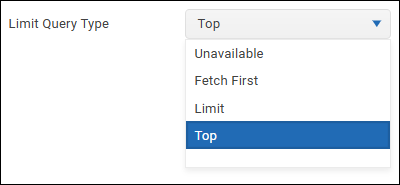
- Limit Query Type: Select the type of query limit syntax that applies to the source SQL database. Query limit syntax restricts the number of rows a query returns. For example, Microsoft SQL Server supports SELECT TOP, whereas MySQL uses LIMIT, and Oracle uses FETCH FIRST n ROWS ONLY. If the database does not support Top, Limit, or Fetch, the select Unavailable.
- If you selected OleDB Provider, configure the Datasource Settings as required. The following figure shows an example of completed OleDB Datasource settings.
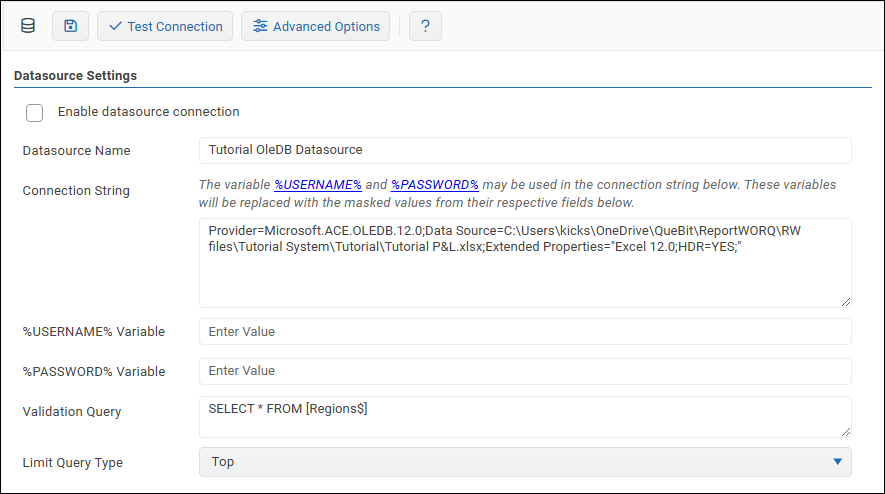
- Datasource Name: This is the name that will be used to identify the connection by Reportworq in RWSQL, RWSQLUPDATE, and RWSQLUPSERT formulas found in Reportworq Excel reports. The connection name must be unique.
- Connection String: This is the connection string that Reportworq will use to connect to your database. See Database Connection Strings for more information.
- %USERNAME% Variable and %PASSWORD% Variable: If a username and password are required as part of the connection string, you can use variables to hide the actual credentials, as follows:
- In the connection string, replace the username with %USERNAME% and replace the password with %PASSWORD%".
- In the %USERNAME% Variable box, type the username.
- In the %PASSWORD% Variable box, type the password.
- Validation Query: This is a query that is used by Reportworq to verify that the Connection String is correct.
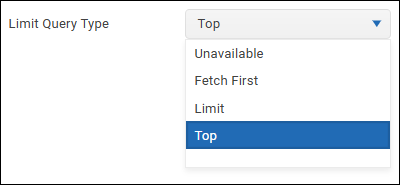
- Limit Query Type: Select the type of query limit syntax that applies to the source SQL database. Query limit syntax restricts the number of rows a query returns. For example, Microsoft SQL Server supports SELECT TOP, whereas MySQL uses LIMIT, and Oracle uses FETCH FIRST n ROWS ONLY. If the database does not support Top, Limit, or Fetch, the select Unavailable.
- To confirm that the settings are properly configured, select Test Connection.
 If the test fails, edit the settings as required, and then test again. For more information, see Troubleshooting Connection Problems.
 - In the Datasource Settings area, select the Enable datasource connection checkbox.
- Select the Save icon
 to save and apply the settings.
To review and configure Advanced Options for an SQL Datasource:
- Select the Advanced Options button.
 The Advanced Options pane appears: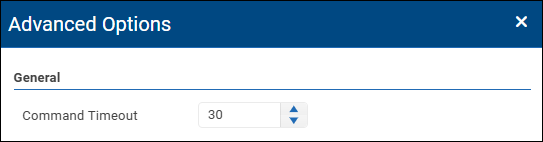
- In the Command Timeout box, specify the number of seconds Reportworq should wait for a query response before timing out. If you want Reportworq to wait indefinitely, set Command Timeout to 0.
- To confirm that the settings are properly configured, select the Test Connection button. If the test fails, edit the settings as required, and then test again.
- Select the Save icon to save and apply the settings.
Troubleshooting Connection Problems#
If you have confirmed that your connection string has valid syntax, the most common reasons SQL connections fail when testing or when running a Reportworq ar as follows:
- The specified driver is incorrect or is not installed on the computer where Reportworq is running. If a driver version is specified, be sure that the connection string specifies the same version.
- The credentials specified for the connection are incorrect.
- The server location is incorrect or firewall settings prohibit you from connecting to that server.
- If you use a trusted connection/Windows authentication, the Reportworq Server service is not running as a user that has access to the data source.
- DSN Connections Only:
- You created a 32-bit connection. You must use the 64-bit version of the ODBC Data Source Administrator tool to define your connection for Reportworq because Reportworq is a 64-bit application. Reportworq cannot detect 32-bit ODBC connections.
- You created a User DSN instead of a System DSN. The Reportworq Server service account may not be able to detect User DSNs.
Parameters Specific to SQL Datasources#
Reportworq has a SQL-specific Parameter type that can be used to select a list of items based on data from SQL Query, for instance, to generate multiple copies of a report for each distinct Product Type in a data warehouse. Please see Creating Jobs for more information about using Parameters in Reportworq.
Feedback on this page
Comments, questions, requests, or something missing or unclear? Email us - the page you are on is filled in for you.
Email feedback on this pageOr write to support@reportworq.com directly.