
Overview#
Google Drive Report Providers are used in Reportworq to access existing folders and files in Google Drive for developing and executing Reportworq report distribution jobs. Each Google Drive Report Provider is linked to a specific Google Drive folder location for a single Google account, which can include Shared Drives visible to the account. Reportworq allows developers to only select folders and files that are in the specified location. Reportworq Supports Google Drive both as a Report Provider Source and a Distribution Target. Reportworq will use a JSON based key from a service account created in Google Workspace. It is expected that this service account will either have read/write access to Shared Drives or with Domain Wide Delegation enabled will have the ability to impersonate users to access their My Drive folders. We recommend the Shared Drives approach as to avoid creating service accounts with Domain Wide Delegation enabled.
Configuration#
The following steps must be performed to enable Reportworq to integrate with Google Drive:
- Create an API Service Account for Reportworq to use, which includes the following steps:
- Create a Google Project with Google Drive API enabled.
- Configure a Service Account.
- Grant access for the API Service Account to a Google Workspace instance.
Create an API Service Account#
Reportworq uses Service Accounts and Impersonation to read documents from Google Drive. This approach is documented here.
The steps to create an API Service account should not need to be repeated unless, for example, you are keeping separate accounts for Development vs. Production access when defining Google Drive Report Providers.
Create a Google Project and enable the Google Drive API#
A Google project is needed to begin:
- Create a Project
- From the newly-created project dashboard, search for and select "APIs & Services"
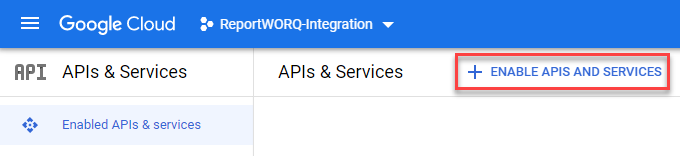
Shows the API & Services page for a sample "Reportworq-Integration" Google Project
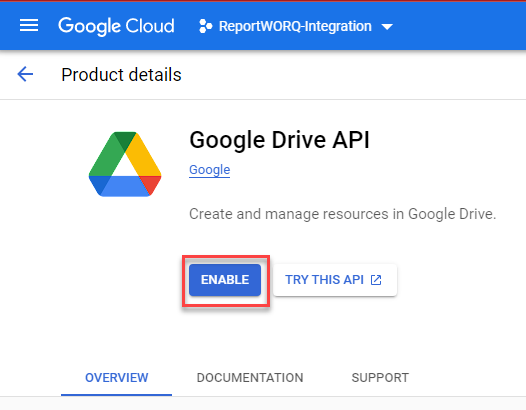
- Click "Enable APIS and Services", select "Google Drive API", then choose "Enable"
Configure an API Service Account#
- Create an API Service Account using the following instructions, making sure to select the previously-created project.
- Edit the newly-created Service Account
- On the Details Tab:
- Record the "Unique ID", which represents the OAuth 2 "Client ID" that is needed in subsequent steps
- On the Keys Tab:
- Choose Add Key > Create New Key
- Choose the JSON Format
- Save the downloaded file for use in the Reportworq Settings >> Distribution screen
Once the API Service Account is created and the API key has been retrieved, you can continue with granting access for this account to your Google Workspace instances.
Grant API Service Account Access to Google Workspace Instances#
These steps will need to be repeated for each Google Workspace instance that contains Google Drive data that Reportworq will need to access:
- Follow these steps.
- Navigate to Google Workspace Administration.
- Choose Security > API Controls > Manage Domain Wide Delegation
- Create an entry with the "Client ID" of the service account
- Add the following scopes that are required for Reportworq Google Drive integration:
Once the above steps are complete, you can create Google Drive Report providers in Reportworq.
Create a Google Drive Report Provider#
In order to add a Google Drive Report Provider to the list of available providers, Reportworq administrators open the Administration screen, then click the '+' button beside Report Providers, and select the Google Drive option. There is no more information to configure, just by adding it to the list of report providers the application folders for each of the enabled IBM Planning Analytics will be available to the user.
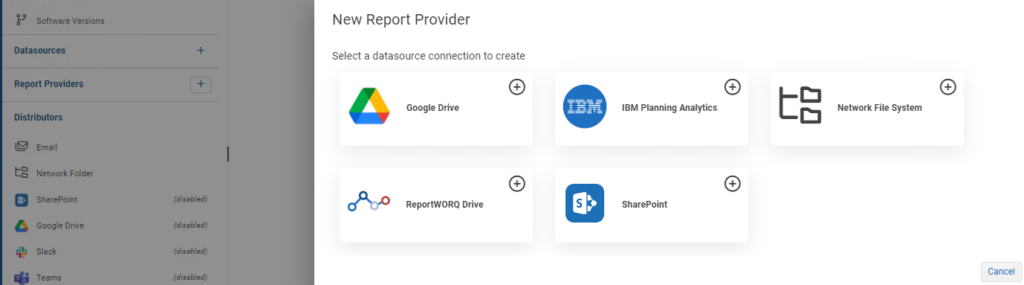
Open the newly created provider to configure it:
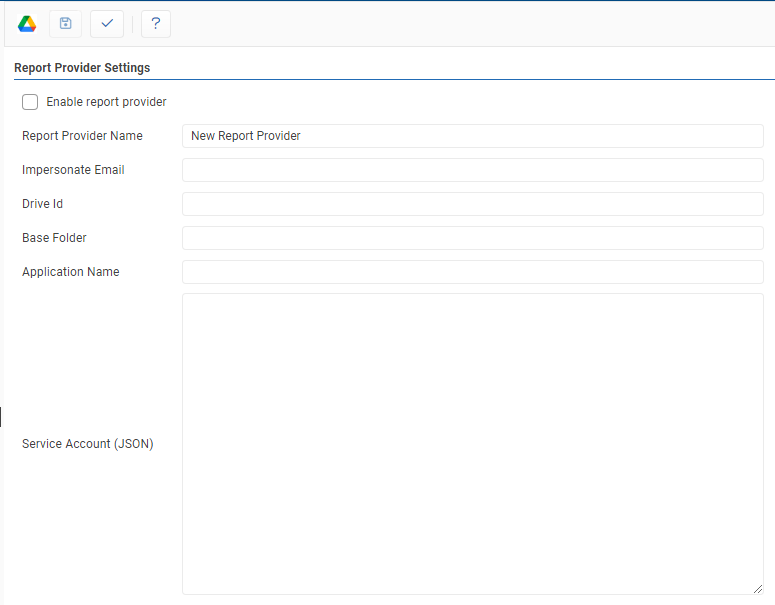
Both the Google Drive Report Provider and the Google Drive Distribution integrations have the following options, however some of the options for distribution will appear in the job screen as opposed to the Integration configuration screen. This is because a Report Provider sources files from one place whereas a Distribution target sends files to multiple places.
- Test: Clicking the '✓' button will either display a success message or show error messages with further information on missing or misconfigured settings.
- Save: the 'Save' saves changes made to the provider.
- Application Name: This is the name of the Google Workspace API application where the service account is created.
- Service Account (JSON) : This is the Authentication credential created in Google Workspace for the service account.
- Test: Clicking the '✓' button will either display a success message or show error messages with further information on missing or misconfigured settings.
- Save: The 'Save' button saves changes made to the provider.
- The Google Drive Report Provider can be enabled or disabled by clicking the checkbox.
The following parameters are all optional and appear for the Google Drive Report Provider or the Job Distribution screen for the Google Drive Distribution target:
- Impersonate Email: When Domain Wide Delegation is enabled this is the email address of the Google Drive user you wish to impersonate. Use this option only when you want to send a file directly to a user's My Drive.
- Drive Id: When sending files to a shared network drive provide the Id of the drive here. This can be found by navigating to the Shared Drive in a browser and copying the Id from the URL. If this parameter is omitted then the file will be sent to the current user's My Drive (either the service account or a user account if Impersonate Email is used). We recommend sending files to a Shared Drive and expect that this field will be supplied.
- Base Folder: This is the Id or Friendly Path of the folder to place the files in. If this field is omitted then files are sent to the root of the Share Drive or My Drive. If an Id is provided that Id can be found by navigating to an existing folder and copying the Id from the URL. If a friendly path is provided it should be in the following format "folder/subfolder/anothersubfolder". Reportworq will automatically create this folder structure if it does not exist.
Feedback on this page
Comments, questions, requests, or something missing or unclear? Email us - the page you are on is filled in for you.
Email feedback on this pageOr write to support@reportworq.com directly.