
Overview#
Reportworq supports the refresh of Excel-based reports created using the Workday Adaptive Planning OfficeConnect Excel add-in. These reports use specifications that are embedded into hidden properties on each worksheet. Reportworq understands these report specifications and can use them to dynamically query data from Workday Adaptive Planning to update Excel worksheets.
Reportworq helps you automate these reports by using Reportworq Parameters to copy sheets and adjust filter elements in the report specifications. In addition, Reportworq can respect and adjust certain workbook properties such as the Relative Start Date. Reportworq additionally supports Workday Adaptive Planning-specific Parameter types, driven by either Workday Adaptive Dimension or Attribute values. Reportworq also provides several proprietary formulas for reading and writing data in Workday Adaptive Planning. These are described in a Technical Article titled, "Excel Functions".
Reportworq supports Adaptive row and column expansions on accounts, levels, time, versions, attributes, and custom dimensions. You can expand to a specified hierarchy depth (1, 2, 3, etc), expand to a leaf level, or expand all. You can control whether the expansion is left, right, up, or down, and optionally exclude rows with no data or uncategorized elements.
Reportworq reads data from the Workday Adaptive Cloud REST API. To optimize performance, Reportworq maintains a local cache of Workday Adaptive Planning metadata once a Datasource connection is configured. The cache is refreshed daily by default. You can also manually refresh the metadata cache from the Datasource's configuration interface.

This article includes the following topics:
Datasource Configuration#
To add and configure a Workday Adaptive Planning Datasource:
- In the Reportworq Administration interface, select the add icon
 beside the Datasources heading. The New Datasource Connection pane appears: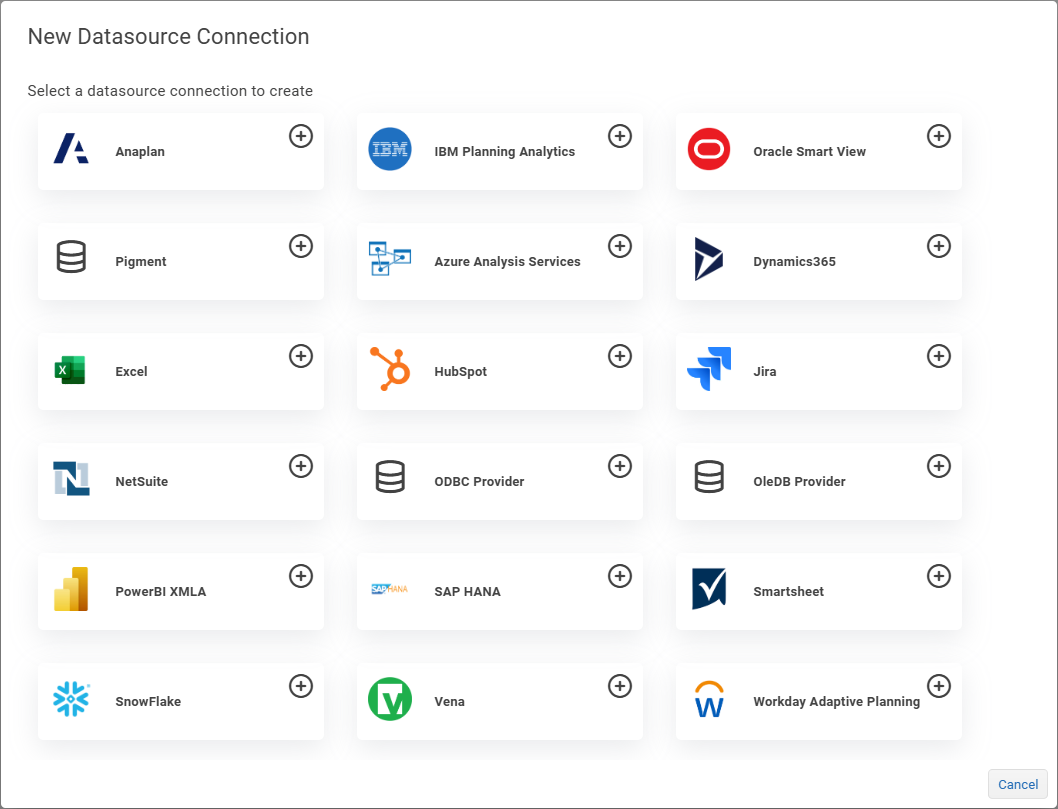
- Select the Workday Adaptive Planning button.
 The Datasource configuration interface appears: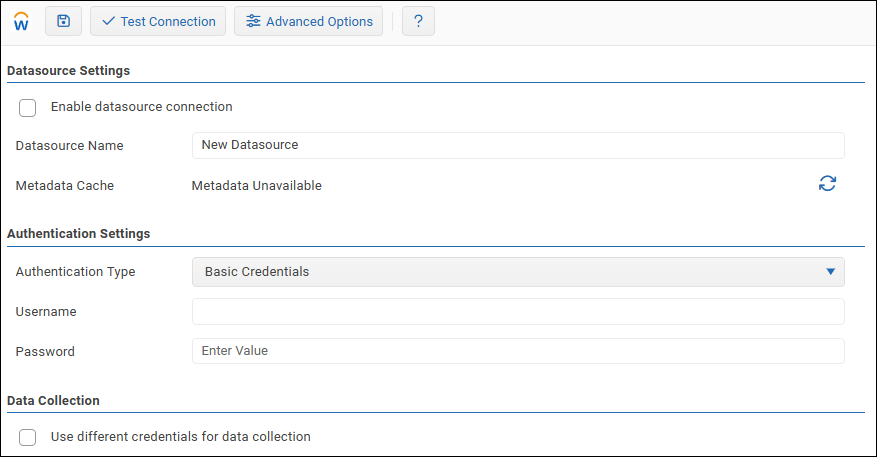
- In the Datasource Settings area, configure the following settings as required:
- Datasource Name: Specify a meaningful name for the Datasource connection. This name is visible to all Reportworq users when they access information related to Workday Adaptive Planning, such as when they use Parameters. The Datasource Name must be unique across all Reportworq Datasources.
- Metadata Cache: Reportworq maintains a cache of the Workday Adaptive dimension structure locally. This allows Reportworq to only retrieve data values during a job run instead of pulling the entire dimension structure. The potential downside is that Reportworq may contain stale dimension structure data. Select the Refresh Metadata icon
 anytime to manually refresh the cache. The time of the most recent refresh is displayed.
- Authentication settings for a Workday Adaptive Planning datasource vary depending on the Authentication Type used. In the Authentication Settings area, select one of the following Authentication Types:
- Basic Credentials
- Adaptive Token
- Workday OAuth
- If you selected Basic Credentials authentication, specify the Username and Password. These distribution credentials are required, and are the same credentials used to authenticate Workday Adaptive OfficeConnect.

- If you selected Adaptive Token authentication, provide the Authentication Token acquired from the Adaptive instance, to authenticate with the Adaptive Workday API.

- If you selected Workday OAuth, configure the following settings:
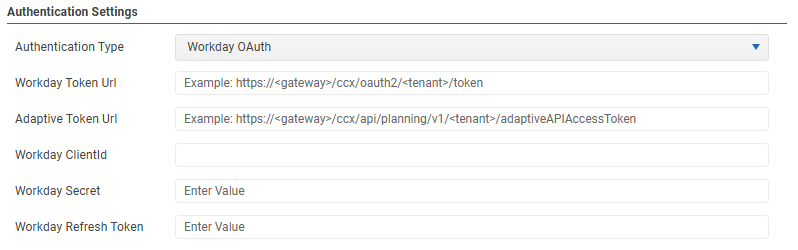
- Workday Token Url: Endpoint where the Workday Access Token is retrieved:
: Workday Gateway : Workday Tenant
- Adaptive Token Url: Endpoint where the Adaptive Access Token is retrieved using the Workday Token:
: Workday Gateway : Workday Tenant
- Workday ClientId: Id of the Workday API application, generated during Workday API access configuration.
- Workday Secret: Secret value permitting access to the Workday API application, generated during Workday API access configuration.
- Workday Refresh Token: Required to continue accessing the Adaptive API after permission expires. The token is generated during Workday API access configuration.
- If you want to Use different credentials for data collection, select that option and then configure the following settings as required. Note: Data Collection settings apply only if your Reportworq implementation includes Data Collection, which is a set of legacy features that remain available only to customers who are already licensed to use them.
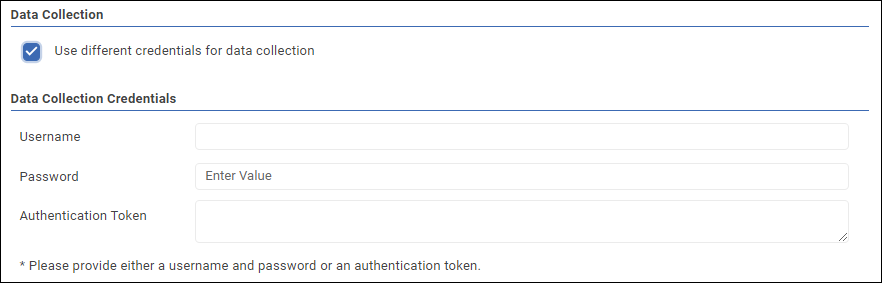
- Username and Password: Data Collection credentials are optional. When enabled, they limit contributor access to specified areas of the system.
- Authentication Token: The token provides an alternative way to authenticate with the Adaptive Workday API. The authentication token is acquired from the Adaptive instance.
- To confirm that the settings are properly configured, select Test Connection.
 If the test fails, edit the settings as required, and then test again.
 - In the Datasource Settings area, select the Enable datasource connection checkbox.
- Select the Save icon
 to save and apply the settings.
To review and configure Advanced Options for a Workday Adaptive Planning Datasource:
- Select the Advanced Options button.
 The Advanced Options pane appears: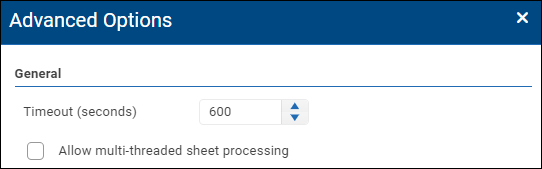
- Review and configure the following settings:
- Timeout: The amount of time, in seconds, before a Reportworq request times out.
- Allow multi-threaded sheet processing
- Close the Advanced Options pane.
- To confirm that the settings are properly configured, select the Test Connection button. If the test fails, edit the settings as required, and then test again.
- Select the Save icon to save and apply the settings.
Parameters Specific to Workday Adaptive Planning#
Reportworq Parameters include a Workday Adaptive Planning Dimension Parameter type, which can be used to define Parameters that do the following:
- Manually select a List of Dimension Elements (the Manual Burst Type option)
- Dynamically source a List of Elements based on an Attribute selection (the Attribute Burst Type option)
This Parameter type also features a display type option that defines which selected items are used at Job runtime:
- Details: include only selected detailed, leaf items, ignoring any consolidated items.
- Consolidation: include only selected consolidated items, ignoring any leaf items.
- Details and Consolidation: include all selected items.
For more information about using Parameters in Reportworq, see Configuring Parameters.
Feedback on this page
Comments, questions, requests, or something missing or unclear? Email us - the page you are on is filled in for you.
Email feedback on this pageOr write to support@reportworq.com directly.