
Overview#
Reportworq can integrate with select Microsoft 365 resources including SharePoint, Teams, Email, and Entra Authentication. To set up authentication between Reportworq and Microsoft 365, you register an Azure app and then authenticate to it using credentials recorded during registration.
Note: By default, the Microsoft account you use to authenticate to Microsoft 365 will also be used by the Reportworq Email Distributor, if configured and enabled. We recommend you create a dedicated Microsoft user account for Reportworq purposes.
This article includes the following sections:
Azure App Registration#
To use Microsoft 365 Authentication with Reportworq you must first register an application in Microsoft Azure.
To register an Azure application:
- Log on to the Reportworq server using an account that has Microsoft Azure Administrator privileges.
- Log into your Azure tenant and create a new App Registration.
- Provide a name for the application and select the appropriate API access.
- Most users choose Accounts in this organizational directory only.
- Do not provide a Redirect URI in this step.
- Record the Application (Client) ID, and Directory (tenant) ID from the Overview area.
- Select Manage > Certificates & secrets from the left pane.
- Create a New client secret with a description and expiry date.
- Set a reminder to create a new secret and update Reportworq before it expires.
- Important: Record the Secret value (not the Secret ID) for use in the Reportworq configuration.
- Select Manage > Authentication from the left pane.
- Select Add a Platform and select Web. Note: Selecting any platform other than Web will not work properly.
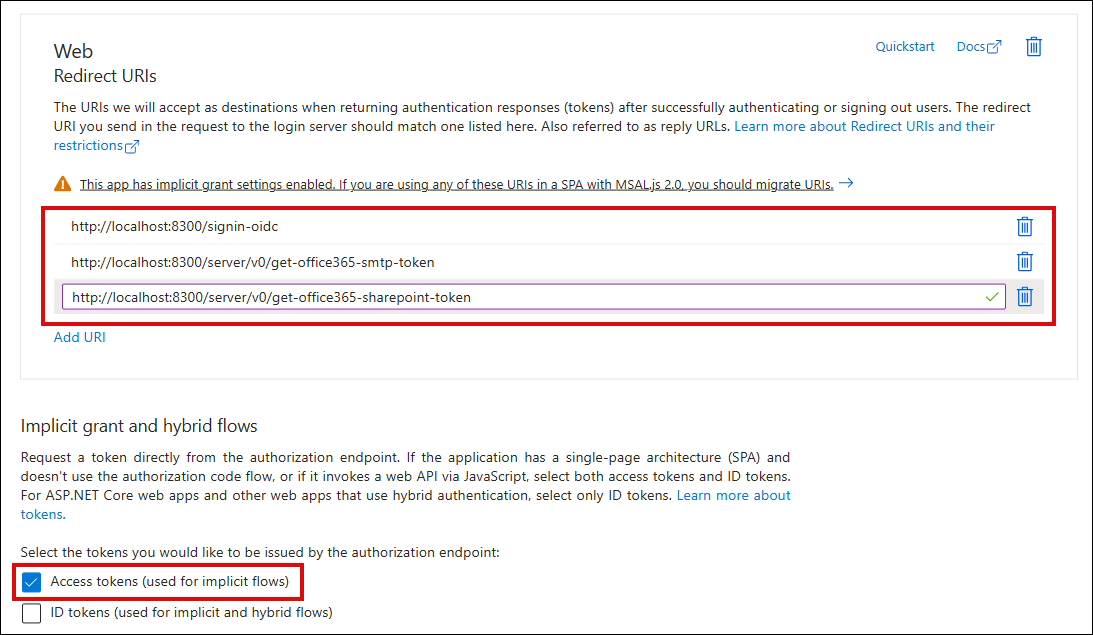
- Select the option to enable Access Tokens.
- Enter the following redirect URI, and then select Configure.
- For each of the following redirect URIs, in the Web area, select Add URI and then enter the URI:
- http://localhost:8300/server/v0/get-office365-smtp-token
- http://localhost:8300/server/v0/get-office365-sharepoint-token
- Select Save.

Microsoft 365 Authentication#
This section describes how to authenticate to Microsoft 365, using credentials you recorded during Azure app registration.
After authentication is established, you can limit authorization scopes (optional).
To authenticate Reportworq to Microsoft 365:
- Log in to a Reportworq Administrator account.
- From the Administration menu, select Microsoft 365.
- In the Provider Settings area, enter the credentials you recorded during Azure app registration (Tenant Id, Client Id and Secret value).
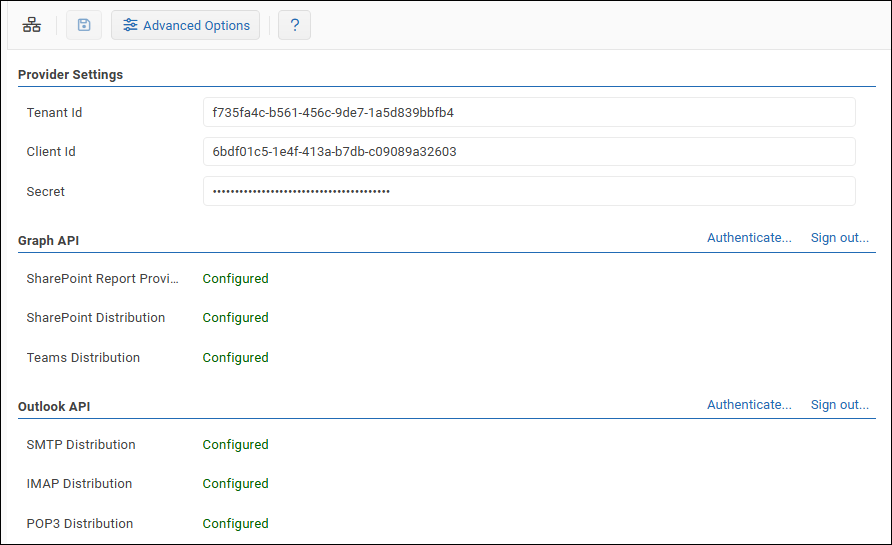
- Save changes.
- In the Graph API area, select Authenticate, and then authenticate to Microsoft 365. If prompted to consent to requested permissions, select Consent on behalf of your organization, and then select Accept.
- In the Outlook API area, select Authenticate, and then authenticate to Microsoft 365.

Limiting Authorization Scopes#
By default, Reportworq requests all authorization permissions (scopes) required to support its full range of integrations with Microsoft 365 applications. For example, Reportworq can be configured to deliver reports via Microsoft Teams or to folders on SharePoint. Your organization may or may not require use of all such integrations.
Some organizational IT policies require access to be strictly limited to required authorizations only. You can view the list of scopes requested by Reportworq and limit the list as required.
Graph Scopes to support Reportworq are as follows:
- Required for Reportworq (mandatory):
- openid -- allows single sign-on (SSO) authentication.
- offline_access -- allows Reportworq to refresh user sign-ons automatically.
- https://graph.microsoft.com/User.Read -- allows Reportworq to access user profile information.
- https://graph.microsoft.com/User.ReadBasic.All -- allows Reportworq to access user profile information.
- Required for Reportworq to use Microsoft Teams:
- https://graph.microsoft.com/Team.ReadBasic.All -- allows Reportworq to read the names and descriptions of teams.
- https://graph.microsoft.com/Channel.ReadBasic.All -- allows Reportworq to read the names and descriptions of channels.
- https://graph.microsoft.com/ChannelMessage.Send -- allows Reportworq to send messages to Teams channels.
- https://graph.microsoft.com/Chat.Create -- allows Reportworq to create new chats.
- https://graph.microsoft.com/Chat.ReadWrite -- allows Reportworq to send messages in chats.
- https://graph.microsoft.com/Files.ReadWrite.All -- allows Reportworq to read and write the files it delivers.
- Required for Reportworq to use Microsoft SharePoint:
- https://graph.microsoft.com/Sites.Read.All -- allows Reportworq to read SharePoint sites.
- https://graph.microsoft.com/Sites.ReadWrite.All -- allows Reportworq to read and write SharePoint site content.
- https://graph.microsoft.com/Files.ReadWrite.All -- allows Reportworq to read and write the files it delivers.
- Required for Reportworq to use Graph Email for report distribution:
- https://graph.microsoft.com/Mail.Send -- allows Reportworq to send email as the signed-in account.
- https://graph.microsoft.com/Mail.Send.Shared -- allows Reportworq to send email on behalf of another account.
- https://graph.microsoft.com/Mail.Read -- allows Reportworq to read mail in the signed-in account's mailbox (used by Data Collection inbox monitoring).
- https://graph.microsoft.com/Mail.ReadWrite -- allows Reportworq to read and delete mail in the signed-in account's mailbox.
- Required for Reportworq to monitor a specific mailbox with Data Collection (Graph):
- https://graph.microsoft.com/Mail.Read.Shared -- allows Reportworq to read mail in a mailbox the signed-in account has been granted access to. Only needed when Data Collection is set to monitor a specific mailbox rather than the signed-in account's own; that account must also have Full Access to the target mailbox.
- https://graph.microsoft.com/Mail.ReadWrite.Shared -- additionally allows Reportworq to delete processed messages from that mailbox. Only needed when monitoring a specific mailbox with the Delete messages option enabled.
Microsoft 365 scopes required for using legacy Outlook functionality (POP, IMAP, and SMTP Email) are as follows:
- openid
- offline_access
- https://outlook.office.com/IMAP.AccessAsUser.All
- https://outlook.office.com/POP.AccessAsUser.All
- https://outlook.office.com/SMTP.Send
To limit authorization scopes:
- In Administration > Microsoft 365, select the Advanced Options button.
 The Advanced Options pane appears, listing authorization scopes in two groups, Graph API and Microsoft 365.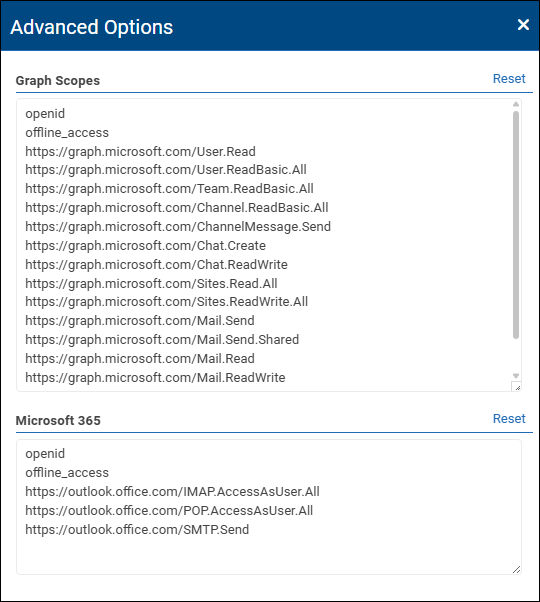
- In the list of scopes, delete the ones you do not want enabled. Note which scopes you removed. Tip: To restore the list to the default (all scopes), select Reset.
- Close the Advanced Options pane.
- For each group of scopes you edited (Graph API and/or Outlook API), do the following:
- Select Sign out.
- Select Authenticate, and then sign in.
- In Azure App Registration, navigate to Manage > API permissions, and do one of the following for each of the scopes you removed:
- If you want to allow Reportworq Administrators to add the scope again in the future, select Remove permission.
- If you want to prevent Reportworq from adding the scope again in the future, select Revoke admin consent.
Microsoft 365 Services#
This step should be performed by the Reportworq Administrator
With the Azure App Registration created and the Reportworq Microsoft 365 configuration applied and authenticated, you can now begin to leverage Microsoft 365 for the following services:
- Authentication
- Report Providers
- Distributors
- Data Collection
Feedback on this page
Comments, questions, requests, or something missing or unclear? Email us - the page you are on is filled in for you.
Email feedback on this pageOr write to support@reportworq.com directly.