
Overview#
Reportworq 5 has no built-in high availability, but everything it knows is stored as ordinary files. That makes a warm standby straightforward: a second server has Reportworq installed and its service stopped, and your own replication tool keeps a copy of the right files on it. If the primary server is lost, you start the service on the standby and point users at it.
Only one server runs at a time. Reportworq does not coordinate between servers, so if both run against copies of the same schedules, each one runs every job. See Keeping schedules from running twice.
We ran the full failover, sign-in, history, credentials and failback steps on version 5.0.2.619, and the scheduler and ping checks on version 5.0.0.93, with both copies on one Windows machine. Your servers, network and license key will differ, so rehearse a failover before you rely on it.
What to replicate#
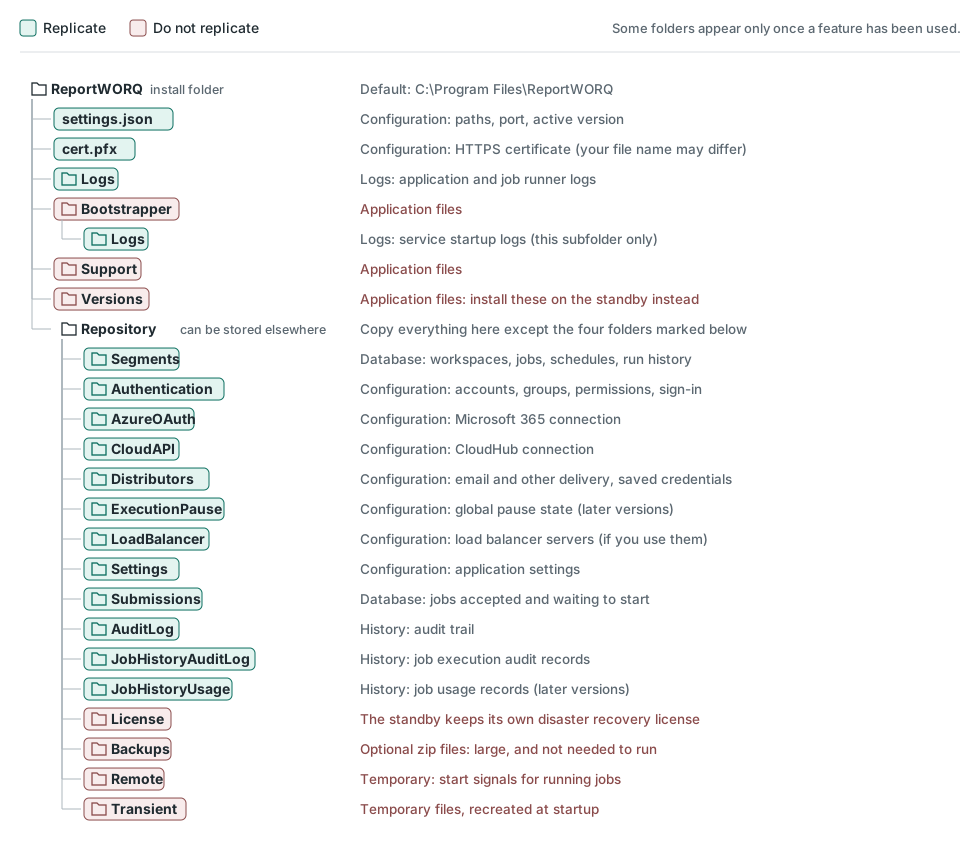
The rule is short:
- Replicate the whole
Repositoryfolder exceptLicense,Backups,RemoteandTransient. - From the install folder, replicate
settings.json, your certificate file,LogsandBootstrapper\Logs. - Leave out everything else in the install folder.
Set up the Repository copy as a list of exclusions rather than a list of folders to include. Some folders appear only after a feature is first used, and a newer version can add more. An exclusion list picks these up without any change on your side.
| Replicate | What it holds |
|---|---|
Repository\Segments |
Workspaces, jobs, schedules and run history |
Repository\Authentication |
Accounts, groups, permissions and sign-in settings |
Repository\Distributors |
Email and other delivery settings, with their saved credentials |
Repository\Settings |
Application settings |
Repository\Submissions |
Jobs accepted and waiting to start |
Repository\AzureOAuth |
Microsoft 365 connection |
Repository\CloudAPI |
CloudHub connection |
Repository\LoadBalancer |
Load balancer servers |
Repository\ExecutionPause |
Global pause state (in versions that have this feature) |
Repository\AuditLog |
Audit trail |
Repository\JobHistoryAuditLog |
Job execution audit records |
Repository\JobHistoryUsage |
Job usage records (in versions that have this feature) |
settings.json |
Repository path, port, certificate path and active version |
| Certificate file | The HTTPS certificate named by CertificateFile in settings.json, usually cert.pfx |
Logs |
Application and job runner logs |
Bootstrapper\Logs |
Service startup logs |
| Do not replicate | Why |
|---|---|
Repository\License |
The standby keeps its own disaster recovery license. See Setting up the standby |
Repository\Backups |
Optional zip files. They are large and Reportworq does not need them to run |
Repository\Remote |
Temporary signals that start running jobs |
Repository\Transient |
Temporary files, recreated at startup |
Versions |
Application files. The standby has its own copy |
Bootstrapper (apart from Logs) |
Application files |
Support |
Application files |
Do not leave out Repository\Distributors. Without it, jobs still run and can report success, but they have no delivery settings and deliver nothing.
Also copy these if you use them, since they live outside the folders above:
- Report templates stored on the server's local disk.
- Custom fonts installed on the server.
- Local folders that jobs write output to.
Setting up the standby#
- Ask Reportworq support (support@reportworq.com) for a disaster recovery license key for the standby.
- Install the same Reportworq version on the standby, using the same install path and repository path as the primary.
settings.jsonstores the repository and certificate paths, so if the paths have to differ, keep a separatesettings.jsonon each server and do not replicate it. An emptyRepositoryPathmeans theRepositoryfolder in the install folder, and a relativeRepositoryPathorCertificateFileis read from the install folder. - Set the
ReportWORQ Bootstrap Serviceservice to the same logon account as the primary. - Start the service once with its empty repository, sign in as an administrator, select the license link in the page footer and activate the disaster recovery key. This writes
Repository\Licenseon the standby. - Stop the service and set its startup type to Disabled or Manual, so that a restart of the server cannot start it by accident.
- On the primary, set Web App Host in the configuration settings to the DNS alias users connect to, and make sure the HTTPS certificate covers that alias. See Web App Host. This setting is replicated, and job runners use it to reach the web application, so it must not name the primary server.
- On each server, add an entry to
C:\Windows\System32\drivers\etc\hoststhat maps the alias to that server itself (127.0.0.1, or the server's own address). Job runners and contribution sessions run in separate processes and connect to the web application at Web App Host, on Web App Port plus 1, over plain TCP. The hosts entry makes each server's runners reach its own web application, including while DNS still points at the other server during a failover or a rehearsal. - Start replicating.
Do not press Release on the license screen of either server unless you mean to deactivate that server's license.
Replicating the files#
Any tool that copies changed files will do. Choose how often it runs by how much recent work you can afford to lose, because anything since the last copy is lost in a failover. The files can be copied while Reportworq is running, and we saw no locked files when we did. Reportworq does not pause its writes for a copy, though, so a file being written at that moment can arrive incomplete until the next copy replaces it.
This example uses Windows robocopy from the primary. It assumes the default install path and a share named ReportWORQ on the standby:
set SRC=C:\Program Files\ReportWORQ
set DST=\\STANDBY\ReportWORQ

set FAILED=0

robocopy "%SRC%\Repository" "%DST%\Repository" /MIR /R:2 /W:5 ^
  /XD "%SRC%\Repository\License" "%DST%\Repository\License" ^
      "%SRC%\Repository\Backups" "%DST%\Repository\Backups" ^
      "%SRC%\Repository\Remote" "%DST%\Repository\Remote" ^
      "%SRC%\Repository\Transient" "%DST%\Repository\Transient"
if %ERRORLEVEL% GEQ 8 set FAILED=1

robocopy "%SRC%" "%DST%" settings.json cert.pfx /R:2 /W:5
if %ERRORLEVEL% GEQ 8 set FAILED=1

robocopy "%SRC%\Logs" "%DST%\Logs" /E /R:2 /W:5
if %ERRORLEVEL% GEQ 8 set FAILED=1

robocopy "%SRC%\Bootstrapper\Logs" "%DST%\Bootstrapper\Logs" /E /R:2 /W:5
if %ERRORLEVEL% GEQ 8 set FAILED=1

exit /b %FAILED%
Things to know about this example:
/MIRdeletes from the standby whatever the primary does not have. List each excluded folder by its full path on both servers, as above. That is what protects the standby'sLicensefolder. A bare folder name would match any folder with that name, anywhere in the tree.robocopyexit codes below 8 mean success, so exit code 1 or 3 is not a failure. The script checks each copy and exits with 1 if any of them failed. Have your scheduler alert on that, so that a failing copy does not go unnoticed.- Change
cert.pfxto the name of your certificate file. If the name is wrong, the certificate is not copied and HTTPS will not work on the standby.robocopystill exits with 0 when the file is missing, so check once that the certificate has arrived on the standby. - If your repository is stored elsewhere, change the
Repositorypaths to match.
The address users connect to should be a DNS alias or a front door service rather than a server name, so that you can move it. A load balancer or front door used for this address must also pass Web App Port plus 1 through as raw TCP. A front door that carries only HTTP breaks job runs on any server whose runners reach the web application through it, so keep the hosts entry from Setting up the standby on both servers.
Failing over#
- Stop the primary. Stopping the service ends any job that is running. If it is reachable, stop its service, run one last copy, and set the service startup type to Disabled. A service that shows as stopped does not prove that the web application has stopped. See Automating the failover.
- Turn off replication. A copy that runs after the standby goes live overwrites it and deletes everything created since the failover.
- If the primary is down, keep it from coming back on its own. The Reportworq service starts automatically by default, and a primary that restarts runs every schedule alongside the standby. Disable the service, and the scheduled copy if it runs from the primary, before that server rejoins the network.
- On the standby, check that its hosts file maps the alias to the standby itself. If you are licensed for contribution campaigns, pause them first, as the next section explains. Turn the schedulers off with the script in the next section, then enable and start
ReportWORQ Bootstrap Service. In our test it answered in about 35 seconds from a cold start, and within 7 seconds once warm. - Point the user address at the standby. Its job runners already reach it through the hosts entry, so they do not wait for DNS to change. If the address changes, add the new redirect address at your identity provider.
- Sign in, and check that your workspaces, jobs and history are there.
- Run a job and confirm that the file or email actually arrives.
- Turn the schedulers back on, at the time you choose from the next section.
What to expect afterward:
- Recent work. Anything changed since the last copy is gone.
- Schedules. See Keeping schedules from running twice.
- Running jobs. A job that was running when the primary failed is not resumed, and it leaves no history or failure record. It may have delivered part of its output, so check what arrived before you run it again.
- Waiting jobs. A job that had been accepted but not yet started when the last copy ran starts again on the standby, even if the primary already ran it.
- Pause. In versions that have the global pause, a pause in place on the primary carries over.
- Sign-in. Users can sign in as usual. Saved credentials and the HTTPS certificate work on the standby.
- Logs. The standby starts new log files with a new number rather than adding to the copied ones.
Keeping schedules from running twice#
Schedules are stored as files in Repository\Segments, so they replicate with everything else, including whether each one is enabled. In our test, when both servers ran, each one ran the same schedule on its own, about 14 seconds apart. Any report would have gone out twice.
Keep the standby's service stopped. This is the only protection you need day to day, because a stopped service runs nothing. There is no need to change your schedules.
Do not edit individual schedule files. The next copy overwrites them, and each schedule keeps its last run time in the same file.
Use the scheduler switch when you start the standby. Each workspace has one Enable Scheduler Service setting, stored as plain JSON in Segments\<workspace>\ScheduleSettings\settings.json. Replication sets it to the primary's value, and a workspace with no file counts as on, so set it each time rather than relying on what the standby has. This script sets it for every workspace: off unless you add -Enable. It stops with an error if it finds no workspace to set, for example because the repository path is wrong. Save it on the standby as C:\Scripts\Set-ReportworqScheduler.ps1, outside the replicated folders:
param(
    [Parameter(Mandatory)][string]$Repository,
    [switch]$Enable
)
$ErrorActionPreference = 'Stop'
$value = if ($Enable) { 'true' } else { 'false' }
$json  = "{`r`n  `"SerializedName`": `"SchedulerSettings`",`r`n  `"Enabled`": $value`r`n}"
$utf8  = New-Object System.Text.UTF8Encoding($false)   # no byte order mark
$count = 0
foreach ($ws in Get-ChildItem (Join-Path $Repository 'Segments') -Directory) {
    $dir = Join-Path $ws.FullName 'ScheduleSettings'
    New-Item -ItemType Directory -Path $dir -Force | Out-Null
    [System.IO.File]::WriteAllText((Join-Path $dir 'settings.json'), $json, $utf8)
    "$($ws.Name): Enabled = $value"
    $count++
}
if ($count -eq 0) { throw "No workspaces found in $Repository\Segments. Nothing was set." }
Then start the standby with its schedulers off. Save these lines as a script too, or use them as the start of your own automation, so that an error stops them before the service starts:
$ErrorActionPreference = 'Stop'
$script  = 'C:\Scripts\Set-ReportworqScheduler.ps1'
$repo    = 'C:\Program Files\ReportWORQ\Repository'
$service = 'ReportWORQ Bootstrap Service'

& $script -Repository $repo            # schedulers off
Set-Service $service -StartupType Automatic
Start-Service $service
When you are ready, turn them on:
$ErrorActionPreference = 'Stop'
$script  = 'C:\Scripts\Set-ReportworqScheduler.ps1'
$repo    = 'C:\Program Files\ReportWORQ\Repository'
$service = 'ReportWORQ Bootstrap Service'

Stop-Service $service -Force
& $script -Repository $repo -Enable    # schedulers on
Start-Service $service
From a scheduler or cmd, the same call is powershell -ExecutionPolicy Bypass -File C:\Scripts\Set-ReportworqScheduler.ps1 -Repository "C:\Program Files\ReportWORQ\Repository", with -Enable added to turn them on.
The service reads this file when it starts, so a change to the file takes effect only after a restart. To avoid the restart, you can select Enable Scheduler Service in the configuration settings of each workspace instead. If you keep the scheduler off in a workspace on purpose, set it back off afterward, because the script turns on all of them.
Choose when to turn the schedulers on. The standby works from the last run times in the last copy, so a schedule that ran on the primary after that copy looks as though it was missed. When the schedulers come on, a missed run is skipped only when it is more than 30 whole minutes late, so a schedule that was due up to about 31 minutes ago still runs right away. One that was due longer ago is skipped and waits for its next time. The standby judges this by its own clock, so both servers must take their time from the same source. That gives you a choice:
| What matters most | When to turn the schedulers on | What it costs |
|---|---|---|
| No report goes out twice | At least 35 minutes after the primary stopped | Schedules due before then are skipped. Run the ones you need by hand |
| No report is missed | Straight away, or leave them on when you start the standby | Schedules that ran on the primary after the last copy can run again, and recipients get those reports twice |
The 30 minutes count from when the schedule was first due, so a frequent schedule is skipped after a long outage too. Copying more often makes the possible duplicates fewer in either case.
Pause contribution campaigns, because the scheduler switch does not stop them. If you are licensed for contribution campaigns, the standby checks campaign schedule triggers every minute from the moment it starts. A one-time trigger fires if the last copy did not carry the primary's record that it already fired, and a recurring trigger follows the same 30-minute rule as schedules. So before you start the standby, pause your campaigns, or accept that a reminder can go out twice.
Rehearse with the schedulers off. If the primary stays up during a rehearsal, turn replication off, and before you start the standby, empty its Repository\Submissions folder. Then start it with the steps above, and leave its schedulers off. If you use CloudHub, the standby takes CloudHub routing from the primary when it starts, so turn CloudHub off on the standby and restart the primary's service after the rehearsal to take the routing back. If you use contribution campaigns, the schedulers being off does not protect them, so pause the campaigns or rehearse only while the primary is stopped. Jobs you run by hand on the standby still deliver, so point them at a test destination. Turning replication back on afterward replaces what the rehearsal changed.
Do not run the standby while the primary is live, outside a rehearsal set up as above. Even with its schedulers off, a running standby finds job submissions copied from the primary that are not yet in its own job history, and runs them within 5 minutes. It also registers with CloudHub when it starts, and takes CloudHub routing from the primary until the primary restarts.
Automating the failover#
Reportworq does not fail over on its own, but your monitoring tool can run the steps above. The hard part is knowing that the primary has really stopped, because the obvious signals can mislead. We put a test server into each of these states and checked every signal:
| State of the primary | Service state | Web application process | Port accepts a connection | Page answers |
|---|---|---|---|---|
| Healthy | Running | Running | Yes | Yes |
| Web application frozen | Running | Running, reported as responding | Yes | No, it times out |
| Web application crashed | Running | Gone, and not restarted | No | No |
| Service process ended | Stopped | Still running | Yes | Yes |
| Service stopped normally | Stopped | Gone | No | No |
We simulated the freeze by suspending the process. When we resumed it, the page answered straight away, from the same process, with no restart.
That leads to four rules:
- To see whether it is working, call the API's
ping. Turn on the Reportworq API, then have your monitor requesthttps://<server>:<port>/api/v1/pingwith the workspace's access token in anaccessTokenheader. Require HTTP 200 withPongin the body, within a timeout. A check that only opens the port passes on a frozen server. If your monitor cannot send a header, requesthttps://<server>:<port>/instead. It behaved the same aspingin all our tests, but every unknown address on the site returns that page with HTTP 200, so a mistyped path looks healthy. - Treat only a missing answer as an outage. A timeout, a refused connection or a server error means the server is in trouble. HTTP 400 means it is answering and rejected the request, for example because the token was reset or the API was turned off. Send an alert for that, and do not fail over.
- To see whether it has stopped, look for the process. The primary has stopped only when
QueBIT.ReportWORQ.WebApp.exeis gone. The service state does not tell you this: it says Running after a crash, and it can say Stopped while the web application is still running and able to run schedules. - Do not leave a frozen primary as it is. It can come back at any moment and go back to running schedules alongside the standby, so stop it before you start the standby.
Know what ping does not tell you. It shows that the web application answers, not that jobs and schedules are healthy: in our test it kept answering while the repository folder was unreadable. The access token is also a full API credential that can run jobs, so store it in your monitor as a secret. The token is kept in the replicated files, so the same one works on the standby after a copy, and resetting it on the primary changes it on the standby at the next copy.
This script stops a primary in any of those states and tells you whether it worked. It disables the service, stops it, ends anything still running from the install folder or named QueBIT.ReportWORQ.WebApp.exe, and exits with 0 only if the service is stopped and nothing is left. Run it as an administrator on the primary, or remotely with Invoke-Command. Save it as Stop-ReportworqServer.ps1:
#Requires -RunAsAdministrator
param([string]$Install = 'C:\Program Files\ReportWORQ')
$ErrorActionPreference = 'Stop'
$Install = $Install.TrimEnd('\')
$service = 'ReportWORQ Bootstrap Service'

# Matched by name as well as path: a process whose path cannot be read
# still counts as running
function Get-Leftover {
    Get-CimInstance Win32_Process | Where-Object {
        $_.Name -eq 'QueBIT.ReportWORQ.WebApp.exe' -or
        ($_.ExecutablePath -and $_.ExecutablePath -like "$Install\*")
    }
}

Set-Service $service -StartupType Disabled      # so that nothing can restart it
sc.exe stop $service | Out-Null

$deadline = (Get-Date).AddSeconds(30)
while ((Get-Service $service).Status -ne 'Stopped' -and (Get-Date) -lt $deadline) {
    Start-Sleep -Seconds 1
}

# A frozen service may not stop, and a process can outlive its service
Get-Leftover | ForEach-Object {
    Stop-Process -Id $_.ProcessId -Force -ErrorAction SilentlyContinue
}
Start-Sleep -Seconds 3

$left = @(Get-Leftover)
if ((Get-Service $service).Status -eq 'Stopped' -and $left.Count -eq 0) {
    'Stopped'; exit 0
}
'NOT confirmed stopped'; exit 1
In our test it took a few seconds in most states, and about a minute when the service itself was frozen.
Put together, the automation looks like this:
- Decide from repeated failures. Require several failed requests in a row, over several minutes, with a generous timeout. Check from the standby's side as well as from your monitor, so that a network fault between the monitor and the primary does not count as an outage. Pause the monitor for planned work, such as Windows patching and Reportworq upgrades.
- Try a restart first, if you can reach the server. A restart loses nothing, and a failover loses recent work and can send reports twice. In our test, restarting the service recovered both a crash and a freeze within seconds. Check again before going further.
- Stop the primary, and confirm it. Run the script and go on only if it exits with 0.
- If you cannot reach the server, do not assume it is down. A server that is only cut off from your network keeps running schedules and sending reports. Power it off through your hypervisor or cloud console and confirm that it is off, or have a person decide.
- Turn off replication. A scheduled copy does not depend on Reportworq, so it keeps running when the web application has frozen or crashed. Disable it as part of the failover.
- Start the standby, and move the address. Choose how to treat schedules from the table above. Without a person involved, either leave the schedulers on and accept possible duplicates, or start with them off and schedule the turn-on step for 35 minutes later.
- Alert a person every time, to sign in and confirm that a job delivers.
If the primary cannot be confirmed stopped, send an alert and do not start the standby. Two running servers send every report twice, and that is harder to undo than a longer outage. For the same reason, consider automating everything up to step 6 and having a person approve the start.
We tested these signals and the script on one machine. Your monitoring tool, the remote call and the power-off step are yours to build, so rehearse them, including a server that is frozen rather than stopped.
Upgrading#
settings.json names the active version. If the standby does not have that version, Reportworq does not stop or warn you: it starts the v5 version folder that was most recently modified, which is not necessarily the highest version, and writes only an information line in the log. So the version the primary uses must also be on the standby, and the standby should keep only that one version folder under Versions.
To upgrade:
- Turn off replication.
- Upgrade the primary.
- Copy the primary's new folder under
Versionsto the same place on the standby, and remove the old version folder there. - Turn replication back on.
The order matters, because replication carries the new active version and any repository changes. Do not start the standby to upgrade it, because it would run your schedules. If you run the installer on the standby instead of copying the folder, the installer starts the service and sets it to Automatic: as soon as it finishes, stop the service and set it back to Manual or Disabled. If you upgrade while the standby is live, copy the new folder back to the primary before you fail back.
Replicating in the other direction#
Once the standby is live, it holds the only current copy of your data, so you will want to protect it by copying back to the primary. This does not start by itself, and we recommend making it a deliberate step rather than part of an automated failover:
- Confirm that the primary is stopped and disabled, and that the original copy is turned off. See Automating the failover.
- Save what only the primary has. If its disk survived, it holds whatever changed after the last copy.
/MIRfrom the standby deletes all of that, so copy the primary'sRepositoryfolder somewhere safe first. This is the main reason not to start the reverse copy automatically. - Run the same copy from the standby, with
SRCandDSTswapped and the same exclusions. Never copyLicensein either direction.
If the primary is lost or still being repaired, there is nothing to copy to, so protect the standby some other way until it returns. We tested a single copy back rather than a repeating one, so include a repeating copy in your rehearsal.
Failing back#
- Stop the service on the standby, and confirm that the primary is stopped too.
- Copy the same list of files from the standby to the primary, with the same exclusions. If a reverse copy is running, this is one last run of it. Then turn it off.
- Set the primary's service back to Automatic, make sure its schedulers are on, start it, and point the user address back. The copy carries over the state the standby had, so if the standby's schedulers were off, run the script on the primary with
-Enablefirst. - Disable the standby's service and turn normal replication back on, from the primary to the standby.
Not covered here#
- This page is about one active server and one stopped copy. It does not cover load balancing.
- The backups in
Repository\Backupsare not a substitute for replication. They leave out the audit log, job execution files and contribution history, and they include the primary'sLicensefolder.
Feedback on this page
Comments, questions, requests, or something missing or unclear? Email us - the page you are on is filled in for you.
Email feedback on this pageOr write to support@reportworq.com directly.