
A Reportworq Datasource is a set of connection credentials that provide access to a data source. When a Distribution Job runs or Contribution input forms are generated, Reportworq uses Datasource credentials to retrieve fresh report data as required.
Data originates from an SQL database or from a supported forecasting and reporting system that generates reports in Excel format, such as IBM Planning Analytics PAfE, Anaplan, Oracle EPM, or Workday Adaptive Planning. Reportworq reads report specifications embedded within the Excel-based reports, and uses them to dynamically query the underlying data source.
This article includes the following topics:
Adding and Configuring Datasources#
Only Reportworq Administrators can add or configure Datasources.
To add a new datasource:
- In the Reportworq Administration interface, select the add icon
 beside the Datasources heading. The New Datasource Connection pane appears: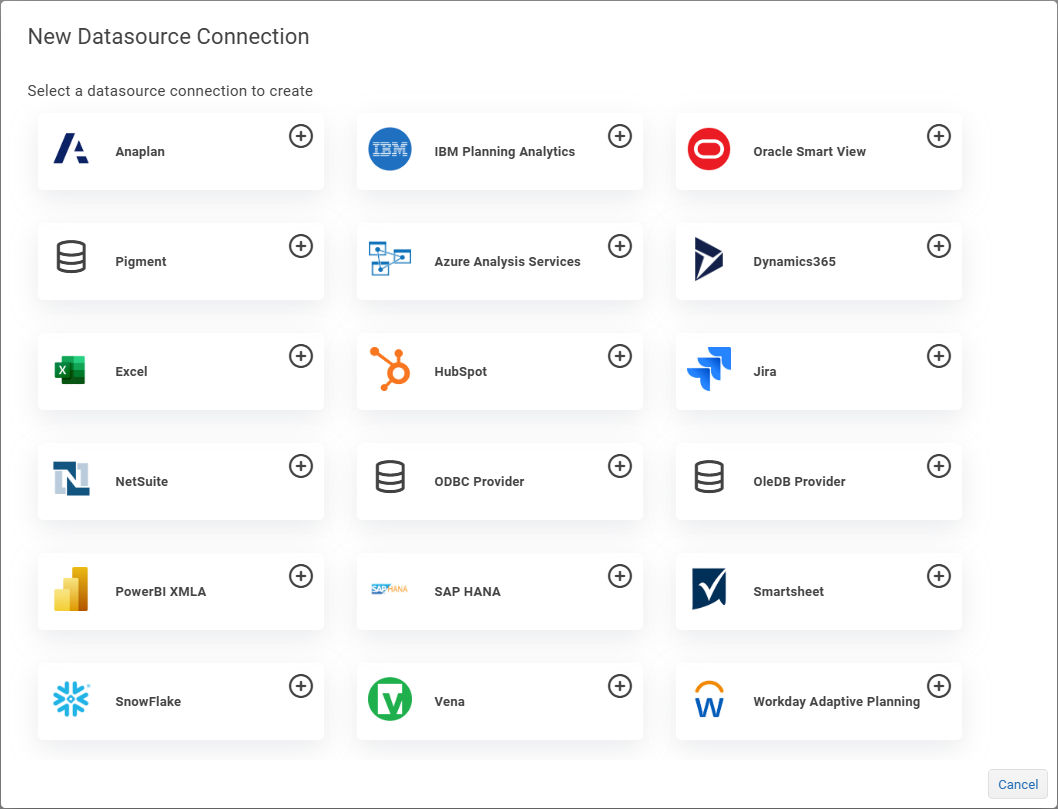
- Select the button that corresponds to the type of Datasource you want to create. The Datasource configuration interface appears. The figure below shows unconfigured settings for an IBM Planning Analytics Datasource:
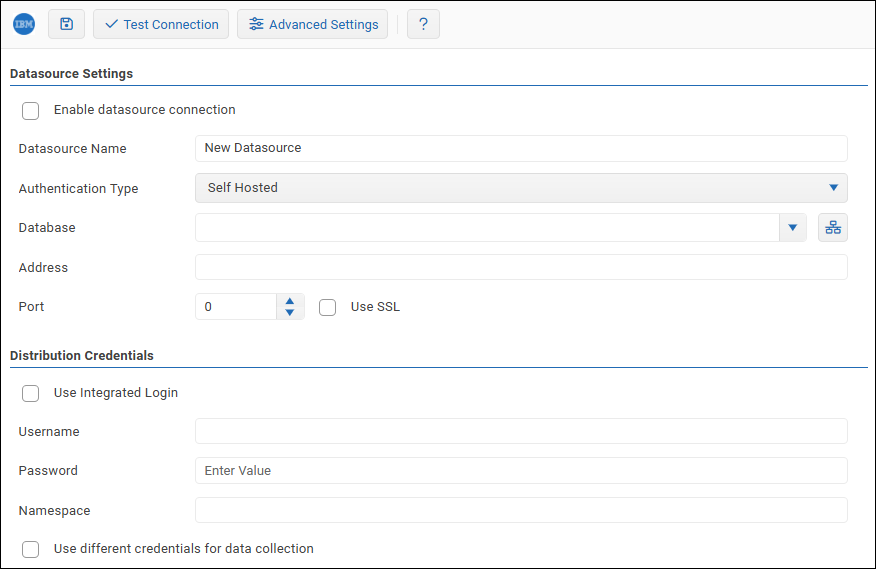
- Configure the connection settings as required. To access additional settings, select the Advanced Settings, button, if present.
 If you are configuring one of the Datasource types listed below, see the linked article for more information. For information about configuring other Datasource types, contact Reportworq Technical Support.
- Anaplan: Connects to the Anaplan Cloud and provides access to data in workspaces, models, modules, and any other sources required for refreshing Excel reports developed with Anaplan's Excel add-in. Anaplan dimensions can also be used as a source for Reportworq Parameters.
- IBM Planning Analytics (TM1): Connects to IBM Planning Analytics and provides access to cubes, dimensions, and any other sources required for refreshing Excel reports developed with IBM's Planning Analytics for Excel (PAfE) and Perspectives Excel add-ins. Planning Analytics dimensions, subsets, and MDX queries can additionally be used as sources for Reportworq Parameters. There are three connection options available:
- Self Hosted: For self-hosted and managed Planning Analytics instances.
- IBM Cloud: For Planning Analytics instances that are fully IBM-hosted and managed.
- SaaS on AWS Cloud: For Planning Analytics SaaS on AWS instances with Managed Cloud Service Provider (MCSP) authentication.
- Oracle EPM Cloud: Provides access to Oracle EPM Cloud data in cubes, dimensions, and any other sources required for refreshing reports developed using Oracle's Smart View Excel add-in.
- SQL (Relational Database) Sources: Provides access to relational database data in support of some SQL-specific Reportworq formulas and parameters that integrate with these sources of data. Two primary driver options are currently supported:
- ODBC Providers
- OLE DB Providers
- Workday Adaptive Planning: Connects to Workday Adaptive Planning and provides access to available cubes, dimensions, and any other sources required for refreshing reports developed with the Workday OfficeConnect Excel add-in. Workday Adaptive Dimensions can additionally be used as sources for Reportworq Parameters.
- Select the Enable datasource connection check box.
- To confirm the settings are properly configured, select Test Connection.
 If the test fails, edit the settings as required, and then test again.
 - Select the Save icon
 to save and apply the settings.
Reportworq will automatically look for a defined datasource when refreshing reports containing formulas or other settings that reference one of the known datasource types above.
Managing Datasources#
You can enable or disable Datasource connections. You can also edit or delete them.
IMPORTANT: If you disable, edit, or delete a Datasource, Reportworq may not be able to refresh data for Distribution Jobs and Contribution input forms. Special kinds of Datasource-specific Parameters and other Reportworq features may also be affected. To avoid such issues, consider keeping track of where each Datasource is used so you can gauge the impact before modifying them.
To enable or disable a Datasource:
- In the Reportworq Administration interface, in the list of Datasources, select the Datasource you want to enable or disable. Datasource Settings appear. Tip: If a Datasource is not enabled, (disabled) appears beside its name in the list.
- Select or clear the Enable datasource connection checkbox as required.
- Select the Save icon to apply the change.
To edit a Datasource:
- In the Reportworq Administration interface, in the list of Datasources, select the Datasource you want to enable or disable. Datasource Settings appear. Distribution Credentials may also appear. Tip: If you hover over a Datasource in the list, its type and name appear.
- Configure the settings as required. To access additional settings, select the Advanced Settings button, if present.
- Ensure that the Enable datasource connection check box is selected.
- To confirm the settings are properly configured, select Test Connection. If the test fails, edit the settings as required, and then test again.
- Select the Save icon to save and apply the settings.
To delete a Datasource:
- In the Reportworq Administration interface, in the list of Datasources, select the X icon beside the Datasource you want to delete.
- When prompted to confirm the deletion, select OK. The Datasource is deleted.
Feedback on this page
Comments, questions, requests, or something missing or unclear? Email us - the page you are on is filled in for you.
Email feedback on this pageOr write to support@reportworq.com directly.