
Overview#
Reportworq supports the refresh of Excel-based reports created using data from Salesforce. Reportworq Administrators can add and configure an Salesforce Datasource.
Prerequisites to adding Salesforce as Datasource:
- Review the following https://cdn.cdata.com/help/RFM/ado/pg_connection.htm
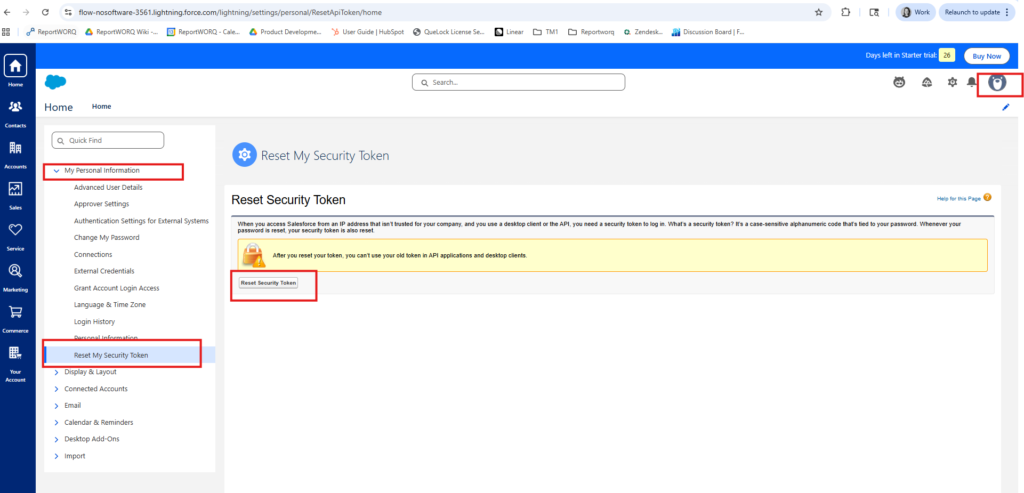
- Login to Salesforce - please note the user logging in must have access to create security tokens in SalesForce
- Click on Profile - Settings
- Click on Reset my Security Token on the left navigation under My Personal Information which will email you a new security token that is needed when establishing the connection in Reportworq.
To add and configure a Salesforce Datasource:
In the Reportworq Administration interface, select the add icon  beside the Datasources heading.
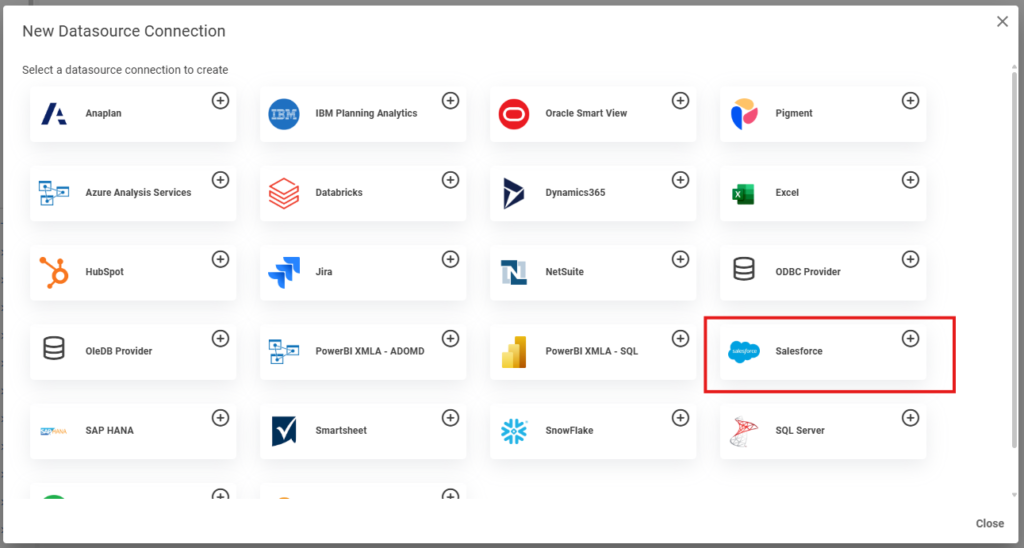
The New Datasource Connection pane appears click + on Salesforce.
The Datasource configuration interface appears:
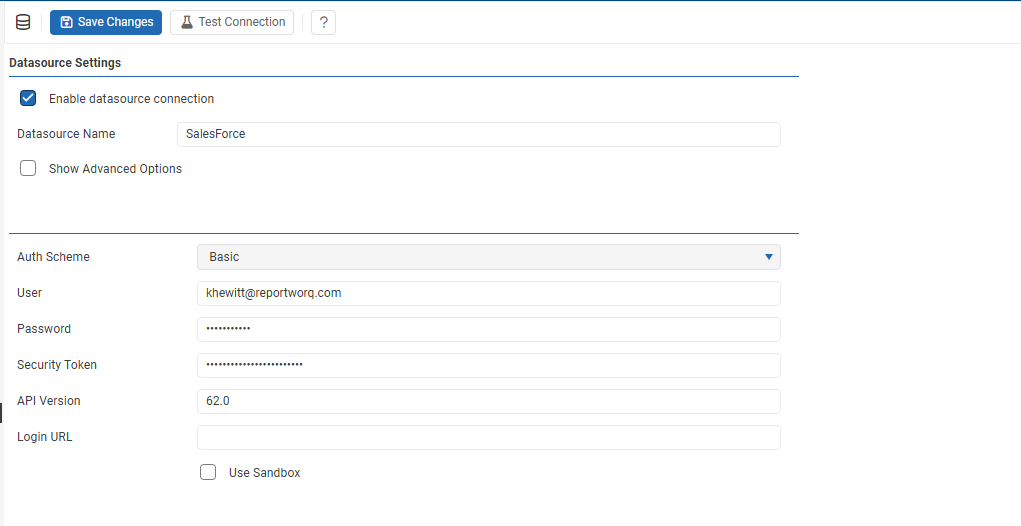
- In the Datasource Settings area, configure the following settings as required:
- Datasource Name: Provide a meaningful name for the Datasource connection.
- Auth Scheme: Basic
- User: account with access to SalesForce information needed whether a service account or user account
- Password: password related to the user account
- Security Token: this is the token sent by SalesForece via the reset security token prerequisite
- To confirm that the settings are properly configured, select Test Connection.
 If the test fails, edit the settings as required, and then test again.
 - In the Datasource Settings area, select the Enable datasource connection checkbox.
- Select the Save icon
 to save and apply the settings.
Feedback on this page
Comments, questions, requests, or something missing or unclear? Email us - the page you are on is filled in for you.
Email feedback on this pageOr write to support@reportworq.com directly.