
Please send any comments, suggestions, or issues to our Reportworq Support Desk.
This topic provides a technical support checklist to ensure requests are processed as quickly as possible, as well as some answers to common questions.
Technical Support Prerequisites#
Please include the following information when making technical support inquiries to Support:
- Reportworq product version, which is visible in the footer of the application, for example:

- Complete information about the problem, to help us more quickly assist you with product issues
- Comprehensive descriptions of problem symptoms
- Precise error messages
- Detailed steps to reproduce
- Sample data/workbooks
Job Execution Logs#
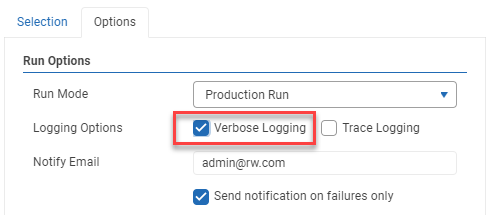
When logging a support case about a job that is not performing as expected, it may be necessary to capture diagnostic logging when running the Reportworq job so that it can be sent to support. To capture these log files choose the Verbose Logging option in the Run Job Options screen (shown below) prior to running the job. Do not select the Trace Logging option unless asked to do so by support as these log files may impact job performance and consume a lot of space.
After running the job with logging enabled you can easily send these log files to support by navigating to the history item for this job, selecting Diagnostics and then choosing the option to Send to Support. The log files will be securely uploaded to the Reportworq Support system.

Application Logs#
When logging a support case about a User Interface or other issue not related to running a job then application log files may be necessary to diagnose the issue. Log files are located in a "Logs" subfolder of the current application version, for example:
C:\Program Files\Reportworq\Versions\v5.0.0.89\Logs
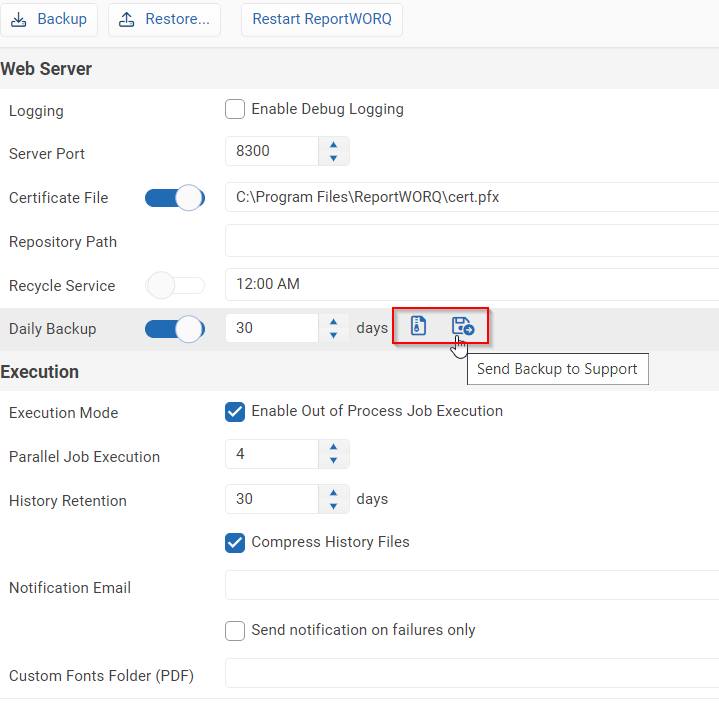
The Reportworq support team may also ask you to temporarily enable more detailed logging to capture additional diagnostic information, which is done from the Settings screen's "Enable Debug Logging" setting:

Downloading Updates#
The Reportworq Support team may ask that you upgrade your Reportworq software to resolve or further troubleshoot a technical support issue.
Instructions for accessing software downloads can be found on the Downloads and Release Notes page. Please refer to the Installation section for instructions needed to install any updates.
Uploading Repository Backup to Support#
On the Settings screen there is an option to create a backup of the Reportworq Repository. There is also an option to upload the repository to Support. If asked to supply this information by support, simple click theses buttons in the Settings tab.
Feedback on this page
Comments, questions, requests, or something missing or unclear? Email us - the page you are on is filled in for you.
Email feedback on this pageOr write to support@reportworq.com directly.