
How Timberline rolls the reporting year forward#
A use case: the feature is global parameters. This is what Timberline Harvest Co. does with it.
The scenario#
Timberline Harvest Co. closes its fiscal year in December, and in the first week of January the finance team has the same chore every time. The board pack, the market statements, the sales analysis and the budget collection all have to move to the new year.
There are only four of them, which is exactly what makes it dangerous. Four is few enough that nobody builds a process, and enough that somebody forgets one. The failure is never dramatic: it is a set of statements that go out labeled with last year, filed into last year's folder, and nobody notices until a regional controller asks why their numbers look familiar.
So the year is not stored on each report. It is stored once, and the reports read it.
How it is wired#
One global parameter, Current Year, defined as a subset of the time dimension in the planning
model rather than as a typed-in value.
Four pieces of content reference it:
| Consumer | Uses it as |
|---|---|
| Financial Statements | its Year parameter |
| Financial Statements, delivered to SharePoint | its Year parameter |
| Timberline Sales Information | its Year parameter |
| Segment & Channel Budget Input (a contribution campaign) | its Year parameter |
The detail that does the work: because the parameter points at a subset in the model rather than at a literal year, it tracks the planning system. Roll the subset forward in the model and every consumer follows on its next run, with nobody opening Reportworq at all.
And because the year is a parameter, it reaches further than the numbers. In these reports the same value drives:
- the output file name,
{Year}-{Market} Financial Statements - the email subject line
- the destination folder path, so output files itself into a folder for the new year, created on the way past
That is usually the part people had not thought about. Rolling the year does not just change the figures; it re-labels and re-files the output.
The deliberate contrast#
Not everything in Timberline uses it, and that is on purpose.
The Board Packet declares its own Year, reading the same subset directly. The Sales Rep
Scorecard goes further and reads the year out of a control cube in the planning model with its own
expression.
Three approaches, side by side, so you can see the trade-off rather than be told it:
| Approach | Use it when |
|---|---|
| Reference the global | Several reports should always agree, and should move together |
| Declare it locally | This report legitimately needs its own scope: a prior-year comparison, a fixed historical statement, a period chosen at run time |
| Read it from the model | The source system already owns the answer and you want one less thing to maintain |
The useful question to ask of your own workspace is the one this arrangement encodes: which of my reports must always be on the same period, and which genuinely need their own?
See it yourself#
Open the workspace and select Global Parameters in the left side rail.
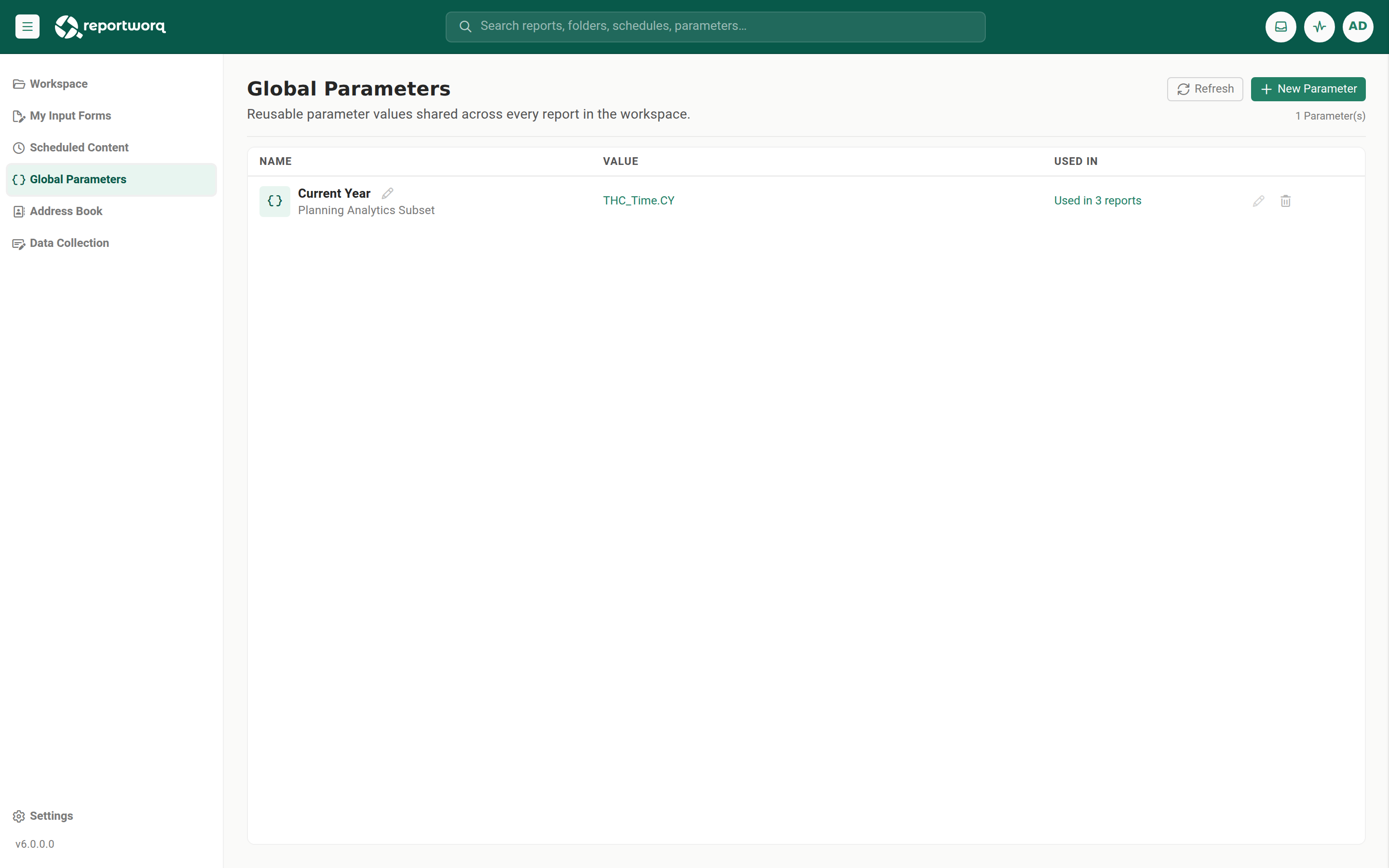
The Global Parameters screen, each row showing the parameter, its value, how many reports use it, and the edit and delete actionsTap or click the image to view it full screen Find
Current Year. Look at the Used In column: it shows a live count of the reports referencing it. Select the count to list them.Open Financial Statements and go to its Parameters step. Its
Yearis a reference to the global, not its own definition.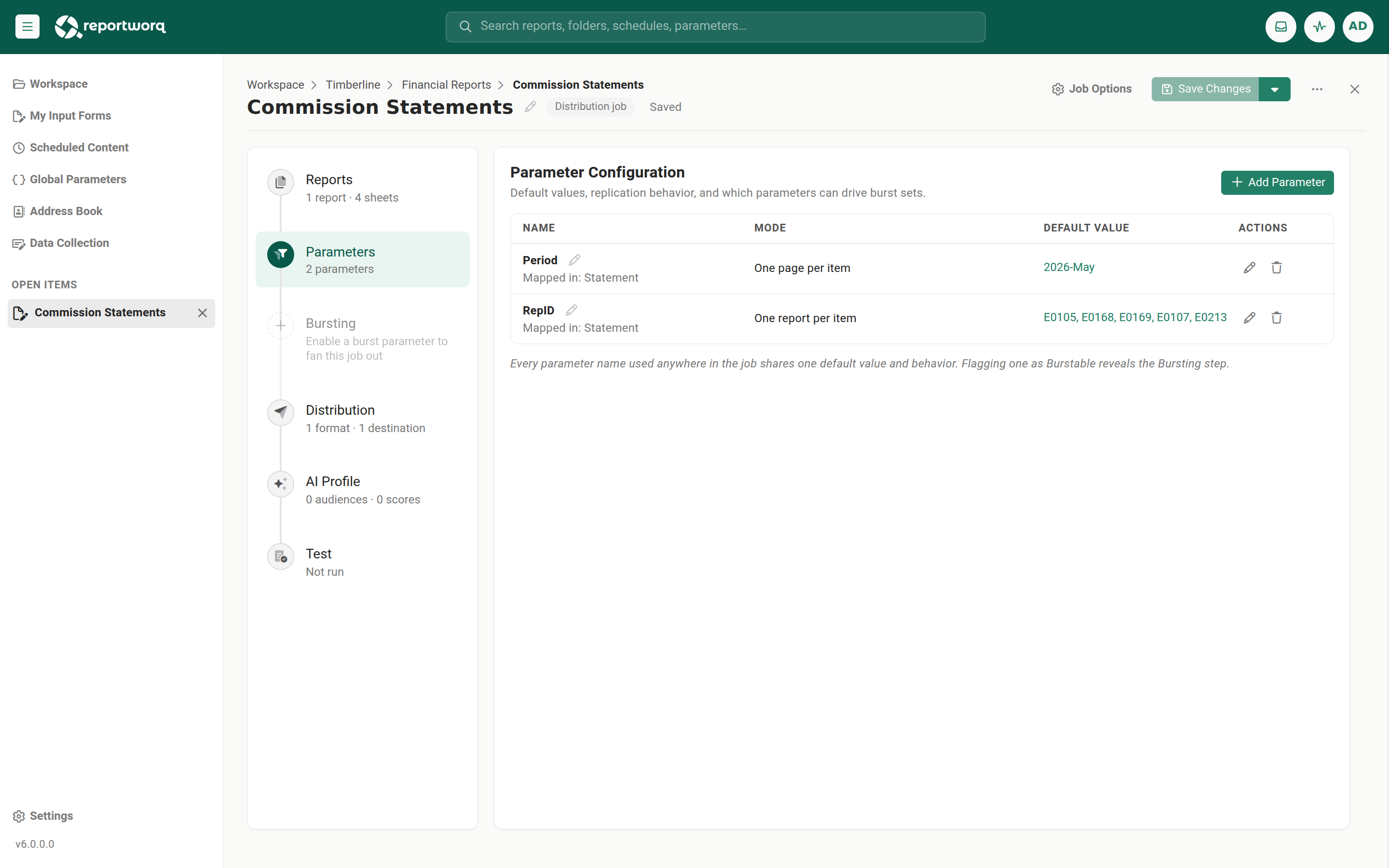
The Parameters step of a job, listing each parameter with its value source and replication modeTap or click the image to view it full screen Now open the Segment & Channel Budget Input campaign and look at its parameters too. Campaigns reference global parameters exactly as reports do, which is the point most people miss: the planning cycle moves with the reporting year automatically.
Open Board Packet and compare. Its
Yearis defined locally. Same value today, different maintenance story tomorrow.
Change it and watch#
The demonstration worth doing, because it takes a minute and it lands:
- On Global Parameters, edit the value of
Current Year. - Reportworq shows an impact review before it commits, listing every affected report. Read it. This is the safety net that makes a shared value safe to own, and it is the reason you can keep the list short rather than defensive.
- Confirm, then run Financial Statements.
- Watch three things move together:
- the numbers, as expected,
- the output file name, which now carries the new year,
- the destination folder, which is created for the new year rather than reusing the old one.
- Then open the Segment & Channel Budget Input campaign and confirm its forms have moved too.
One edit, four consumers, and the file names and folders came along. Set the value back when you are done.
Take it back to your own workspace#
The transferable shape is small:
- Put the value where it is already maintained. Pointing at a subset or a control value in the source system beats typing a year into Reportworq, because the source system is where somebody already owns the answer.
- Reference it from everything that must agree, and let the things that need their own scope keep it. Consistency is not the same as uniformity.
- Check the impact review before changing a shared value. In a demo the affected list is four items; in a real workspace it is the difference between a routine edit and an incident.
- Remember the value reaches the file names and the folders, not only the figures. That is usually what makes the roll-forward feel finished rather than half done.
Related#
- The feature: Global parameters
- In this guide: Use a global parameter · How parameters work
Feedback on this page
Comments, questions, requests, or something missing or unclear? Email us - the page you are on is filled in for you.
Email feedback on this pageOr write to support@reportworq.com directly.