
Global parameters#
A global parameter is a named parameter value defined once at the workspace level and reused across every report in that workspace. Instead of setting the same reporting period, version, currency, or entity on job after job, you define it once and bind reports to it. Rolling it forward is then a single edit, and Reportworq shows you exactly which reports the change affects.
When to use it. Whenever the same parameter value is, or should be, identical across many reports: a Current Fiscal Year shared by every monthly pack, a Reporting Version (Actual, Budget, or Forecast) shared across a Planning Analytics suite, a common Reporting Currency or Consolidation Entity. For a value unique to one report, a local parameter on that report is simpler.
Open the screen from Global Parameters in the left side rail, grouped with the other admin items (Scheduled Content, Address Book, Data Collection). It is not shown in the read-only shell a User sees. The list has four columns: Name, Value, Used In, and row actions.
Before you begin#
- You need administrator access to the workspace.
- A connector or plugin that supplies the parameter value type you want must be installed. The value types you can choose (for example a TM1, SQL, or text value) come from the connectors and plugins installed in your environment.
Create a global parameter#
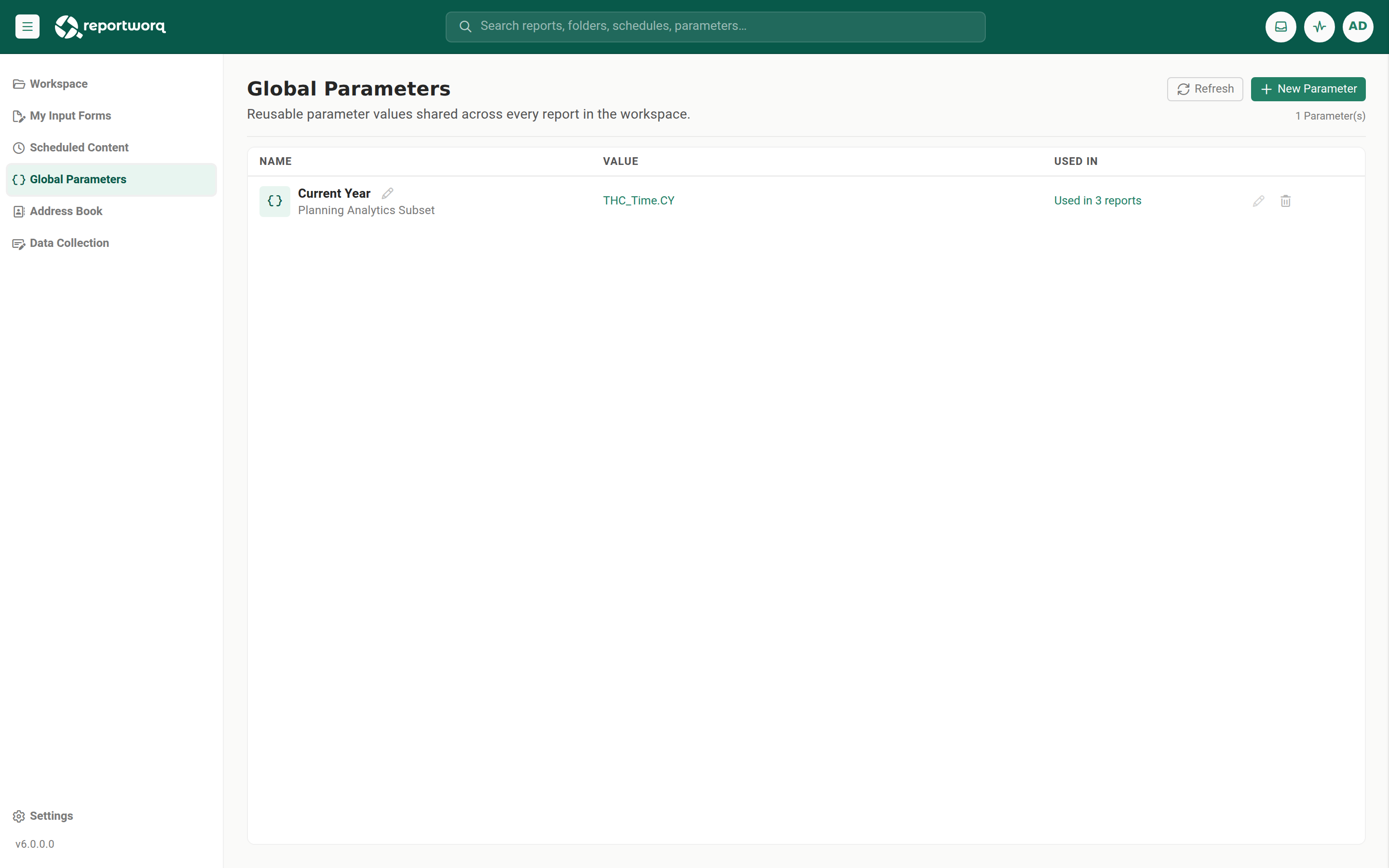
- Select New Parameter.
- Enter a unique name. Duplicate names are rejected.
- The parameter is created with no value yet, its subtitle reads "No value set."
- Select the value link (or the pencil action) to open the parameter sidebar, and set the value. It can be any parameter type your installed plugins provide, for example a TM1, SQL, or text value.
Reference it from a report#
An author binds a report's parameter to the global value on the report's Parameters step. Once a report references the global parameter, it counts toward the Used In total. In the schedule editor, a global-backed parameter is marked with a global chip.
See where a parameter is used#
The Used In column shows a live count of the reports that reference each parameter ("Used in N reports"), computed by scanning every job for the parameter name. Select the count to open a list of the referencing jobs with their names and paths. A parameter with no references shows "No references."
Use this before you touch a shared value, so you know its blast radius up front.
Change a value safely with impact review#
Whenever a parameter is referenced by reports, renaming it, editing its value, or deleting it first shows an Impact Review Required confirmation that enumerates the affected reports and warns that the change affects future runs.
- Rename the parameter inline (click the name to edit). The rename is checked for duplicates, then the impact review lists the affected reports.
- Edit the value through the parameter sidebar. The same impact review appears when the parameter is referenced.
- Delete the parameter with a confirmation, preceded by the impact review if it is referenced.
The list refreshes automatically as entries change, and a manual Refresh action is available. Global parameters also appear in global search, so you can find one from the header search box.
Notes and limits#
- Global parameters are workspace-scoped. Their values are not shared across workspaces.
- Changing a referenced value affects all future runs of every referencing report, the impact review exists precisely because the change is broad. Review the affected list before you confirm.
- Values can be read through the content-store API but are not API-writable, mutations go through the product only.
See it in action. How Timberline rolls the reporting year forward walks through the demo system's
Current Yearparameter, the four reports and campaigns that follow it, and a one-value change you can make to watch the numbers, the file names and the destination folders all move together.
Going deeper. For how an author binds a report parameter to a global value, and the full parameter model, see Parameterize a report.
Feedback on this page
Comments, questions, requests, or something missing or unclear? Email us - the page you are on is filled in for you.
Email feedback on this pageOr write to support@reportworq.com directly.