
Parameters reference#
This page is the exhaustive reference for parameters on the Parameters step of the Job Editor: every parameter type, how each parameter is mapped to a worksheet, how list-valued parameters replicate output and cross-join, and how parameter sets work. For the task walkthrough, see Parameterize a report. For variables, cascading, and repeaters, see Advanced parameters.
Bursting, replication, and burst sets: the words first#
These three words get used interchangeably and they are not the same thing. Getting them straight makes the rest of this page, and the Bursting step itself, much easier to read.
Bursting is the outcome: taking one report and producing many versions of it from one set of parameter values. What gets multiplied can be a single worksheet, a group of worksheets copied together, or an entire report output.
There are three ways to achieve it, in increasing order of control:
| Technique | What it is | Reach for it when |
|---|---|---|
| Replication | A parameter that holds more than one value fans the output out, one copy per value. Set the parameter's Replication mode and you are done. No Bursting step involved. | The everyday case. A cost-center query returns 40 cost centers and you want 40 versions. |
| Parameter sets | An explicit, typed list of parameter combinations, one output per line. | The combinations are sparse. See Parameter sets below. |
| Burst sets | The Bursting step, unlocked by flagging a parameter Burstable. Gives per-file control: you can specify the parameter values, or a query, for each generated file individually. | You need fine-grained control over each file, or per-recipient delivery. |
The distinction that trips people up: you do not have to flag a parameter Burstable to get many outputs. If a parameter already has multiple values, from a Planning Analytics subset, an MDX query, a SQL query, or a typed Text List, and you set a replication mode, it is already fanning the output out. That is replication, and it needs nothing from the Bursting step.
Flag a parameter Burstable only when you actually want the Bursting step, because you need burst sets, per-file parameter control, or recipient-driven delivery. Throughout this guide, output fanned out by a parameter's own values is called replication; burst set means specifically the Bursting-step feature.
See What bursting is and when you need it.
Parameter types#
The Type dropdown is plugin-driven: the five Native types are always present, and each connector contributes its own types when a connection of that kind exists. The default type is None.
| Type | Source | What it holds |
|---|---|---|
| None | Native | An untyped, free parameter. |
| Text Value | Native | A single literal value. |
| Text List | Native | Allowed values entered one per line. The only type that supports parameter sets and bursting import and export. |
| Excel Range | Native | Values read from an Excel range. |
| Global Parameter | Native | References a workspace or global parameter's value. |
| Planning Analytics Subset | TM1 / Planning Analytics | Values from a TM1 or Planning Analytics subset. |
| Planning Analytics Dimension | TM1 / Planning Analytics | Elements of a Planning Analytics dimension or hierarchy. |
| Planning Analytics MDX Query | TM1 / Planning Analytics | Elements returned by an MDX query. Supports %param:Name% and %global:Name% runtime tokens. |
| Planning Analytics Cube Value | TM1 / Planning Analytics | A value read from a cube cell or tuple. Dimension selections support %param:Name% and %global:Name% tokens. |
| SQL Query | SQL | Values from a SQL query. Supports %param:Name% and %global:Name% runtime tokens. |
| Workday Adaptive Dimension | Workday Adaptive | Adaptive dimension members (specification-based). |
| Oracle Smart View Dimension | Oracle EPM Cloud / Smart View | Smart View point-of-view dimension (specification-based). |
| Anaplan Dimension | Anaplan | Anaplan dimension members (specification-based). |
| Vena Dimension | Vena | Vena dimension members. |
Connector types appear only when a connection of the matching kind exists: a Planning Analytics connection for the Planning Analytics types, a SQL connection for SQL Query, and so on.
Per-worksheet mapping (Location)#
Parameter definitions are held at the report level, where each name is unique. Each parameter is then mapped per worksheet on the Reports step, and its Location determines where its value is read. A parameter's value is set once, at the report level, not per worksheet. You can map the same parameter onto many worksheets, and often will, but every one of those worksheets receives the same value. There is no way to give one worksheet a different value for the same parameter name. If two worksheets genuinely need different values, they need two parameters.
| Location shape | Example | Behavior |
|---|---|---|
| Cell or named range | B3, or a named range |
The value is written into the cell, so downstream formulas can read it. Prefer a named range: a cell reference breaks silently if someone inserts a row in the source workbook. |
| Pivot-table field | PivotTableName.FieldName |
The value is applied as a pivot filter (a page field sets the current page item; a row or column field adds an equals filter), not written to a cell. |
Replication modes#
Every parameter has a Replication mode that decides whether the parameter fans the output out, and how. You set it in the parameter's edit panel, under Parameter Options. The mode is one of:
| Mode | Effect |
|---|---|
| No replication | The parameter supplies a single value. Nothing is replicated. |
| One page per item | The worksheet is copied once per value, producing one page per item within the output. |
| One report per item | A separate output file is produced per value, which integrates with file-naming variables so each file can be named after its value. |
No replication#
Choose No replication when the parameter is a single value that should never fan the output out (a reporting period, one legal entity, a scenario). How you set it depends on the parameter type:
- A Text Value parameter is always a single value, so the replication area is hidden and the mode is fixed to No replication. The panel shows the note "A text value is a single value, so no replication applies," and there is nothing to choose.
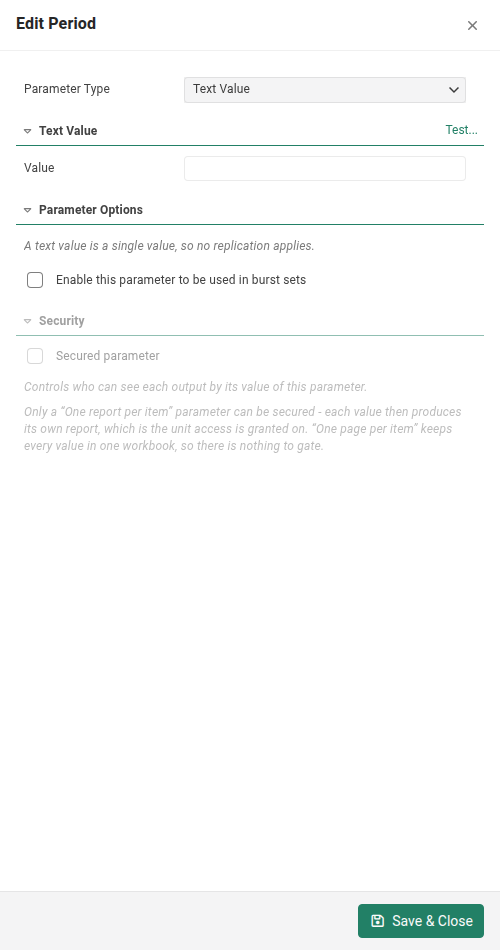
- For any other type (a Text List, a SQL or MDX query, a dimension selection), No replication is one of the choices in the mode list. Because a dynamic query can return zero, one, or several values, you also declare what Reportworq should do if the parameter does not resolve to exactly one value:
| If the parameter does not resolve to one value | What happens |
|---|---|
| Fail the job (a single value is required) | The run fails with a clear error that names the parameter and the number of values it resolved to, whenever that number is not exactly one (zero, or several). This is the default. Choose it when exactly one value should always come back, so anything else is a mistake worth surfacing rather than papering over. |
| Use the first value, and omit the pages if there are none | If the query returns several values, Reportworq uses the first one. If it returns none, the worksheets that map this parameter are omitted rather than produced empty, and the whole report is dropped if that leaves it with no worksheets. |
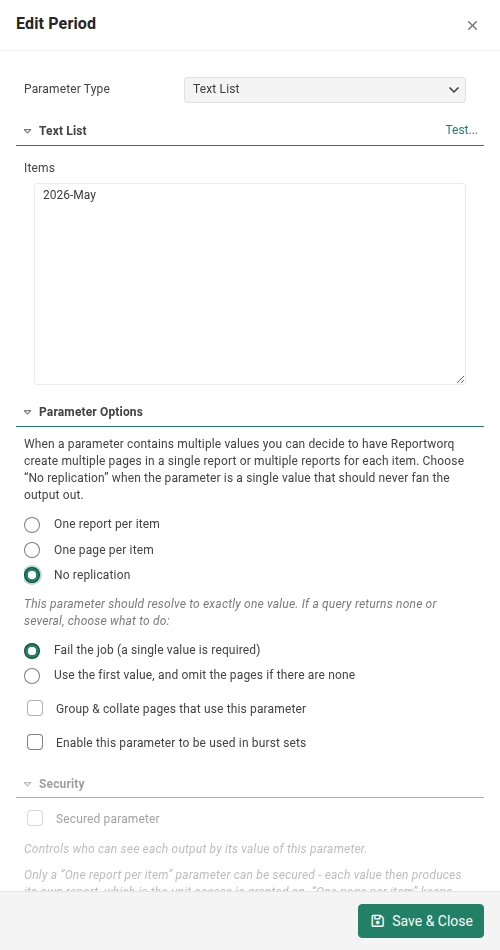
The single-value check runs when the job builds its run, before any worksheets are produced, so a Fail choice stops the run early rather than partway through.
Related controls:
- Collate worksheets orders "one page per item" replications by parameter across worksheets (for example Income Statement then Balance Sheet for US, then the same pair for UK, then Canada), rather than grouping all copies of one sheet together. See Job options.
- Burstable flags a parameter for bursting, which reveals the otherwise-disabled Bursting step and uses the same replication machinery to fan output out per recipient.
Multi-parameter cross-join (Cartesian)#
When more than one replicating parameter is present, the runtime takes the Cartesian product of their value lists. For example, 3 business units cross 4 departments produces 12 worksheets or reports.
Only One page per item and One report per item parameters take part in the cross-join. A No replication parameter is a single value, not a replication axis, so it contributes its one value to every combination without multiplying the count.
Parameter order controls the sequence#
The order of the parameters decides the order of the output, because the first parameter is the outer loop. With 3 business units and 4 departments:
Business Unit first, then Department, gives you BU1 with departments A, B, C, D; then BU2 with A, B, C, D; then BU3 with A, B, C, D. The output is grouped by business unit.
| Order | 1 | 2 | 3 | 4 | 5 | 6 | ... |
|---|---|---|---|---|---|---|---|
| Output | BU1 / A | BU1 / B | BU1 / C | BU1 / D | BU2 / A | BU2 / B | ... |
Flip the parameters so Department is first, and you get department A with BU1, BU2, BU3; then department B with BU1, BU2, BU3, and so on. Same 12 outputs, grouped by department instead.
| Order | 1 | 2 | 3 | 4 | 5 | 6 | ... |
|---|---|---|---|---|---|---|---|
| Output | A / BU1 | A / BU2 | A / BU3 | B / BU1 | B / BU2 | B / BU3 | ... |
Choose the order that matches how the reader wants to read the pack.
When you do not want every combination#
A cross-join is exhaustive, and often you do not need every cell of it. Not every department exists in every business unit. You have two options, and they have very different performance profiles.
Page suppression discards the pages you do not want after they are produced. Set it up on the Reports step. It is the simpler route and it is the right one when most of the combinations are wanted and you are trimming a few. Be aware of what it costs: the data for a suppressed page is still fetched and the page still generated, then thrown away. With 12 pages and 2 suppressed, nobody notices. With 5,000 combinations of which you keep 200, you have paid for 5,000.
Parameter sets avoid producing the unwanted combinations at all, because you state the combinations you want rather than deriving them. When the product is large and the retained set is small, this is much the faster route. See below.
Parameter sets#
A parameter set is a finite, explicit list of combinations, not a cross-join. It applies to Text-List parameters on cell-based reports only.
When a parameter set is worth it#
This is an advanced feature and it is not the everyday way to fan output out. Most reports want a replicating parameter, which is simpler and needs no combination list. But parameter sets earn their keep in one specific situation, and there they are the only good answer.
Reach for a parameter set when the combinations you want are sparse. Continuing the example above: a cross-join of business units and departments produces every pairing, but suppose only 30 of those 5,000 pairings actually exist in your organization. A cross-join would query and build all 5,000 and let you discard 4,970 by page suppression, which works and is slow. A parameter set lets you list the 30 real combinations, and only those 30 are produced.
So the decision is:
- Combinations are dense (most pairings are real, you want nearly all of them): use replicating parameters and let the cross-join do the work. Trim the few strays with page suppression.
- Combinations are sparse (a small, known set out of a large possible space): use a parameter set.
- You need per-file control over each output, or recipient-driven delivery: use a burst set on the Bursting step.
The other case for a parameter set is when no query can express the combinations you need. If the pairing of values is a business rule rather than something derivable from the data, listing it explicitly is clearer than contorting a query into producing it.
- Enter each combination as a pipe-delimited value line, and set a pipe-delimited Location. For
example, a value line of
East|Q1with a Location ofB3|B4writesEastintoB3andQ1intoB4. - Each value line produces exactly one worksheet. Multiple lines fan out one worksheet per line.
- A part-count mismatch between the Location and the value (for example a 3-part Location with a 2-part value) is a silent no-op: nothing is written and the cells are left blank. No error is raised, so watch for this when debugging an unexpectedly empty output.
Limits#
- Parameter names must be unique within the report.
- Bursting is available only once a parameter is flagged Burstable.
- Parameter sets and cell-writing mappings work only for cell-based reports. Specification-based providers take the value directly and do not use a cell reference.
- Only Text List supports parameter sets, and the reason is structural: a set is a list of literal, pipe-delimited combination lines that you type. A query-driven type returns one value per row, so it cannot express a combination.
Related topics#
Feedback on this page
Comments, questions, requests, or something missing or unclear? Email us - the page you are on is filled in for you.
Email feedback on this pageOr write to support@reportworq.com directly.