
Run a job#
Run Jobs is the on-demand way to run a report right now, instead of waiting for a schedule. You pick one or more jobs, choose which of their outputs to produce, optionally override parameters for this run, set a run mode and logging, and launch. The run is queued and you land on Activity, where you can watch it finish.
When to use it. Any time a report has to run outside its schedule: an ad-hoc request mid-month, a re-run after you fixed a template, a review-gated delivery you want to check before it sends, or a diagnostic run with extra logging. For recurring, unattended runs, set up a schedule instead.
Before you begin#
- You need at least one runnable job with resolvable outputs.
- For outputs to actually be delivered, the job needs a configured distribution. Hold for Delivery still produces output without delivering it.
Pick the jobs and outputs#
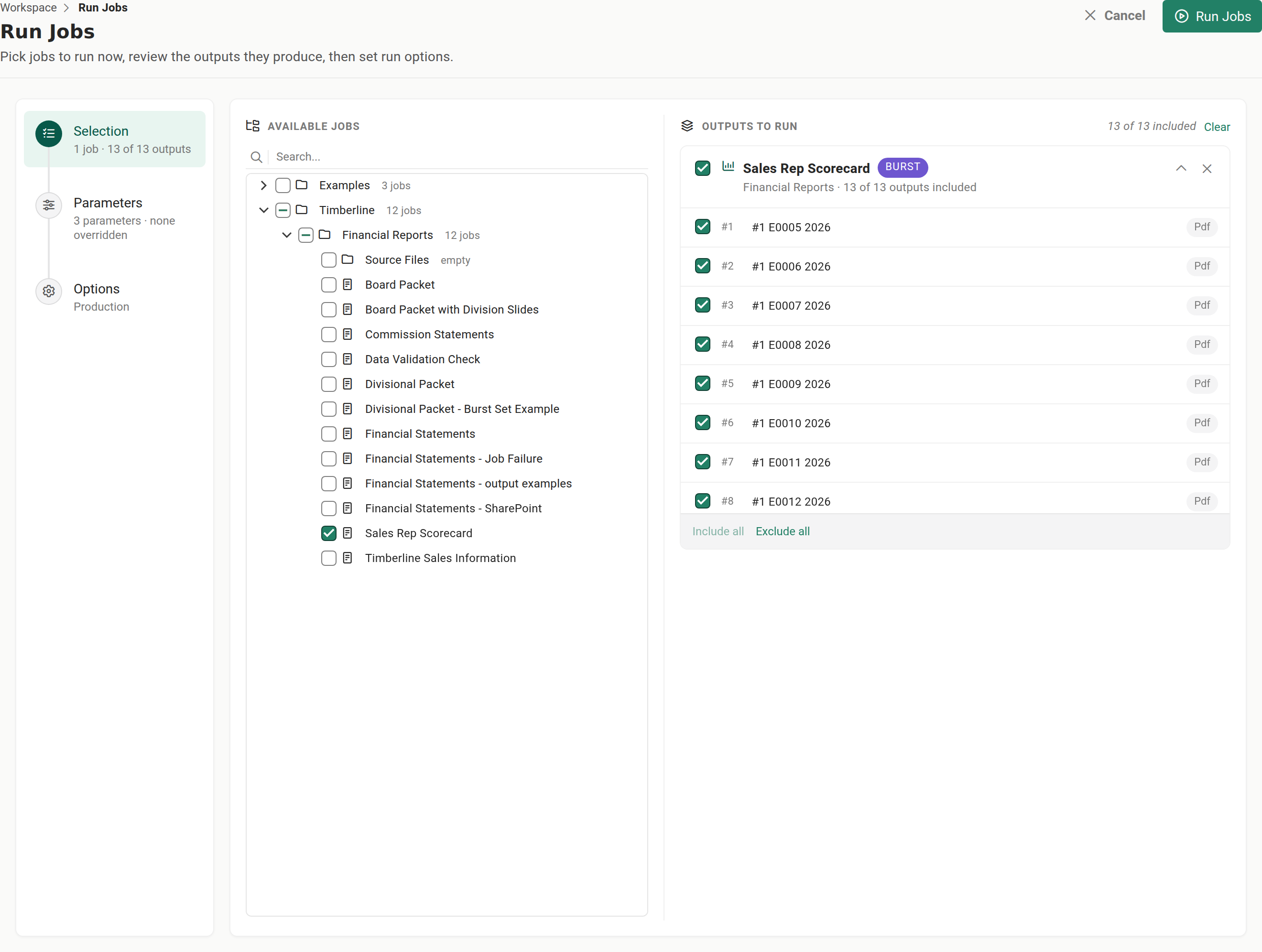
- Open Run Jobs. The header reads "Pick jobs to run now, review the outputs they produce, then set run options." A left rail steps you through Selection, Parameters, and Options.
- On the Selection step, use the Available Jobs tree on the left. Search or expand folders, then select the checkbox next to each job you want. Folders roll up their jobs, so checking a folder selects everything in it.
- Each job you check is added live to Outputs to run on the right and its outputs are resolved. A card shows "{included} of {total} outputs included" per job.
- Include or exclude individual outputs with their row checkboxes, or use Include all / Exclude all on a job's card. A Burst chip on a card means that job resolves to more than one output.
- To start over, select Clear.
You can run at least one output across the selected jobs, so keep at least one output included or the run control stays disabled.
When to run several jobs together. Selecting multiple jobs and running them in one go runs them in the same execution process, which is what lets Reportworq group them into a single message when Combine email messages when possible is turned on. See Combine emails, collate, and zip.
Override parameters for this run (optional)#
- Select the Parameters step. It is available only when a selected job exposes an overridable parameter.
- The step shows the parameters shared across your selected jobs. Enter a value to apply it to every selected job that uses that parameter for this run only.
- Leave a value blank to use each job's own default. Each override can be reset back to the default.
Choose the run mode and options#
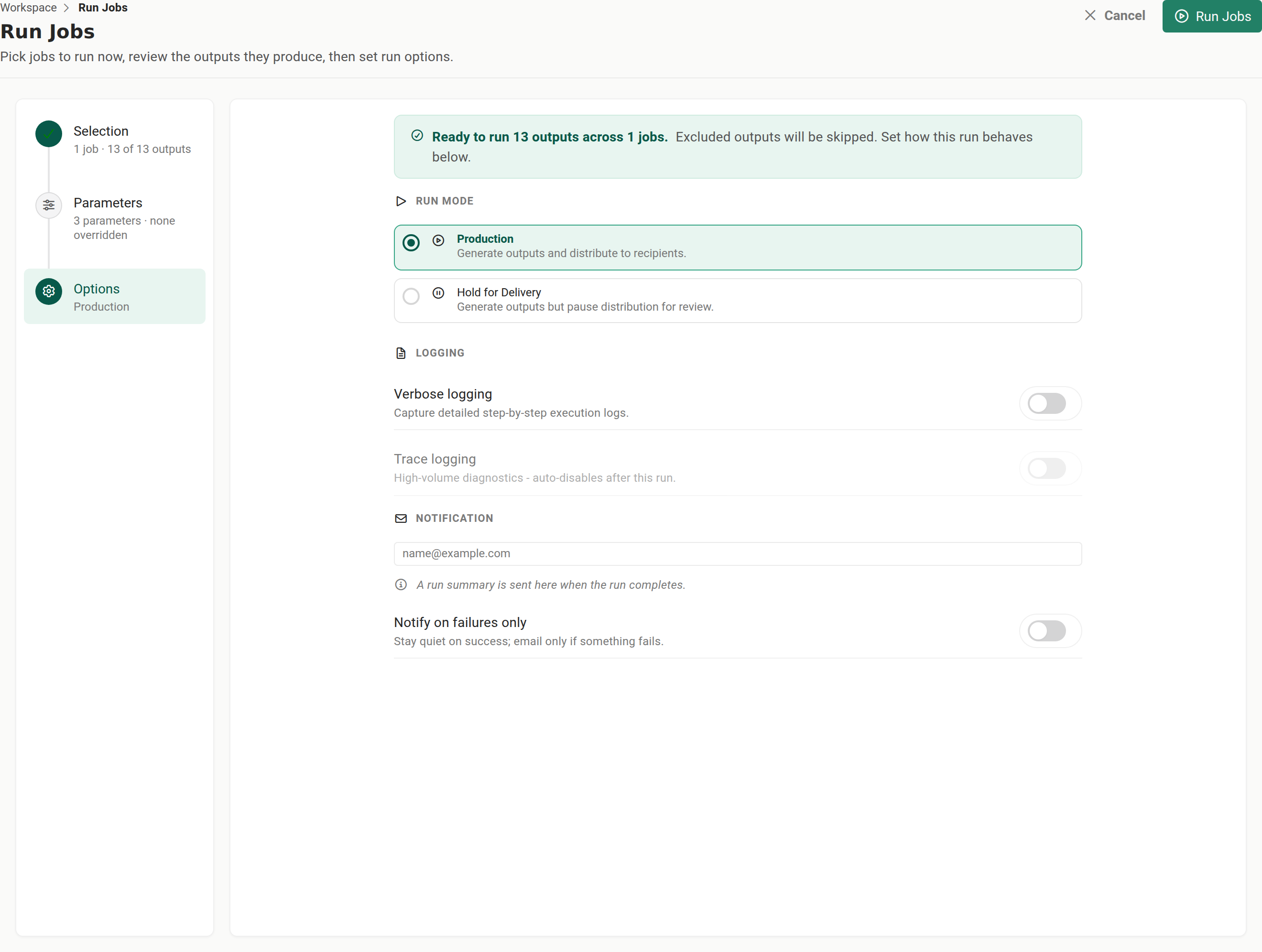
- Select the Options step. A recap reads "Ready to run {N} outputs across {M} jobs."
- Choose a run mode:
- Production (the default) generates the outputs and distributes them.
- Hold for Delivery generates the outputs but pauses distribution so you can review them first. You release or discard the held run later from Activity.
- Under Logging, turn on the extra detail you need. Both switches are off by default, and a routine
run needs neither.
- Verbose logging captures detailed step-by-step execution logs, so the run's log records each step it worked through rather than only the point where it stopped.
- Trace logging adds high-volume diagnostics, including the HTTP traces of the calls the run made to its data sources. It is available only while Verbose logging is on, and Reportworq turns it off again after this run.
- Set notifications:
- Notification email receives a run summary when the run completes. It is pre-filled from your saved settings.
- Notify on failures only stays quiet on success and emails only if something fails.
When to turn logging up#
Leave both switches off for routine production runs. There are two situations that call for Verbose logging.
- A job keeps failing while you are still setting it up. A verbose run records every step, so the run's log shows where the job stopped and what it was doing at the time, instead of only that it failed. Turn Trace logging on as well when the failure looks like a data-source problem: the HTTP traces exist only for a run that had Trace logging on, and cannot be recovered afterward.
- Support has asked you for logs. Re-run the job with Verbose logging on, and Trace logging too if you were asked for it, so the run's diagnostics archive carries the detail support needs. Then send that run's archive from its diagnostics, see When a job fails.
Logging is set on the run you are launching, not on the job. The next run of the same job records its normal level of detail unless you turn logging on again.
Launch the run#
- Select Run Jobs in the page header. The run is queued and you are taken to Activity.
- If your workspace has the split-batch entitlement, the run control is a split button. Its menu adds Run Individually, which queues one run per job in its own process. Combined email messages cannot span jobs run individually.
Notes and limits#
- There is no "Test Mode." The only run modes are Production and Hold for Delivery.
- A run is gated on at least one included output, so include an output before you launch.
- Canceling a running job (from Activity) gives it 60 seconds to finish and clean up before it is stopped.
Going deeper. Watch the run, release a held delivery, or review what it produced in Track activity and run history. If a run fails, see When a job fails.
Feedback on this page
Comments, questions, requests, or something missing or unclear? Email us - the page you are on is filled in for you.
Email feedback on this pageOr write to support@reportworq.com directly.