
Sign in and take the tour#
This page walks you through signing in to Reportworq and finding your way around the home screen. By the end you will know how to sign in, where the main tools sit, and how to sign out.
Before you start#
- A Reportworq account with access to at least one workspace. An administrator provisions this; signing in alone grants nothing until your role and permissions are set.
- The web address of your Reportworq server.
Reportworq uses Native username and password sign-in by default. If your organization has enabled single sign-on, the sign-in screen redirects to your corporate identity provider instead of showing the username and password fields, and your role comes from your identity-provider group membership. Setting up SSO and recovering from a lockout are administrator tasks; see Sign-in and SSO.
Sign in#
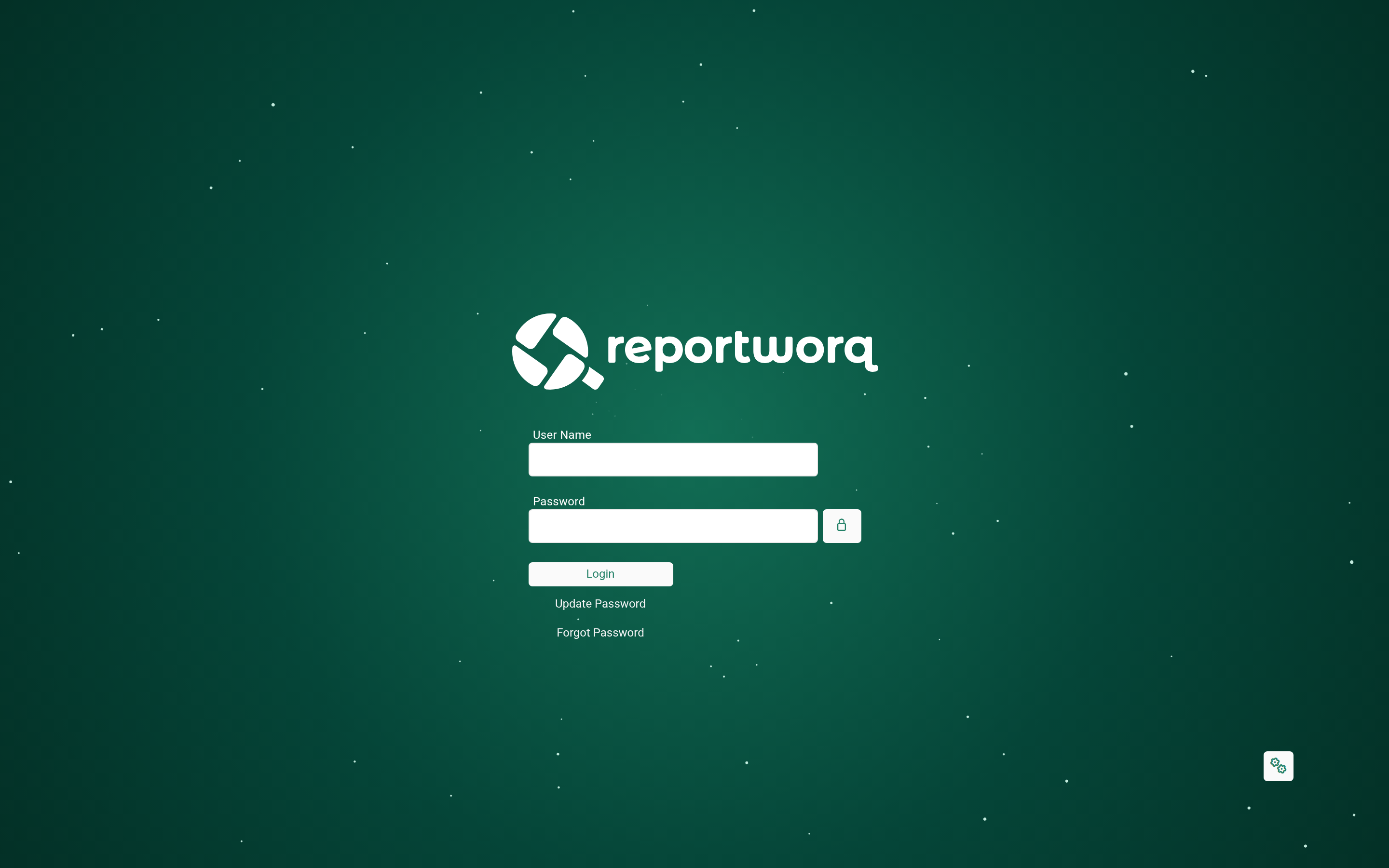
- Open your Reportworq web address in a browser. The native sign-in screen appears.
- In the username field, enter your account email.
- In the password field, enter your password.
- Select Login.
A brief transition animation plays while the app loads, and then the Workspace opens.
If you select Login with an empty username field, Reportworq reports "A user name is required to authenticate." and stays on the screen. If your account is new, you are prompted to set an initial password before the app opens. A Forgot Password link appears only when your administrator has configured an email server.
Take the tour#
After sign-in, Reportworq lands on the Workspace, described on screen as "Browse governed reports, contribution campaigns, and data models." Every signed-in screen shares the same frame.
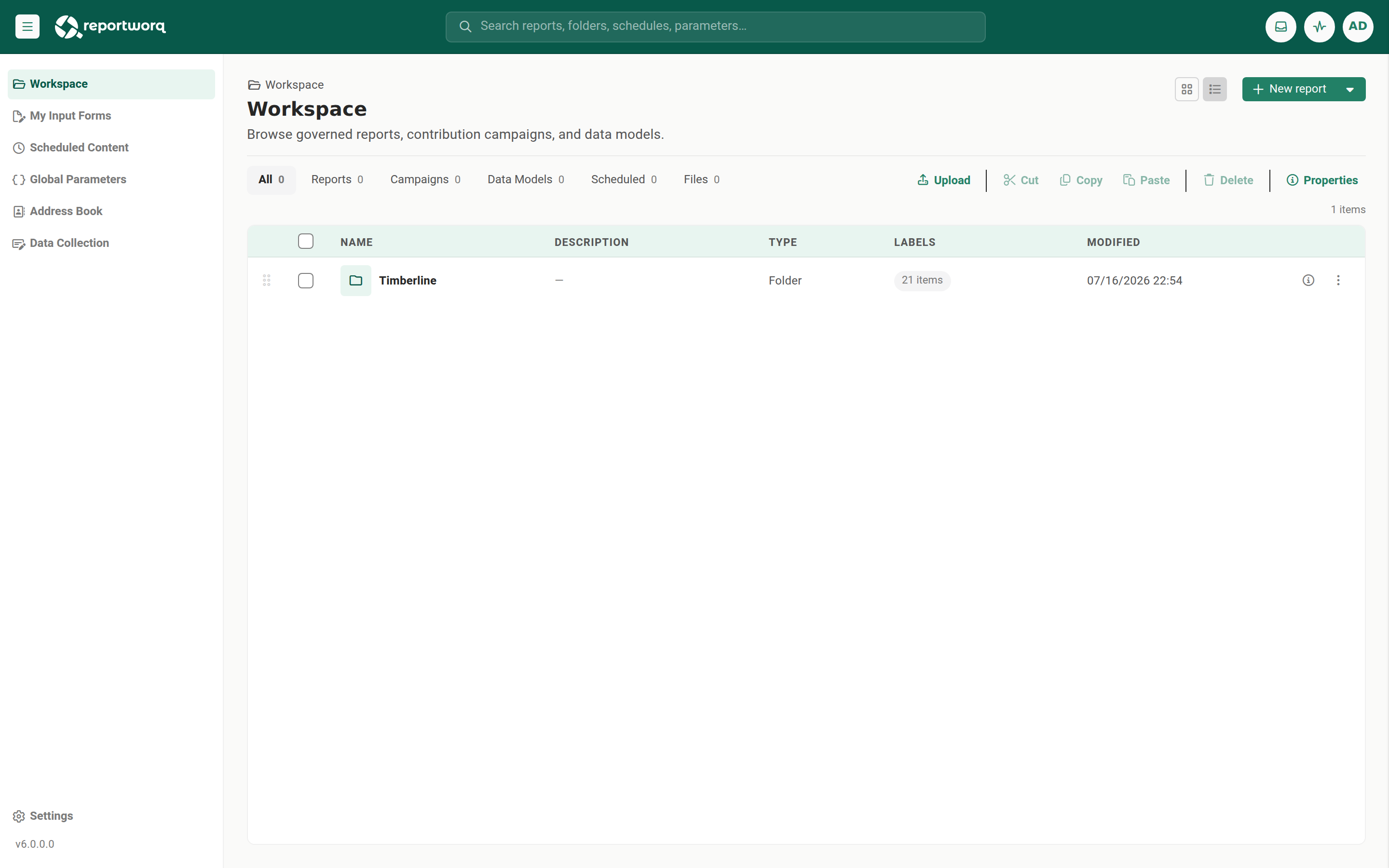
What you see is scoped to your role. This tour describes the author and administrator shell; a view-only User sees a trimmed, read-only version with no New button and no header search. See Roles and what you can do.
Stop 1: the frame#
Find each part before you touch anything:
- The header runs across the top and holds the global search box, the activity and notification indicators, and the account menu at the far right, which opens Help, Support, Settings, and Logout.
- The side rail down the left lists the primary areas, Workspace, Scheduled Content, Global Parameters, Address Book, and Data Collection, with Settings in the footer above the server version badge (for example
v6.0.0.0). - The content pane in the middle is where screens open in place.
Try it: select Scheduled Content in the side rail, then Workspace to come back. Screens open in the content pane without ever leaving the shell.
Reportworq keeps the browser address bar in step with the screen you are on, so your browser's Back and Forward buttons work, refreshing keeps you where you are, and you can bookmark or share a link to a specific place: a folder, a report's run history, a settings tab, even a step in the job editor. See Back, Forward, and shareable links.
Stop 2: the content library#
The Workspace browser has two regions:
- A folder card grid at the top. Select a folder card to open it and see what is inside.
- An item table below it, with the columns Name, Description, Last Run, Schedule, and Outputs. Last Run and Outputs tell you at a glance whether something ran and what it produced.
Try it: open a folder from the card grid, then scan the Last Run column.
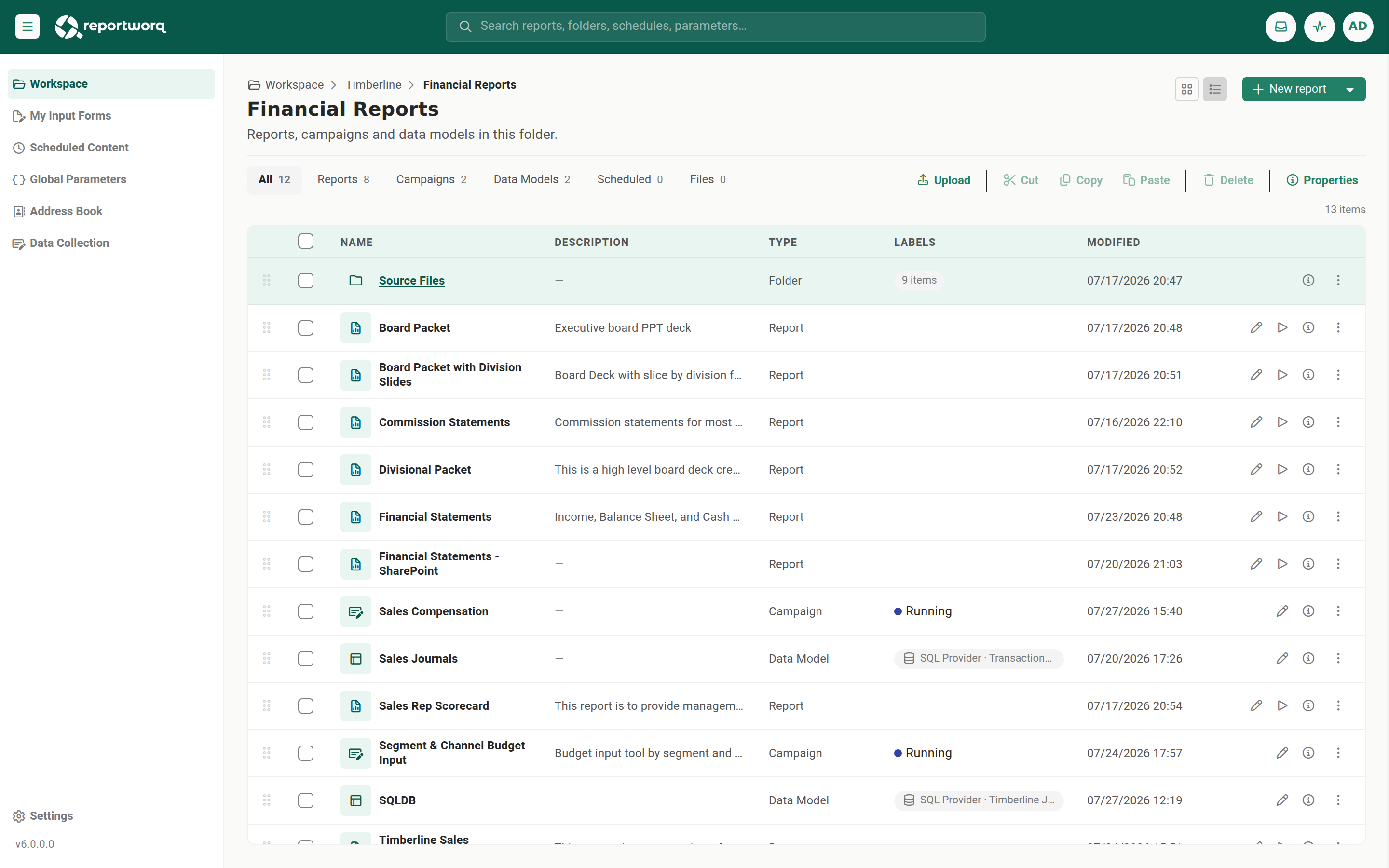
To act on an item, use its row: the inline edit, run, and info actions, or the overflow ... menu for the full set (Edit, Run, View, Run history, Properties, Rename, Duplicate, Delete).
Stop 3: narrow the list#
Try it: select the Reports filter chip.
The item table narrows to reports only, and the chip's count badge shows how many the current folder holds. Select All to return to the full list.
The chips are All, Reports, Campaigns, Data Models, and Scheduled. Filter to Reports to hide campaigns and data models in a large library, or to Scheduled to see what runs on a schedule. The layout toggle switches between Card and Grid, and your choice is remembered per account across sessions.
Stop 4: long lists#
Lists that grow with your data are paged, so a folder with thousands of entries stays responsive.
- A pager sits under the list with the current page, the page controls, and the count shown out of the total.
- 100 rows per page is the default. Choose 100, 500, 1000, or All. All renders every row, which is what you want before printing or copying a whole list out, and is slower on a large one.
- Searching, filtering, or sorting applies to the whole list, not only the page on screen, and the pager reports the filtered total.
The same pager appears on the address book, scheduled content, a job's parameters, global variables, burst sets, the report picker, My Input Forms, and a campaign's forms list. Two lists behave differently by design: a campaign dashboard pages its form cards in smaller batches with no page-size selector, and a data model's Fields tab is not paged at all, because fields are reordered by dragging and a drag cannot cross a page boundary.
Stop 5: search#
When you know an item's name, search beats browsing.
Try it:
- Select the global search box in the header (placeholder "Search reports, folders, schedules, parameters...").
- Type at least 2 characters. Results appear across reports, folders, schedules, parameters, accounts, groups, contacts, outputs, and global parameters.
- Use the up and down arrows to move the selection, Enter or a click to open the highlighted result, and Esc to close the panel.
Results are scoped to your access, so you only ever see what you are permitted to. Search finds a known item fast; to browse by type, use the filter chips instead.
Stop 6: create something#
To add an item, use the New split-button in the browser toolbar. Its caret menu offers New Folder, New Report, New Campaign, and New Data Model. Selecting a type prompts for a name; new reports, campaigns, and data models are created in place and appear in the list. Opening one with Edit takes you into its editor.
The New button and the authoring toolbar appear only for authors and administrators.
Sign out#
When you are finished:
- Open the account menu in the header, then select Logout.
Reportworq ends your session and returns to the sign-in screen.
Next steps#
- Build your first report in Your first report, end to end.
- See how a report moves from idea to delivery in The report lifecycle.
Feedback on this page
Comments, questions, requests, or something missing or unclear? Email us - the page you are on is filled in for you.
Email feedback on this pageOr write to support@reportworq.com directly.