
View and download results#
The Report Viewer shows the rendered output of a report run, without leaving Reportworq and without needing the file. You choose which run to view, which variant (for a burst run), and which format, then read it inline, download the files, or email a copy to yourself.
When to use it. After a run, to read the output on screen, download the deliverables, review a PowerPoint deck slide by slide before it goes out, or send yourself a copy. For Users, this is the main window onto report output.
Open the viewer#
- In the workspace browser, open a report row's ... menu and select View. The viewer replaces the browser in place.
- To return, select the back chevron ("Close, back to the workspace").
Choose the run, variant, and format#
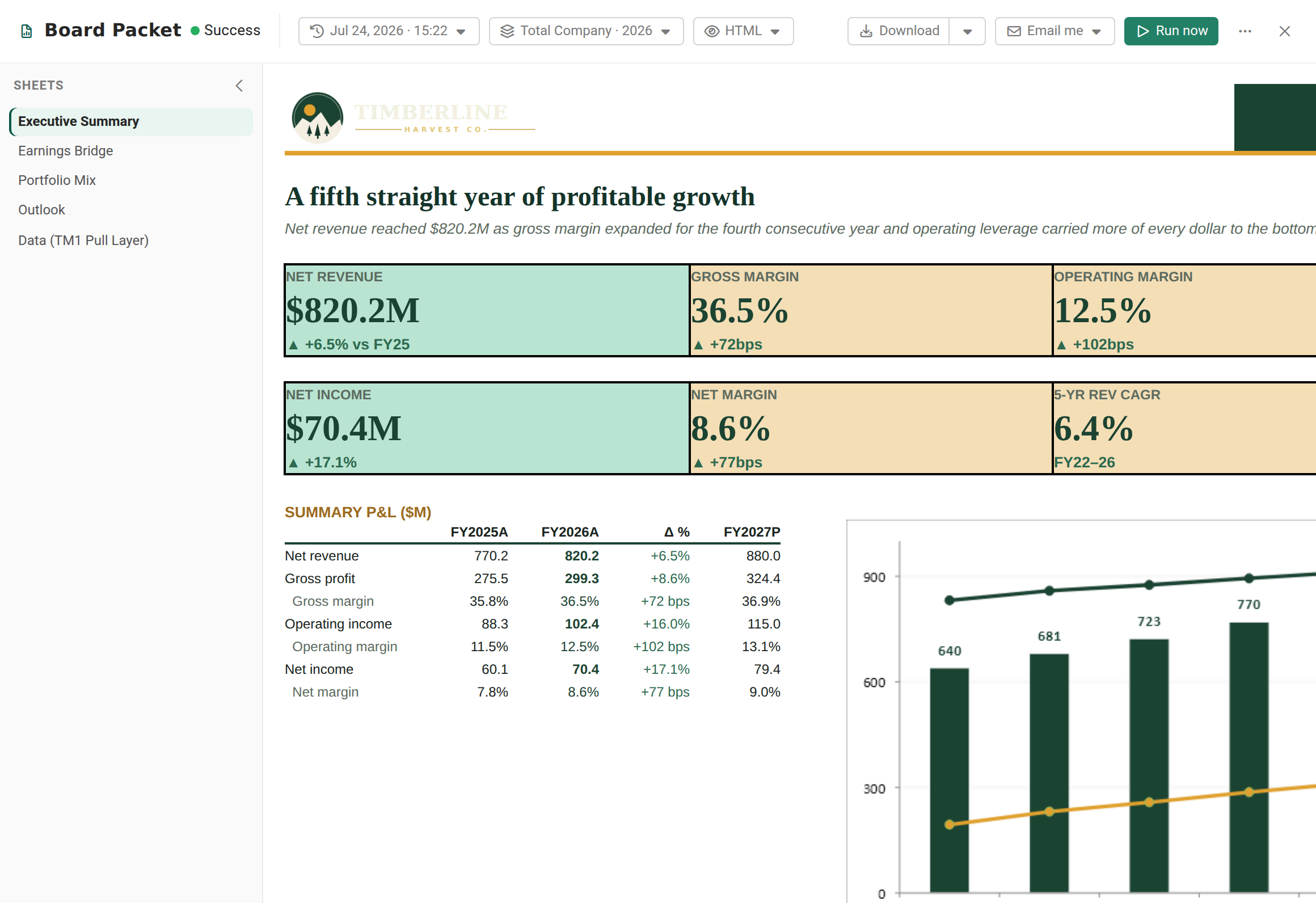
- Run picker. Select which run to view. Runs are listed newest first; each shows its timestamp, a meta line (duration, variations, files, size), and a status chip. A newly finished run appears here automatically.
- Variant picker. For a burst run with more than one variation, pick the variation (for example a region). A single-variation run has no variant picker.
- View as. For a successful run, choose the format under View as. Markdown and HTML are always offered; PDF, Excel, PowerPoint, and CSV appear when the run produced a matching file. The default view is HTML.
- For a PowerPoint view, use the Slides rail to jump between slides; the selected slide renders full size. The rail scrolls when a deck or workbook has more entries than fit.
Download the output#
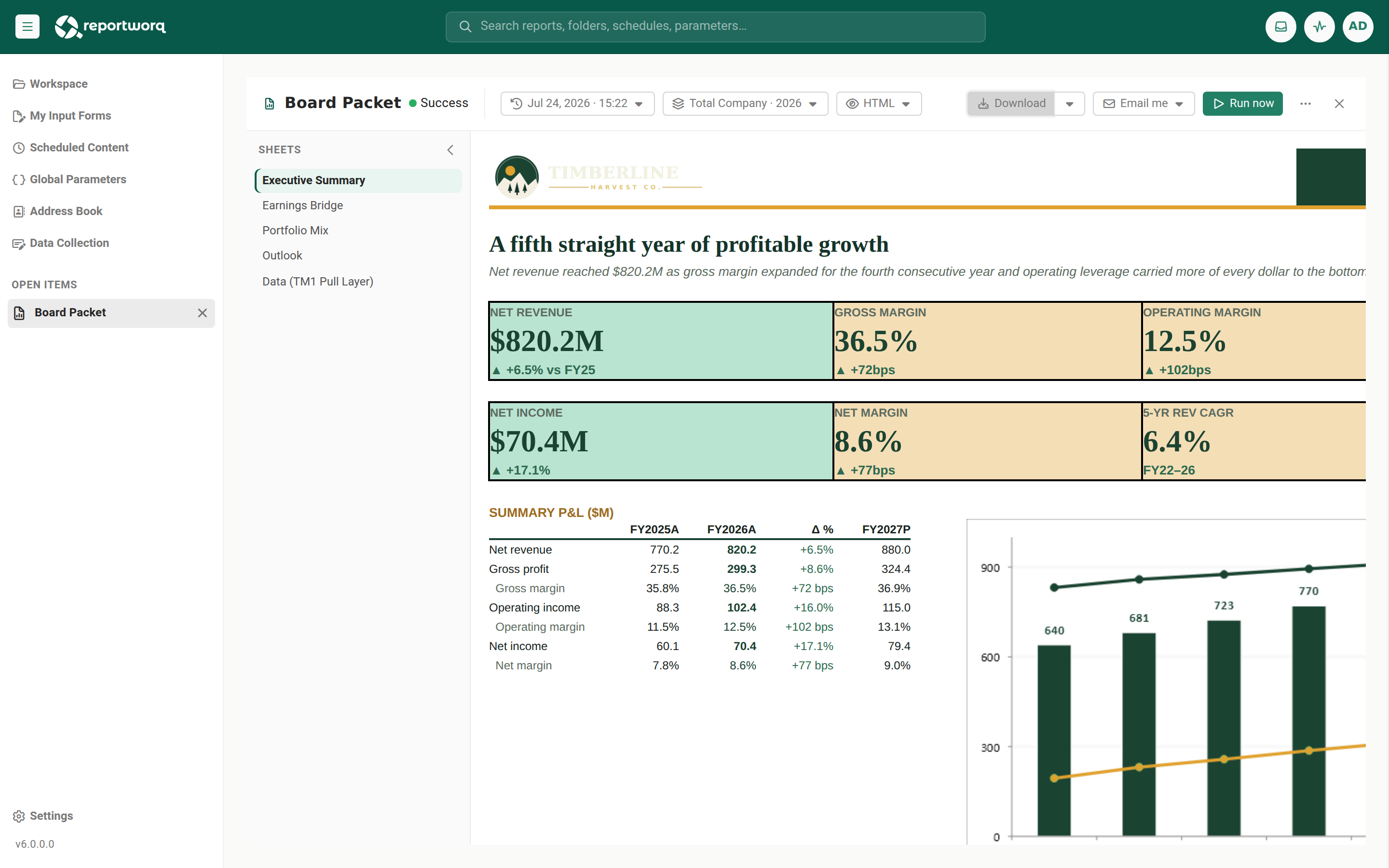
- Select Download to save the file backing the current view.
- Open the Download menu for more options: each output file (with its size), Download all in this
variant, and Download all in this run. Files are saved individually.
Email a copy to yourself#
- When the run has downloads, select Email me.
- For a single file, it is sent to your signed-in address. For multiple files, choose a per-format item or Email all formats.
- The result is confirmed inline, for example "Sent ... to {your address}."
Refresh the run list#
If a run you know has finished is not offered in the run picker, open the ... menu and select Refresh. Refresh rebuilds the list from the stored history rather than re-reading what is already in memory, so a completed run whose finish notification went missing appears straight away instead of after a delay.
Notes and limits#
- The viewer needs a successful run with output files; only Markdown and HTML are always available, the other formats depend on what the run produced.
- Downloads are per file; there is no zip bundle here.
- AI insights are not a viewer format; they appear in the run's history detail. For the run record, pins, and diagnostics, use Run History.
- A view-only User account gets an output-only viewer: view, download, and email, with no edit or run controls.
Going deeper. To see all runs of this report, pin a run, or start diagnostics, see Track activity and run history. If a run failed, see When a job fails.
Feedback on this page
Comments, questions, requests, or something missing or unclear? Email us - the page you are on is filled in for you.
Email feedback on this pageOr write to support@reportworq.com directly.