
Combine emails, collate, and zip#
These options shape how the finished files are packaged before delivery: whether a recipient gets one combined email or several, whether pages are sorted, and whether outputs arrive as a single zip. They are underused, mostly because it is not obvious when you would reach for them, so each section below leads with the use case.
What they do. Three levers work together on the Email distributor:
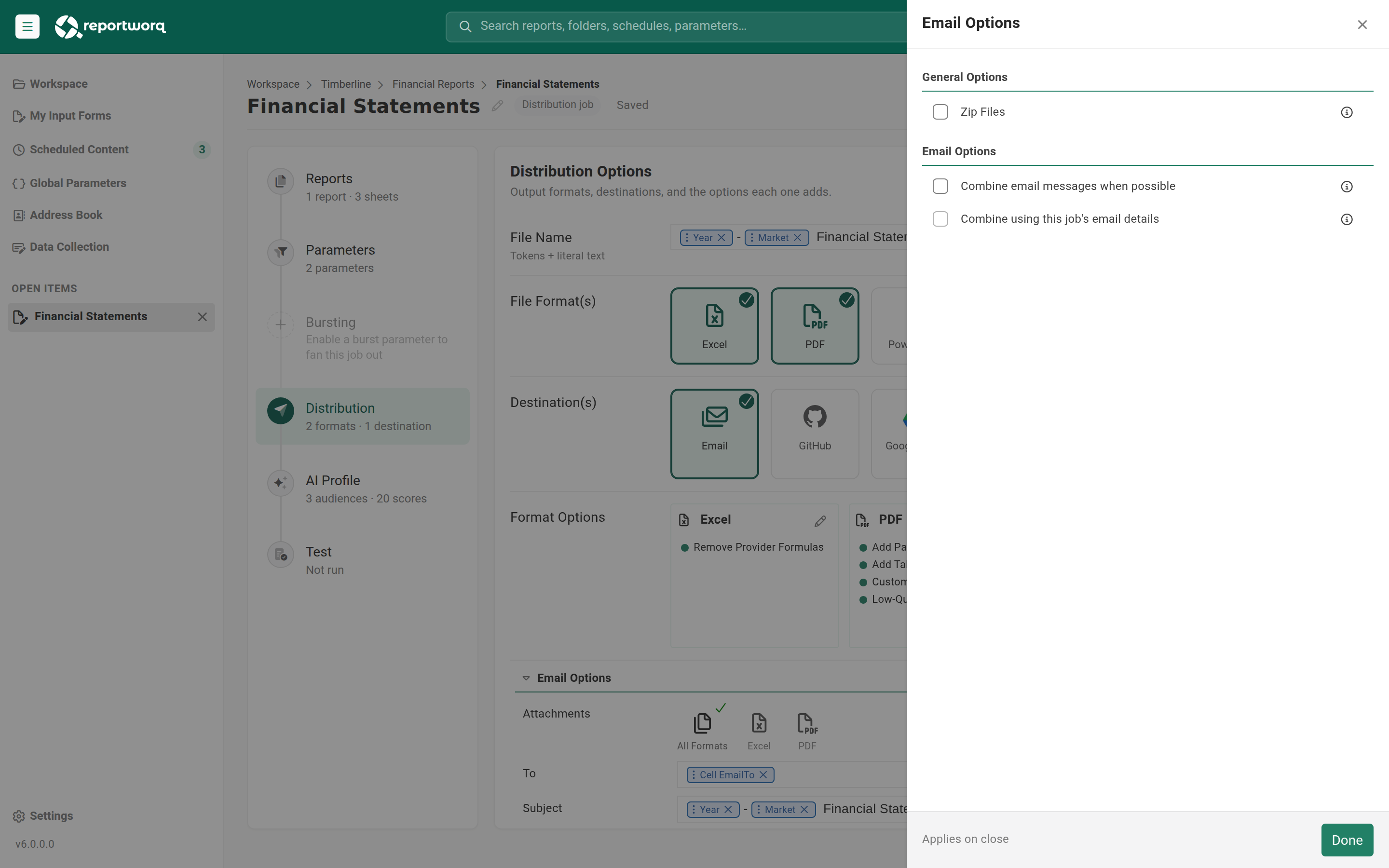
- Combine email messages when possible merges outputs that share the same addressing into one message.
- The Combine Key, an optional extra field, gives you one more level of control over that grouping when matching addresses alone do not split the mail the way you want. It is covered in detail below.
- Zip Files bundles the attachments of a message into a single archive.
Two further options sit in the Job Options sidebar and change the files themselves rather than the mail: Enable Manual Collation sorts report pages, and Split Worksheets turns one workbook into one file per tab.
Before you begin#
- You are on the Distribution step, with output formats selected and at least the Email distributor added (the combine and zip options are Email-distributor options).
- Collation and Split Worksheets live in the Job Options sidebar; the combine and zip options live on the Email distributor's options sidebar, and the Combine Key sits on the Email distributor itself.
Combine emails: one message instead of many#
By default, a job that produces several outputs (or bursts to several recipients) can send a separate email per output. Combine email messages when possible merges outputs that belong together into a single email.
What it does. It defers the individual emails until the batch of outputs has been generated, groups the messages that share the same To, Cc, Bcc, From, and Combine Key, and then sends one message per group carrying all of that group's attachments. Address matching ignores case and ordering, and the subject and body do not have to match.
When to use it. A recipient should get one email with their whole pack, not five. For example, a controller who is due the P&L, the balance sheet, and the cash-flow report should receive a single message with three attachments, rather than three separate emails.
To turn it on, select Combine email messages when possible on the Email distributor's options.
The combine key: control what gets grouped together#
Grouping is by addressing alone unless you say otherwise. The Combine Key is a free-text, tokenizable field on the Email distributor that is folded into that grouping, so two messages combine only when their addresses and their combine keys match. It appears once combining is on; select Show More Fields on the Email distributor to reveal it. Because it accepts variable tokens, its value can resolve per burst iteration.
When to use the combine key. Reach for it when you need one more step of control over how messages are split than the recipient's address gives you.
Take an income statement bursted to one PDF per store, addressed to the store's district manager. District Manager A covers three districts of 6 to 12 stores each. Her email address is the same on every one of those stores, so combining on addressing alone gives her a single message with up to 48 attachments, all mixed together. Put the District parameter into the Combine Key and the run groups by manager and district instead: she receives three emails, one per district, each carrying only that district's store files. The files arrive already separated the way she works with them.
The same lever also works in the other direction. A shared combine key can pull outputs from more than one job in the same scheduled run into one message, for example a P&L job and a variance-commentary job that should reach each region's manager together.
The trap: only one job supplies the combined email body#
When you combine across multiple jobs, exactly one job may be designated to supply the combined email's content and options, using the Combine using this job's email details setting. Set it on that single job only.
Two jobs cannot both "combine into this email body". If more than one job in the run claims to provide the combined email's details, the combination is ambiguous. Pick the one job whose subject and body should win, and leave the setting off on the others.
Collation: sort report pages by cell value#
Enable Manual Collation sorts the report's pages based on cell values before output.
When to use it. The pages of a compiled pack need to come out in a specific order driven by data (for example a ranking, or a defined regional sequence) rather than worksheet order.
Zip Files: bundle outputs into one archive#
Zip Files (an Email distributor option) bundles the run's outputs into a single .zip attachment.
When to use it. A recipient should receive one archive instead of a handful of loose attachments, or the total attachment size is easier to send zipped.
The Exclusion List is a semicolon-separated list of file names or extensions to leave out of the
zip (for example .pdf; data.xlsx). It only has any effect when Zip Files is on.
Split Worksheets: one file per tab#
Where combining and zipping group outputs, Split Worksheets (in Job Options) fans them out: it
saves each visible worksheet as a separate output file. Every selected output format is then produced
per worksheet, so a three-tab report with CSV selected yields three .csv files rather than one. Each is
named from the output file name plus the worksheet name, for example Sales Extract East.csv.
When to use it. A downstream system needs one flat file per table. A CSV holds a single sheet of
values, so without Split Worksheets a multi-tab workbook exports only its first worksheet and the rest of
the data never reaches the target. Turn Split Worksheets on and every tab arrives as its own .csv for the
load job to pick up: actuals, budget, and headcount detail each become a separate file. The same applies to
any integration that expects one file per table rather than one workbook.
Split Worksheets fans out worksheets; bursting fans out separate runs per parameter value, a different mechanism (see What bursting is and when you need it).
Use cases#
- Single zipped email to a controller. Zip Files on, Exclusion List drops the raw
.xlsx, combining on, so one message carries the full pack. - One email per district for a multi-district manager. Combining on with the District parameter in the Combine Key, so each district's store PDFs arrive in their own message.
- One email per regional manager across two jobs. Combining plus a shared combine key so a P&L job and a commentary job reach each manager in one message; only the P&L job carries the email details.
- Per-table CSV extract. Split Worksheets on with CSV selected, so each tab of the workbook ships as
its own
.csvfor a downstream load.
Notes and limits#
- Combining defers the send. Individual outputs wait until the batch completes, then go out combined. A run that is waiting on the batch is not finished until the combined mail is sent.
- Grouping is by To, Cc, Bcc, From, and Combine Key. Two messages combine only when all five match. Subject and body are not part of the match. The addresses are matched without regard to case or order, but the Combine Key is matched exactly, so keep its casing consistent if you type it by hand rather than build it from a token.
- Exclusion List needs Zip on. It does nothing unless Zip Files is enabled.
- One combine-details job. Across a multi-job combined run, only one job may supply the combined email's subject, body, and options.
- Split Worksheets covers visible worksheets only. A hidden tab produces no file, so a calculation or lookup tab stays out of the fan-out.
Going deeper. Write the combined message's subject and body once, with dynamic tokens, and reuse it across runs. See Email messages and templates.
Feedback on this page
Comments, questions, requests, or something missing or unclear? Email us - the page you are on is filled in for you.
Email feedback on this pageOr write to support@reportworq.com directly.