
Name and organize output files#
The file name field on the Distribution step builds the name of every generated file from literal text plus variable tokens (a parameter value, a contact attribute, a global variable, or a timestamp). Because tokens resolve per burst iteration and per recipient, one job produces distinctly named files across parameters, recipients, and runs, and the same tokens work in a destination's folder or path field to organize where those files land.
The worked example is a monthly P&L pack bursted per store.
Before you begin#
- You are on the Distribution step of the Job Editor, with at least one output format selected. See Output formats.
- For parameter tokens, the parameters must already be defined on the Parameters step. For contact tokens, the job must burst to contacts or use contact mapping. For global variable tokens, the global variables must be configured.
Build a file name from tokens#
- Select the file name field. It is a pill editor: you type literal text and insert variable tokens between the text.
- Type the fixed part of the name, for example
P&L_. - Insert a variable pill where you want a value to appear, and pick its type:
- Parameter, resolves to the parameter's value for the current burst iteration (for example the store code).
- Address Book, resolves to an attribute of the recipient contact (name, email, and so on).
- Global Variable, resolves to a configured global value.
- Timestamp, resolves to the run time formatted with a Timestamp Format code you pick (for
example
gfor short date and time).
- Configure the pill in its popover and choose Save and Close. The placed pill shows the field it will resolve.
- Add more literal text and pills as needed. A name like
P&L_[Store]_[Timestamp]producesP&L_Store12_...,P&L_Store13_..., each with the run date embedded.
The format-specific extension (.xlsx, .pdf, .pptx, .csv) is appended automatically per
output format; you set the base name only.
Before you insert a parameter pill, check that parameter's replication mode. Only a parameter set to No replication or One report per item belongs in a file name, see the note in Notes and limits.
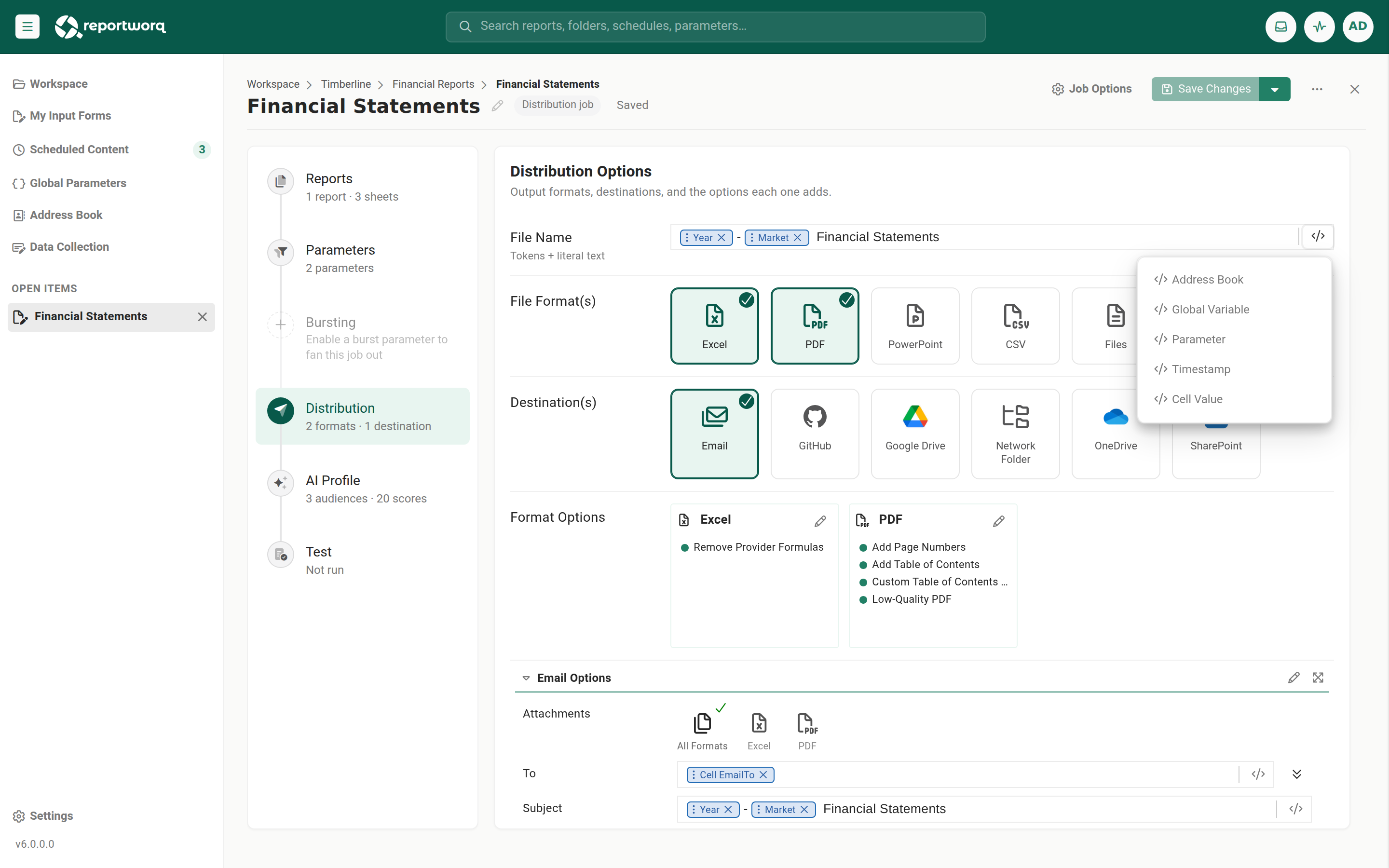
Contact token display options#
The contact token is listed as Address Book in the insert-variable menu. When you insert one, pick which recipient attribute it renders:
| Contact display option | Resolves to |
|---|---|
| Name | The contact's name. |
| Email Address | The contact's email address. |
| Network Folder | The contact's network-folder destination value. |
| Google Drive Email / Id / Folder | The contact's Google Drive email, id, or folder. |
| SharePoint Folder | The contact's SharePoint folder. |
| Slack Channel | The contact's Slack channel. |
| Teams | The contact's Teams destination. |
Organize output into folders automatically#
The same tokens work in a destination's folder or path field (Network Folder, SharePoint, Box, OneDrive, IBM Planning Analytics application folder). This is the key organizing trick:
Putting a variable in the path auto-creates the folder tree at delivery time. When a folder-based destination path contains a token, Reportworq resolves it per iteration and creates any missing folder segments as it delivers. You do not pre-create the folders.
When to use it. You are bursting one report per store (or per entity, region, or cost center) and want
each store's file in its own folder. Put the store parameter token into the Network Folder or
SharePoint path, for example \\FileServer\Reports\[Store]\, and the run creates
...\Store12\, ...\Store13\, and so on, dropping each store's file where it belongs.
The same works for dated archives: a Timestamp token whose format yields dated segments builds
year and month folders, for example a format like MMMM d yyyy creates a folder named "August 12, 2025",
so successive runs archive cleanly instead of overwriting each other.
Use cases#
- Per-store burst.
P&L_[Store]_[Timestamp]names each store's file uniquely and dates it. - Recipient-personalized forecast. A Contact, Name token yields
Forecast_JaneDoe.pdfper recipient when the job bursts to contacts. - One folder per entity. A parameter token in the SharePoint path drops each entity's pack into its own library folder, created on delivery.
- Dated archive. A Timestamp token in both the name and the network-folder path keeps every run side by side instead of overwriting the last one.
Notes and limits#
The file name is a base name only. The extension is fixed per output format.
Only use a parameter pill for a parameter that produces its own file. Check the parameter's replication mode on the Parameters step first:
- No replication and One report per item are safe. Each resolves to a single value for the file being written, so the name comes out clean and distinct.
- One page per item is not. That mode keeps every value in one workbook, one page per value, so
there is no separate file per value to name. The token resolves to all of the values joined by commas,
which produces an unwieldy name like
P&L_East, Central, West.xlsxrather than three files.
File names come out the same on every host. Reportworq replaces each character that cannot safely appear in a file name with a single underscore, using one fixed set:
" < > | : * ? \ /plus control characters. The set does not depend on the operating system, so the same job produces the same file name whether the server runs on Windows or Linux. A token that resolves toUK|SalesdeliversUK_Sales, and a colon-bearing timestamp such as-05:00delivers-05_00.Reserved names and trailing punctuation are not adjusted. Sanitization covers characters, not Windows reserved device names (
CON,NUL, and similar) or a name ending in a dot or a space. If a token could resolve to one of those on its own, add literal text around it so the name is never just the reserved word.A token that references an unset value may resolve empty, for example a Contact attribute when the job does not burst to contacts.
Re-runs. A file name with no Timestamp token resolves to the same name every run, so each run overwrites the last. In a network folder or SharePoint destination, add a Timestamp token when you want to keep the history. Cloud destinations such as Box and OneDrive version or replace a same-named file in place rather than duplicating it.
If overwriting is the intent, for example a single live dashboard file that always sits at the same path, leave the timestamp out. Be aware that the overwrite can fail when someone has the target file open: SharePoint and Windows file shares lock a file that is open for editing, so the delivery to that destination errors and the file keeps its previous contents. Other destinations in the same run are unaffected, and the run's status reflects the error. If a file is meant to be refreshed in place on a schedule, tell its readers to close it before the run window, or deliver to a timestamped name instead.
Upgrading from an earlier release on a Linux host? File names may change. On Linux (which includes container and Azure App Service deployments), earlier releases replaced only
/, so\ : * ? " < > |passed straight through into the delivered file name. Those characters are now replaced with an underscore each, matching what Windows always did. A file name built from a colon-bearing timestamp format, or from a token that resolves to something like aserver:cube:elementreference, therefore arrives under a slightly different name than it did before. Windows deployments are unaffected. If anything downstream matches delivered file names exactly, a mailbox rule, a load script, or a watched folder, check its patterns after the upgrade.
Going deeper. The message body (email, Slack, Teams) accepts a superset of these tokens, including live cell values, charts, images, and screenshots pulled from the workbook. See Email messages and templates.
Feedback on this page
Comments, questions, requests, or something missing or unclear? Email us - the page you are on is filled in for you.
Email feedback on this pageOr write to support@reportworq.com directly.