
Schedule a job#
A schedule tells Reportworq when to run which jobs, with what parameter values and delivery behavior, so reports run unattended on a cadence instead of being kicked off by hand. You build a schedule in the Schedule editor, which defines one schedule as a single cron expression, a selection of jobs or folders, an optional set of parameter overrides, and delivery options.
When to use it. Once a job and its distribution are built and tested, schedule it for any report that has to run on a cadence: a nightly forecast refresh, a month-end P&L distribution, a weekly store pack. Scheduling is one of the most underused features in Reportworq. Many teams keep running jobs manually because the job "doesn't feel dynamic enough" to trust on a schedule, but a well-parameterized job runs the same way every time. Even scheduling to Hold for Delivery is worth it: it is the same as running a job and reviewing the result before it goes out, done automatically on your cadence.
Before you begin#
- You need at least one runnable job. For output to be delivered, the job needs a configured distribution.
- Times in the editor are server time (the Reportworq host's time zone).
Open the editor and name the schedule#
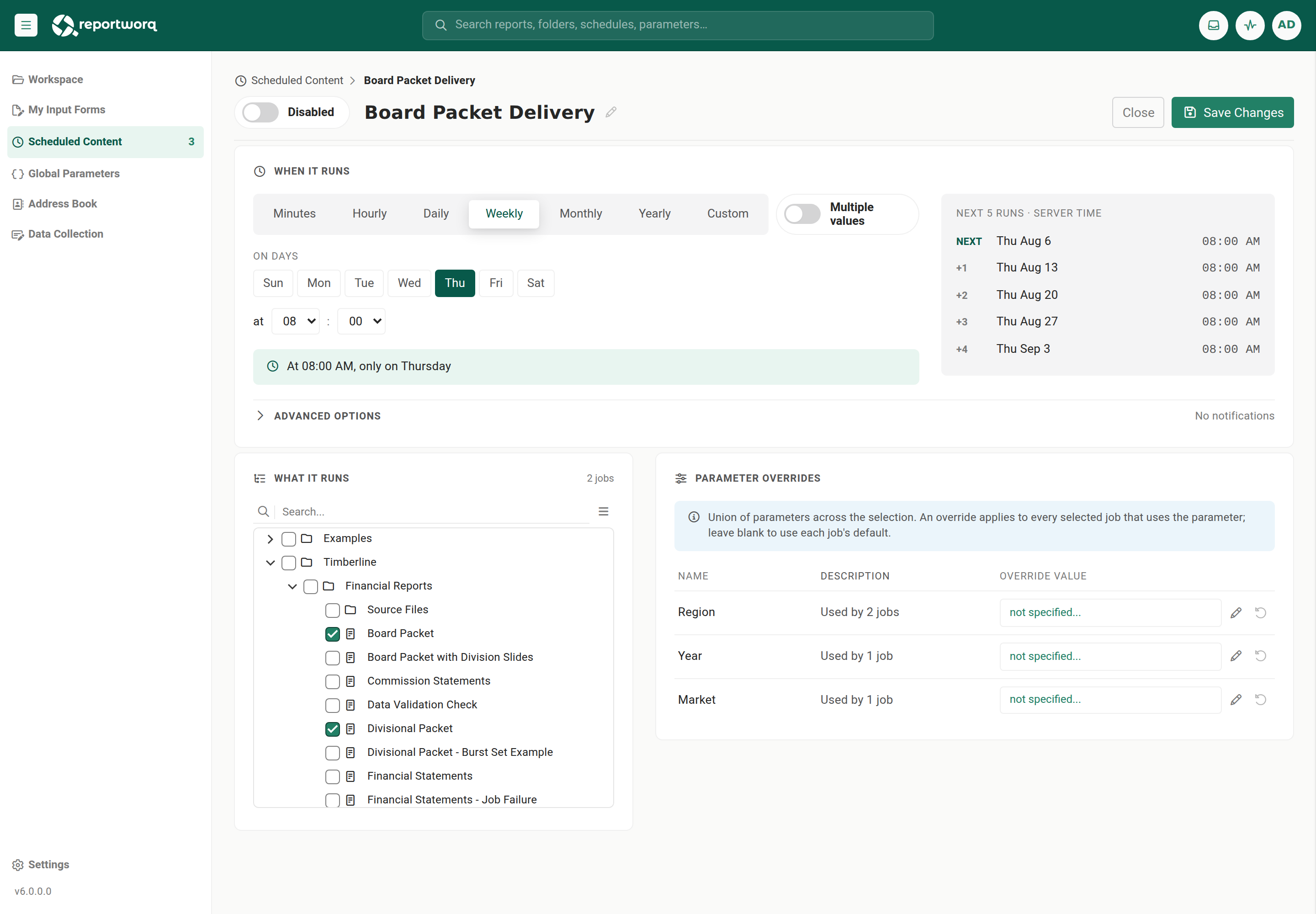
- From Scheduled Content, select New schedule, or open an item's Schedule properties tab and choose New schedule. To change an existing schedule, select its row.
- Enter a name in the header. The name commits when you press Enter or move focus off the field.
- Use the enabled toggle to control whether this schedule runs. A disabled schedule is kept but does not fire.
Set the cadence with cron#
Timing is a single 5-field cron expression in the order minute hour day-of-month month day-of-week.
- In When it runs, pick a builder preset: Minutes, Hourly, Daily, Weekly, Monthly, Yearly, or Custom. Each preset shows only the fields it needs and writes the cron for you.
- Turn on Multiple values for a field to select more than one value (a comma list), for example several weekdays.
- To type the expression directly, edit the raw cron string. Doing so switches the builder to Custom.
For example,
0 2 * * *runs every day at 02:00. - Check the Next runs preview and the human-readable description below the field. Both are in server time. A red field with "No upcoming runs, check the expression" means the cron is invalid and Save is disabled.
Reportworq uses standard 5-field cron. It does not use the old ? / L / W / # tokens, month or
day names, or seconds. The finest granularity is one minute. When both day-of-month and day-of-week are
restricted, a day matches if either field matches.
Choose what runs#
- In What it runs, use the searchable tree of folders and jobs.
- Select individual jobs with their checkboxes. The summary reads like "N jobs · M dynamic folders."
- To run every job in a folder as resolved at run time, select the folder as a dynamic query. It shows a Dynamic pill and a runtime-count hint, for example "~8 jobs today," so newly added jobs in that folder are picked up automatically.
Override parameters (optional)#
- In the Parameter Overrides inspector, review the parameters used across your selected jobs. A global chip marks a parameter backed by a Global Parameter.
- Enter a value to apply it to every selected job that uses that parameter. Leave it blank to keep each job's own default.
Use this to run several jobs for the same reporting period from one schedule: override the shared Period
parameter once and every job runs for that period.
Set delivery behavior and save#
- In the advanced options under When it runs, set delivery and logging:
- Hold for Delivery produces the outputs but holds them for release instead of distributing. A scheduled held run follows the same lifecycle as an ad-hoc hold: outputs are generated and logged, distribution is skipped, and the run lands in Activity under Hold to be released or canceled.
- Notifications control when a run summary is sent.
- Verbose logging and Trace logging capture extra diagnostics.
- To restrict runs to or exclude specific calendar dates, use the optional date filter (see below).
- Select Save. Save is explicit; nothing is scheduled until you save.
Restrict runs to specific dates (optional)#
The date filter layers on top of the cron occurrences, it never changes the cron itself.
- Choose Whitelist to run only on the listed dates, or Blacklist to run on all scheduled dates except those listed. A common pattern is a weekday cron plus a Blacklist of holidays.
- Enter dates as a plain-text list (one per line) or upload a
.txtfile. - Use slash-delimited dates: a single date as
yyyy/MM/dd, and a range asyyyy/MM/dd-yyyy/MM/dd(dash-delimited, inclusive). Do not use ISOyyyy-MM-ddfor a single date; the dash is reserved for the range separator, and a dashed single date is skipped.
A safe way to test a schedule before it goes live#
- In the editor, turn Hold for Delivery on and clear Notify on failures only so you get the run summary.
- Save, then from the schedule's row on Scheduled Content select Run now.
- Review the notification email and the held output in Activity.
- When it looks right, edit the schedule and turn Hold for Delivery off for production.
Notes and limits#
- Run now is a Scheduled Content list action, not an editor action; running requires a saved schedule.
- A per-schedule enabled toggle is separate from the global master scheduler. Both must be on for a schedule to run. See Manage scheduled content.
Going deeper. To turn scheduling on or off for the whole workspace, understand missed-run (catch-up) behavior, and monitor schedule health, see Manage scheduled content.
Feedback on this page
Comments, questions, requests, or something missing or unclear? Email us - the page you are on is filled in for you.
Email feedback on this pageOr write to support@reportworq.com directly.