
Address book and contacts#
The Address Book is the workspace directory of contacts, the people distribution delivers to and contribution notifies. Each contact holds a name, a set of delivery destinations (email, Slack, Teams, SharePoint, network folder, SFTP, and so on), and optional custom metadata. Maintaining recipients here once, rather than per job, is what lets bursting and distribution map outputs to the right people automatically.
Open the screen from Address Book in the left side rail, grouped with the other admin items. It is not shown in the read-only shell a User sees. The layout is master-detail: a searchable contact list on the left, a person editor on the right. Contacts also appear in global search.
When to use it. Populate the Address Book before or alongside building distribution, so bursting can resolve each output to a contact's destinations, see Assign recipients to bursts.
Before you begin#
- You need administrator access to the workspace.
- The distributors you enable determine which destination fields appear on a contact. A distributor's field shows up only once that distributor is configured, see The integrations hub.
Create and edit a contact#
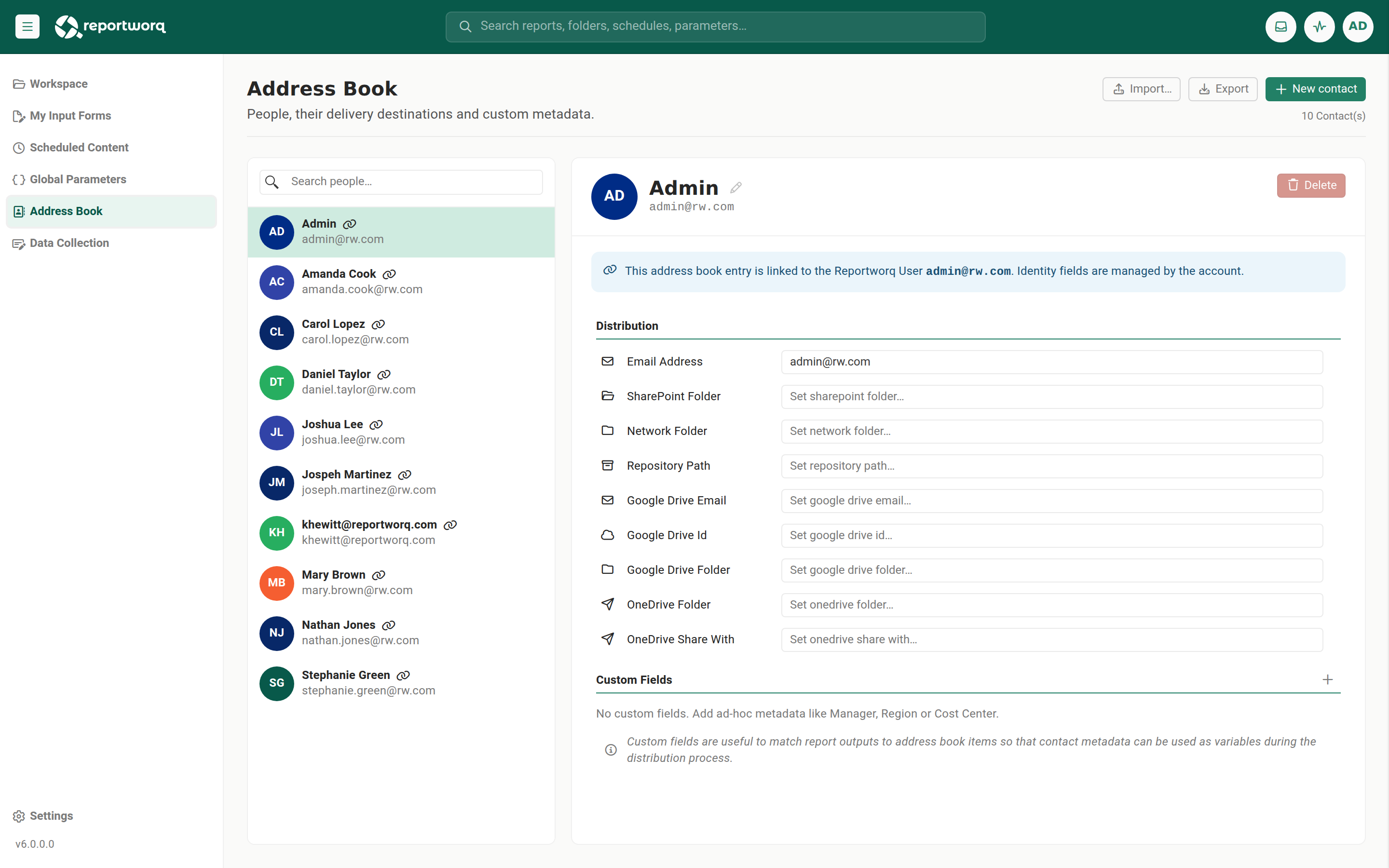
- Select New contact and enter a name. Duplicate names are rejected.
- Edit the name inline in the person editor. Fields are grouped into categories:
- Distribution, one input per enabled distributor field, rendered in a canonical order (Email first, then Slack, Teams, SharePoint, Network, SFTP, Repository, Google Drive, then any others). Each value is free-form text but must be a value the distributor accepts, or the job run errors. Examples: a network folder as
\\MyServer\MyFolder, a SharePoint folder as a full.../sites/...URL, a Slack channel asgeneral. - Custom Fields, ad-hoc per-contact metadata such as Manager, Region, or Cost Center. These match report outputs to contacts and can feed distribution variables.
- Access Rules, shown only when a Workday Adaptive connection exists, per-dimension access rules resolved against Adaptive metadata.
- Distribution, one input per enabled distributor field, rendered in a canonical order (Email first, then Slack, Teams, SharePoint, Network, SFTP, Repository, Google Drive, then any others). Each value is free-form text but must be a value the distributor accepts, or the job run errors. Examples: a network folder as
- Delete removes a non-linked contact after a confirmation.
A custom field only saves once a contact has a value in it#
Adding a custom field creates a column, but the column is dropped on save unless at least one contact has a value entered in it. Adding the field alone does nothing, so enter a value for at least one contact immediately after you create the field, or it disappears.
Contacts linked to user accounts#
A contact can be linked to a Reportworq user account. Enabled accounts that have authentication credentials are listed automatically as contacts, you do not add them by hand. A linked contact shows a link glyph and a banner noting that its identity fields are managed by the account. Linked contacts cannot be deleted here, the delete action is disabled with an explanatory tooltip.
Directly-created contacts get no entitlements#
A contact you create directly in the Address Book (not through the authentication interface) can only be a report-distribution recipient. It acquires no Reportworq entitlements or licenses. Licenses and entitlements attach only to accounts added under authentication. The Address Book is a delivery directory, not an access-grant surface.
Import and export#
Use Export to download all contacts as contacts.xlsx, and Import to ingest contacts from an uploaded .xlsx workbook (the first worksheet). The round-trip covers the name, tags, distributor destination values, and custom fields.
The import obeys a strict column contract:
| Column prefix | Meaning | Behavior |
|---|---|---|
Id, Name |
Required identity columns | Import fails if either is missing. Rows match an existing contact by Id, then by Name. A blank or unmatched Id creates a new contact. |
D_... |
A built-in distributor field, formatted D_<DistributorName>_<FieldId> |
Sets that field only if the distributor and field both exist. A mistyped or unknown distributor or field is silently skipped, no error. |
P_... |
A custom field | Creates the custom field if it does not already exist, then sets its value. |
Tags |
Comma-delimited tags | Round-trips the contact's tags. |
Import is additive and never deletes. It only creates or updates the rows present in the file, contacts absent from the file are left untouched. To remove a contact, delete it in the screen, do not omit it from an import expecting it to disappear.
Note: because a P_ column creates the field, and a custom field is not saved until a contact has a value in it, an import that both adds a P_ column and gives at least one row a value is the cleanest way to introduce a new custom field in bulk. Import to Excel and back is also the sanctioned workaround for bulk grouping, since contacts cannot be organized into folders in the screen.
How contacts get used downstream#
- Distribution contact mapping resolves a burst output to a contact by matching a field to a value, and the field lookup is case-insensitive, so
NORTH,North, andnorthall resolve to the same contact. See Assign recipients to bursts. - Contribution notifications resolve contributor and approver recipients from these contacts.
Notes and limits#
- Contacts are workspace-scoped.
- Linked (account) contacts cannot be deleted here, and their identity fields are managed by the account.
- Contacts cannot be organized into folders or groups in the screen. Tags are the nearest classifier, set through the import and export
Tagscolumn. - A distributor's destination field appears only after that distributor is enabled.
Going deeper. For how a bursted job routes each output to the right contact, including the burst-set-wins precedence over mapping, see Assign recipients to bursts.
Feedback on this page
Comments, questions, requests, or something missing or unclear? Email us - the page you are on is filled in for you.
Email feedback on this pageOr write to support@reportworq.com directly.