
Author a contribution campaign#
A campaign is the object that runs a write-back cycle: it defines the input forms people fill, who fills and approves them, the notifications sent along the way, and the export that pushes collected data to a target system. You build it in the campaign editor, a left rail of five sections.
The worked example is a cost-center budget round: one budget form per cost center, each routed to its owner, reviewed by finance, and written back to a Planning Analytics cube on approval.
Before you start#
- You can build a report. A campaign reuses the same source-worksheets-and-parameters surface as any Reportworq report.
- Your form worksheets carry the contribution formulas that define input cells, validation, and controls. See Author the form worksheets below, and Contribution functions for the full reference.
- Contacts and groups exist in the address book for the people you will assign.
- For write-back to reach your plan, the Contribution capability (which includes Data Collection) is licensed and an export destination is configured for your instance.
The five sections#
The editor rail runs in order: Create Forms, Assign Forms, Notifications, Exports, Options. Each carries a count badge.
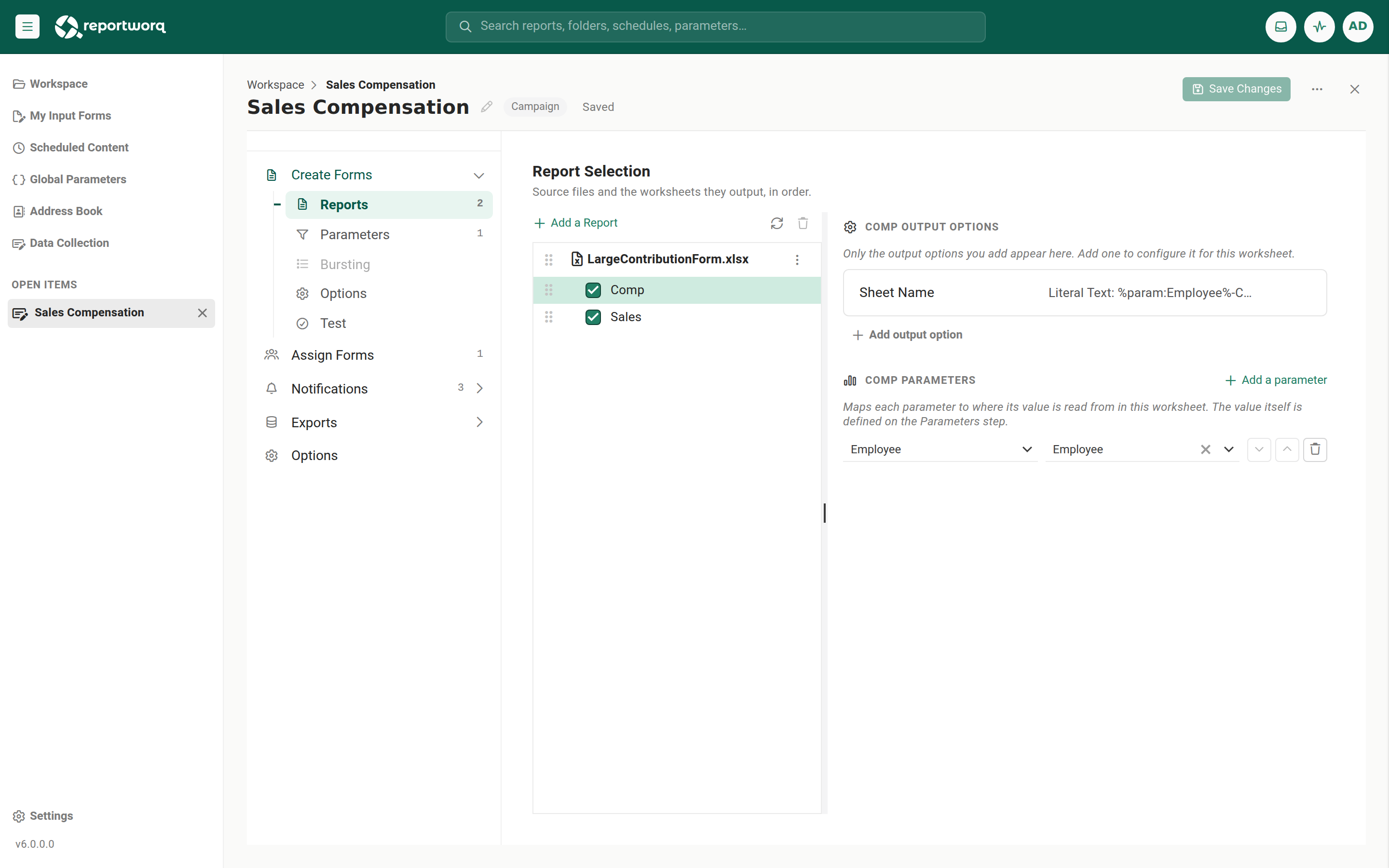
- Create Forms authors the form content. It reuses the job editor, with child steps Reports, Parameters, Bursting, Options, and Test. Pick your source worksheets and map parameters here. See How one definition becomes many forms.
- Assign Forms generates the forms and routes them to people.
- Notifications holds the built-in message templates for the cycle.
- Exports configures where collected data is written back.
- Options holds the campaign-wide settings, including approvals.
Rename the campaign inline from the editor chrome. Entering edit mode shows an Unsaved state with Save and Discard; a brand-new, unedited campaign opens clean with Save disabled.
How one definition becomes many forms#
Generation produces one form for every output the report definition would produce, so the ways a report fans out are exactly the ways forms fan out. A burst parameter is not required for a report to be replicated in a campaign. There are two independent mechanisms, and you can use either, both, or neither.
- One report per item. On the Parameters step, open a parameter and set its replication to One report per item. Every value the parameter resolves to then produces its own report, and therefore its own form. This is the simplest way to get one form per cost center. Note the contrast with One page per item, which keeps every value in a single workbook and so produces one form, not many.
- Burst sets. Select Enable this parameter to be used in burst sets on a parameter, then build the burst sets on the Bursting step. Each burst set entry produces its own form and can carry a contact. Use this when the list of values and the people behind them are maintained as a set rather than derived from a query.
Using both multiplies them: every burst set entry is generated for each combination of the one-report-per-item values. Using neither produces a single form for the whole campaign.
For the cost-center budget round, set the Cost Center parameter to One report per item on the Parameters step. Generation then produces one budget form per cost center, with no burst parameter anywhere in the campaign.
Author the form worksheets#
The forms are only as capable as the workbook behind them. At generation time Reportworq reads the RW.Contribution formulas in the source worksheets and renders the matching controls in the browser, so a worksheet with none of them generates a form no one can enter values into. Three things are load-bearing for a campaign.
RW.Contribution.Inputmakes cells editable, and names the data model. Without it there are no input cells. Its second argument is the form (data model) name, and the repeatingfieldName, fieldReferencepairs that follow are that model's fields. This is not just labeling: the Data Model an export requires is exactly the name you put in this argument, and theFields.*tokens you map to cube dimensions or table columns are exactly these field names. Choose them deliberately, because the export is built on them.- Keep one data model consistent across forms. If two forms declare the same data model name with a different set of field names, the export cannot resolve the model and reports that the data model is not consistent across forms. Use one
RW.Contribution.Inputpattern for all the forms a single export will cover. RW.Contribution.Checkdecides what a contributor is allowed to submit. A check marked as required blocks Submit until it passes, so it is the control that keeps bad values out of the plan before anyone approves them. A check that is not required warns without blocking.
RW.Contribution.Checkbox, RW.Contribution.List, and RW.Contribution.Filter are optional. They add a toggle, a controlled dropdown, and a row filter, and they are worth adding when free typing would let contributors invent values you then have to clean up.
Two placement rules break more forms than anything else: never place an input, validation, or filter formula on a header row or header column, and never let an input range overlap a control cell. Full signatures, defaults, and the workbook design rules are in Contribution functions.
Going deeper. A campaign's own export writes collected data to the target through the field mapping described above. The separate data collection path, where a workbook is returned by upload or mailbox and posts its values through hidden write-back formulas, is a different process. See Contribution (write-back) overview.
Generate and assign forms#
- Open Assign Forms and select Generate Forms. This turns the Create Forms definition into concrete forms, one per output the definition produces.
- In the assignment grid, set each form's Contributors (who fills it) from the multi-select of accounts and groups.
- If approvals are on, set each form's Approvers. The Approvers column appears only when approvals are required.
- For large rosters, use Export Assignments... and Import Assignments... to edit the mapping in bulk instead of row by row.
Assigned forms then appear to each person in My Input Forms.
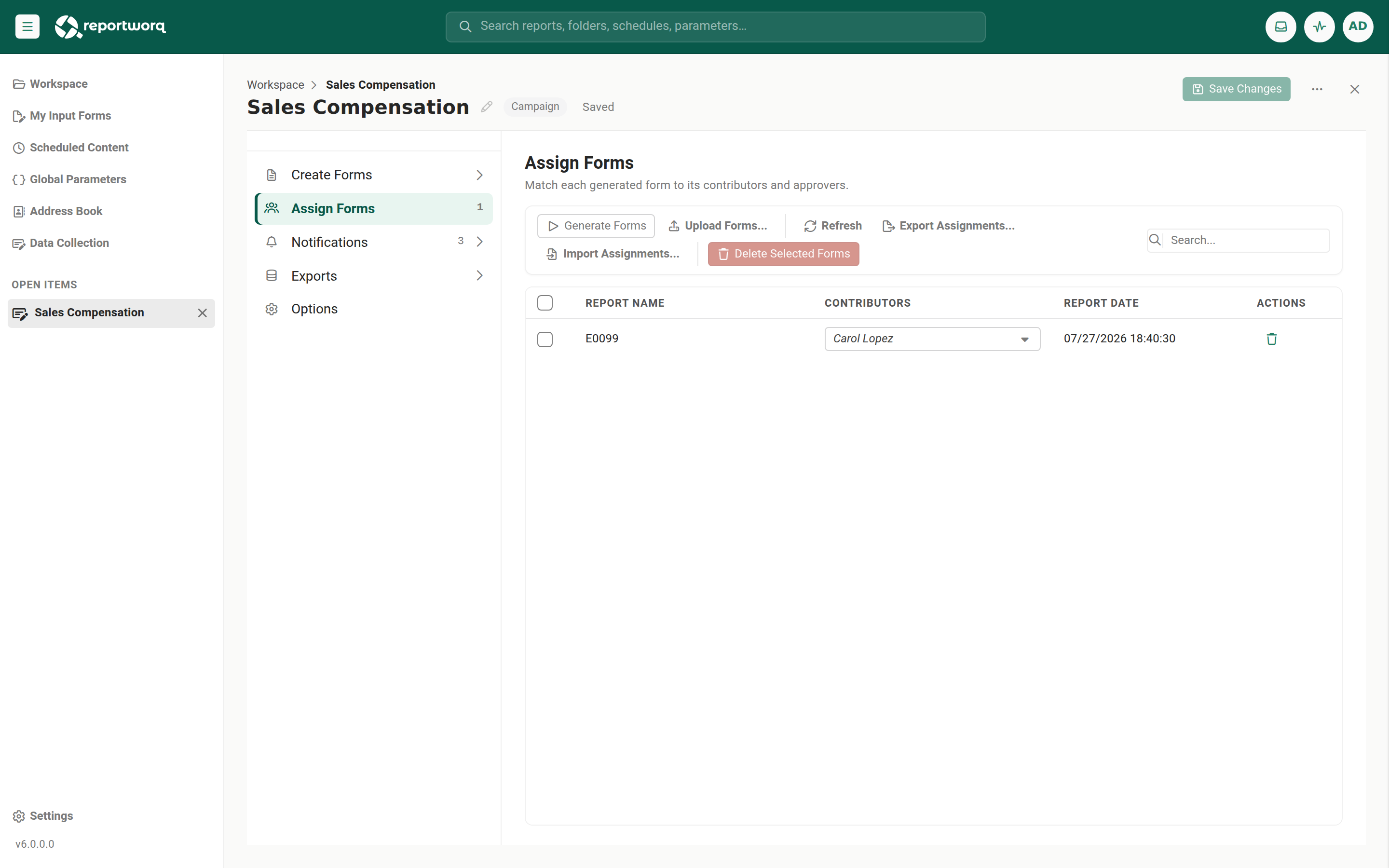
Regenerating forms. Regenerate Input Forms, on the campaign dashboard, rebuilds the generated forms from the current definition with refreshed source data. Refresh Forms is the equivalent trigger action for automation, and Auto Archive can regenerate input forms after archiving. A contributor's Reset Form is different: it reverts one form to baseline and deletes that form's collected data. Coordinate any regeneration with in-progress submissions.
Set notifications#
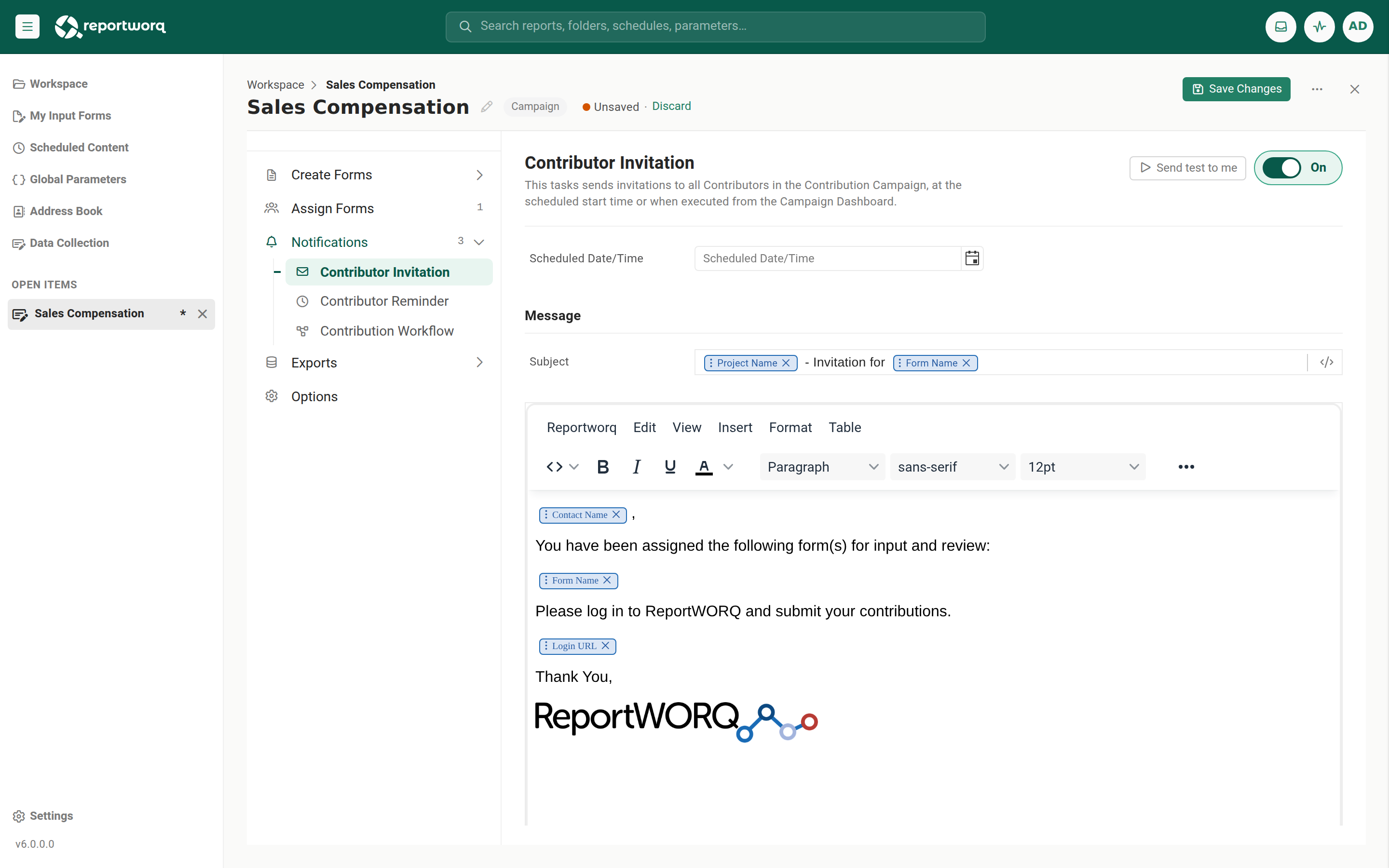
The Notifications section lists built-in templates you can edit. With approvals off, three contributor templates appear: Invitation, Reminder, and Workflow. Turning approvals on adds three approver templates, for six total. Each opens a slim template editor. Notifications fire from triggers or can be sent by hand from the dashboard.
Configure the export (write-back)#
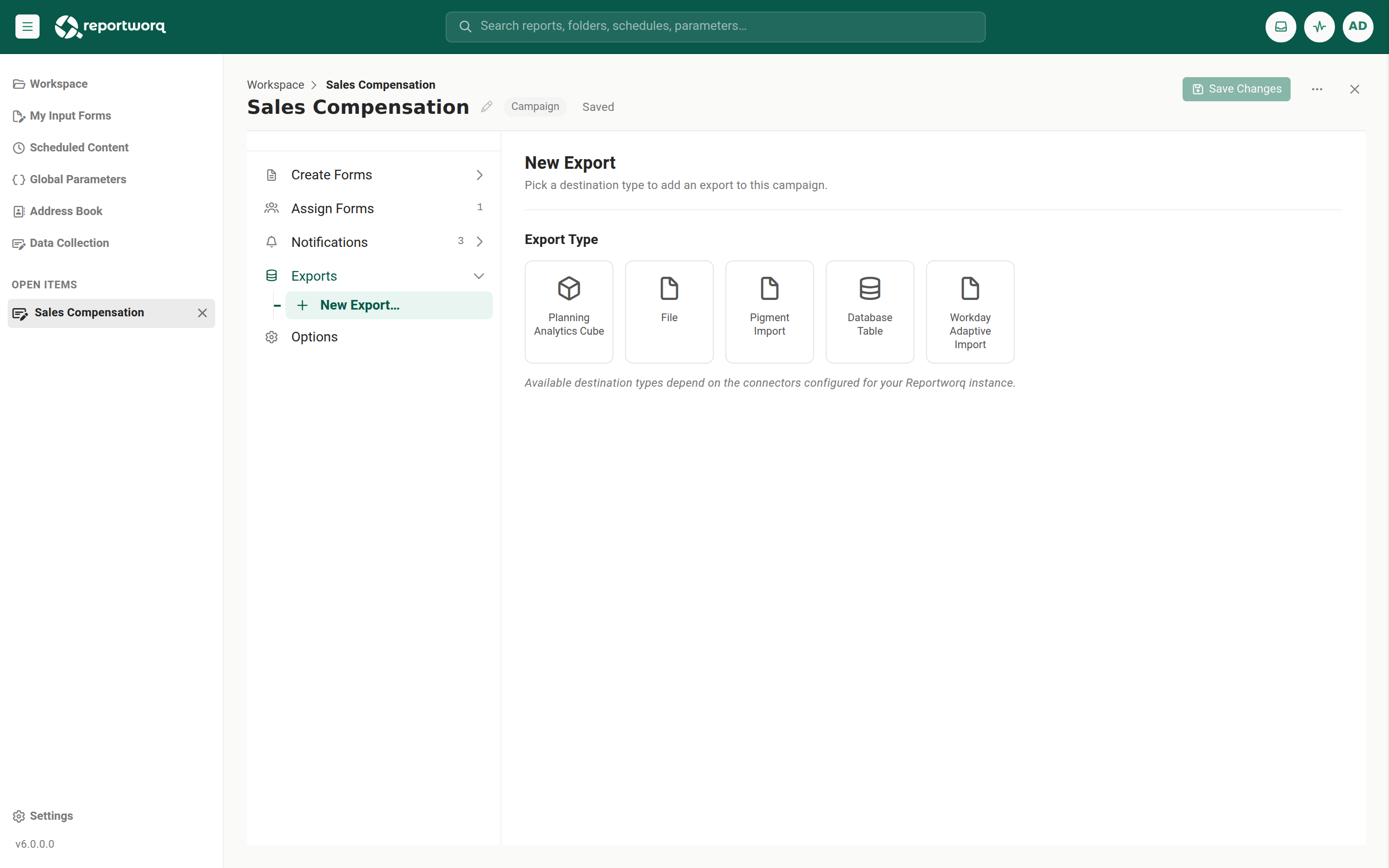
The Exports section is where collected data is pushed to the target. Select New Export... to pick a destination tile, then configure it.
- Export Model Type chooses what is exported: Data (the input values), Commentary (contributor and approver comments), or Workflow (workflow activity per form). Data and Commentary require a Data Model name; Workflow needs none. Choosing Data or Commentary without a data model is invalid and the export will not run. The data model names on offer are the form names declared in the worksheets'
RW.Contribution.Inputformulas, and theFields.*tokens you map to the destination are that formula's field names. See Author the form worksheets. - Filters (Data only) combine two choices into four options: approved forms only versus submitted-and-approved forms, and all data versus changes only.
- Export Type (destination) is a tile picker: Planning Analytics Cube, Database Table, or File (Excel
.xlsx, or CSV with a Comma or Tab delimiter). Available tiles depend on the connectors configured for your instance.
An export can be run from the dashboard, or downloaded as an Excel workbook for review without writing to the target. Download is disabled until the export is valid.
Two behaviors matter when you rely on an export:
- Work-in-progress is never exported. An export always draws from approved (or, with the submitted-and-approved filter, submitted) forms. Draft values in an unsubmitted form are excluded under every filter.
- A failed export reports "Has Warnings," not failure. The export retries three times with a five-second wait; if all attempts fail, the activity is logged as Warnings ("Export Has Warnings"), not a hard error. A run that looks like it succeeded may have written nothing, so check the activity detail.
Set campaign options#
The Options section (Campaign Options) holds the campaign-wide settings. The key ones:
Require approvals for submitted forms. Turning this on re-renders Notifications to six templates and adds the Approvers column in Assign Forms. One approval closes a form: a submitted form needs a single approval regardless of how many approvers are assigned. Assigning several approvers spreads the ability to approve, it does not require a quorum.
Automatically stop campaign and Automatically archive campaign each pair a toggle with an Edit Schedule... cron dialog. Auto Archive can also regenerate input forms after archiving and stop the campaign after archiving.
Contributor Export/Import options govern the workbook a contributor can export or import: allow export/import, hide cells outside the print area, restrict editing to input cells only, and a protection password.
The protection password is inert on its own. The field is disabled unless Restrict editing to input cells only is on, and it protects the exported workbook only when that lock is enabled. Setting a password without the restrict lock protects nothing.
Manual calculation mode lets contributors press Recalculate instead of recalculating on every edit, which helps large forms stay responsive.
Automate the cycle (triggers and actions)#
A campaign can run on its own by pairing a trigger (when to fire) with an action (what to do).
| Trigger | Fires when |
|---|---|
| Schedule | A cron schedule elapses (recurring or single run). |
| Form status | Selected workflow events occur: Refreshed, Approved, Rejected, Submitted, Submission Recalled, Approval Recalled. |
| Campaign status | The campaign starts running, is paused, or is stopped. |
| Webhook | An external caller POSTs to the campaign's generated endpoint. |
Actions include Export, Notification, Stop Campaign, Archive Campaign, and Refresh Forms. A common setup: a form-status trigger exports each form to the cube on Approved, a schedule trigger stops submissions on the deadline, and Auto Archive archives the cycle when it ends.
Monitor the round from the campaign dashboard#
Opening a running campaign shows its dashboard: one entry per input form, with the status filters and the bulk actions above them. This is where you watch a round progress and chase what has not come in.
- Filter by status. The filters across the top are All, Not Started, Rejected, In Progress, Submitted, and Approved, each carrying a live count for the campaign. Selecting one narrows the list. Treat the counts as an indication of where the round stands rather than as a set of totals that must add up to All, because a form can satisfy more than one of them.
- Act on a selection. Select the forms you want with their checkboxes. A N selected badge appears with a Clear action beside it, and each bulk action's tooltip names what it will act on, either the selected forms or all forms in the campaign when nothing is selected. The badge stays visible as you page and filter, so an action can never quietly cover forms you have lost sight of.
- Page through the forms. A large campaign's forms are paged, and the selection survives paging.
- Read the activity trail. Open Activity from the campaign for the log of what happened to each form: when it was generated, notified, submitted, approved, rejected, or exported. Export to Excel saves the campaign's activity as
<CampaignName>_Activity.xlsx, one row per entry with its Created time, Task Name, Category, Status, Owner, Form Name, and Description. Use it for an audit record of a completed round, or to chase stragglers in a spreadsheet. Clear All Activity empties the trail.
Managing a campaign after it runs#
The campaigns list carries a per-campaign Actions menu, separate from editing. Two of its actions are easy to confuse, and they are not the same:
- Archive Campaign Data clears the working forms, activity, and collected data so the campaign can restart from a clean state, while keeping an archived record of the prior cycle.
- Export Campaign saves the whole campaign (its definition and its collected data) as a
.zipto your Downloads folder, for backup or transfer to another instance. Its counterpart is Import.
Treating Archive Campaign Data as "save the campaign" would lose your working data. Use Export Campaign for a portable copy.
Notes and limits#
- A burst parameter is not required for a report to be replicated into many forms. A parameter set to One report per item does the same job. See How one definition becomes many forms.
- The Bursting child under Create Forms stays disabled until a parameter is enabled for burst sets. That gate applies to burst sets only, not to form replication in general.
- Data/Commentary exports require a Data Model name; without it the export is invalid. The available names come from the
RW.Contribution.Inputformulas in the form worksheets. - A data model must be declared identically across the forms one export covers. Mismatched field lists under the same model name make the export unresolvable.
- Regeneration rebuilds forms from the current definition. Coordinate Regenerate Input Forms with anyone mid-submission.
- Write-back to a target needs the licensed Contribution capability, which includes Data Collection.
Going deeper. Data collection, the separate path where returned workbooks are processed from an upload or a monitored mailbox, has its own configuration and activity view. See Data collection processing.
Related topics#
Feedback on this page
Comments, questions, requests, or something missing or unclear? Email us - the page you are on is filled in for you.
Email feedback on this pageOr write to support@reportworq.com directly.