
Parameterize a report#
Parameterizing a report is the single most important idea in authoring. You build one solid source template in Excel, then drive it from named input values, called parameters, so that when you change a value, every formula in the workbook updates. Reportworq can then automate that change to distribute and burst a personalized copy for every period, entity, or recipient, without you maintaining a separate workbook for each.
The worked example is a P&L that goes out weekly to many stores. You want to change one "store" cell and have the whole report recalculate for that store.
Before you begin#
- Add at least one source workbook first, on the Reports step. A parameter is only useful once there is a worksheet to map it into.
- Confirm the workbook is built so that changing the driving cell actually updates the report. In your Excel file, change the store cell from one store to another and check that all the formulas recalculate. If they do not, fix the workbook before parameterizing. This check is what parameterizing depends on.
The order to work in#
Most authors work from the worksheet outwards, and that is the flow this page follows:
- Start on the Reports step, in the worksheet. Map a parameter to the cell or pivot field that drives it, on each worksheet that needs it.
- Then go to the Parameters step and give each one its type and its values, or bind it to a query.
Working this way, you decide what the workbook needs while you are looking at the workbook, then say where the values come from. Starting on the Parameters step means declaring parameters before you know where they go, and then walking back to the Reports step anyway.
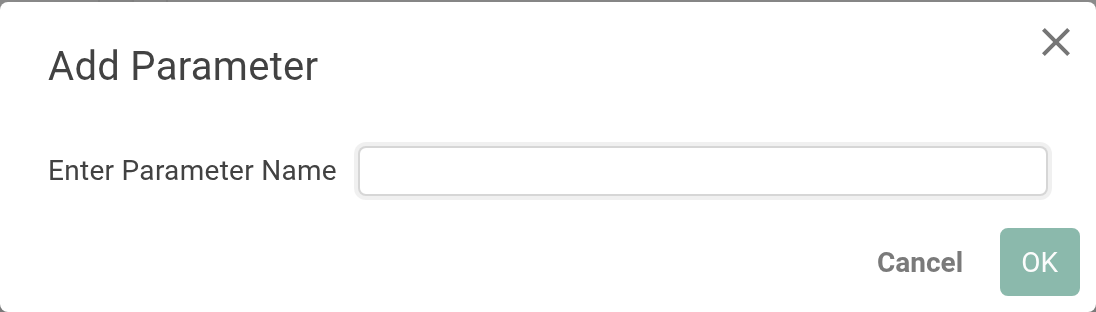
The exception, and the only reason to use Add Parameter on the Parameters step. Some parameters never appear on a worksheet at all, because they exist only for distribution: parameterizing an output file name, a folder path, or an email subject, perhaps fed from an API call that starts the job. A parameter like that has nothing to map, so create it directly on the Parameters step. If it belongs on a worksheet, add it from the Reports step instead.
Map a parameter to a worksheet#
- On the Reports step, open the worksheet's Parameters mapping panel.
- Add the parameter and set its Location, the place its value is read.
- Repeat for every worksheet that needs the value. This matters more than it looks; see the replication rule below.
Set the parameter's values#
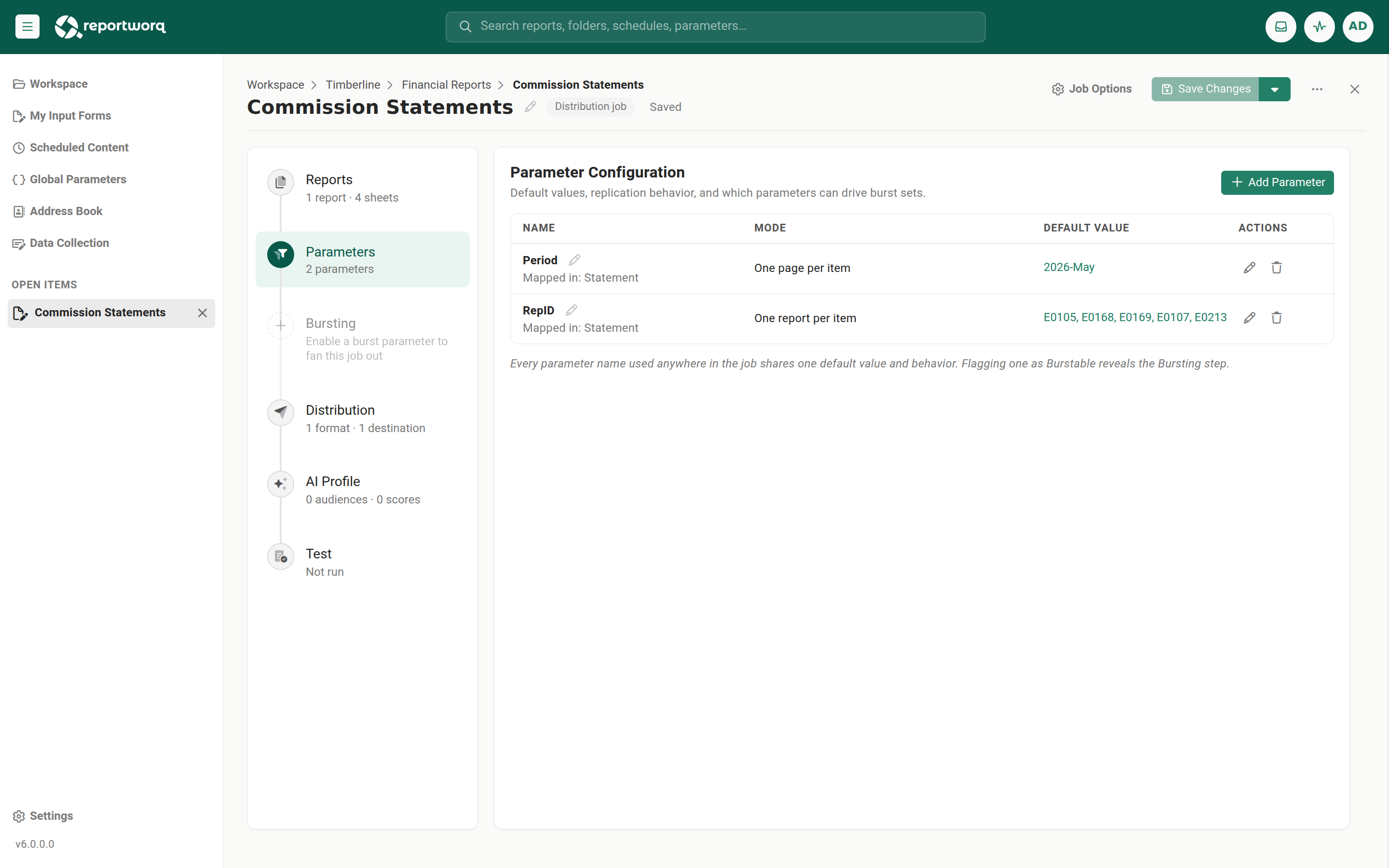
- Open the Parameters step. The parameters you mapped are listed.
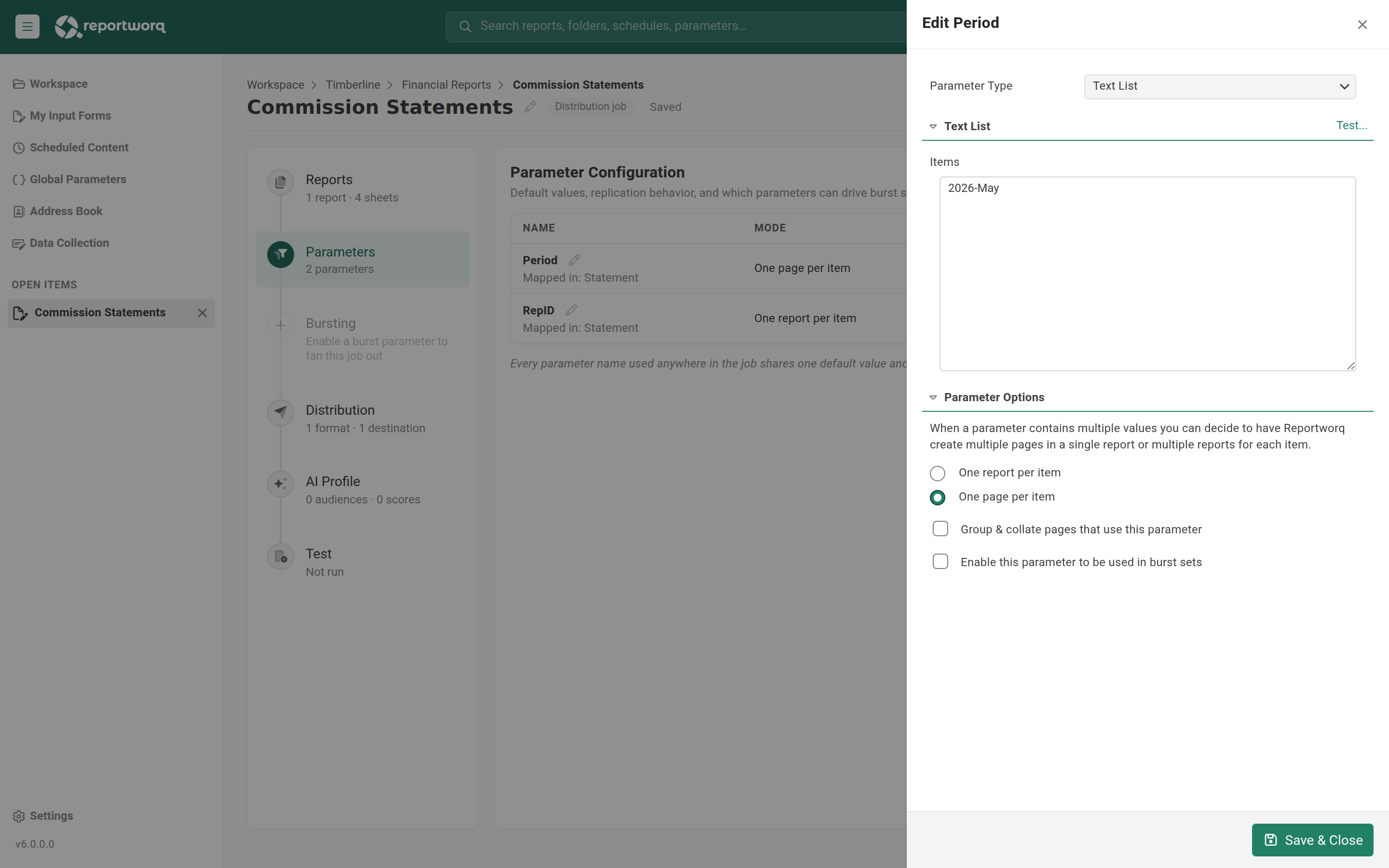
- Select a row and Edit to open its sidebar. Choose a Type and give it values. Text List (one value per line) is the common starting choice; the full catalog is in the Parameters reference.
- Names must be unique within the report; reusing one raises a Duplicate Parameter alert.
Where a parameter's value is read (the mapping)#
A parameter's Location takes one of two shapes:
- A cell or named range (for example
B3). The value is written there, so formulas,VLOOKUP,RWSQL, and everything downstream reads it. This is the common case. - A pivot-table field, written as
PivotTableName.FieldName. The value is applied as a pivot filter rather than written to a cell.
Use a named range, not a bare cell reference.
B3is a position, and positions move. The day someone inserts a row above it, the parameter writes into the wrong cell and the report is quietly wrong rather than broken. A named range travels with the content it names.
What actually consumes the value#
This is the idea worth internalizing: Reportworq's job ends when the value lands in the cell. It writes a value into a cell or applies it to a pivot field, and stops. What happens next is entirely up to how you built the workbook.
That loose coupling is the source of the product's flexibility. The parameter does not know what it drives, so it can drive anything Excel can express.
Worked examples#
Filter a SQL query. Put Region into a named range, and write your query so the range supplies the
WHERE clause, then pull the results with =RWSQL. Each replicated copy queries only its own region.
Remember that text values need quoting in SQL: '{{region}}' resolves to 'East', while numbers are
bare. See Connect SQL, OLE DB, and ODBC.
Drive a Planning Analytics tuple. Point a DBRW formula's element argument at the parameter's cell.
The formula re-resolves per copy, so the same grid of DBRW calls reads a different slice of the cube
for each entity, with no change to the formulas themselves.
Filter a Workday Adaptive report. Store the member selection with RW.Adaptive.Filter and have it
read the parameter's cell, so RW.Adaptive.Extract builds each copy against a different filter. This is
the preferred approach for Adaptive because it is explicit: the workbook shows what is being
filtered. See Advanced parameters.
Filter a replicating pivot table. Map the parameter to a pivot field rather than a cell. Each copy of the worksheet gets the pivot filtered to its own value, without a formula anywhere.
Look up who receives it. Put the cost center into a cell, then VLOOKUP the email address and the
Slack channel from a reference tab in the same workbook. Distribution reads those cells, so the same
parameter that decides the content of a copy also decides where it goes. See
Distribution overview.
Feed an Excel add-in report. Point a Reportworq Excel add-in report at the parameter's cell as its filter value. The add-in re-queries per copy exactly as it would if you had typed the value yourself.
Name the output. Sheet-level functions such as RW.Tools.SheetName can read the same cell, so each
generated worksheet names itself after the value that produced it.
In every one of these, Reportworq did the same small thing: it wrote a value. The workbook did the rest.
The replication rule that catches everyone#
If a parameter replicates a worksheet, map that parameter to every worksheet that must replicate with it, even where the worksheet does not need to display the value.
The classic case: a two-tab workbook where tab 2's formulas reference cells on tab 1, and you want one pair of tabs per store. This does work, as long as the store parameter is mapped on both tabs. Do that, and Reportworq copies the two worksheets as a group, and rewrites tab 2's cross-sheet references to point at its own sibling copy of tab 1 rather than at the original. Each pair is self-contained and correct.
Map it only on tab 1, and tab 1 replicates while tab 2 does not. Every copy of tab 2 keeps pointing at the original tab 1, and you get the same numbers repeated.
On tab 2 the parameter does not have to go anywhere visible. Map it to a spare cell if you have nothing to display; what matters is that Reportworq knows tab 2 belongs to the same replication.
Control tabs#
The same rule explains control tabs, which are often described as an exception and are not.
- A control tab that does not replicate is entirely safe. Every worksheet pointing at it, replicating or not, keeps reading the one control tab, which is exactly what you want from a control tab.
- A control tab that does replicate is rewritten to siblings only for the worksheets replicating on the same parameter. Worksheets replicating on a different parameter, or not replicating at all, keep pointing at the original.
If that sounds familiar, it is the same behavior as copying worksheets in Excel by hand: copy a group of sheets together and their internal references follow the copies; copy one sheet on its own and it still points at the original.
Copying related worksheets as a group is on by default. An administrator can turn it off at Settings > Configuration > Reporting > Advanced Features > Enable copying worksheets as a group.
Going deeper. A parameter can reference another parameter's value and repeat a query once per item, fanning out one report per element. See Advanced parameters. For the full type catalog, replication modes, and parameter sets, see the Parameters reference.
Feedback on this page
Comments, questions, requests, or something missing or unclear? Email us - the page you are on is filled in for you.
Email feedback on this pageOr write to support@reportworq.com directly.