
Output formats#
On the Distribution step, Output formats is a set of tiles that select which file type or types a report generates. Formats are additive: a single run can emit Excel, PDF, PowerPoint, and CSV together, one output file per selected format. Each selected format exposes a per-format options sidebar (opened from the edit control on the format card) that controls how the report renders to that file type. The base file name comes from the file-name field (Name and organize output files); the extension is set by the format.
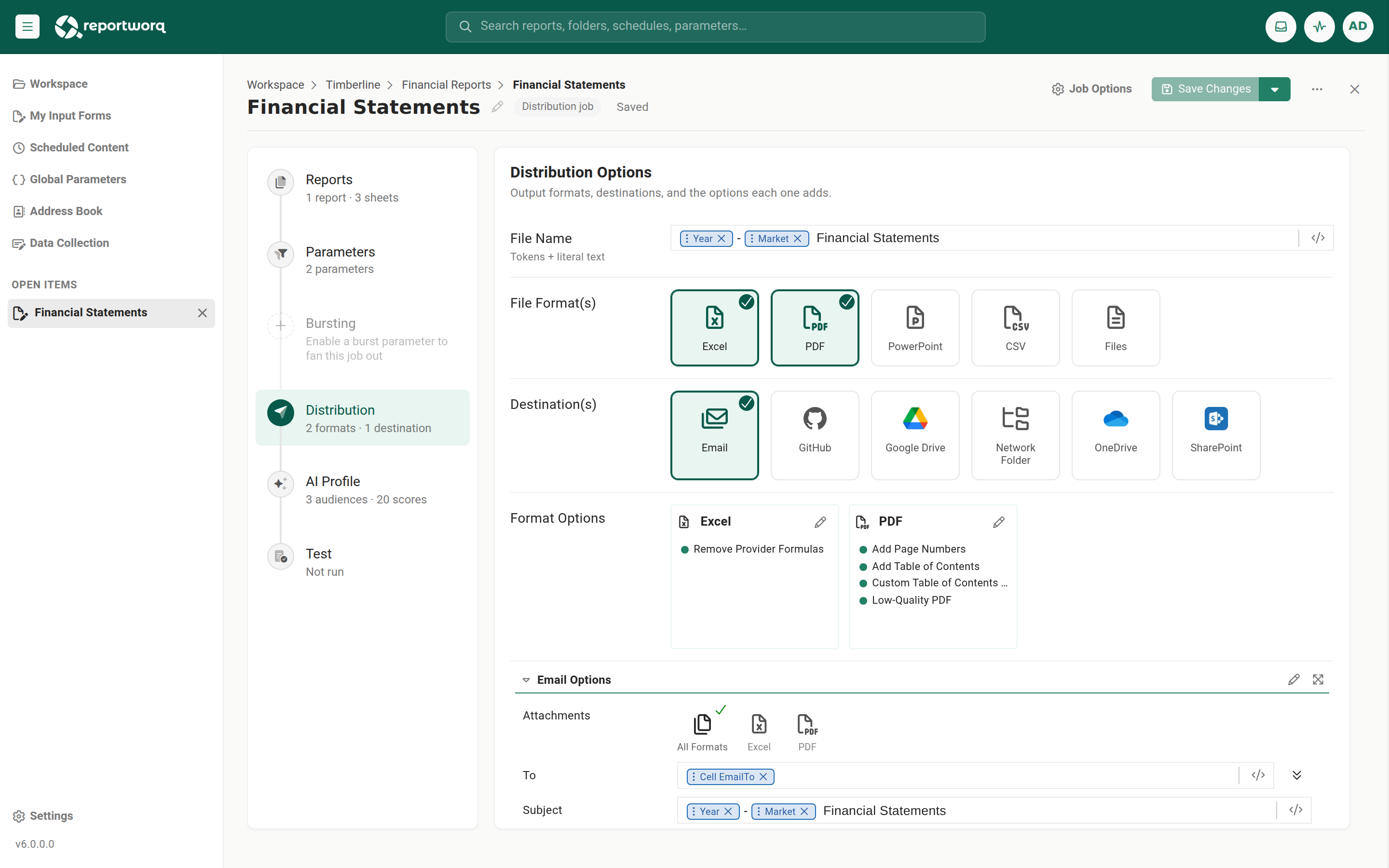
One job, many formats. You do not need a separate job for the PDF, another for the PowerPoint, and another for the email. Select every format tile the run should produce, then route each format to the destinations that want it (see Destinations). Selecting zero formats is also valid, which sends a message-only delivery (for example an HTML newsletter or an exception report) with no attachment.
The formats#
| Format | Extension | What it produces |
|---|---|---|
| Excel | .xlsx / .xlsm |
The rendered workbook. .xlsm when Save as .XLSM is enabled. |
.pdf |
The workbook (or PowerPoint) rendered to PDF, with optional table of contents and page numbers. | |
| PowerPoint | .pptx |
A deck rendered from a PowerPoint template. Requires a template attached to the job. |
| CSV | .csv |
Comma-separated values from the report's tabular content. |
| Files | (keeps each file's own extension) | A static list of extra attachments shipped alongside the report. See the note below. |
AI-generated insights are not an output format. An AI insight is narrative text embedded into an email message, not a file the run produces, so it is documented with the message editor. See Email messages and templates.
"Files" (Additional Files) attaches extra documents, and is never merged into the PDF#
The Files tile does not render the report to a new format. It attaches a static list of arbitrary
files (browsed from a report provider, or uploaded) to the delivery. Each one ships as its own separate
attachment next to the report output. It is a fixed list picked at design time; there is no token or
pill editor, so you cannot vary the attachment per parameter value at run time (for example "attach
<State>.pdf where State is the burst parameter" is not supported). The files are also never inserted or
merged into the compiled report PDF, the packet and the extra files travel side by side.
When to use Files. You have a fixed cover letter, a data-dictionary PDF, or a terms sheet that must accompany every run unchanged. Attach it once as an Additional File.
Dynamically linked source reports vary the workbook per run#
Because the Files list is fixed, it is the wrong tool when the content has to change per parameter value.
The mechanism for that is a dynamically linked source report: on the Reports step, a source file's
Dynamic Path property accepts parameter tokens in the form %param:Name%, and Reportworq resolves the
path beneath the provider root at run time. One job then reads a different workbook per parameter
combination, for example:
Templates/%param:Region%/pnl-pack.xlsx
A parameter with several values resolves to several source files, so a burst can render genuinely different templates per business unit rather than the same template with different filters. Set it from the source file's Properties, using the Insert Parameter control next to the Dynamic Path field. A report using it shows a lightning-bolt icon in the Reports grid.
Dynamic Path is available for distribution reports only, not for contribution campaigns. For the full treatment, including the provider-root security boundary, see Source report providers.
For the other case, an external page that must appear inside the compiled report PDF, the Files tile cannot help either: additional files travel beside the packet. Regenerate that content from a data source so Reportworq renders it as part of the report, or host the file (for example in SharePoint) and email a dynamic link to it using a variable in the URL, see Email messages and templates.
Per-format options#
Excel#
| Option | Values / default | Notes |
|---|---|---|
| Formula Options | Keep All Formulas / Remove All Formulas / Remove Provider Formulas / Remove Provider Formulas (except Input Formulas) | Controls which formulas remain live in the delivered workbook. Applied to the whole workbook after the report calculates. |
| Save as .XLSM | On / Off | Emits a macro-enabled .xlsm (keeping the VBA project) instead of .xlsx. Prerequisite: the job must have a single .xlsm source report. |
Each option freezes a different set of formulas to the values they last calculated:
| Formula option | What stays live | What is frozen to a value |
|---|---|---|
| Keep All Formulas | Everything. | Nothing. |
| Remove All Formulas | Nothing. | Every formula in the workbook. |
| Remove Provider Formulas | Ordinary Excel formulas, such as SUM, arithmetic, and lookups. |
Every data-source formula, the retrieval functions that query IBM Planning Analytics, SQL, and the other connectors. |
| Remove Provider Formulas (except Input Formulas) | Ordinary Excel formulas and the input (write-back) formulas. | The remaining data-source retrieval formulas. |
When to use Remove Provider Formulas. The recipient has no access to the source system. Removing the provider formulas replaces every data-source retrieval with the value it returned during the run, so the workbook opens cleanly for someone with no Planning Analytics or database credentials and no Reportworq add-in, while all the Excel-based formulas keep working. Totals, ratios, and any what-if arithmetic the recipient builds on top still recalculate. Compare this with Remove All Formulas, which freezes the Excel formulas as well and delivers a purely static workbook.
When to use Keep All Formulas. The recipient is an analyst who has access to the source system and will keep refreshing the workbook against live data.
When to use Remove Provider Formulas (except Input Formulas). The workbook is a submission template. The retrieval formulas are frozen so the numbers are stable, but the input formulas survive, so the recipient can still write values back.
When Excel lands on Google Drive. Excel output is auto-converted to a Google Sheet on delivery to a Google Drive destination.
PDF#
| Option | Values / default | Notes |
|---|---|---|
| Table of Contents (+ Custom Title) | On / Off; title text | Adds a TOC with an optional custom title. |
| Page Numbers | On / Off | Adds page numbering. |
| Low quality PDF | On / Off | Produces a smaller, lower-resolution file. |
When to use Low quality PDF. The pack is large and is going out by email, where a smaller attachment matters more than print fidelity.
PowerPoint#
| Option | Values / default | Notes |
|---|---|---|
| Template File | A selected .pptx template |
The template the slides render from. Required, a run with no template fails. |
| Output as PDF | On / Off | Also renders the deck to PDF. |
| Fit To Width | On / Off | Scales content to slide width. |
| Sort Slides | On / Off | Orders the slides. |
| Image Format | Image type for rendered images | Format of images placed on slides. |
| PowerPoint Image PPI | Resolution (pixels per inch) | Resolution of rendered images. |
| Allow PowerPoint user to refresh output | On / Off | Lets a PowerPoint add-in recipient refresh the linked output. |
| Allow PowerPoint to run job | On / Off | Lets the add-in run the job with fresh datasource queries. Requires the refresh permission above. |
See PowerPoint reporting for the authoring side.
CSV#
CSV emits the report's tabular content with no per-format sidebar of its own. Complex charts and pivots do not carry across; use CSV for figures a downstream system will load.
A CSV holds one flat sheet of values, so a multi-tab report produces a CSV of the first worksheet only.
To get one .csv per tab, turn on Split Worksheets, see
Combine emails, collate, and zip.
Email packaging options#
The Email distributor adds options that package the generated files for delivery, rather than change how they render:
| Option | Notes |
|---|---|
| Zip Files | Bundle the outputs into a single .zip. |
| Exclusion List | Semicolon-separated names or extensions dropped from the zip (only applies when Zip Files is on). |
| Combine email messages when possible | Merge outputs that share the same addressing into a single email. |
| Combine using this job's email details | Across a multi-job run, designates the one job whose subject and body the combined email uses. |
These are covered, with the Combine Key field that steers the grouping, in Combine emails, collate, and zip.
Use cases#
- Monthly P&L pack. Excel (for analysts to pivot) and PDF (TOC plus page numbers, for controllers), generated in one run.
- Board deck. A PowerPoint template renders the presentation and Output as PDF produces a read-only companion.
- Data extract. CSV output loaded into a downstream system.
- Workbook for a recipient with no source-system access. Excel with Remove Provider Formulas, so the delivered file keeps its Excel formulas but no longer queries Planning Analytics or the database.
- Per-region source templates. A Dynamic Path on the source report reads a different workbook per region while one job drives the whole burst.
Notes and limits#
- PowerPoint output requires a
.pptxtemplate attached to the job. - Complex charts and pivots may not render faithfully in CSV, and a CSV covers the first worksheet only unless Split Worksheets is on.
- The Files (Additional Files) list is static and non-parameterizable, and its files ship as separate attachments, never merged into the report PDF.
- Formula Options apply to the whole workbook, after the report calculates. To freeze a specific range
instead, use the
RWREMOVEFORMULAworksheet function, see General report functions. The two combine: the function runs during calculation, the Formula Option runs after it.
Going deeper. File names carry parameter, contact, and timestamp tokens so each generated file is distinctly named per burst iteration and recipient. See Name and organize output files.
Feedback on this page
Comments, questions, requests, or something missing or unclear? Email us - the page you are on is filled in for you.
Email feedback on this pageOr write to support@reportworq.com directly.