
When a job fails#
When a run fails or completes with warnings, Reportworq keeps a per-run diagnostics archive so you can see exactly what happened. Read the log to see what went wrong, work through the common causes, and, when needed, escalate to support with the right logs. This page shows how to find the cause and escalate.
When to use it. Any time a run shows Failure or Warnings, or a job appears to succeed but produces no output. Start here before re-running blindly.
Open the diagnostics for a failed run#
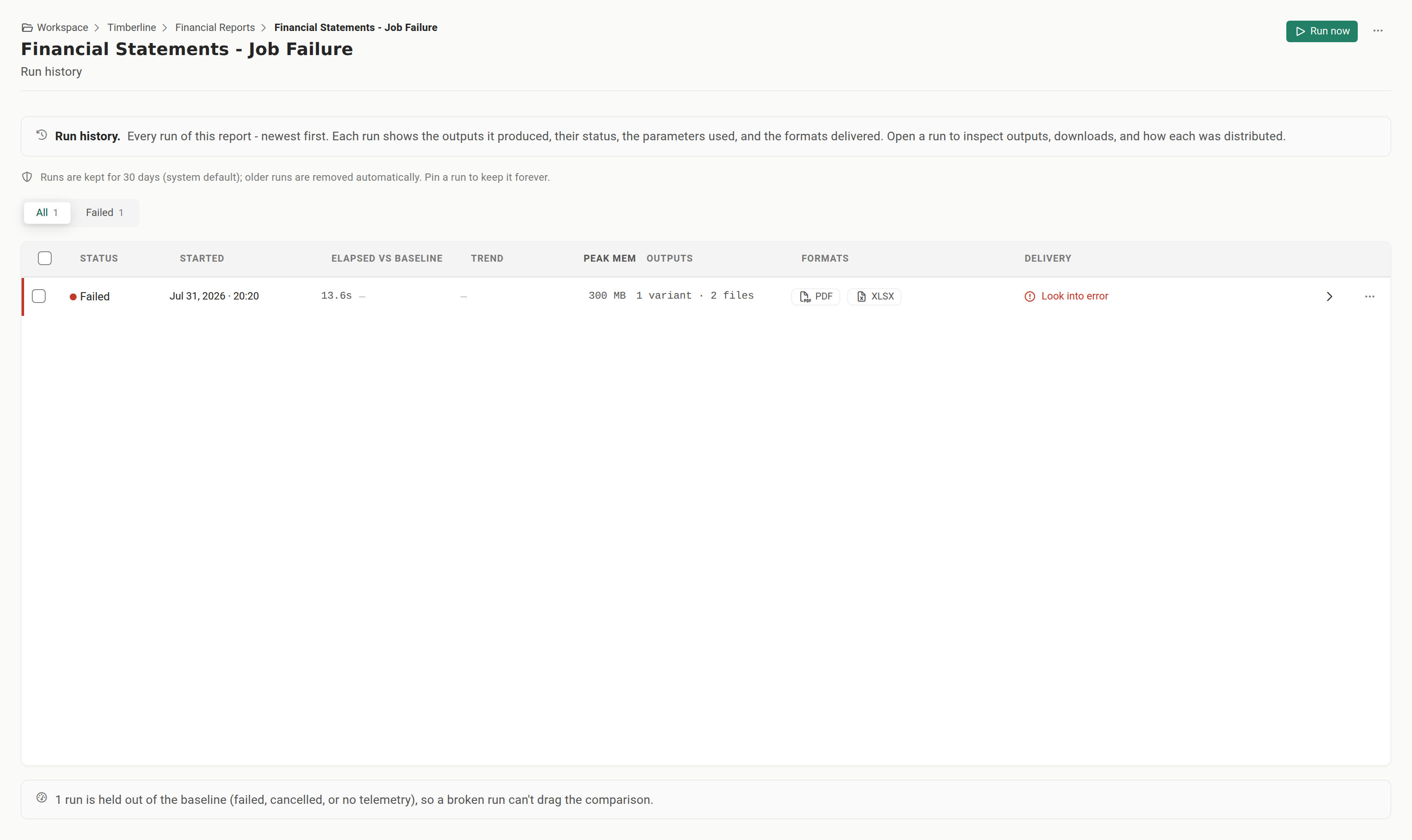
- Find the failed run in Activity (filter to Failures) or in the report's Run History.
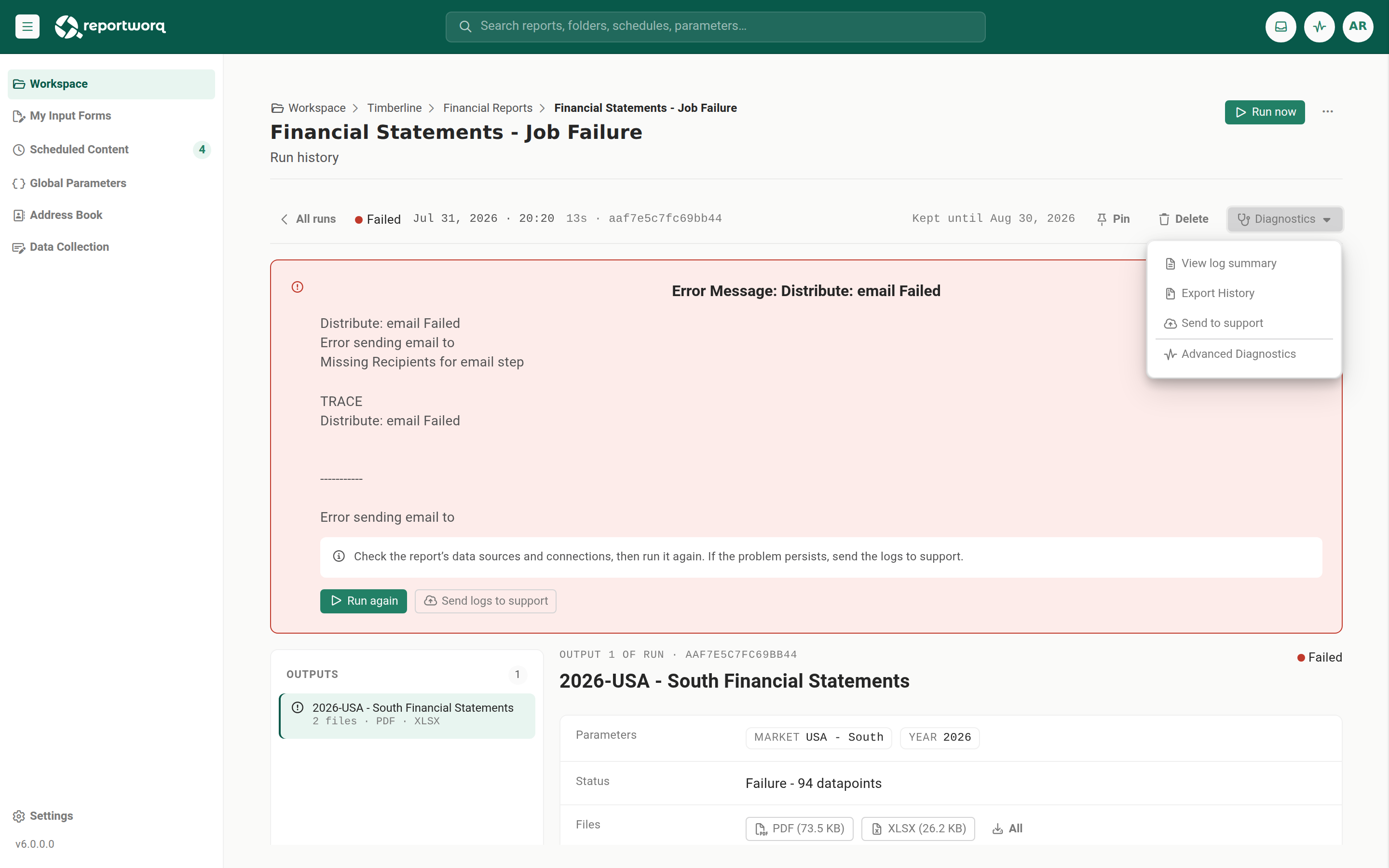
- From Activity, select Details on the run. From Run History, open the failed run; its error card offers Run again and Send logs to support.
- This opens the diagnostics screen. It offers Diagnostics, which holds the log, attachments, and trace; Performance, which is present on every run (see Review a run's performance); and AI diagnostics, which appears only for a run that failed or warned. It opens on Diagnostics.
Read the log#
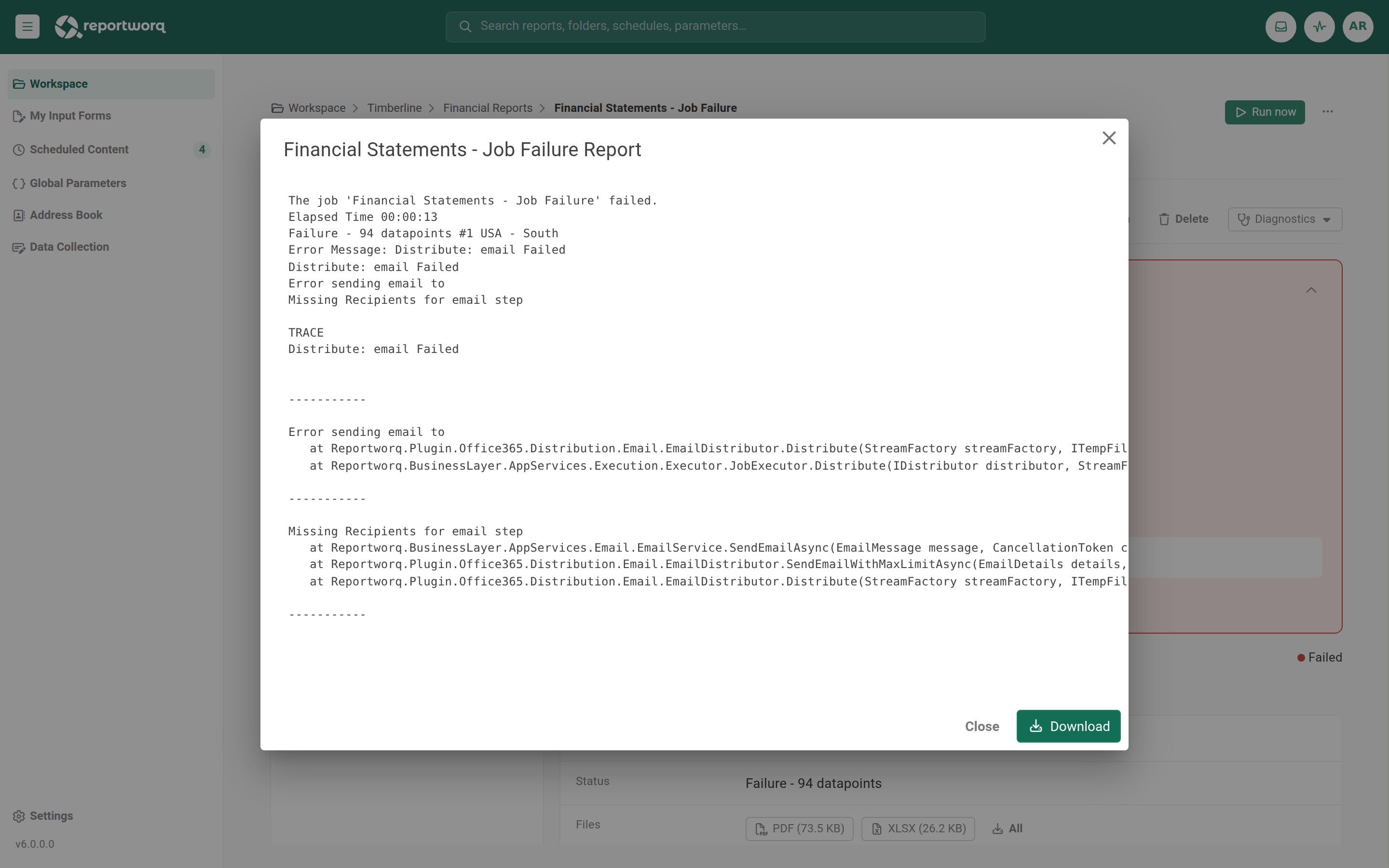
- On the Log tab, read the entries top to bottom. Each has a line number, timestamp, elapsed time, and message. An error entry expands to show the exception message and stack trace.
- The first 250 entries load; select Show Full Log to see the rest.
- The Attachments tab lists any files the run produced (viewable and downloadable). The Trace tab holds HTTP traces, which are present only if Trace logging was on for the run. To capture traces, re-run the job with Verbose and Trace logging enabled (see Run a job).
Common causes to check#
- A data source is unavailable or timed out. The log or Trace tab shows the failing call. Confirm the source system is up and the connection still works.
- A parameter resolved to nothing. A parameter value that returns no data can leave a run with no output. Check the parameter and its source query.
- No distributor for the output. A run can generate output but deliver nothing if the job has no configured distribution. Check the job's distribution.
- A missing or moved source file. If a source file was renamed or moved, re-link it in the Job Editor.
- The run succeeded but produced no output. Check sheet suppression and any exception-check send-gate on the report, which can intentionally hold or empty the output.
Escalate to support#
Use Send to support on the run's diagnostics, or Send logs to support on a failed run's error card
in Run History, to upload the run's archive directly. To attach the logs to a ticket yourself instead, use
Export logs, which downloads the run's whole execution database as a .zip.
If the log does not show enough to work with, re-run the job with Verbose logging on, and Trace logging as well when a data source is involved, then escalate that run. See Run a job.
Notes and limits#
The Trace tab is empty unless Trace logging was enabled at run time, and a log requires job-history logging to have been on for that run.
Going deeper. For symptom-to-fix guidance across the product, see the Troubleshooting index. A run that finished but took far too long is a different investigation, see Review a run's performance.
Feedback on this page
Comments, questions, requests, or something missing or unclear? Email us - the page you are on is filled in for you.
Email feedback on this pageOr write to support@reportworq.com directly.