
Connect a data source#
Before a data model or a report can read data, the source system needs a datasource connection in Reportworq. A datasource is a named, saved set of connection settings and credentials that gives Reportworq access to a source, whether that is IBM Planning Analytics, SQL Server, a data warehouse, or a SaaS system. This guide covers adding a connector from the catalog, testing it, and managing it safely once jobs and forms depend on it.
Before you begin#
- You are an administrator. Only administrators can add or configure datasource connections.
- The source system is reachable from the Reportworq server over the network, and any required driver or provider is installed on that server.
- You have valid credentials, API keys, or tokens for the source.
- You know the connector you need. If you are unsure, see the Connector catalog.
Add a datasource connection#
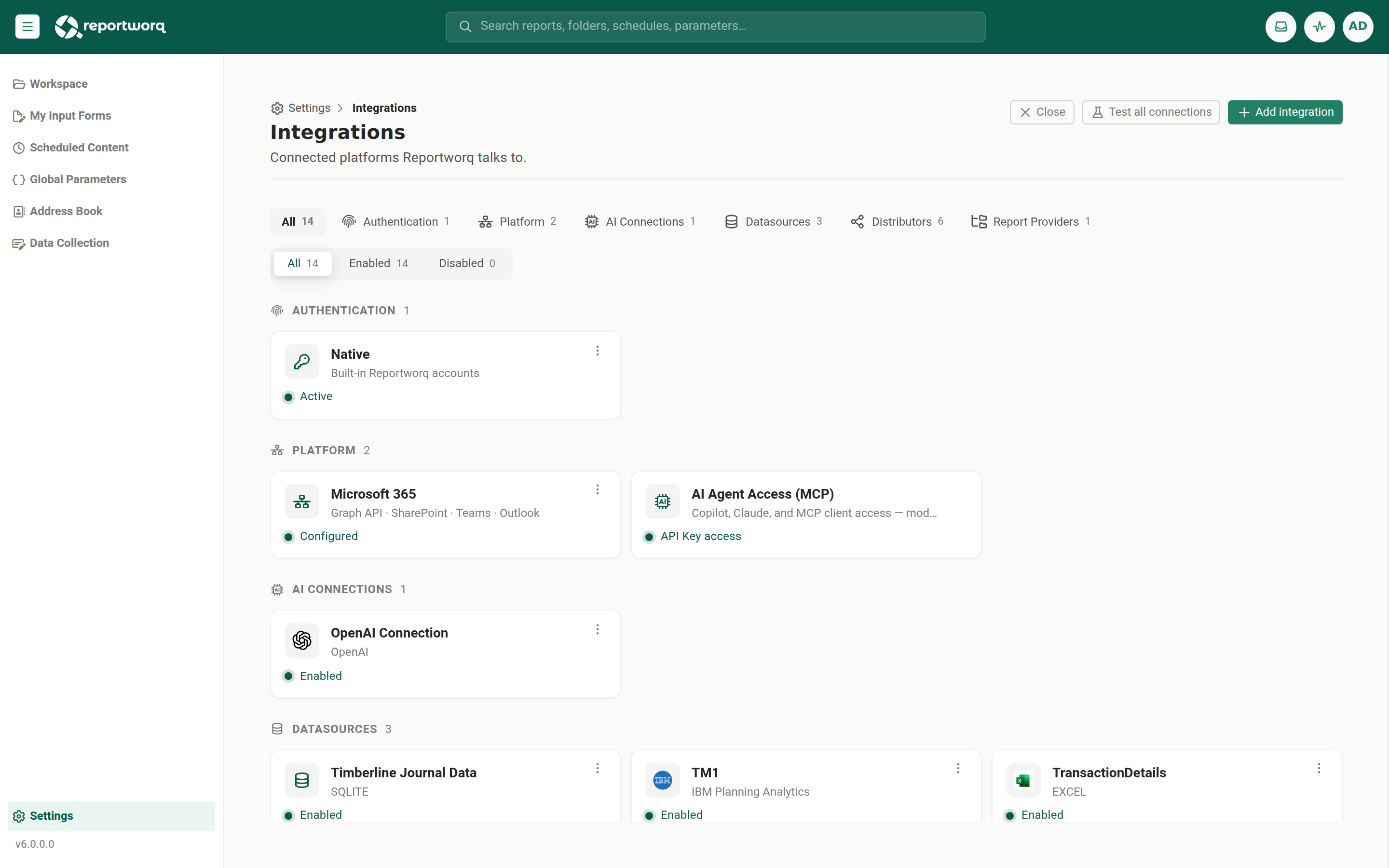
- Go to Settings > Integrations. Connectors are grouped into families by their uppercase heading. Datasource connectors live under DATASOURCES.
- Select Add integration in the header. A searchable catalog of connector tiles opens.
- Find the connector you need and select Add. This creates the integration and opens its editor. A connector that can only exist once shows Already added if it is already present.
- Fill in the connector-specific settings. Every connector asks for its own fields (host or server, credentials, cloud or on-premises mode, API keys, and so on). For the deeper connectors, see Connect IBM Planning Analytics, Connect SQL, OLE DB, and ODBC, and the Connector catalog.
- Give the connection a clear name. The name is how models, parameters, and formulas refer to this datasource, so it must be unique across the instance. See the warning below on renaming.
- Select the Enable datasource connection checkbox. This is the gate that makes the datasource usable. A disabled datasource cannot be selected or refreshed.
- Select Save. Save stays disabled until you have changed something.
Test the connection#
- In the connector editor, or from the datasource card's
...menu, select Test connection. - A reachable, correctly configured source returns "Success." If the test fails, re-check the host or server address, credentials, network reachability, and any required driver on the server.
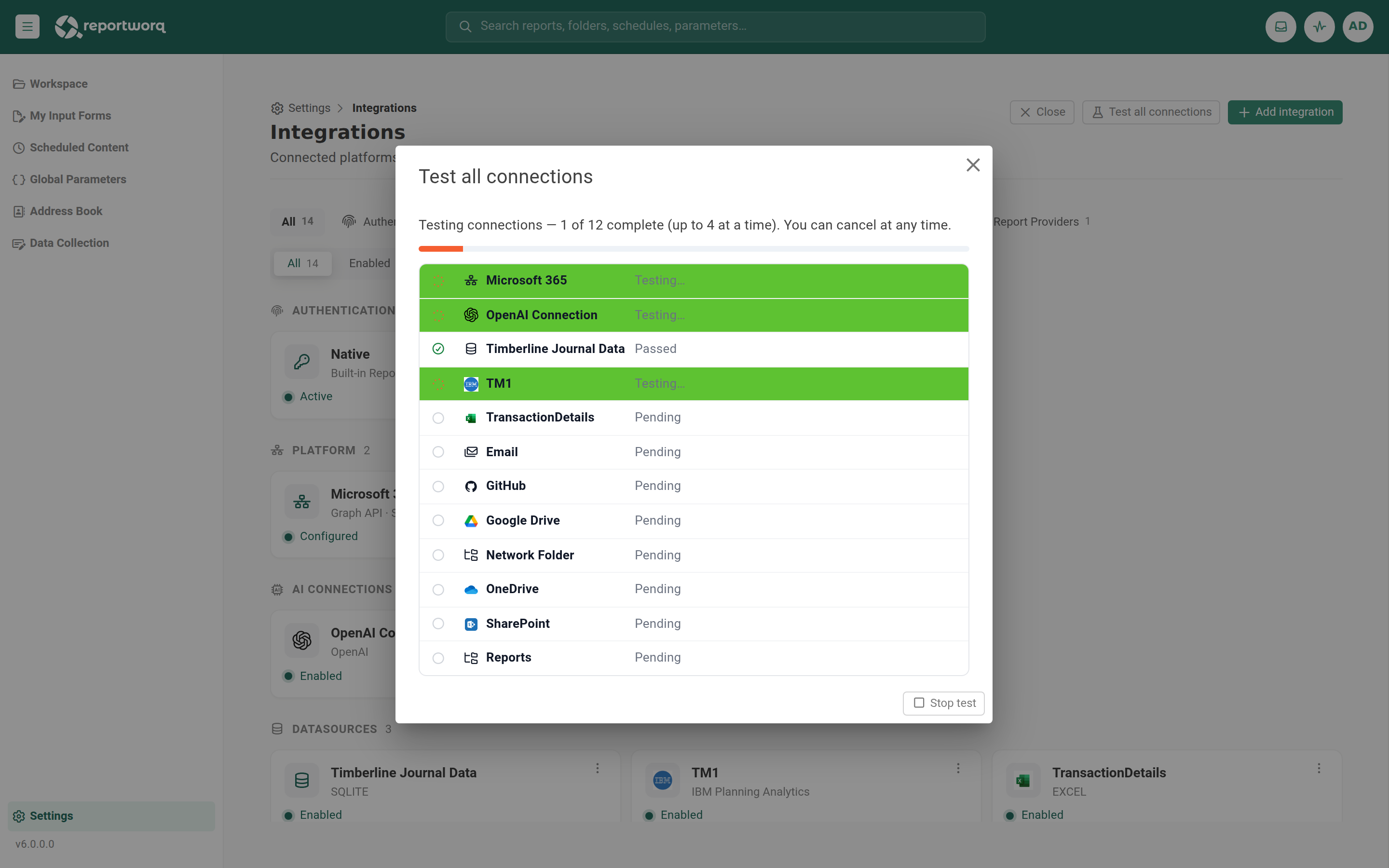
To validate every configured integration at once, select Test all connections in the Integrations header. Reportworq then runs every connection test and reports the result of each in a dialog.
Manage a datasource#
Each configured datasource appears as a card showing its name, an on/off pill, and a ... menu with Edit, Test, Enable or Disable, and Delete. A status filter at the top of the list (All, Enabled, Disabled, with counts) narrows what you see.
Warning: editing, disabling, or deleting a live datasource has an org-wide blast radius. A datasource is referenced by name, and it is re-queried at run time by both Distribution Jobs and Contribution input forms. Changing its credentials, renaming it, disabling it, or removing it can silently break data refresh for every job and form bound to it. Treat any change to a live datasource as a production change: know what depends on it first.
Notes and limits#
- Datasource names must be unique. Reportworq resolves a datasource by name, so a duplicate or a rename strands everything that referred to the old name.
- A datasource is for reading, not delivering. Delivery targets (email, network folders, SharePoint, and so on) are configured as distributors, a separate integrations family. Do not confuse the two.
- When to disable rather than delete. If you are only pausing a source, disable it. Deleting removes the credential record entirely and cannot be undone.
Going deeper. A datasource on its own is just a connection. To turn it into curated, reusable data for report authors, build a data model on top of it. See Data models.
Feedback on this page
Comments, questions, requests, or something missing or unclear? Email us - the page you are on is filled in for you.
Email feedback on this pageOr write to support@reportworq.com directly.