
This article includes the following topics:
Sideloading the Add-in#
You can sideload the Reportworq Office Add-in by using a manifest XML file provided by Reportworq Customer Support.
- Download the manifest file. Note: Reportworq v5.0.0.82 or newer is required to support this version of the manifest file.
- Move the manifest file to a shared folder (for example, \ \ machinename\Add-in) and ensure that any Reportworq users have access to the network share, as follows:
- Create a folder on your PC, or in a network location.
- Copy the manifest file into the folder.
- Right-click the folder and select Properties, then select the Sharing tab.
- Select the Advanced Sharing button, enable the share, and click OK.
- Copy the Network path for use in Step 6, then select the Close button.
- Open Excel, then select File > Options.
- From the left menu, select Trust Center, and then select Trust Center Settings.
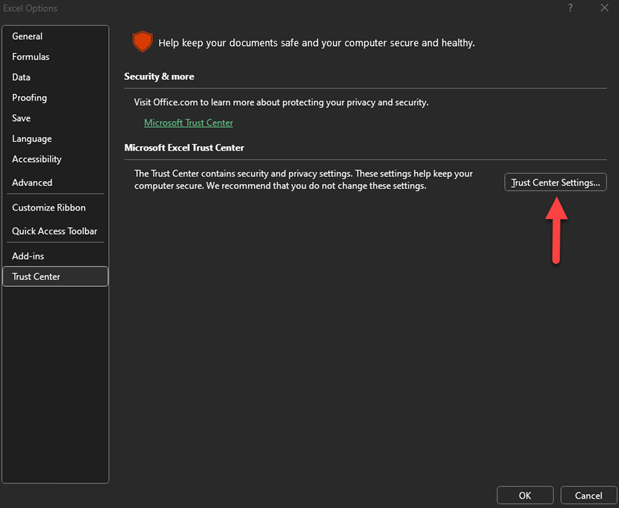
- From the left menu, select Trusted Add-in Catalogs.
- In the Catalog Url box, enter the UNC path for the shared folder containing the manifest file, select Add catalog, and then select Show in Menu:
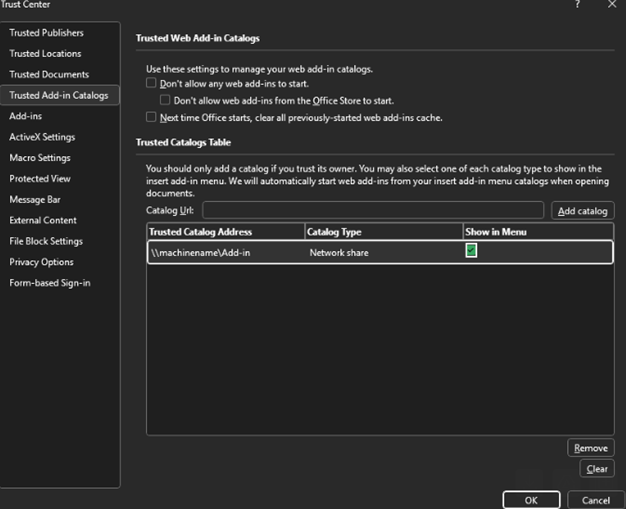
- Select the OK button twice to return to the main Excel window.
- Close and re-open Excel.
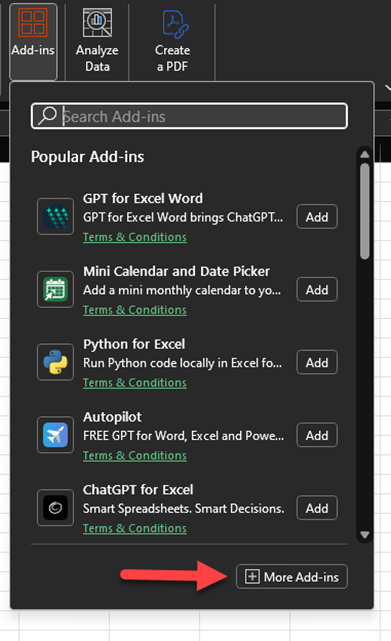
- On the Home tab, open the Excel ribbon and select Add-ins > More Add-ins:
- Select Shared Folder, and then Add the Reportworq Add-in:
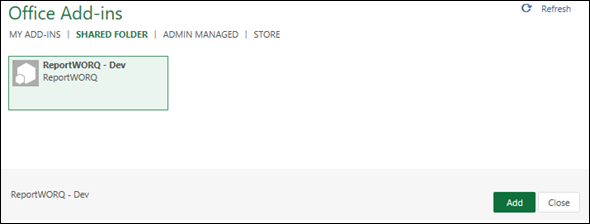 The Add-in is now available for use.
Upgrading the Manifest File#
To upgrade the manifest file:
- Clear the Add-ins cache on the Trusted Add-in Catalogs screen:
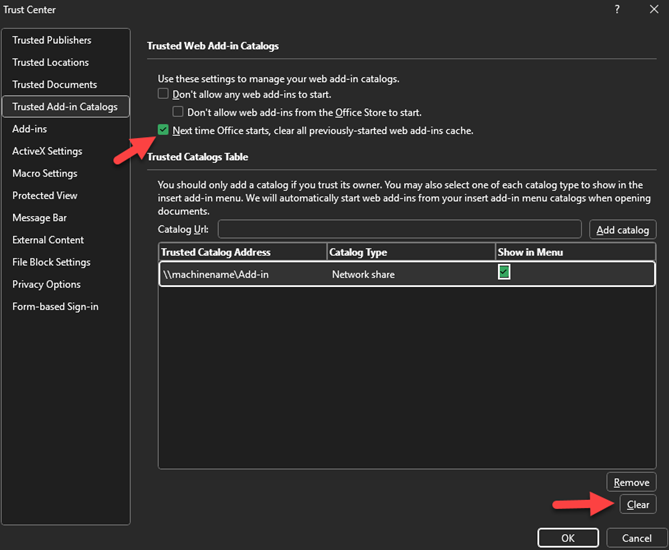
- Close Excel.
- Copy the new manifest into the shared folder and then restart Excel.
- Perform the add-in installation steps again, if necessary.
Feedback on this page
Comments, questions, requests, or something missing or unclear? Email us - the page you are on is filled in for you.
Email feedback on this pageOr write to support@reportworq.com directly.