
Overview#
Reportworq supports updating PowerPoint Presentations with information from Excel-based Reports that are processed in a Reportworq Job. To enable this functionality to choose PowerPoint from the output formats list in the Distribution screen and then provide a PowerPoint file as the template for Reportworq to use. After refreshing data in the job reports Reportworq will scan the PowerPoint presentation for data links and save a new output file. Data links are created by selecting shapes in the PowerPoint presentation and providing a special syntax in the Alt Text field of each shape where data should be linked. To do this first, select the shape, right-click, and choose Edit Alt Text. The first line of the Alt Text is the name of the Reportworq report which data should be sourced from. Note that this is not the name of the Excel file, but rather the Report name as it appears in the Reportworq reports list. The second line is the name of the worksheet from within that report to source data. When the PowerPoint shape is a text frame no additional information is needed. The text frame will then reference cells and named ranges from that worksheet directly in the text of the text frame. When the PowerPoint shape is a table or an image then the 3rd line of the Alt Text will reference the Excel range, picture, or chart name to be copied into the shape.
Training Video#
Using Parameters#
Reportworq supports replicating slides or groups of slides using Reportworq parameters. For example, if you have a slide that presented sales information for a product but want a copy of that product for a list of products, this can be achieved using a Reportworq parameter. In Reportworq, when a parameter is configured on a worksheet and that parameter value results in a list of items, Reportworq will make a copy of the worksheet for each item. The same is true when this worksheet is used by a PowerPoint slide. If the worksheet is copied several times for each parameter item, then the slide will be copied as well. If adjacent slides all use the same worksheet, then the group of slides will be replicated and collated together. For example, if you have an overview followed by a detail slide, and both slides sourced data from the same worksheet that is copied several times, then the pair of slides will be copied as a group so that each overview slide is followed by its adjacent detail slide. In Reportworq, a PowerPoint slide can source data from multiple worksheets however it is only possible for one of those worksheets to be replicated. If a slide sources data from multiple worksheets that are replicated, then the process will fail with an error message.
Conditional Formatting#
Reportworq supports retaining font text color and bold style from the Excel cell. This is often useful when a cell contains conditional formatting to emphasize the text style based on Excel formulas and logic. Text color and bold are the only supported style options, all other formatting style options will be ignored. Conditional Formatting is only applicable when linking data to a text frame or a table. To enable conditional formatting append an additional line in the alt text field with the keyword "CopyFormat".
Named Range Collision#
When merging multiple workbooks with identically named workbook scoped ranges in the final Excel output, all but the last added workbook/range is overwritten in the output workbook. If a PowerPoint slide references a now overwritten/removed named range, the slide creation will fail.
Text Box Support#
Reportworq Supports Multiple formats via a text box name reference, e.g. {TextBox 1}. Ranges over text box areas are also supported. The following formats are supported.
- Text color
- Text size
- Text font
- Bulleted/numbered lists
- Indentation
- Superscripts/subscripts
- Non-sequential Ranges
- Single cell ranges
- Rectangular ranges
FitToFrame#
The FitToFrame feature for PowerPoint output allows the user to limit the size of an imported picture to the bounds of the PowerPoint shape on a slide. Because row and column count can dynamically change, this can lead to stretching or compressing of imported images. Reportworq can now limit the image locks vertically or horizontally.
FitToHeight and FitToWidth need to be added as new keywords (and global job settings) to enable this feature. FitToFrame takes priority if it also exists as a keyword alongside the above.
Link Syntax#
The syntax for the Alt Text field is as follows:
- Reportworq Report Name
- Excel Sheet Name
- Shape Name or Range Address -
- Required for picture, chart, or table and omitted for text frame
- CopyFormat keyword
- Provide this keyword for a text frame or table to enable conditional formatting functionality.
Shape Support#
- Chart - The address field in the alt text references the name of an Excel Chart. In this case, the PowerPoint shape must be a Picture Box. The shape's picture will be replaced with a resized image of the Excel Chart.
- Text Frame - Reportworq will replace each parameter {address} inside the Text Frame with the corresponding Excel Range, where the address is a named range or cell location on the specified Excel Sheet. Reportworq will replace the text within the text frame while retaining the formatting. The Address field in the Alt Text is ignored.
- Table - Reportworq will resize the rows/cols of the PowerPoint table to match the source range size and will then replace the text in each cell with the corresponding cell from the Excel Range.
- Merged cells - Reportworq will support multiple permutations of merged rows/columns/cells in a single table, and hiding or deleting rows in source Excel workbooks.
- Picture Box - Reportworq will replace the Picture Box image with an image of the Excel address location.
slidesuppress#
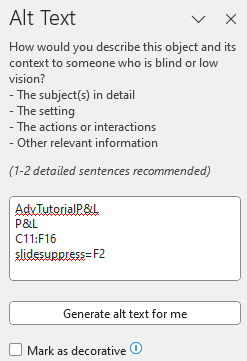
The slidesuppress function enables you to conditionally suppress a slide so it does not appear in the PowerPoint output. It references a Boolean cell in the source report. If the cell value is TRUE, the slide is suppressed.
To use this function, open the Alt Text window for a supported shape on the slide you want to conditionally suppress, and add the slidesuppress function. In the example below, slidesuppress refers to cell F2.
UseForSort#
The UseForSort function is applied when multiple shapes are in a PowerPoint slide and the user would like to select a specific order for those shapes in the output. This Alt Text is added to an existing PowerPoint shape to determine the order for output. To use this function, open the Alt Text window for the image or shape in PowerPoint and add the Text "UseForSort" to use that shape for sorting the output.
Distribution Output Options#
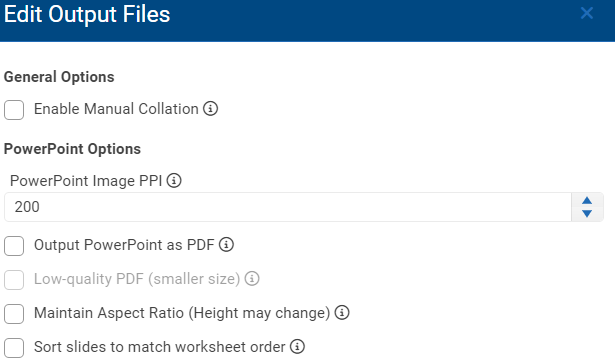
The following settings can be adjusted in the Output Options dialog which can be launched from the Distribution tab of the Job Editor.
- Resolution settings: PowerPoint files with many images can become large. The image quality can be reduced (or increase) to adjust the file size if required.
- PDF Conversion: PowerPoint files can be converted to PDFs to allow recipients without access to PowerPoint to view the distributed files.
- Low quality PDFs can be produced if the output size is too large by selecting the 'Low-quality PDF' option.
- Maintain Aspect Ratio: Allows users to import Excel items while retaining their original aspect ratio, or alternately fit into the frame defined by a shape in PowerPoint. Note that the height may still change if additional rows are generated based on a dynamic refresh. This is a global setting that applies to the entire job. Keywords are applied to override the default behavior for a specific shape. The "FitToFrame" or "MaintainAspect" keywords can be used depending on what setting should be ignored for a specific shape. For example, if "Maintain Aspect Ratio" is selected in the Distribution Output Options sidebar then the "FitToFrame" keyword can be used on one or many shapes, overriding the "Maintain Aspect Ratio" selection.
- Sort slides by worksheet order: By default, replicated slide variations are placed adjacent to each other. However, this might not match the output order of the linked Excel sheets. Use this option to automatically reorder slides to match the order of the worksheets with how they are laid out in the slides.
Feedback on this page
Comments, questions, requests, or something missing or unclear? Email us - the page you are on is filled in for you.
Email feedback on this pageOr write to support@reportworq.com directly.