
Server configuration#
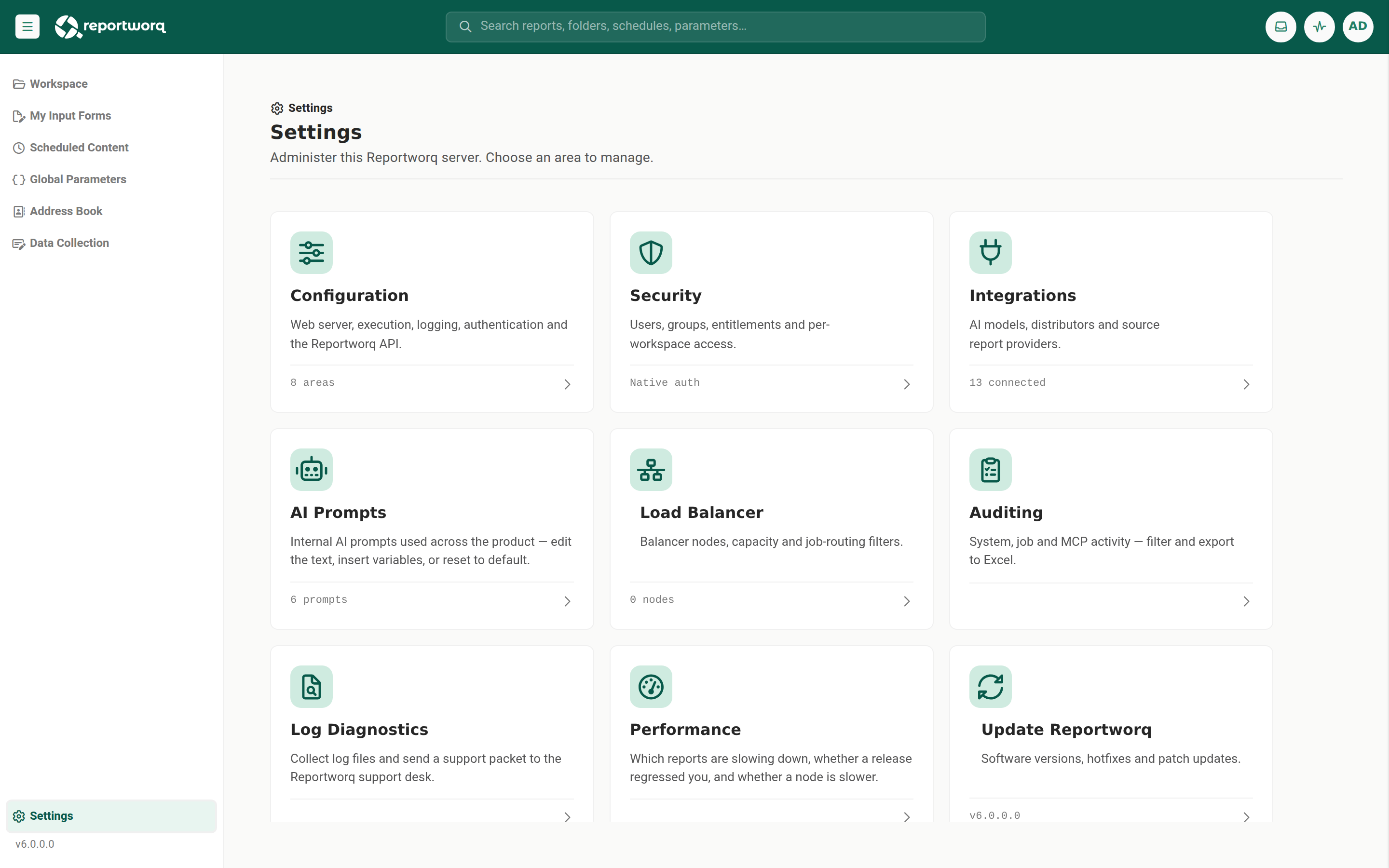
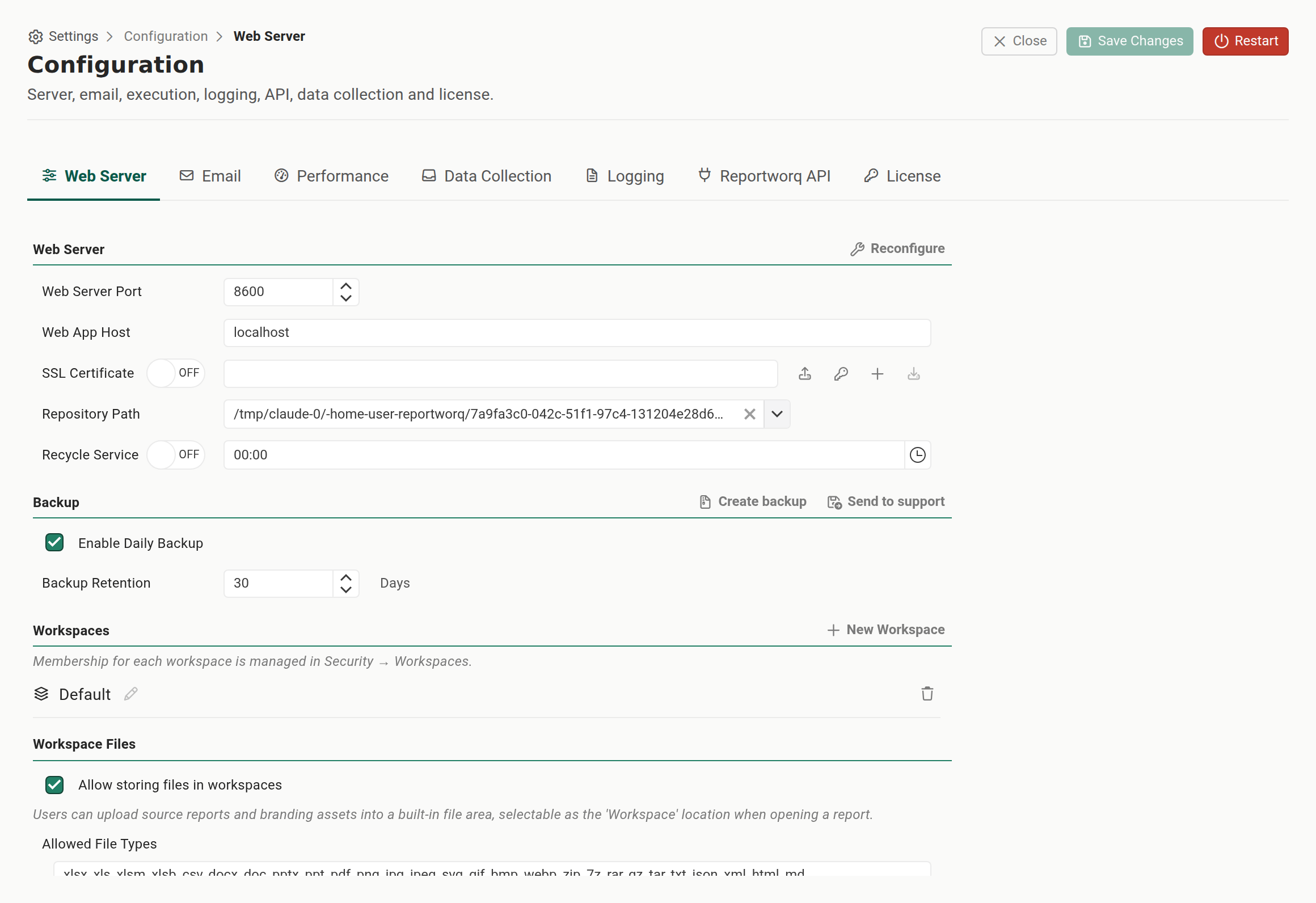
Settings, Configuration is the administrative editor for how a Reportworq instance runs. It is a single screen with a seven-tab strip, reached from the Configuration card on the Settings landing. Each tab edits its own view of the settings store, and most changes take effect only after you select Save Changes. A few settings (the web server port, SSL, and the Repository path) also require a service Restart.
This page is a reference for every tab, the individual settings each one holds, and the three operational rules that cause the most trouble if you get them wrong: how peak memory scales with parallel execution, how to relocate the Repository safely, and the SSL self-signed certificate traps.
The header and the unsaved-changes guard#
The screen mounts on the Web Server tab and shows three header actions:
- Close returns to the Settings landing.
- Save Changes stays disabled until the active tab has unsaved changes.
- Restart restarts the Reportworq service. This is destructive to any in-flight work, use it deliberately.
Editing a field enables Save Changes and marks the tab with an unsaved-changes dot. If you switch away from a tab that has unsaved edits, or close the screen, Reportworq prompts you to discard those edits. Switching tabs or closing re-reads the store, so unsaved edits are discarded rather than kept. Save what you change before you move on.
Note: administrator-level settings live here. Authentication is not on this screen, it moved to the Integrations hub. MCP and AI-agent access also live in the Integrations hub now, under AI Agent Access, not on the API tab. See The integrations hub.
The seven tabs#
| Tab | What it configures | Notes and limits |
|---|---|---|
| Web Server | Port, host, SSL certificate actions, the Repository path and Reconfigure, Recycle Service, Backup (create and send), and Workspace Files | Workspaces themselves are not here, they are managed on Workspaces under Settings ▸ Security. Port, SSL, and Repository changes need a Restart. A Security section holds Allow users to perform a security audit, which lets non-administrators generate their own access report, see Security audit. |
| Performance | Execution (history retention, job concurrency, out-of-process execution, fonts), Contribution (log level, warm pool, session cap, recycling), Reporting (out-of-process queries, timeouts, log level), Data Models (limits for joined views), and Advanced Features (three switches plus Clear Repository Cache) | Tunes job concurrency, the contribution runtime, and the reporting query engine. Advanced Features is collapsed by default. For how to size these against a workload, see Distribute the load. |
| Logging | Logging (retention, clear/download/send logs, a live Debug Logging switch) and Audit Logging (audit retention and enablement) | Debug Logging is a live instance-wide switch, outside the save flow. Audit settings feed the audit logs. |
| An Email Provider dropdown (None, Microsoft 365 Graph, Microsoft 365 SMTP, SMTP Server, SendGrid API), a Default From address, and a Test Email Address with a Send test email action | The field set changes per provider. Both Microsoft 365 options add a Microsoft 365 credential picker, where you choose the shared credential this install sends with. Microsoft 365 SMTP shows its Mailbox Email Address field only after a credential is chosen. Saving with either Microsoft 365 option and no credential selected is refused with a message that tells you to pick one or add one under Settings ▸ Integrations ▸ Shared Credentials. On the SMTP Server field set only, an optional Do not validate the mail server's TLS certificate checkbox lets you send to an internal relay with a self-signed or mismatched certificate. Test Email Address is a saved setting like the rest of this tab, so typing into it enables Save Changes, and Reportworq remembers it across sessions. You can send a test to an address you just typed, without saving first: the send uses whatever is in the field. What still needs saving first is any change to the mail server or provider settings themselves (provider, server, port, credentials, API key), because a test send always reads those from what you last saved, not from unsaved edits. If a send fails to connect, the error now names the server and port it tried, for example Could not connect to SMTP server mail.example.com:587 (StartTls): .... When the server's TLS certificate is rejected, the error also names the certificate the server presented (its subject, issuer, validity dates, and thumbprint), so you can compare the name on the certificate with the server name you entered. |
|
| API | A global Local API keys list, with column headers Key Name, Workspace, and API Key above the rows, each row an enable switch, a Name, a workspace dropdown, and an editable key value, with Add API key and per-row Delete; for administrators, Cloud API | Local API keys are a global store, managed here without switching workspaces, each key authenticates a caller and authorizes it into the one workspace you assign. Every key needs a Name, unique across all keys, so name it for the system that uses it, for example "Workato". The name is what Activity and the Job Log show as the run's caller, so a meaningful name lets you tell at a glance which integration ran a job. A new key defaults to "API key", "API key 2", and so on; if you upgraded from a release before this naming existed, your existing keys were automatically given the same default names in place of the unreadable id they used to show. Add or delete keys, edit a key's value, and pick its workspace, changes apply on Save. The Cloud API category appears for administrators only. Secret Rotation, the write-only credential-rotation endpoint for tools like CyberArk, moved to Settings ▸ Security ▸ Secret Rotation, see Secret rotation API. MCP and AI-agent access are no longer here, they moved to the Integrations hub. |
| License | License information, status, key, and Activate / Release / Manual activation | This tab has no Save or unsaved-changes flow. Its actions take effect immediately and reach the external license service, see Licensing and entitlements. |
| Data Collection | Write-back settings and mailbox settings (provider, protocol, host, port, credentials) | Available only with the licensed Contribution capability, which includes Data Collection; otherwise an empty state notes it is not in your license. On the mailbox's POP3/IMAP field set only, an optional Do not validate the mail server's TLS certificate checkbox lets Reportworq collect from an internal mailbox server with a self-signed or mismatched certificate; it is hidden when Provider is Microsoft 365 Graph. If a poll fails to connect, the error now names the protocol, server, and port it tried, for example Could not connect to IMAP server mail.example.com:993 (SslOnConnect): .... When the server's TLS certificate is rejected, the error also names the certificate the server presented (its subject, issuer, validity dates, and thumbprint). |
Individual settings reference#
Defaults below are the shipped defaults. Settings marked Restart take effect only after a service restart.
| Setting | Default | What it does | Tab |
|---|---|---|---|
| Web server port | 8600 | The TCP port the web app listens on (Reportworq 6 default; earlier releases used 8300). The Real-time Event Hub bus uses this port plus one (8601). Open both in the firewall for remote and clustered access. Restart. | Web Server |
| Web App Host | machine name | The machine name, IP, or DNS name remote machines use to reach the web app. An empty value falls back to the machine name. Set this before starting any load-balancer nodes. | Web Server |
| External URL | blank | The public base address Reportworq puts into links it emails to recipients: output download and viewer links, and contribution sign-in (form) links. Set it to the address recipients actually use (for example https://reports.example.com) when the instance sits behind a reverse proxy or load balancer, where the Web App Host and port above are the internal address and would produce links that do not resolve. A value typed without a scheme is saved as https://. Left blank, links fall back to the Web App Host and port. External URL is also the address behind the links to distribution jobs and their output that Microsoft 365 Copilot shows as citations in the Reportworq agent's answers; left blank, those answers carry no link to Reportworq. Does not need a Restart, and stays editable on a container/immutable deployment. |
Web Server |
| SSL / HTTPS | off | Enables HTTPS and the certificate actions. HTTPS is required for the Excel add-in and every Microsoft 365 integration. On a fresh Windows on-premises install it is turned on automatically at first boot. Restart. | Web Server |
| Repository Path | <install>\Repository |
The root of the content and configuration store. Changing it affects all users. Relocate it safely with the Backup sequence below, never by moving the folder live. In a load-balanced deployment it must be a UNC network share reachable by every node. Restart. | Web Server |
| Recycle Service | off | An automatic daily application restart at a chosen time to free resources. Users refresh their browsers after the restart. | Web Server |
| Enable Daily Backup | on | An automatic daily Repository backup written as a restorable .zip. |
Web Server, Backup |
| Backup Retention | 30 days | How long a backup zip is kept before deletion. | Web Server, Backup |
| Parallel Job Execution | 4 (range 1 to 50) | Server-level concurrency, the maximum number of top-level jobs running at once. A load-balancer node's own settings screen carries a control of the same name that is a different setting, see the note below. | Performance, Execution |
| Tasks per Job | 3 (range 1 to 50) | Per-job concurrency, the maximum outputs or variations running within one job. | Performance, Execution |
| Enable Out of Process Job Execution | on | Isolates job execution from the web app process and frees memory after each run. Leave on unless support advises otherwise. | Performance, Execution |
| Default History Retention | 30 days | How long job history is kept before it is purged. | Performance, Execution |
| Compress History Files | on | Compresses job-history databases at rest. | Performance, Execution |
| Notification Email | blank | The address that receives job notifications. | Performance, Execution |
| Send notification on failures only | off | Restricts job notifications to failures. | Performance, Execution |
| Custom Fonts Folder | blank | A folder of fonts to make available to output rendering. | Performance, Execution |
| Enable Out of Process Contribution Sessions | on | Runs contribution form calculation in separate worker processes. | Performance, Contribution |
| Contribution Log Level | Warning | The log level passed to contribution worker processes. | Performance, Contribution |
| Warm Worker Pool Size | 0 (range 0 to 50) | How many contribution workers are kept started and waiting. 0 means no warm pool, so every session pays a cold start. | Performance, Contribution |
| Max Sessions per Worker | 1 (range 1 to 50) | How many contribution sessions one worker process hosts. At the default, every live form is its own process. | Performance, Contribution |
| Recycle Worker After Sessions | 25 | Recycle a contribution worker after it has served this many sessions. 0 never recycles. | Performance, Contribution |
| Warm Worker Idle Timeout | 30 minutes | How long an idle warm contribution worker is kept before it exits. | Performance, Contribution |
| Enable Out of Process Reporting Queries | on | Runs an analyst's interactive Excel add-in query in a dedicated worker rather than inline on their web session. Turn it off to fall back to in-process execution. | Performance, Reporting |
| Reporting Log Level | Warning | The log level passed to the reporting query worker. | Performance, Reporting |
| Worker Start Timeout | 90 seconds | How long to wait for a reporting worker to load its plugins and connect before failing the query. | Performance, Reporting |
| Query Timeout | 300 seconds | How long to wait for a single interactive query to return. | Performance, Reporting |
| Rows Read per Joined Input | 1,000,000 rows | The most rows a data model's joined view reads from any one of its input views. 0 turns the limit off. An input is counted after it is read, so a limit stops the run after that read, not before the memory is spent. | Performance, Data Models |
| Joined View Memory Budget | 20,000,000 cells | The cells (rows times columns) one joined-view run may hold across all its inputs, about 50 bytes a cell. 0 turns the limit off. | Performance, Data Models |
| Rows Returned by a Joined View | 2,000,000 rows | The most rows a joined view returns, so a key that matches many rows cannot multiply the output without bound. 0 turns the limit off. | Performance, Data Models |
| Join Keys Sent to a Source | 1,000 keys | The most key values sent to a source to read only the matching rows of a joined input. Above it, the input is read whole. 0 turns the limit off, this one included. | Performance, Data Models |
| App-log retention | 90 days | How long application logs are kept. | Logging |
| Debug Logging | off | A live instance-wide switch that raises the log level. It generates large logs and HTTP-Archive (HAR) files, turn it on only when support asks, and off again after the capture. | Logging |
| Audit retention | 90 days | How long each audit log is kept. A value of 0 keeps them indefinitely. | Logging, Audit Logging |
| Do not validate the mail server's TLS certificate | off | Accepts any certificate the mail server presents, including name mismatches and self-signed certificates, instead of rejecting the connection. On the Email tab this applies to the SMTP Server provider only, not SendGrid or Microsoft 365 SMTP; the identical checkbox under Data Collection's Mailbox Settings applies instead to the POP3/IMAP inbox connection, and is hidden when Provider is Microsoft 365 Graph. Either connection stays encrypted, but the server's identity is no longer verified, so turn this on only for a server you trust. Each send or poll that accepts a bad certificate is recorded as one warning in the application log naming the host. | Email, Data Collection |
Custom fonts#
Job output is rendered with the fonts its workbook uses. When Reportworq runs on Linux, this matters more than it does on Windows: a new Linux server has almost no fonts installed, so any font your source reports use that is not present is silently replaced with a substitute, and numbers, tables and cell-range images can come out squished, misaligned or in the wrong font.
This is common because of how teams work: the source reports are usually authored on Windows with Windows fonts (Calibri, Cambria, Arial, Trebuchet MS, a corporate brand font, and so on), the finished output is opened on Windows too, but the output itself is generated on the Linux server in between. For the output to match, the Linux server needs the same fonts the source reports use.
We strongly recommend uploading the fonts your source reports use through Custom Fonts. Under Settings >
Configuration > Performance, turn on Use custom fonts from a provider folder, then pick the workspace
folder that holds your uploaded .ttf / .otf / .ttc files. Reportworq materializes those fonts on every
runner and renders with them. Upload the exact fonts your source reports and outputs use. This is the
reliable way to get Linux-generated output that looks identical to Windows.
- Custom Fonts Folder (legacy) - a literal on-disk folder path scanned for fonts. Still honored for classic Windows and tarball installs, but for containers and general use prefer the workspace-folder option above, which keeps the fonts with the instance and survives a host rebuild.
- For the full picture, and the PNG alternative for fonts you cannot install, see the Troubleshooting index.
Size parallel execution against RAM, not just CPU#
Two Performance settings set concurrency: Parallel Job Execution (top-level jobs at once) and Tasks per Job (variations within a job). The theoretical maximum concurrency is their product, for example 5 by 5 is 25 concurrent tasks.
Two different controls are called "Parallel Job Execution". This one, on Settings ▸ Configuration ▸ Performance ▸ Execution, is this server's own job concurrency and accepts 1 to 50. A load-balancer node's own settings screen, and the max-jobs spinner on the main server's Load Balancer grid, carry a control of the same name that is that node's routing capacity and accepts 0 to 128. They are stored separately and do different work, so check which screen you are on before changing one.
The rule that matters for capacity planning: peak memory scales with the job count. If five jobs run in parallel and each needs roughly 2 GB, the instance needs about 10 GB free at the peak. Size the Performance tab against the RAM the server actually has, not just its CPU count. An under-sized box will run out of memory under load rather than simply running slowly. See System requirements for the baseline figures.
Capacity with a load balancer#
In a load-balanced deployment the concurrency limits apply per server. Each server runs jobs up to its own Parallel Job Execution and Tasks per Job, so the total capacity of the instance is the per-node figure multiplied by the number of nodes. Size the limits against the RAM and CPU of a single node, then scale total throughput by adding nodes rather than by raising the limits beyond what one node can hold. See Deployment topology for load-balancer setup.
Relocate the Repository safely#
The Repository Path is the root of the content and configuration store, so changing it affects every user. Never move the folder while the service is running, that risks corrupting the store the same way a live migration does.
Relocate it with this sequence instead:
- On the Web Server tab, under Backup, create a backup.
- Change the Repository Path to the new location.
- Restart the service.
- Restore the backup into the new location.
This gives you a clean, restorable copy and never leaves the store half-moved. The same backup zip is restorable to any Reportworq instance, so it also covers migration to a new server, see Migrate to a new server.
Send to support asks what you are sending. You are asked to describe what you are sending, and you can add a support ticket number. Select Cancel and nothing is uploaded. This applies to every Send to support button on this screen and on the load-balancer settings screen.
Send to support needs a license key. The Send to support buttons under Backup (Web Server tab) and Logging (Logging tab, and the load-balancer settings screen) upload with your license key as the credential. If the instance has no usable license, for example during a licensing problem, Reportworq prompts License Key Required so you can type a key and still upload. If you cancel or leave it blank, nothing is uploaded and you are reminded that you can use Download to save the file and attach it to a support ticket yourself. Download and Create backup never need a license.
On a load-balanced deployment the Repository must be a UNC network share, for example \\fileserver\reportworq, reachable by every node rather than a local disk path, because all nodes read and write the one shared store. Set the path to the share before starting the additional nodes.
SSL and self-signed certificates#
HTTPS is mandatory for the Excel add-in and for every Microsoft 365 feature (Entra sign-in, SharePoint, Microsoft 365 email, and Graph). On a fresh Windows on-premises install, Reportworq turns on HTTPS for you at first boot with an auto-trusted self-signed certificate, so the first browse to the server is https:// with no manual step (see Deployment topology). To turn on HTTPS yourself, or to replace the certificate, use the certificate actions on the Web Server tab. A self-signed certificate is enough to unblock the add-in and Microsoft 365, but replace it with a certificate from a trusted authority as soon as you can.
This section is about the certificate Reportworq's own web server presents to browsers. For an outbound SMTP server whose certificate does not validate, see Do not validate the mail server's TLS certificate on the Email tab, above.
Replace or regenerate the self-signed certificate#
Reportworq already creates and installs a self-signed certificate for you on a fresh install, so you use this action to replace or regenerate it, for example to cover additional host names or after a server rename. The Create Self Signed Certificate action generates a new certificate and turns on HTTPS if it is off. It prompts for one field:
- Certificate Names. Enter the names the certificate should cover, separated by commas, for example
localhost, <machine>, <machine>.<domain>. On a domain-joined server the field is pre-filled with the machine name and its fully qualified domain name. Include every name users will use to reach the server: a name the certificate does not cover produces a certificate warning in the browser.
On create, Reportworq installs the certificate into the server's Trusted Root store, so the server itself trusts it with no manual import. The certificate password is generated and held internally, there is nothing to copy down and nothing is shown.
Let client machines trust the certificate#
A self-signed certificate is trusted on the server automatically, but other machines' browsers do not trust it until you give them the public certificate.
- On the Web Server tab, select Download Trusted Root Cert (for client machines) to export the public certificate file,
Reportworq-TrustedRoot.cer. This action is available once a self-signed certificate exists. - Distribute that
.cerfile to each end-user workstation and import it into the machine's Trusted Root certification authorities, for example by Group Policy across the domain.
A certificate from a trusted public authority needs none of this client-side distribution, which is why it is recommended for anything beyond a quick test.
Install a certificate from a trusted authority#
A certificate from a public or internal authority is uploaded into the Repository, not typed as a path.
- On the Web Server tab, at SSL Certificate, select Upload Certificate and choose your
.pfx(or.p12) file. - If the file is password-protected, select Set Certificate Password and enter it.
- On an installation that saves its settings (Windows, or the Linux tarball), select Save Changes. The uploaded certificate takes effect only once saved: a restart without saving keeps the previous certificate, and the other certificates you uploaded are removed from
v6/instanceonly when you save (see below). Container installs have no Save step, and the upload applies at once. - Restart the service, then browse the server over
https://to confirm.
Reportworq keeps the certificate under its original file name in the Repository (in v6/instance), and on an installation that saves its settings, Save Changes removes the other certificates you uploaded (with their .cer files) once the saved settings name the new one. A cert.pfx (the file name every upload used before this release) is always kept on these installations: it is no longer used once the saved settings name the new file, and you can delete it by hand, for example when you rotate a compromised key. On a load-balanced installation nothing is removed on Save, and an upload sets the certificate of the server you made it on only; set each node's certificate on that node. On a container install the upload replaces the earlier certificate at once. A server that cannot use the upload screen can instead have a PKCS#12 file named cert.pfx placed in that folder by hand; if both exist and no certificate file is saved in the configuration, cert.pfx is the one used (a certificate you uploaded on an installation that saves its settings becomes the saved certificate file, and that takes precedence). If several certificate files are present, the newest is used and a warning is logged.
Once a certificate is installed, the SSL Certificate row shows the file name with the certificate subject and expiry date, or asks you to set the certificate password first if it cannot read the expiry yet, so you can check what the instance is actually serving without going to the file system. For a self-signed certificate, that name is also the link that downloads the public certificate for client machines. A certificate from a trusted authority shows its name, subject and expiry as plain text, with no download, because client machines do not need it.
Certificate notes#
- The certificate names must match the URL users type. Do not rely on
localhostfor remote users. If the certificate does not name the host users reach the server by, they get certificate warnings. This is the same rule as the Microsoft 365 advertised-address requirement, and the multi-name Certificate Names field lets one certificate cover every name in use. - There is no certificate-path field to fill in. Earlier releases had a free-text path box, which was the most common cause of "HTTPS will not start" and could not work at all on a container deployment. Upload the certificate instead, and Reportworq stores it in the Repository, where every restart finds it (on a load-balanced installation, each node's certificate is set on that node).
- Behind a TLS-terminating reverse proxy there is no certificate to configure. When the instance is served over HTTPS by a proxy, the SSL switch is locked on and the row says so. Do not try to bind a certificate as well. Also set External URL (above) to the public address recipients use, so the links Reportworq emails resolve through the proxy instead of pointing at the instance's internal host and port.
To confirm a certificate's names against the URL you access, dump it on the server with certutil -dump "cert.pfx".
Common tasks#
- Configure outbound email. On the Email tab, select your provider, enter the mailbox and Default From address, save, then send a test email to confirm delivery before you schedule any distributions.
- Tune for month-end. Before the close, raise Parallel Job Execution and Tasks per Job on the Performance tab so a large batch runs within the window, sized against available RAM per the rule above.
- Set audit retention for compliance. On the Logging tab, enable audit logging and set the retention to match your evidence-retention policy.
- Provision a new workspace. Workspaces are not configured on this screen. Create one and grant access to it on Settings ▸ Security ▸ Workspaces, see Workspaces.
- Enable the Local API. On the API tab, select Add API key, name it for the system that will call it (for example "Workato"), pick the workspace it grants access to, enable the key with its switch, and save. Keys are global, so you manage them all here without switching workspaces.
Raise the PowerPoint add-in upload limit#
Each refresh from the PowerPoint add-in uploads the whole open presentation to the server. The limit is 20 MB of upload size by default, which allows a deck of about 15 MB on disk. A larger deck gets the message "This presentation is too large to refresh" in the add-in pane, with the deck's upload size and the limit. The setting accepts 1 to 100.
There is no screen for this setting yet. To raise it:
- Open
settings.jsonin the Repository's settings folder,<Repository>\v6\data\app-cfg\settings.json. - Add or change the key
"PowerPointAddinMaxUploadMb", for example"PowerPointAddinMaxUploadMb": 40,. - Save the file and restart the Reportworq service.
Saving the settings screen afterward keeps your value.
Notes and limits#
- The Authentication settings are not on this screen. Configure them in The integrations hub.
- The License tab does not participate in the save flow. Its actions take effect immediately and activate against the external license service.
- The Data Collection tab is inert without the licensed Contribution capability (Data Collection is part of Contribution, not a separate line).
- The port, SSL, and Repository Path settings can break the instance if set carelessly. Change them deliberately and restart as prompted.
Going deeper. For a one-click inventory of every distribution job, source report, parameter, burst set, schedule, and contact in the instance, generate the Repository metadata report from Settings, Auditing, System Log.
Feedback on this page
Comments, questions, requests, or something missing or unclear? Email us - the page you are on is filled in for you.
Email feedback on this pageOr write to support@reportworq.com directly.