
The integrations hub#
Settings, Integrations is the one surface for every external connection Reportworq makes. If Reportworq needs to reach a data source, deliver to a destination, call an AI model, read source files, or authenticate users, that connection is registered and tested here. It is reached from the Integrations card on the Settings landing.
Integrations are global to the instance, not scoped to a single workspace. Only a system administrator reaches this screen, and only to configure. You do not switch workspaces to manage a workspace's connections, you configure each integration once and then choose which workspaces may use it (see Choose which workspaces see an integration).
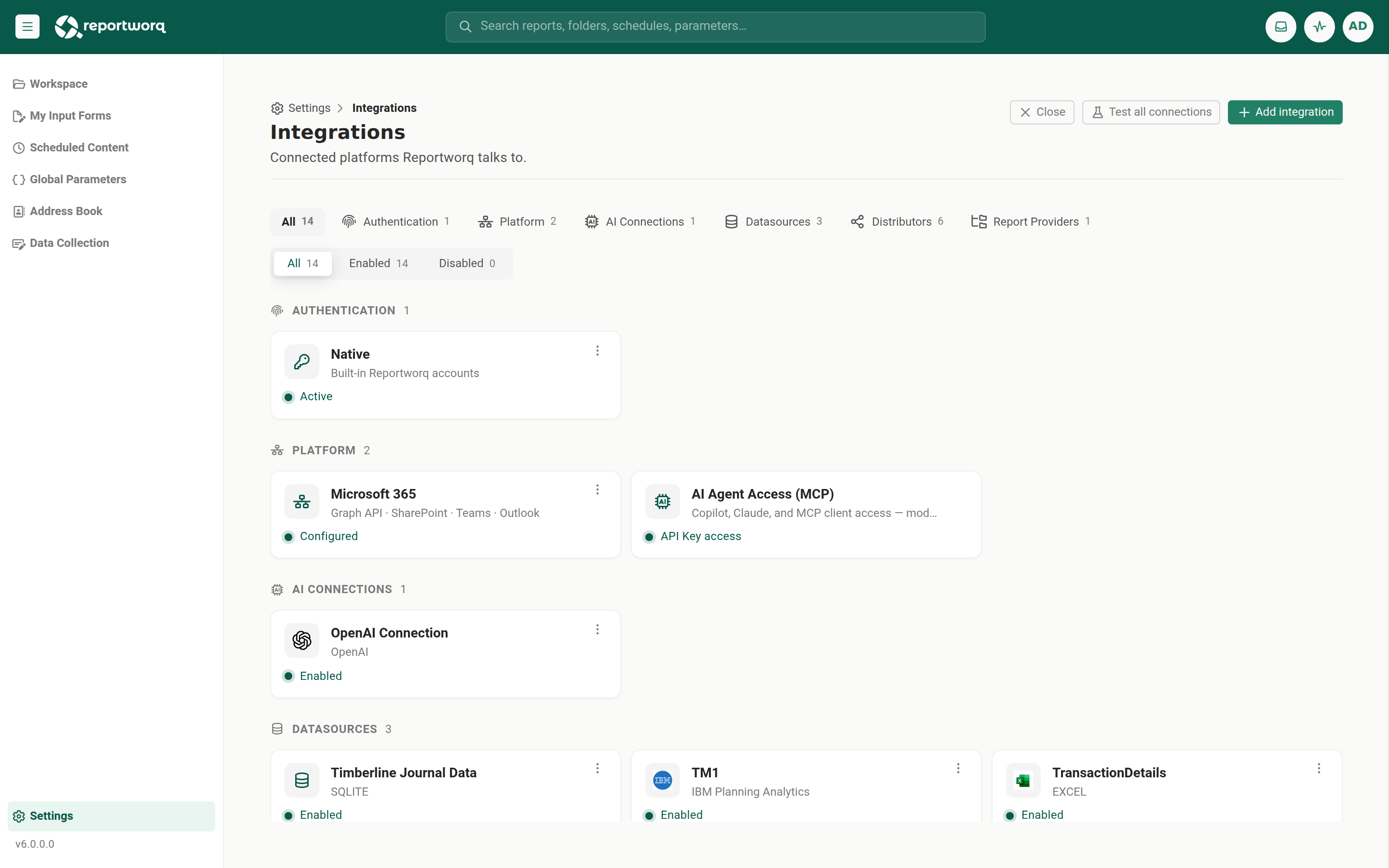
Connections are grouped into these families:
| Family | What it holds |
|---|---|
| Authentication | The sign-in providers. Exactly one is Active (the built-in Native provider by default). |
| Platform | The MCP Connection tool, the entry point for the MCP and Copilot access path (administrators). |
| AI Connections | AI providers: OpenAI, Azure OpenAI, AWS Bedrock, and Reportworq AI. |
| Datasources | Data connections: TM1 / Planning Analytics, SQL / OLE DB / ODBC, and the other connectors. |
| Distributors | Delivery targets: email, network folder, SharePoint, and the rest. |
| Report Providers | The source-file locations reports are authored from. |
| Shared Credentials | Reusable Microsoft 365, Google Workspace (OAuth), and Google service-account credentials that other integrations reference by name. See Shared credentials. |
Each connection appears as a card with a name, an on/off status pill, and a context (three-dot) menu.
Note: the Authentication family used to be a Configuration tab. It moved here, so manage sign-in providers on this screen, not in Server configuration.
Before you begin#
- You need administrator rights.
- Have the credentials or endpoints for the connection you are adding ready (server names, API keys, service-account details).
Add a connection#
- Open Settings, Integrations.
- Select Add integration. A full-page catalog opens with a search box and grouped tiles.
- Search for or scroll to the integration you want, then select Add on its tile.
- Fill in the connection editor. Every datasource, report provider, AI connection, and distributor editor opens with the same three controls at the top, in this order:
- Enable Integration, a checkbox that turns the connection on or off.
- Display name, the name shown on the card and in pickers.
- Availability, a single dropdown that controls which workspaces may use the connection (see Choose which workspaces see an integration). Below those, the connection's own provider-specific fields appear. Save stays disabled until you change something.
- Where the connection supports it, select Test connection. A good connection reports Success.
- Save.
You can add as many datasources, distributors, AI connections, and report providers of a type as you need, each is its own instance. A few integrations are single-instance: authentication providers and the Platform tools can be added only once, and one that is already configured (for example the active authentication provider) shows in the catalog as disabled with an Already added note and no Add button.
Edit, test, enable, or delete a connection#
Open a card's context (three-dot) menu for its actions:
- Edit opens the connection editor. As in the add flow, Save enables only once the editor is dirty.
- Test validates the connection and reports success or the error it hit.
- Enable / Disable toggles whether Reportworq uses the connection, without deleting it.
- Delete removes the connection.
The Platform, MCP Connection tool card has no context menu, it is a tool rather than a stored connection, and opens a full-screen editor.
Test everything at once#
Before a large scheduled batch, confirm every connection is reachable:
- On the Integrations list, select Test all connections.
- In the dialog, select Start. Reportworq tests each enabled, testable connection and reports the results.
- Select Close when done.
Authentication providers have no test path, so they are not included. If no enabled testable connection exists, the action shows a "no enabled connections" notice instead.
Filter the list#
The Integrations list has two rows of filters:
- The first row is a set of integration-type chips (Authentication, Platform, AI Connections, Datasources, Distributors, Report Providers, Shared Credentials), so you can narrow to one family.
- The second row carries the status filter (All, Enabled, or Disabled) alongside a set of workspace chips: All workspaces, then one chip per workspace. The workspace chips appear once you have more than one workspace. With a single workspace there is nothing to choose between, so the chips are hidden and the list shows every integration.
Pick a workspace chip to see only the integrations that workspace can use, for example to answer "which datasources are available in Workspace 2." The status filter and the workspace chips combine, so you can narrow to, say, the enabled distributors available in one workspace. On the All status filter every family group renders even when empty, on Enabled groups with no enabled connections are hidden.
Choose which workspaces see an integration#
Because integrations are global, each one declares which workspaces may use it. That choice lives in the Availability control at the top of every datasource, report provider, AI connection, and distributor editor.
Availability is a single multi-select dropdown. Its top entry is All Workspaces, which is mutually exclusive with the individual workspaces: pick All Workspaces and the connection is visible to every workspace, or pick one or more specific workspaces instead. Selecting All Workspaces clears any specific picks, and picking a specific workspace clears All Workspaces. If you save a new connection without choosing any workspace, Reportworq makes it available to All Workspaces, and its card then shows the All Workspaces chip. A new distributor is the exception: it already starts at All Workspaces, so unticking everything is a deliberate choice and it is saved visible to no workspace. If you deselect everything on a connection that already exists and save, it becomes visible to no workspace until you choose one again.
Within a workspace, authors see only the integrations made available to that workspace, they never see the global list or integrations scoped to other workspaces.
Shared credentials#
The Shared Credentials swimlane holds reusable credentials that more than one integration can point at, so you configure the sign-in once and reference it wherever it is needed. It has its own Credentials filter and holds three credential types, each as 0 or more instances:
- Microsoft 365 (OAuth), used by the Microsoft distributors and providers.
- Google Workspace (OAuth), used by the Google distributors and providers.
- Google service account, a non-OAuth key referenced by the Google Drive distributor and the Google Drive source-report provider.

Microsoft 365 and Google Workspace OAuth are no longer single credentials, you can hold as many named instances of each as you need. A consumer (a distributor or provider) references a credential by its id and name through a Select a credential picker in that consumer's editor. If the referenced id ever goes stale, Reportworq re-matches it by name, so renaming or re-adding a credential does not silently break its consumers.
There is no implicit default credential. A consumer either references a shared credential or it does not, Reportworq never falls back to a lone configured credential at run time. (When you open an editor and exactly one credential of the right kind exists, the editor pre-selects it for you, and it takes effect when you Save.) The Google service-account key is entered once on the shared credential and referenced by the Google Drive report provider and distributor by name, there is no inline key entry on those editors.
When you upgrade, an existing single Microsoft 365 or Google credential is migrated into a credential instance automatically.
For setup detail, see Microsoft 365 sign-in and Google Workspace sign-in.
Where to go for each family's detail#
The hub is where connections are registered. Each family's setup detail lives with the feature it powers:
- AI Connections, see Connect an AI provider.
- Datasources, see Connect a data source and the Connector catalog. A CData datasource's page also carries Imported objects (reports and saved searches brought in as tables) and read-only Tools; see Bring reports and saved searches in as tables.
- Distributors, see Destinations.
- Report Providers, the source-file locations authors build reports from.
- Shared Credentials, see Microsoft 365 sign-in and Google Workspace sign-in.
- Platform, MCP Connection, see Copilot, MCP, and trust paths.
Notes and limits#
- Integrations are global, only a system administrator can configure them, and each declares the workspaces that may use it.
- Instance-wide operational settings (web server, performance, logging, license) are in Server configuration, not here.
- Changing the active authentication provider warns that a service restart is required.
- Authentication providers and the Platform tools are single-instance and can be added only once, everything else is instance-based.
Going deeper. For the full list of connectors and their per-connector authentication notes, see the Connector catalog.
Feedback on this page
Comments, questions, requests, or something missing or unclear? Email us - the page you are on is filled in for you.
Email feedback on this pageOr write to support@reportworq.com directly.