
Set up Google Drive#
Google Drive is a dual-role integration in Reportworq. The same Google authentication can power two separate role-configurations:
- A report provider that reads source workbooks and PowerPoint templates from a Google Drive location. See Source report providers for how a provider is consumed on the Reports step.
- A distributor that delivers a job's generated files into a Google Drive folder. See Destinations for the destination catalog.
Both roles share one Google authentication model, chosen once. See Choose your authentication model below before you configure either role.
Choose your authentication model#
| Model | How it works | Best for |
|---|---|---|
| OAuth (recommended) | One Google Cloud OAuth client and one Connect flow. A dedicated Workspace account consents once, and both roles authenticate as that account. No downloadable key. See Google Workspace OAuth setup. | Any deployment whose Reportworq address Google will accept as a redirect URI, which is most of them. |
| Service account (this page) | A Google Cloud service account and its downloadable JSON key, pasted into each role's own settings, with Shared Drive membership or Domain-Wide Delegation for access. | A host Google will not accept as a redirect URI (no public HTTPS address, an internal-only domain, a bare IP), or an air-gapped install with no path to Google at all. |
The rest of this page covers service-account mode. If your deployment can use OAuth, follow Google Workspace OAuth setup instead; it needs no JSON key and no Domain-Wide Delegation. Service-account mode stays available for the hosts and installs above: each role editor has one Credential dropdown that lists your Google Workspace credentials (OAuth) and your Google service accounts together, and the credential you pick decides the sign-in method. There is no separate authentication switch.
Secrets warning. The service account JSON contains a private key. Treat the whole file as a secret. Never paste it into a ticket, a screenshot, a chat message, source control, or any other unsecured location. Reportworq encrypts the key at rest once you enter it in the Google service account shared credential, and after that it is never shown again - the editor displays only a masked "Key loaded" summary and the service account's own email address, not the private key. Still restrict who can administer the credential the way you would restrict access to the key file itself.
Before you begin#
- You are a Reportworq administrator with permission to configure integrations.
- You have a Google Workspace account and access to the Google Cloud Console for it.
- You can create a Google Cloud project and a service account, or you have help from someone who can.
- For the Domain-Wide Delegation path only, you have Google Workspace Super Admin access, or help from a Super Admin.
- You know the Google Drive location Reportworq will use: ideally a Shared Drive, and optionally a folder within it.
Choose your service-account access model#
The service account needs a way to reach the files. There are two models, and the choice decides whether you need Domain-Wide Delegation at all.
| Model | How the service account gets access | Domain-Wide Delegation | Impersonate user |
|---|---|---|---|
| Shared Drive membership (recommended) | Add the service account's own email as a member of the Shared Drive | Not required | Leave blank |
| Domain-Wide Delegation | The service account impersonates a Google Workspace user and inherits that user's Drive access | Required | The Workspace user to act as |
Prefer Shared Drive membership. It is simpler and needs no Super Admin: you create the service account, then add its email address as a member of the Shared Drive with the access level Reportworq needs. Use Domain-Wide Delegation only when Reportworq must act as a specific Workspace user, for example to reach files in that user's personal My Drive rather than a Shared Drive, or to inherit that user's exact permissions.
Steps 1 to 5 create the service account and are needed for both models. Step 6 (Domain-Wide Delegation) applies only to the delegation model; skip it if you are using Shared Drive membership.
1. Create or choose the Google Drive location#
In Google Drive, create or choose the Shared Drive Reportworq will use. Optionally create a dedicated folder inside it, for example a Reportworq folder under a Finance Shared Drive.
Find the Shared Drive ID#
Open the root of the Shared Drive in a browser. The URL looks like:
https://drive.google.com/drive/u/0/folders/0AExampleSharedDriveId
The value after /folders/ is the Shared Drive ID:
0AExampleSharedDriveId
Copy the ID from the Shared Drive root, not from the Reportworq folder or any other folder inside it. Using a folder ID here is the single most common configuration error (see Troubleshooting).
2. Create a Google Cloud project and enable the Drive API#
In the Google Cloud Console:
- Create a new project, or select an existing one dedicated to this integration. Give it a recognizable name such as
Reportworq Google Drive. - Open APIs & Services, Library.
- Search for Google Drive API and enable it for the project.
3. Create a service account#
In the Google Cloud Console:
- Go to IAM & Admin, Service Accounts.
- Select Create Service Account.
- Give it a descriptive name, for example
reportworq-drive, and finish creating it.
A Google Cloud IAM role is generally not required just to reach Google Drive. Drive access comes from either Shared Drive membership or Workspace delegation, not from a project-level IAM role.
Note the service account's email address (it ends in .iam.gserviceaccount.com). For the Shared Drive membership model, this is the address you add as a member of the Shared Drive.
4. Create the JSON key#
In the service account:
- Open the Keys tab.
- Select Add Key, Create new key.
- Choose JSON and create the key. The file downloads once.
The file looks like this (values redacted):
{
  "type": "service_account",
  "project_id": "example-project",
  "private_key_id": "REDACTED",
  "private_key": "-----BEGIN PRIVATE KEY-----\nREDACTED\n-----END PRIVATE KEY-----\n",
  "client_email": "reportworq-drive@example-project.iam.gserviceaccount.com",
  "client_id": "123456789012345678901",
  "token_uri": "https://oauth2.googleapis.com/token"
}
You will use the entire JSON object in Reportworq, entered once into a Google service account shared credential (see next) and referenced from both roles. Keep the downloaded file secure and do not commit it anywhere.
Use a shared service-account credential#
The Google service account is a shared-credential type, so you can enter its key once and reference it from both Google Drive roles, instead of pasting the same JSON into each role separately.
- In Reportworq, go to Settings, Integrations, and in the Shared Credentials swimlane add a Google service account credential.
- Give it a Display name.
- Enter the key from step 4: either paste the complete JSON into the Service Account Key (JSON) box, or select Upload .json and pick the downloaded key file directly.
- Optionally set an Application Name, recorded with Drive/Sheets API calls. Leave it blank to use the default, Reportworq.
- Save.
Once a valid key is entered, Reportworq reads the service account's email address (client_email) out of it and shows that address, with a Copy button, so you can share a Shared Drive with it (see step 5 below) without reopening the downloaded file. The private key itself is never shown again after entry - the row instead reads "Key loaded - the private key is stored encrypted and is not shown," with a Replace key button if you ever need to rotate it.
If what you paste or upload is not a usable service-account key - not valid JSON, a different kind of Google credential, or a key with no client_email - Reportworq explains why under the field and will not let you save that rejected key onto the credential until you fix it or clear the box back to empty (Cancel replace, if you were rotating an existing key, keeps the key already stored). This applies the same way whether you are entering the first key on a new credential or using Replace key on an existing one, so a rejected paste can never become the credential's stored key.
Note that adding a credential from the catalog creates it right away, before you have entered a key. If you close the editor without ever entering a valid key, you are left with an empty credential in your list. Delete it, or open it again and add a key, before you pick it as the credential for a role - otherwise it can get selected (including automatically, when it is the only Google credential) and Browse or a job run will fail with "has no key configured."
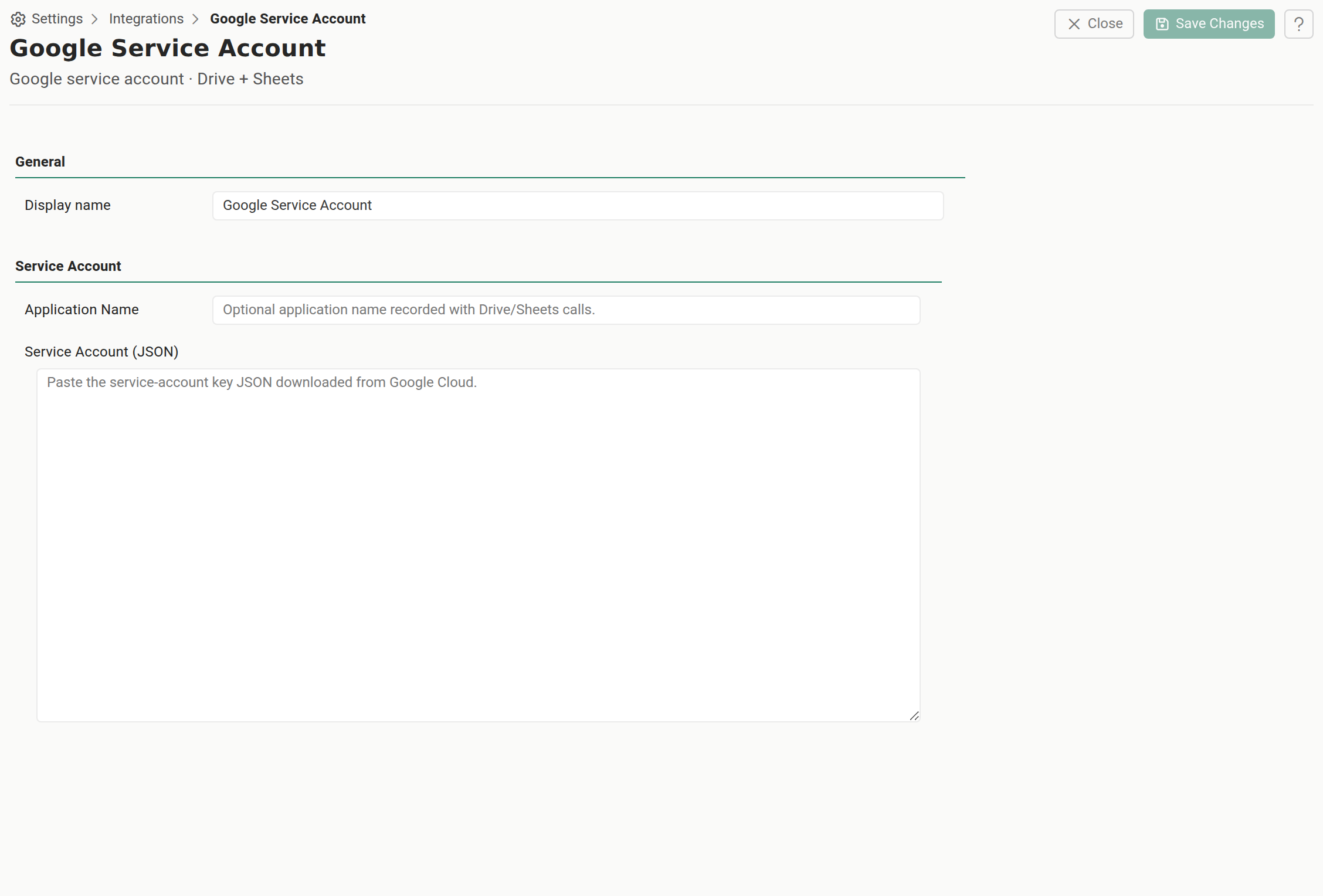
Then, in each Google Drive role's editor, select this credential in the Credential dropdown. A role references the credential by its id and name, and if the id ever goes stale Reportworq re-matches it by name.
Service-account keys are entered only here, in the shared credential, and referenced from the roles by name. A Google Drive role has no inline key field of its own, so it is authenticated with a service account only once it references a shared Google service account credential (there is no default credential). If you are upgrading from an earlier version that stored the key inline on the provider or distributor, that key is moved into a shared Google service account credential for you on upgrade and the role is repointed to reference it.
5. Grant Drive access to the service account#
Now give the service account a way to see the files, using the model you chose above.
- Shared Drive membership (recommended): in Google Drive, open the Shared Drive, manage its members, and add the service account's email address (
...@...iam.gserviceaccount.com) as a member with the access level Reportworq needs (Content Manager or higher if the distributor must write). Then skip to step 7. - Domain-Wide Delegation: continue to step 6.
6. Enable Domain-Wide Delegation (delegation model only)#
Skip this step entirely if you are using Shared Drive membership.
6a. Record the numeric Client ID#
Open the service account in the Google Cloud Console and find its numeric Client ID, for example:
123456789012345678901
This is the same value as client_id in the JSON key. It is a numeric value: do not use the service account email, the project ID, or the private key ID in its place.
6b. Authorize the client and scopes in Workspace Admin#
Sign in to the Google Workspace Admin console with a Super Admin account and go to:
Security, Access and data control, API controls, Domain-wide delegation.
Select Manage Domain Wide Delegation, Add new, and enter:
- Client ID: the numeric Client ID from step 6a.
- OAuth scopes: both of the scopes Reportworq requests, comma-separated:
https://www.googleapis.com/auth/drive,https://www.googleapis.com/auth/drive.file
Save the entry. Reportworq requests both of these scopes when it authenticates, so both must be authorized here. Authorizing only one of them causes an unauthorized_client error at connection time.
6c. Verify the Client ID matches#
The Client ID you authorized in Workspace Admin must exactly match client_id in the JSON key. A mismatch prevents Reportworq from obtaining an access token.
6d. Choose the user to impersonate#
Choose a Google Workspace user (a person's mailbox, for example reporting@example.com) that has access to the Shared Drive and folders Reportworq needs. This address goes in the provider's Impersonate user field, or in the per-job Impersonate Email field on a Google Drive destination.
Do not put the service account address in Impersonate user. The service account authenticates the application; the impersonated Workspace user supplies the Drive identity and permissions.
Correct:   reporting@example.com
Incorrect: reportworq-drive@example-project.iam.gserviceaccount.com
Newly created delegation can take time to propagate. If the first test fails with unauthorized_client, wait a few minutes and try again.
7. Configure the report provider#
In Reportworq, go to Settings, Integrations, and in the Report Providers family add a new provider and choose Google Drive. See The integrations hub for the general add, test, enable, and save mechanics.
The editor opens with the common integration chrome at the top, shared by every integration type: an Enable Integration checkbox, a Display name (the name shown on the card, for example Finance Google Drive), and Availability, which chooses the workspaces this provider is visible in. Below that chrome, complete the provider-specific Report Provider Settings:
| Field | Required | What to enter |
|---|---|---|
| Credential | Yes | One Select a credential dropdown over every shared credential Reportworq can use here: Google Workspace credentials (OAuth, see Google Workspace OAuth setup) first, then Google service account credentials (see Use a shared service-account credential below). Each entry shows its kind and the connected account or application name. The credential you pick decides the sign-in method. The key is entered once on the shared credential, not on the provider. A provider with nothing selected is not authenticated, although when exactly one Google credential exists the editor pre-selects it for you (saved when you Save). |
| Impersonate user | Optional | Shown only when the selected credential is a service account. The Google Workspace user to impersonate. Fill this in only for the Domain-Wide Delegation model; leave it blank for Shared Drive membership. With a Google Workspace (OAuth) credential the row is not shown: the credential's consenting account supplies the identity. |
| Location | - | Where the provider reads from: a single field holding one expression. Leave it blank, or type a plain path (for example Reportworq), for My Drive. Prefix it with // to name a Shared Drive instead - for example //Product Development/Reportworq - using either the Shared Drive's ID or its name (resolved when the provider actually runs). Type it directly, or use the folder Browse button to compose it from a picker - see Browse instead of typing an ID below. A subtle note beneath the field always shows where the current value resolves, or flags a malformed // prefix. |
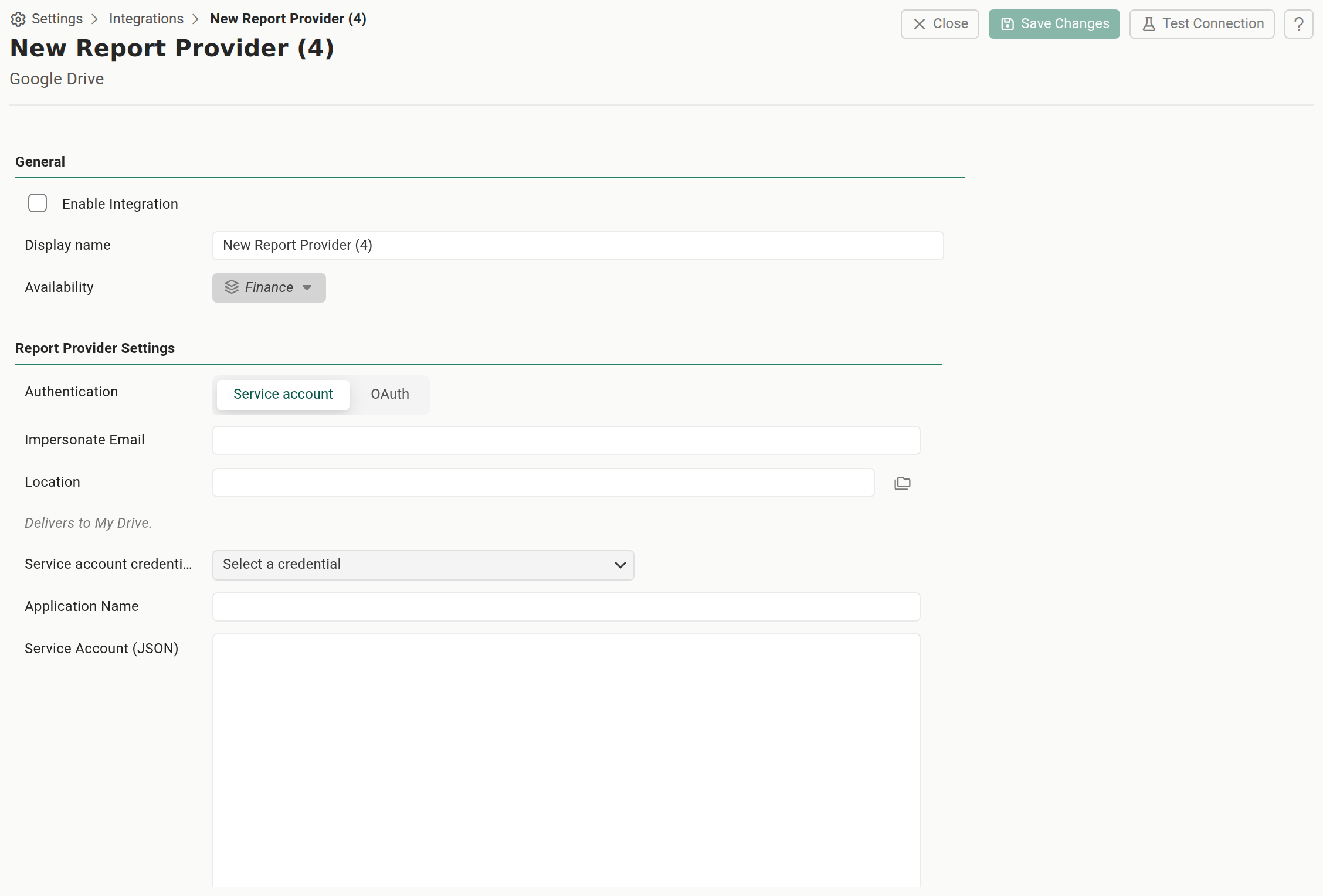
Example configuration:
Report Provider Name:      Finance Google Drive
Impersonate user:          reporting@example.com   (service account with delegation only)
Location:                  //0AExampleSharedDriveId/Reportworq   (an id or a Shared Drive name after "//", or Browse and pick it)
Credential:                Reporting service account   (the shared credential to reference)
Test and save the provider#
Select Test Connection. A success confirms that Reportworq can authenticate with the service account, obtain an access token (impersonating the Workspace user if one is set), locate the Drive, and browse the configured location. After a successful test, save the provider.
Authors can now add Google Drive workbooks and templates through the Select a Report dialog. The Google Drive provider is read-only in the dialog: it browses and loads, but upload, rename, and delete are not offered for Google Drive.
8. Configure the distributor#
The Google Drive distributor is a separate integration from the provider. It is not automatically created when you set up the provider, and it holds its own copy of the credentials. Configure it with the same service account so both roles use one Google identity.
In Settings, Integrations, in the Distributors family, add or open a Google Drive distributor. Like every integration, the editor opens with the common chrome, an Enable Integration checkbox, a Display name, and an Availability workspaces dropdown, above the provider-specific Distributor Settings:
| Field | Required | What to enter |
|---|---|---|
| Credential | Yes | The same single Select a credential dropdown as on the provider, listing Google Workspace credentials (OAuth) and Google service account credentials together. Point it at the same credential the provider uses so both roles share one Google identity. The credential you pick decides the sign-in method, and the key is entered once on the shared credential, not on the distributor. A distributor with nothing selected is not authenticated, although when exactly one Google credential exists the editor pre-selects it for you (saved when you Save). |
The distributor's connection editor has no Impersonate user row. The user to deliver as is set per job (see below).
What the Credential dropdown tells you#
- No credential of either kind exists yet. A yellow note says so and offers two links: Add a Google Workspace connection (a person signs in and Reportworq acts as them) and add a service account (Reportworq acts as itself). Each opens the new credential's editor.
- Only one kind exists and nothing is selected. A small link under the dropdown offers to add the missing kind.
- The credential you picked has been deleted. The dropdown shows its name followed by (no longer available), with a warning to select another credential. A service-account integration that still carries an old inline key shows Legacy inline service-account key and keeps working with it.
- A Google Workspace credential that has not been connected. A yellow note, Connect
to finish setting this up , links straight to that credential's editor. No sign-in note appears for a service account, which has no sign-in step.
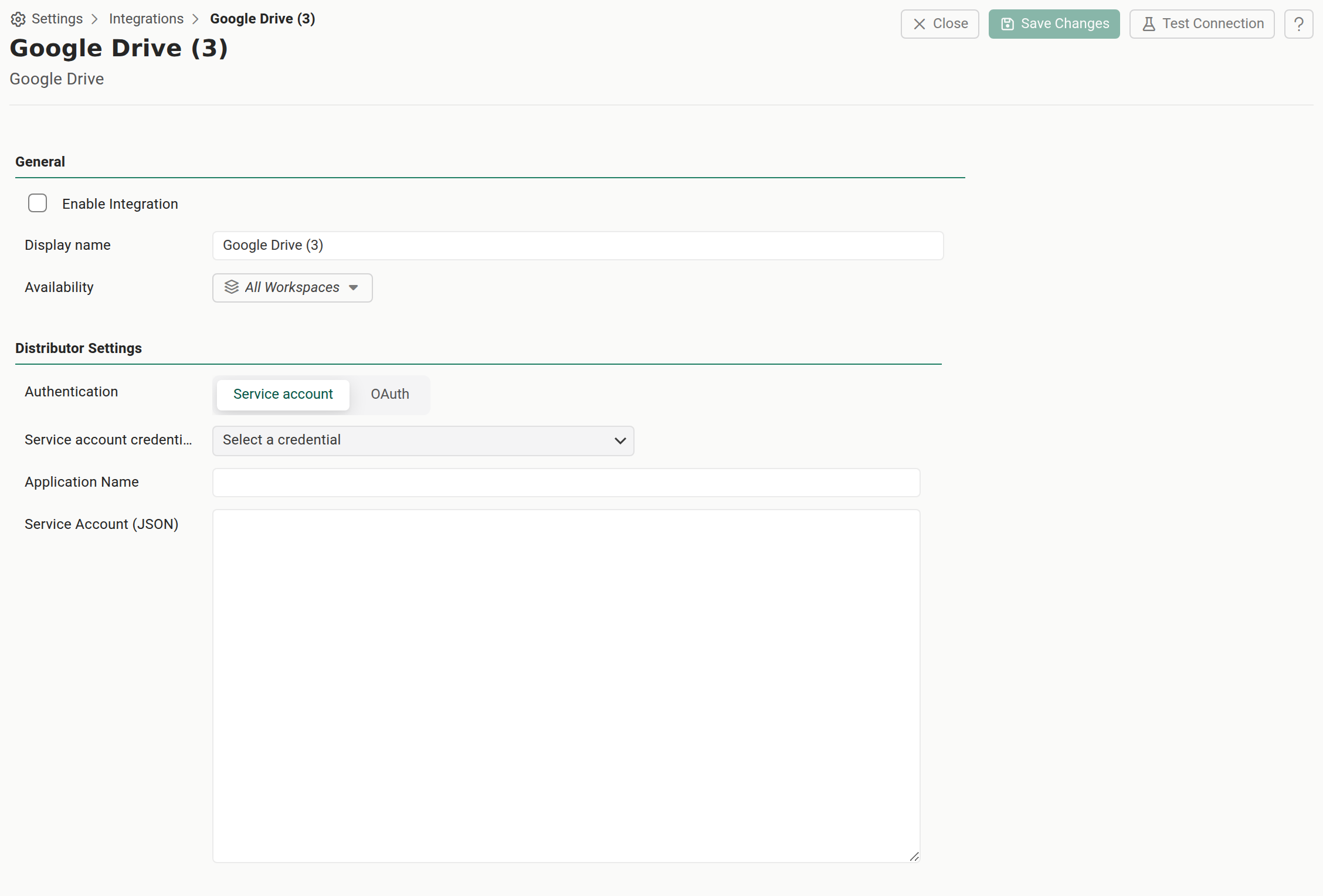
You can add more than one Google Drive distributor, each its own instance with its own display name, authentication, and workspace availability.
Note that the Impersonate Email and the delivery Location are not set on the global distributor connection. They are set per job, on the Distribution step, because a job can target a different user or folder each time.
Per-job destination fields#
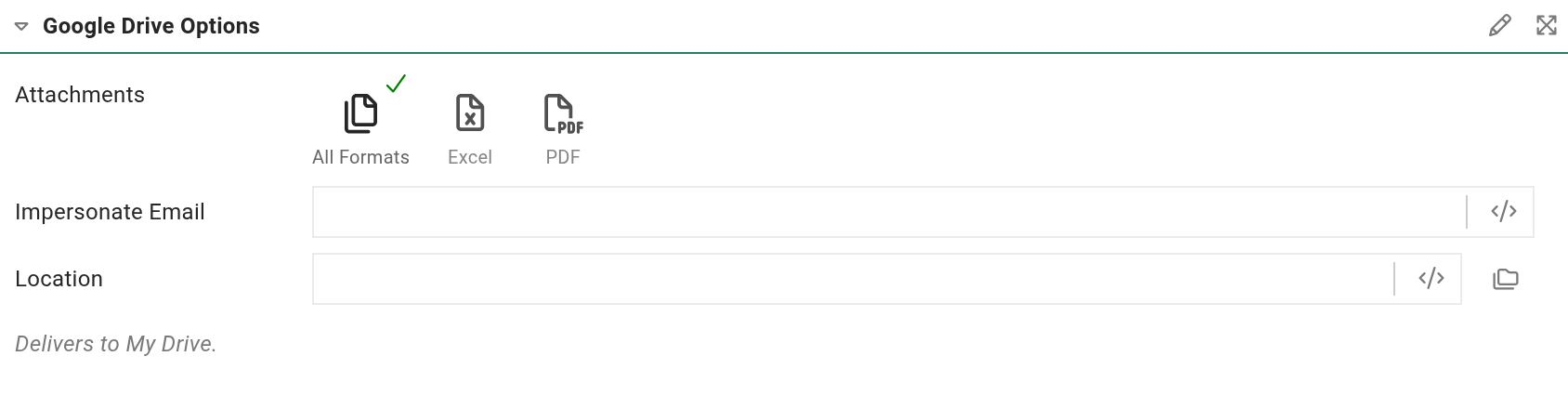
On a job's Distribution step, add Google Drive as a destination. It exposes two fields:
| Per-job field | What it does |
|---|---|
| Impersonate Email | The Google Workspace user to deliver as, for the Domain-Wide Delegation model. Leave blank for Shared Drive membership. Tokenizable. Hidden and inert under OAuth: the OAuth connection's consenting account is the delivery identity for every job. |
| Location | Where the job delivers, as a single tokenizable expression. No prefix delivers to My Drive - for example Reports/{Region}/{Quarter}. A leading // names a Shared Drive instead - for example //{Region}Drive/Reports/{Quarter}. A parameter may appear anywhere in the expression, including inside the drive name itself. Type it directly, or compose it at once with Browse (see Browse instead of typing an ID below). |
With the field left blank, output goes to the root of the service account's own Drive. The field stays available and per-job under OAuth; only Impersonate Email is hidden. A subtle note beneath the field always states where the current value resolves - "Delivers to My Drive," the named Shared Drive, or (for a parameterized drive segment) that the drive is decided when the job runs and can't be shown here - or flags a malformed // prefix so a typo doesn't silently deliver to the wrong place. If you type or paste the drive segment by hand, or set it through a parameter that only resolves once the job runs, Reportworq accepts either a Shared Drive ID or its exact name - see Browse instead of typing an ID below.
Browse instead of typing an ID#
Both the per-job destination and the provider settings lead with a single Location field holding one expression - tokenizable on the per-job destination (e.g. //{Region}Drive/Reports/{Quarter}), a plain text box with no tokens on the provider pane (a provider record has no per-job variables to resolve a token against). Type into it directly, or use Browse to compose the whole expression at once:
- Select the folder Browse button (the folders icon) to open a picker, with a breadcrumb, a search box, and a sortable, paged file grid (only folders are shown; there is nothing to upload, download, rename, or delete here). Its tree shows My Drive plus every Shared Drive the connection can see. Pick a folder and Reportworq writes the whole Location expression from it - a bare path for My Drive, or
//<drive>/<path>for a Shared Drive - using the folder's friendly path (for exampleReports/2026), including for a folder whose own name contains a/, so the value stays readable and, on the per-job destination, still accepts a token if you edit it afterward. - A Shared Drive the connection can only read, not write to, is labeled "(read-only)" in the picker - picking it will let you browse, but a job delivering there will fail.
- Need to set a Shared Drive ID or name directly, without Browse - for example before a Google connection is configured at all? Type it straight into the field behind a leading
//, for example//Product Development(with nothing else, that targets the Shared Drive's root) or//Product Development/Reports. Removing the//prefix (leaving just the path, or leaving the field blank) returns delivery to My Drive. - A Shared Drive name works too, not just its ID. Type the Shared Drive's name after
//- for example//Product Development/Reports- and Reportworq resolves it to the matching Shared Drive when the provider or job actually runs (this is also what lets a parameter that resolves to a drive name work here, since a parameter's value isn't known until run time). A value after//is always tried as an ID first, so nothing already saved needs to change. If the name doesn't match exactly one Shared Drive, the operation fails rather than guessing: no match reports "Shared drive not found:<value>"; more than one Shared Drive sharing that exact name reports each match's ID and asks you to use the ID instead - see Troubleshooting below. - A
/in a Shared Drive's or a folder's name is handled, not a problem. Google allows a/in a Drive or folder name, and/is also the Location field's own separator - so Reportworq works out the split for you. Typing//Product Developmentwhen the Shared Drive is actually namedProduct Development/Legacy(with nothing else after it) still resolves correctly - Reportworq tries the plain reading first, and when that alone doesn't match anything it also tries folding the next part of what you typed into the drive name. The same folding happens one level at a time for a folder name that itself contains a/. It only refuses to guess when what you typed is genuinely ambiguous - see Error: the Location is ambiguous and Error: the folder path is ambiguous below - in which case it fails loudly, naming both readings, and asks you to use Browse to pick the one you mean. - A Shared Drive cannot be reached by name if it is literally named "My Drive". That text (matched without regard to case or surrounding spaces) always means your personal My Drive, before any Shared Drive name lookup runs. If your organization has a Shared Drive named exactly "My Drive", address it by its ID instead - copy the ID after
/folders/from its URL, as described above. - The path after the drive segment (or the whole field, with no
//prefix) is always directly editable: type a folder path (Reports/2026) or a folder ID and Reportworq creates any folder that does not already exist (see How delivery behaves below). - Why an explicit
//prefix, not just one combined path? A bare string likeProduct Development/Reportscan't tell Reportworq whetherProduct Developmentnames a Shared Drive or is just a folder inside My Drive - and guessing wrong could silently deliver a saved job to the wrong place if someone later creates a Shared Drive with a colliding name. The//prefix makes the choice explicit instead.
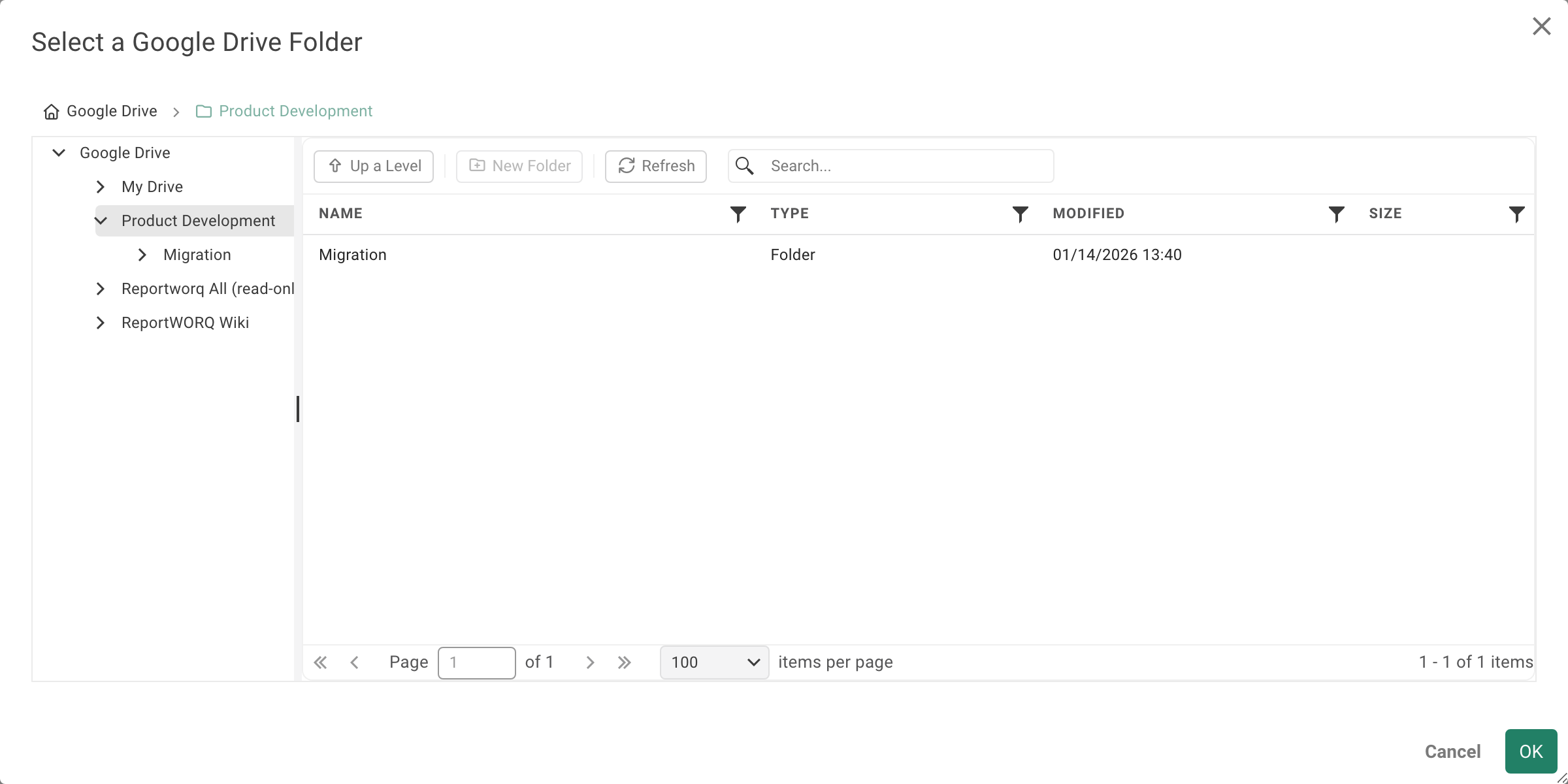
A subtle note beneath the Location field always tells you where the current value resolves. Typing into the field itself needs no connection, so the note updates immediately with what it can tell offline - "Delivers to My Drive," a malformed // prefix (a // with no drive name after it), or, for a parameterized drive segment, that the drive is decided when the job runs and can't be shown yet. A moment after you stop typing, or right after a Browse pick, Reportworq quietly checks the Location against Google itself and rewrites the note in Drive's own names - for example Delivers to the Shared Drive "Product Development" › Reports › 2026 (2026 will be created). - naming any folder that doesn't exist yet as one that will be created. If you open an existing Location that names a Shared Drive by typing its name (rather than picking it with Browse), Reportworq also runs this same check once, right when you open the editor, so a name that was split incorrectly reads correctly straight away instead of only after your next edit. This check is purely informational: it never blocks Save, and if Reportworq can't reach Google right now (no connection configured yet, a network hiccup, and so on) it simply leaves the offline note as it was rather than showing an error. If part of the path is set by a parameter, the note checks as much as it can and says the rest is decided when the job runs.
If Browse reports "The Google Drive distributor is not configured" or "No Google connection is configured", the distributor (or, from the provider pane, the central Google Workspace connection) needs to be set up first - see Choose your authentication model above; the picker needs a working credential to list anything.
How delivery behaves#
- Office files auto-convert to native Google formats on delivery. An Excel workbook (
.xls,.xlsx,.xlsm,.xlsb) is delivered as a Google Sheet; a PowerPoint file (.ppt,.pptx) is delivered as Google Slides. Other formats (PDF, and so on) are uploaded as-is. - Re-runs update in place. Delivering a file whose name already exists in the target folder updates that file rather than creating a duplicate.
- Folders are created as needed. A folder path that does not yet exist is created beneath the Drive root. This applies whether you typed the path or picked it with Browse: Reportworq resolves a friendly path by name at delivery time, so if you rename the folder in Google Drive afterward, the next delivery does not find it under the old name and creates a new folder with that name instead. Type the folder's own ID in place of its name (copied from its URL in Google Drive, the same way as for a Shared Drive) if you need delivery to survive a rename.
Troubleshooting#
Error: "The Service Account (JSON) value must be a Google service-account key"#
The Service Account (JSON) value must be a Google service-account key ("type": "service_account"). For a user or workload-identity credential, use the OAuth authentication mode instead.
Cause: the JSON pasted into Service Account (JSON) is not a service-account key. Its top-level "type" field is something else, for example "authorized_user" (a user credential) or "external_account" (a workload-identity credential).
Fix: paste the complete JSON key downloaded in step 4 above, whose "type" field is "service_account". If what you actually have is a user or workload-identity credential rather than a service-account key, this role cannot use it in service-account mode at all; pick a Google Workspace credential in its Credential dropdown instead and follow Google Workspace OAuth setup instead.
Error: Shared drive not found#
Shared drive not found: <value>
Cause: Reportworq tried the value after the Location field's // prefix both as a drive ID and, if that failed, as a Shared Drive name - and neither matched, even after trying to fold the next part of the path into the name (see Browse instead of typing an ID above). Two common causes: the value is a folder ID rather than the ID of the Shared Drive itself, or it's a name that's misspelled or doesn't match any Shared Drive the connection can see.
Fix: in Google Drive, open Shared drives, open the root of the intended Shared Drive, and copy the ID after /folders/ in the URL, or copy the Shared Drive's exact name. Type or paste that value directly after // in the Location field, or pick the Shared Drive with Browse instead. Put a folder ID after the drive segment, never in place of it.
Error: the Location is ambiguous#
The Location matches two Shared Drives: "Sales" (then folder "Ops/Reports") and "Sales/Ops" (then folder "Reports"). Use Browse to pick the one you mean.
Cause: two real Shared Drives both match what you typed. / in the Location field is also the drive/path separator, so typing //Sales/Ops/Reports when your connection can see both a Shared Drive named Sales and one named Sales/Ops is genuinely ambiguous: it could mean the Sales drive's Ops/Reports folder, or the Sales/Ops drive's Reports folder. Reportworq will not guess between two real matches; it fails loudly, naming both readings, rather than silently delivering to the wrong one.
Fix: open the Location field's folder Browse button and pick the Shared Drive (and folder) you actually mean - Browse always shows you Google's own names and writes the exact one you pick, so there is nothing ambiguous once you've picked it.
Error: the folder path is ambiguous#
The folder path is ambiguous under "Reports": both a folder named "2025" and a folder named "2025/26" exist. Use Browse to pick the one you mean.
Cause: the same kind of collision as Error: the Location is ambiguous above, one level down: two real folders under the same parent both match part of what you typed after the drive segment - one named exactly what you typed, and another whose own name is that text plus more, joined with / (for example a 2025 folder and a separate 2025/26 folder both sitting inside Reports). Reportworq will not guess which one you meant.
Fix: open the Location field's folder Browse button and pick the folder you actually mean.
Error: More than one Shared Drive is named '<value>'#
More than one Shared Drive is named '<value>' (<id-1>, <id-2>). Use the drive id instead of the name.
Cause: the connection can see more than one Shared Drive with the exact same name. Reportworq will not guess between them, since delivering to the wrong one could mean a customer's output lands somewhere it shouldn't.
Fix: use one of the IDs listed in the error instead of the name, type or paste it directly after // in the Location field, or find it by opening each candidate Shared Drive's root in Google Drive and comparing the ID after /folders/ in the URL.
Error: "Google Workspace re-authentication required"#
Google Workspace re-authentication required: no refresh token is stored for 'google-drive'. Reconnect the Google Workspace credential: ...
Cause: the integration uses a Google Workspace (OAuth) credential, and Reportworq holds no refresh token for it. This happens when the credential was never connected, or Google's consent was not completed.
Fix: open the credential under Settings, Integrations, Shared Credentials, select Connect, and complete Google's consent screen. See Google Workspace OAuth setup. The message names Google Workspace; a Microsoft 365 message here means you are looking at a Microsoft 365 integration.
Error: the selected credential no longer exists#
The Google service-account credential 'Reporting service account' selected for this integration no longer exists. Select another credential in Settings > Integrations.
The Google Workspace credential 'Finance Google' no longer exists. Select a valid Google credential.
Cause: the shared credential the provider or distributor points at was deleted. The role's Credential dropdown shows the old name followed by (no longer available).
Fix: open the provider or distributor in Settings, Integrations, pick another credential in the Credential dropdown, and save. A Test Connection or a job run reports the problem when the integration is used, and one missing credential no longer makes every Google Drive entry in the list look unconfigured.
Error: "No Google connection is configured"#
Cause: the integration is set to OAuth but no Google Workspace credential is selected, or the selected credential has never been connected.
Fix: select a Google Workspace credential in the Credential dropdown, then connect that credential if it shows the Connect
Error: "More than one Google Drive distributor is enabled"#
More than one Google Drive distributor is enabled for this workspace. Limit Google Drive to one enabled distributor in Settings > Integrations, then browse.
Cause: the Browse button and validation on a job's Google Drive destination need exactly one enabled Google Drive distributor visible to the workspace, and two or more are enabled. A different message, "The Google Drive distributor is not configured", means none is enabled.
Fix: disable the extra Google Drive distributors, or limit each one's Availability to different workspaces, so only one is enabled for the workspace.
Error: unauthorized_client#
Client is unauthorized to retrieve access tokens using this method,
or client not authorized for any of the scopes requested.
This is a Domain-Wide Delegation or scope problem. Check each of the following:
- Domain-Wide Delegation is enabled for the service account.
- The service account's numeric Client ID is authorized in Workspace Admin.
- The Client ID in Workspace Admin exactly matches
client_idin the JSON key. - Both authorized scopes are present:
https://www.googleapis.com/auth/driveandhttps://www.googleapis.com/auth/drive.file. Authorizing only one triggers this error. - Impersonate user (provider) or Impersonate Email (per-job destination) is a valid Google Workspace user, not the service account address.
- The impersonated user belongs to the domain the delegation was configured for.
- You have allowed a few minutes for new delegation settings to propagate.
Authentication succeeds but the folder cannot be reached#
- Confirm the impersonated user (or, for Shared Drive membership, the service account itself) actually has access to the Shared Drive.
- Confirm that access is sufficient for what Reportworq does: read for the provider, write (Content Manager or higher) for the distributor.
- Confirm the Location field's
//drive segment identifies the Shared Drive itself, and the path after it identifies the intended folder within it.
The browse tree opens but is empty#
The Google Drive node expands in the Select a Report dialog, but shows no folders or files, and no error. With a service account this almost always means the account cannot see the content that Location points at. A service account is its own identity with its own, initially empty My Drive, so it sees nothing until you grant it access.
- Files in a Shared Drive: add the service account as a member of the drive (see step 5), and make sure Location names the Shared Drive with the
//prefix, for example//0AExampleSharedDriveId/Reportworq. Without//, the value is read as a path in the service account's own My Drive. - Files in a user's My Drive: for a single folder, the lightest fix is to share that folder with the service account's email address (the address the credential editor shows; Viewer is enough) and put that folder's ID in Location. To reach a whole My Drive rather than one shared folder, use Domain-Wide Delegation with Impersonate user instead.
Watch for a folder that will be created. When the service account cannot reach the folder ID in Location, Reportworq does not fail. It reads the value as a folder name, creates an empty folder of that name in the service account's own My Drive, and browses that. The editor tells you before you save: the note under Location ends with "(... will be created)". If you see that for a folder you expected to exist, share the folder (or the Shared Drive) with the service account first.
Security recommendations#
- Create a dedicated service account for the Reportworq integration, in a dedicated project where practical.
- Scope the impersonated user's, or the service account's, Drive access to only what Reportworq needs.
- Store the JSON key securely and never commit it to source control or paste it into screenshots or tickets.
- Rotate service account keys per your organization's policy, and remove unused keys.
- Periodically review the Domain-Wide Delegation clients in Workspace Admin.
- Disable or remove the integration when it is no longer required.
Validation checklist#
Before you suspect Reportworq, confirm:
- Google Drive API is enabled on the project.
- The service account exists and its JSON key was created.
- The service account can reach the files: it is a member of the Shared Drive, or Domain-Wide Delegation is configured.
- For delegation: the JSON
client_idmatches the Client ID authorized in Workspace Admin. - For delegation: both
.../auth/driveand.../auth/drive.filescopes are authorized. - For delegation: Impersonate user (and the per-job Impersonate Email) is a Workspace user, not the service account.
- The Location field's
//drive segment identifies the Shared Drive itself (its ID or its exact, unambiguous name), not a folder within it. - The path after the Location field's drive segment points to the intended folder.
- The complete JSON key is entered once on a Google service account shared credential, and both the provider and the distributor select it in their Credential dropdown.
- Test Connection succeeds.
Related pages#
- Google Workspace OAuth setup for the recommended OAuth alternative to the service account described on this page.
- Source report providers for how a provider is consumed when authoring.
- The integrations hub for the shared add, test, and enable mechanics.
- Destinations for the full distributor catalog.
- Name and organize output files for tokenizing the per-job folder path.
Feedback on this page
Comments, questions, requests, or something missing or unclear? Email us - the page you are on is filled in for you.
Email feedback on this pageOr write to support@reportworq.com directly.