
Table relationships#
A relationship tells the view designer that a column of one table holds the key of a row in another table: each invoice line's sales_rep_id is the employee_id of one employee. The designer uses relationships to offer related tables on the Design canvas, so you can add the rep's name to an invoice-line view without writing a join. See Build a view with the designer.
Where relationships come from#
A data model on a SQL datasource draws relationships from three places. The designer offers all of them side by side.
| Source | What it is | Shown as |
|---|---|---|
| The database or driver | Foreign keys the database declares, read from its metadata. | Declared by the driver |
| Reportworq | Links Reportworq works out from a source's naming rules, for QuickBooks Online report views, where a column such as Class_Id is paired with the Class table. |
Inferred |
| The data model | Relationships you add yourself on the model's Source screen. They are saved with the data model and apply only to it. | Manual |
Which sources supply relationships on their own:
- SQLite databases supply the foreign keys they declare, for single-column keys. Database views declare none.
- CData-based sources, such as Salesforce, NetSuite, and Dynamics 365, supply the foreign keys their driver reports. A flat source such as an Excel workbook usually reports none.
- QuickBooks Online report views supply inferred links from their id columns to the Accounts, Class, Customers, Vendors, Employees, Items, Departments, and PaymentMethods tables.
- SQL Server, OLE DB, and ODBC sources do not supply relationships yet, so every link on those sources is a manual relationship.
When you need a manual relationship#
Add a manual relationship when a column holds another table's key but the designer does not offer that table. Typical cases:
- The database does not declare foreign keys, which is common in reporting databases and data warehouses, and is always the case for SQL Server, OLE DB, and ODBC sources in Reportworq today.
- The key is a name or a code rather than an id, for example an invoice line's
customercolumn that holds the customer name, whichdim_customeruses as its key. - The starting table is a database view, which never declares keys.
A relationship must point at a key: each value in the first table's column must match at most one row of the second table. If it can match several, the view would repeat rows; write that view as SQL instead.
Add a manual relationship#
- Open the data model and select Source in the rail.
- In the table list, select the table that holds the key, for example
sales_journal. - Above the table's rows, open the Relationships section. The table's existing links are listed with their source.
- Select the plus button beside Relationships to add a relationship from this table.
- Check From table, which starts as the table you selected, and select the Column holding the id, for example
customer. - Select the table the id Points to, for example
dim_customer, and its Key column, for examplecustomer_name. - Select Save relationship.
- Select Save Changes to save the data model with its new relationship.
The relationship is listed as Manual, and the designer now offers the related table beside that column on the Design canvas. Its tooltip on the canvas reads "defined on the data model".
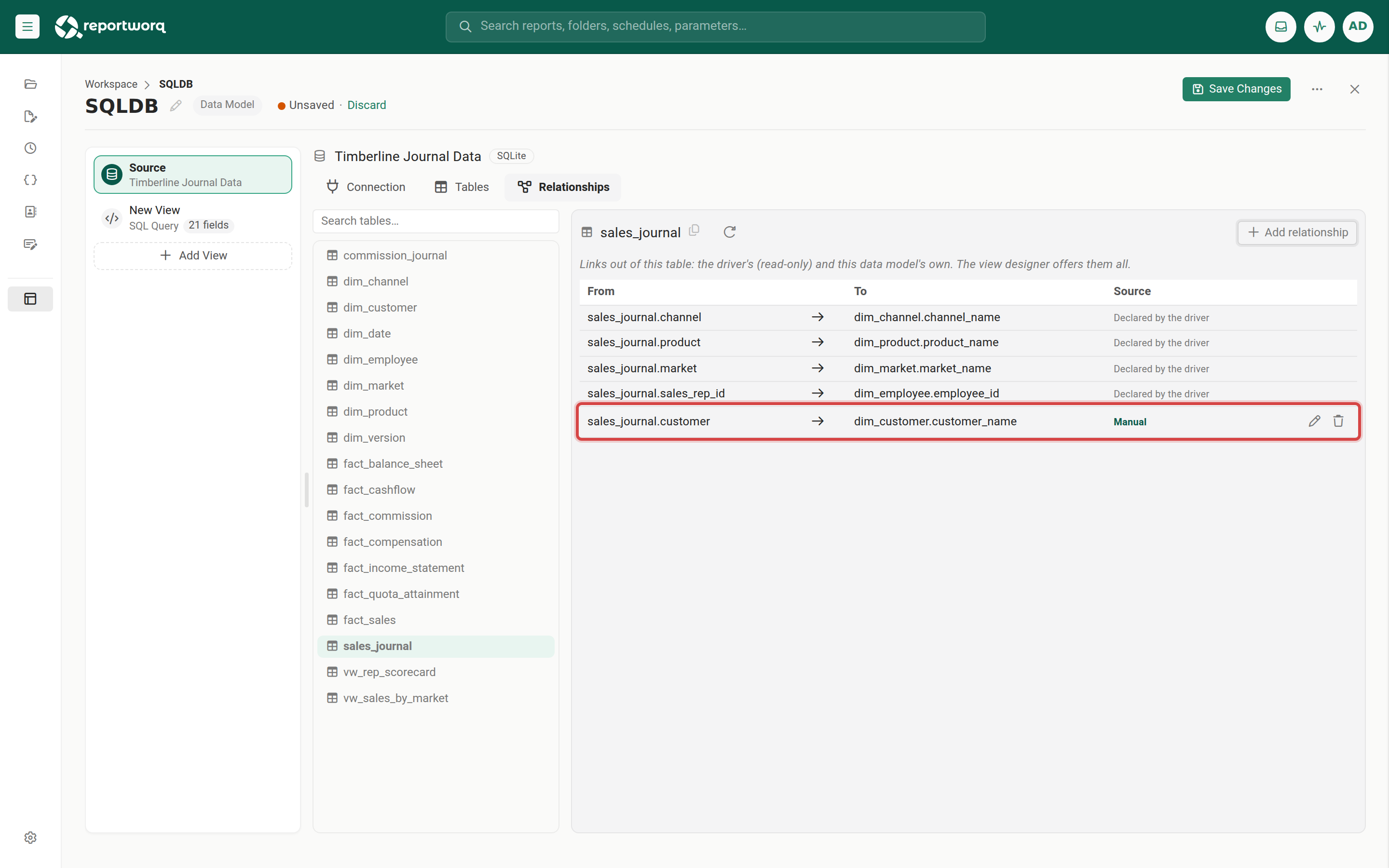
Each table's Relationships section lists the links from that table, both the ones the source supplies and the manual ones.
Edit or delete a manual relationship#
- To change a manual relationship, select the pencil on its row, change the columns or tables, and select Save relationship.
- To delete one, select the trash can on its row and confirm.
Deleting a manual relationship does not change views that already join through it; they keep their joins. It only stops the designer from offering the link for new joins. Declared and inferred relationships are read-only.
Related topics#
Feedback on this page
Comments, questions, requests, or something missing or unclear? Email us - the page you are on is filled in for you.
Email feedback on this pageOr write to support@reportworq.com directly.