
Connect Workday Adaptive Planning#
Reportworq refreshes Workday Adaptive Planning OfficeConnect reports. An OfficeConnect report is an Excel workbook whose query specifications are stored in hidden properties on each worksheet. Reportworq reads those embedded specifications and queries the Adaptive Planning API to update the workbook, so a report that a finance user built in the OfficeConnect Excel add-in can be refreshed, parameterized, burst, and distributed by Reportworq without anyone reopening it in Excel.
In the connector catalog the tile is Workday Adaptive Planning. This is the planning product on the Adaptive Planning API. It is not the same as the Workday connector, which reaches Workday itself (Financial Management and HCM). Adding the wrong one is the most common mistake here; see the Connector catalog.
The connector supports three authentication types:
- Basic Credentials: a username and password, the same credentials the Workday Adaptive OfficeConnect add-in uses.
- Adaptive Token: a single Adaptive authentication token.
- Workday OAuth: token-based access using a Workday API client. This is the mode this guide focuses on, because it is the one that needs API access set up in Workday and Adaptive first, and it is the mode Reportworq automates the most for you.
How Workday OAuth authentication works#
Reaching the Adaptive Planning API with a Workday API client is a two-step token exchange, and in older setups administrators performed it by hand (for example, in Postman) on every token refresh:
- Call the Workday token endpoint with the client id, client secret, and a refresh token to get a short-lived Workday access token.
- Call the Adaptive token endpoint with that access token to get an Adaptive public API token, which authenticates the actual Adaptive Planning API calls.
Reportworq does this exchange for you. In Workday OAuth mode you enter five values once, and at run time Reportworq requests a fresh Workday access token, exchanges it for an Adaptive public API token, and reuses that token for the rest of the operation. You do not paste tokens into Reportworq, and you do not need Postman to keep a token alive. You only supply the durable client id, client secret, and refresh token.
The remaining one-time work (creating the API user, the security group, the API clients, and the refresh token in Workday and Adaptive) is done in Workday and Adaptive by a Workday administrator, and is described next.
Two Workday API clients, two jobs#
The setup below creates two Workday API clients. They look alike in Workday, and mixing them up is the most common reason a Workday OAuth connection fails, so it helps to know which one does what before you start:
| API client for Adaptive's Workday Credential | API client for Reportworq | |
|---|---|---|
| Workday task | Register API Client | Register API Client for Integrations |
| Client grant type | JWT Bearer Grant, with an x509 certificate | Authorization Code Grant, with a client secret and a refresh token |
| Used by | Adaptive, through the Workday Credential under Integrations > Design Integrations > Credentials | Reportworq, through the Workday OAuth fields on the connection |
| What it is for | Lets Adaptive connect to Workday, for example to import Workday data through a Planning Data Source | Lets Reportworq get an Adaptive public API token and read Adaptive data |
| Set up in | Step 3 below | Step 4 below |
Both clients act as the same integration user. Reportworq never uses the JWT client or its certificate: the Workday OAuth fields take only the client id, client secret, and refresh token of the API client for integrations. If your data starts in Workday (for example Financials actuals), it reaches Reportworq in two hops: Workday to Adaptive through the JWT client, then Adaptive to Reportworq through the client for integrations.
Before you begin#
- You are a Reportworq administrator. Only administrators can add or configure datasource connections.
- The Reportworq server can reach the Adaptive host over the network. The connection is outbound from the Reportworq server to the Adaptive host on port 443. If your network restricts outbound traffic, allowlist the Adaptive host by hostname (Workday runs Adaptive on AWS and the published IP ranges rotate). See Connect a Workday Adaptive sandbox or non-US environment.
- A Workday administrator can perform the Workday- and Adaptive-side setup below, or has already done it and can give you the five values Reportworq needs. The exact menu labels belong to Workday and can vary by tenant and release; follow Workday's own documentation for the current steps, and treat the outline below as the shape of the task, not a substitute for it.
Set up API access in Workday and Adaptive#
This is the one-time setup that Reportworq does not automate, because it happens inside Workday and Adaptive. The goal is to end up with a dedicated integration user, a Workday API client that can reach the Adaptive Planning API, and a refresh token for that client.
1. Create the public API user in Adaptive#
- In Adaptive, under Tenant Setup / Public APIs, create a new API user. The API user is added to Adaptive immediately; it does not need to go through the user-sync process.
- Edit the user in Adaptive Administration and give it the access the integration needs: assign it to the Administrator group with access to all levels. If your Adaptive tenant has child instances, grant the user top-level access in each child instance too, keeping the default instance as the parent.
- If Access Rules are enabled in your tenant, make sure the API user is covered by a rule that grants access to all levels and all dimensions. A public API token can only ever see what its user is entitled to, so an under-provisioned user is the usual reason data comes back empty or partial.
2. Create an integration security group in Workday#
- In Workday, create a new Integration System Security Group (Unconstrained) for this integration. Do not reuse a security group created for other integrations.
- Assign the new API (integration) user to the group.
- Grant the group the Adaptive Planning API domains it needs, typically Adaptive Planning API Access, Adaptive Planning, and Adaptive Planning Integration, with the get/put and view/modify access your Workday administrator determines, then activate the pending security changes.
- If you will refresh reports built on Workday Financials (see Reports built on Workday Financials), also give the group the Financial Reporting access those reports need, including the budgets they read, the same access the people who build the reports have. Then run Workday's Clear Financial Reporting Caches task. Do this again after every security change for this user and after every sandbox refresh: Workday caches Financial Reporting security, and until the cache is cleared the user keeps its old view.
3. Register the API client for Adaptive's Workday Credential#
This client is used by Adaptive, not by Reportworq. You do not enter its client id or certificate in Reportworq.
- In Adaptive, under Integrations / Design Integrations / Credentials, create a new Workday Credential and copy its certificate.
- In Workday, register a new API client with the client grant type set to JWT (JWT bearer). Add an x509 certificate using the certificate you copied from the Adaptive Workday Credential.
- Set the client's scope to the Adaptive Planning scopes the integration needs (for example, Adaptive Planning, Adaptive Planning for Financial Plans, and Adaptive Planning for the Workforce, plus the system/tenant scopes your administrator requires).
- Copy the resulting client id back into the Adaptive Workday Credential and add the integration user, then test the connection in Adaptive to confirm the client can reach the tenant.
It is worth validating the new user inside Adaptive before going further, for example, by building a Planning Data Source with the new credential and importing data. Adaptive uses the same API under the hood, so a successful import is a good sign the user and client are provisioned correctly.
4. Register the API client for Reportworq and generate a refresh token#
This is the client Reportworq uses. It is a separate client from the one in step 3.
- In Workday, run Register API Client for Integrations (not Register API Client, which creates the JWT kind from step 3). Its client grant type is Authorization Code Grant. Select Non-Expiring Refresh Tokens, and set the scope to the functional areas of the domains you granted in step 2, for example Adaptive Planning and System. Copy the client's client id and client secret.
- From that API client, choose the action to manage refresh tokens for integrations, select the integration user from step 2, and generate a new refresh token. The token acts as the account you select, so select the integration user, not your own account. Copy and store the token securely. This is the refresh token Reportworq will use.
- Note the token endpoint for the API client (Workday shows it on the View API Client task). This is the Workday Token Url you give Reportworq.
Gather the five values Reportworq needs#
For Workday OAuth mode, collect these five values from the setup above:
| Reportworq field | What it is | Where it comes from |
|---|---|---|
| Workday Token Url | The Workday OAuth 2.0 token endpoint. Typically https://<gateway>/ccx/oauth2/<tenant>/token. |
The API client's token endpoint (shown on Workday's View API Client task). |
| Adaptive Token Url | The endpoint that exchanges a Workday access token for an Adaptive public API token. Typically https://<gateway>/ccx/api/planning/v1/<tenant>/adaptiveAPIAccessToken. |
Built from your Workday gateway and tenant. |
| Workday ClientId | The API client's client id. | The API client for integrations (step 4), not the JWT client from step 3. |
| Workday Secret | The API client's client secret. | The API client for integrations (step 4). |
| Workday Refresh Token | The long-lived refresh token for the integration user. | Generated under Manage Refresh Tokens for Integrations. |
In both URLs, <gateway> is your Workday gateway host and <tenant> is your Workday tenant. Treat the
client secret and refresh token like passwords: do not paste them into email, chat, or a screenshot.
Reportworq stores them encrypted on the connection.
Add the connection in Reportworq#
Sign in to Reportworq as an administrator and go to Settings > Integrations. Datasource connectors live under the DATASOURCES heading.
Select Add integration, find Workday Adaptive Planning in the catalog, and add it. The connection editor opens.
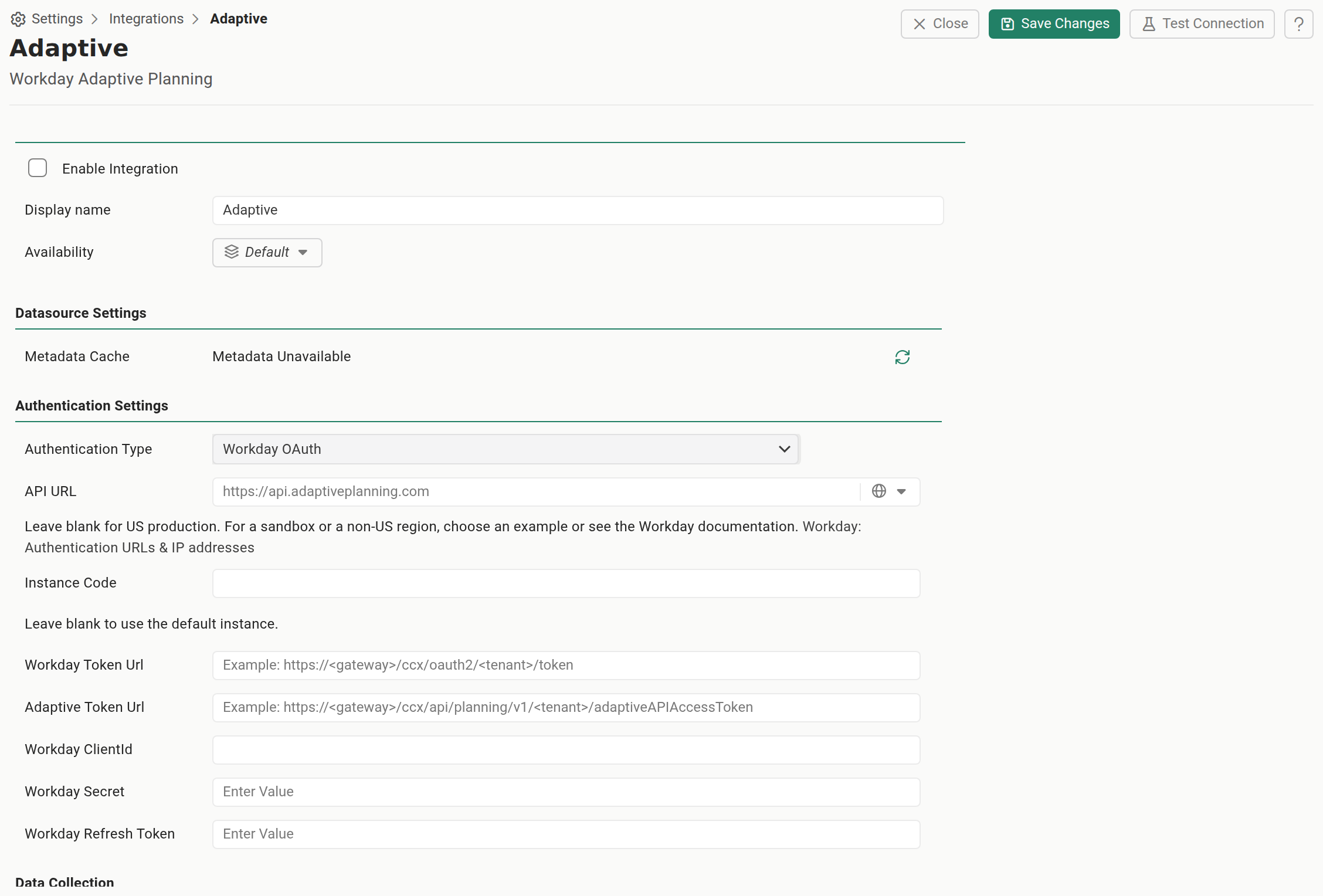
The Reportworq Workday Adaptive Planning connection editor, showing Datasource Settings and Authentication SettingsTap or click the image to view it full screen At the top of the editor, select Enable Integration and give the connection a Display name (for example,
Adaptive). This name is how parameters and formulas refer to the datasource, so it must be unique across the instance and is awkward to change later.Under Authentication Settings, set Authentication Type to Workday OAuth.
Set the API URL for your environment. Leave it blank for US production. For a sandbox, a preview environment, or a non-US region, use the examples menu on the field or enter the host by hand. For example
https://api.sbox.adaptiveplanning.com. Enter only the host; Reportworq appends the API path and version itself. See Connect a Workday Adaptive sandbox or non-US environment.Set the Instance Code if you need a specific Adaptive instance. Leave it blank to use the default instance.
Enter the five Workday OAuth values you gathered: Workday Token Url, Adaptive Token Url, Workday ClientId, Workday Secret, and Workday Refresh Token.
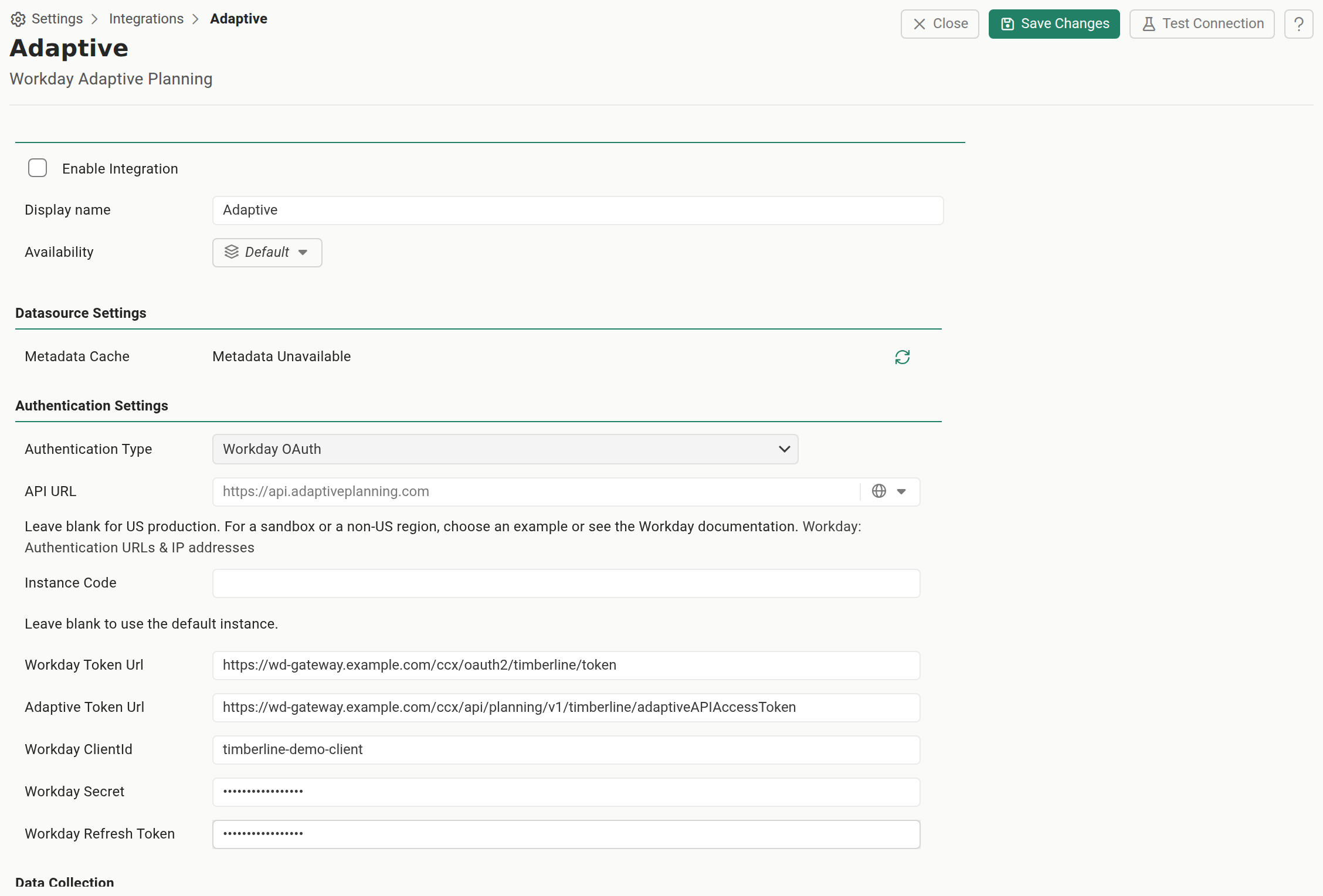
The Workday OAuth fields in the Reportworq connection editor: Workday Token Url, Adaptive Token Url, Workday ClientId, and the masked Workday Secret and Workday Refresh TokenTap or click the image to view it full screen If your Reportworq instance is licensed for Data Collection and you want data collection (writeback) to authenticate as a different user, select Use different credentials for data collection and fill in the Data Collection Credentials. Otherwise the connection's credentials are used for both.
Select Test Connection. A reachable, correctly configured connection shows a Connection Test message reading Success. If it fails, re-check the URLs, the client id, secret, and refresh token, the API user's Adaptive access, and the Reportworq server's outbound network access to the Adaptive host, then test again.
Select Save.
Refresh OfficeConnect reports in a job#
Once the connection tests, Reportworq can refresh OfficeConnect workbooks that were built against this Adaptive tenant:
- Add the OfficeConnect workbook as a source report in a Distribution Job. Reportworq reads the query specifications embedded in the worksheets and refreshes the data from Adaptive at run time.
- Use Reportworq Parameters to copy sheets and adjust the filter elements in the report specifications. The connector adds a Workday Adaptive Planning Dimension parameter type, driven by Adaptive dimension or attribute values, for manual lists or attribute-sourced lists, and for choosing whether leaf, consolidated, or both kinds of members are used. See Parameterize a report and Burst with parameters.
- Reportworq also provides Adaptive-specific worksheet formulas for reading and writing Adaptive data. See Workday Adaptive functions.
Reports built on Workday Financials#
OfficeConnect can also build reports on Workday Financials data (the add-in's Reporting: Financials mode). Reportworq refreshes those workbooks through the same Workday Adaptive Planning connection:
- Use Workday OAuth. Financials data is read through your Workday tenant, so the connection must use the Workday OAuth authentication type with the Workday Token Url filled in. Basic Credentials and Adaptive Token connections can't refresh a Financials workbook.
- Nothing else to configure. Each worksheet records the Financials model it was built on, and Reportworq reads it from the workbook. Keep Instance Code set to your Planning instance (or blank); don't enter the Financials model there.
- The API user needs Financial Reporting access in Workday. If the refresh fails with a message that starts with Workday Financials:, check that the Workday API client and its user can use Financial Reporting.
- The API user must see every element the report uses. Workday filters the Financials model by the user's security, so a version (such as a budget) or other element the API user can't see is reported as one that "no longer exists in the reporting model", even though the person who built the report sees it. Give the API user the same access as the report's author, then run Workday's Clear Financial Reporting Caches task: Workday caches Financial Reporting security, and new access doesn't take effect until the cache is cleared.
- Financials metadata is cached separately. It refreshes on the connection's metadata freshness (24 hours by default); Refresh Metadata reloads only the Planning metadata.
- Contact access rules don't apply. A report run for a contact with Adaptive access rules fails rather than returning unfiltered Financials data. Run Financials reports without contact access rules.
- A sheet on a retired model can't refresh. If the Financials model a sheet was built on is no longer available to the Workday user, rebuild the sheet in OfficeConnect on an available model.
Behavior and limits#
- Reportworq handles the token exchange. In Workday OAuth mode you supply only the client id, client secret, and refresh token; Reportworq requests a Workday access token and exchanges it for an Adaptive public API token at run time and reuses it for the operation. Keep the refresh token current. If it is revoked or expires, refreshes fail until you generate a new one and re-enter it.
- The error names the failing step. A message that starts with Workday Oauth: means Workday refused the first step (refresh token for a Workday access token). A message that starts with Adaptive Oauth: means the first step worked and the second (Workday access token for an Adaptive public API token) was refused. Each step is retried three times, 10 seconds apart, so a failing Test Connection takes about 30 seconds to report.
- Metadata is cached. Reportworq keeps a local cache of the Adaptive dimensional structure so a job fetches only data values, not the whole structure. The cache defaults to 24-hour freshness. After a structure change in Adaptive, use Refresh Metadata on the connection (save any edits first).
- Access is set by the API user, not by Reportworq. The public API token can see only what its Adaptive user is entitled to. If levels, dimensions, or instances are missing, widen the API user's access in Adaptive rather than changing anything in Reportworq.
- A sandbox is a different host, not a flag. Point API URL at the environment's host; blank means US production. The version segment stays managed by Reportworq.
- Advanced options. The connection's Timeout (seconds) defaults to 600, and Allow multi-threaded sheet processing is available for large workbooks.
- Only administrators can add or configure the connection, and editing, disabling, renaming, or deleting a live datasource breaks every job and form that refreshes from it. See Connect a data source.
Troubleshooting#
| Symptom | Likely cause | What to do |
|---|---|---|
| Test Connection fails immediately with an authentication error | A wrong client id, secret, or refresh token, or a revoked/expired refresh token | Re-copy the client id and secret from the Workday API client, generate a fresh refresh token, re-enter all three, and test again. |
The error starts with Workday Oauth: and includes invalid_grant |
Workday rejected the refresh token. It was revoked, it belongs to a different API client than the Workday ClientId, or it was generated in a different tenant (a sandbox refresh removes tokens generated before it) | Confirm Workday ClientId is the client for integrations from step 4, not the JWT client from step 3. Then generate a new refresh token for the integration user on that client, in the tenant your Workday Token Url points at, and re-enter it. |
The error starts with Adaptive Oauth: and includes permission denied (code S22) |
The refresh token works, but Workday refused an Adaptive token for the user behind it | Check that the refresh token was generated for the integration user, that the user is mapped under Adaptive Tenant Setup > Public APIs, that its security group has the Adaptive Planning API domains with the pending security changes activated, and that the API client's scope covers those domains' functional areas. Then select Refresh Public APIs Setup in Adaptive and test again. If it still fails, the refusal is inside Workday, so open a case with Workday support. |
| A Workday Financials report fails with Workday Financials (customReportValues): An element used in this report no longer exists in the reporting model, but the same report refreshes in OfficeConnect for the person who built it. Often only some columns fail, for example the budget versions while Actuals work | The API user can't see an element the report uses, usually a version such as a budget. Workday hides it from that user, or still serves security it cached before access was granted. Common after a sandbox refresh, which restores production security | Give the API user the same access to those elements as the report's author, activate the pending security changes, then run Workday's Clear Financial Reporting Caches task and re-run the job. To confirm, sign in to OfficeConnect as the API user and refresh the report: it shows the same problem as An element of type 'Version' was excluded because it no longer exists or you don't have access to it. |
| A refresh fails with Sheet '…' carries a filter for an Adaptive dimension (…) that this report's model doesn't have | Either the report was built inside an earlier Reportworq output, or a sheet was copied from one, and it still carries a filter left by that output's job; or the job has a parameter on a Workday Adaptive Planning dimension and the report is built on Workday Financials | If the report came from an output, rebuild it in a new, blank workbook in OfficeConnect and upload it again. To filter a report built on Workday Financials, use a list parameter with the AIFILTER worksheet function instead of a parameter on an Adaptive Planning dimension. |
| Test Connection fails when reaching the token or Adaptive endpoint | A wrong Workday Token Url or Adaptive Token Url, or the server cannot reach the host | Confirm both URLs against Workday's View API Client task and your gateway/tenant, and confirm the Reportworq server has outbound HTTPS to the Adaptive host. |
| Connection tests, but a refresh returns no data or partial data | The API user is under-provisioned in Adaptive | In Adaptive, give the API user Administrator-group access to all levels, and, if Access Rules are enabled, a rule granting all levels and dimensions. Re-run after Refresh Metadata. |
| Data is missing for a specific instance, or the wrong instance is queried | Instance Code is blank or wrong on a multi-instance tenant | Set Instance Code to the intended Adaptive instance (blank uses the default), save, and test again. |
| A structure change in Adaptive is not reflected in a refresh | The metadata cache is still serving the old structure | Select Refresh Metadata on the connection (save edits first), then re-run. |
| You added a connector that signs in to Workday but cannot see Adaptive data | You added the Workday connector instead of Workday Adaptive Planning | Add the Workday Adaptive Planning connector; the plain Workday connector reaches Workday Financial Management/HCM, not Adaptive. |
Related#
- Connect a data source for the general add, test, and manage flow.
- Connector catalog for the environment hosts, network allowlisting, and the per-connector traps.
- Workday Adaptive functions for the Adaptive-specific worksheet formulas.
- Data models for building curated, reusable Adaptive data for report authors.
- Workday: Authentication URLs and IP addresses for the authoritative list of environment hosts and IP ranges.
Feedback on this page
Comments, questions, requests, or something missing or unclear? Email us - the page you are on is filled in for you.
Email feedback on this pageOr write to support@reportworq.com directly.