
Google Workspace OAuth setup#
To let Reportworq talk to Google Drive without a service-account JSON key, you register an OAuth client in a Google Cloud project, then connect a Google Workspace shared credential in Reportworq to it. That credential is the trust anchor the Google Drive roles point at, the report provider and the distributor.
Google Workspace credentials are shared credentials, and you can hold as many named instances as you need. Each Google Drive role references a credential by name through a Select a credential picker in its own editor. Most deployments need only one credential, and both roles reference it; if you keep more than one, point each role at the credential it should use. (The Google service account described in Set up Google Drive is a second, non-OAuth shared-credential type in the same Shared Credentials swimlane.)
When to use it. Prefer this over service-account mode whenever Reportworq's own address can be registered with Google as a redirect URI, which most deployments can (see the rules below). Use service-account mode instead for a host Google will not accept as a redirect URI, or an air-gapped install with no path to Google at all. See Choose your authentication model for the full comparison.
One credential can light up both roles, and breaks them together. A single connected credential enables the Google Drive report provider and the Google Drive distributor to authenticate as the same Workspace identity when both reference it. If you break that credential (an expired client secret, a mismatched redirect URI, a revoked grant), every role that references it fails together.
No default credential. A role either references a Google Workspace credential or it does not. Reportworq never falls back to a lone configured credential, so a role with nothing selected is not authenticated in OAuth mode. Pick the credential in each role's editor.
Each role's editor has a single Credential dropdown that lists Google Workspace credentials and Google service accounts together. The credential you pick decides the sign-in method: a Google Workspace credential means OAuth, a service account means service-account sign-in. There is no separate authentication switch.
When you open a role's editor and exactly one Google credential (of either kind) exists, Reportworq selects it for you so you do not have to open the picker. It is only a pre-fill: the role is not authenticated by it until you Save. If the credential a consumer references has been deleted, the editor says so beside the picker and asks you to select another. If the selected credential has not been connected yet, a yellow note beside the picker links straight to that credential's editor (Connect
Before you start#
- You need administrator rights in Reportworq (Settings, Integrations), and rights to create a project and an OAuth client in Google Cloud for the Workspace organization.
- Decide the Google account you will consent with. Use a dedicated Workspace account (see the warning further down), not a person's mailbox.
- Know the instance's advertised address (scheme, host, and port). Reportworq computes the redirect URI from it; the redirect-URI rules are below.
1. Create a Google Cloud project and enable the Drive API#
In the Google Cloud Console:
- Create a new project, or select an existing one dedicated to this integration.
- Open APIs & Services, Library.
- Search for Google Drive API and enable it for the project.
2. Configure the OAuth consent screen: user type Internal#
Go to APIs & Services, OAuth consent screen, and choose the Internal user type, not External.
Why Internal, specifically:
- The Drive scope Reportworq requests by default (
drive, see below) is a Google-classified restricted scope. An External app requesting it must pass Google's restricted-scope verification, a multi-week process. An Internal app is exempt entirely, because it can only be used by accounts inside your own Workspace organization. - An unverified External app sits in Testing publishing status, and Google caps a refresh token issued in that status at 7 days. It would silently stop working every week until the app was fully verified and published. Internal apps have no Testing status and no such cap.
Fill in the required fields (app name, support email, developer contact email). You do not need to publish or submit an Internal app for verification.
3. Create the OAuth client#
Go to APIs & Services, Credentials, Create Credentials, OAuth client ID.
- Application type: Web application. Any other type (Desktop, Android, iOS, TVs and Limited Input) does not support the redirect Reportworq uses, and the callback fails silently.
- You can leave Authorized redirect URIs empty for now; you will add the exact value Reportworq shows you in the next step.
4. Get the redirect URI from Reportworq and add it to the client#
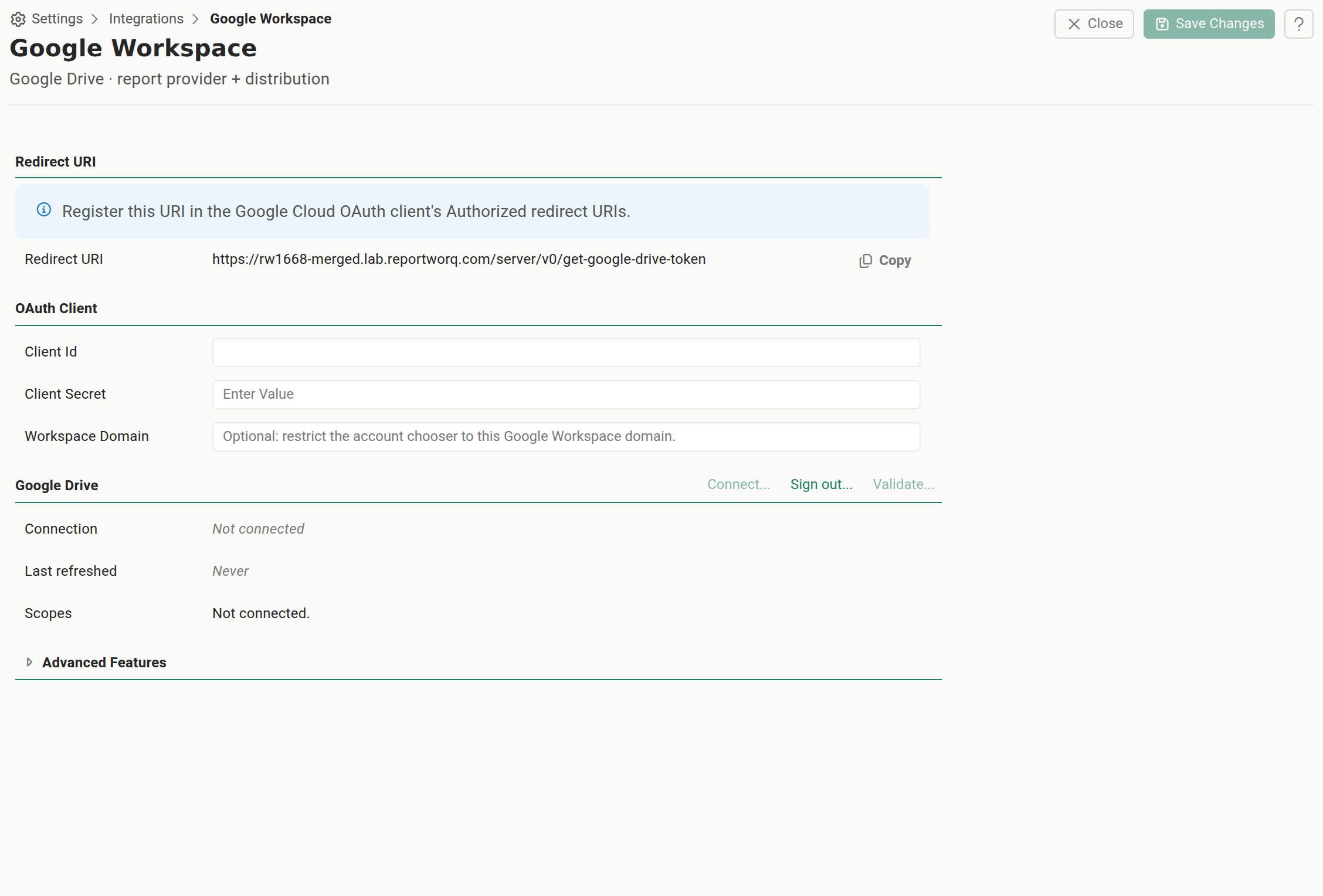
- In Reportworq, go to Settings, Integrations, and in the Shared Credentials swimlane add a Google Workspace credential (or open an existing one). Give it a display name. Until you complete the Connect flow below, the card reads Not configured.

- The editor shows the redirect URI first, before any credential field, as a read-only value with a Copy button. Copy it.
- Back in the Google Cloud console, open the OAuth client from step 3, add the copied value under Authorized redirect URIs, and save.
The redirect URI rules#
Reportworq checks the address it would send Google before it lets you Connect, and explains any failure. This is a mechanical pre-filter, not a lookup against Google's or anyone else's public-suffix list: it catches the shapes Google unambiguously never accepts, nothing more:
- The scheme must be HTTPS, or HTTP only when the host is exactly
localhost,127.0.0.1, or[::1]; no other loopback address qualifies. - No wildcard, no fragment, no query string, no user info.
- The host is not a raw IP address, except loopback.
- A non-loopback host needs at least two labels, and its last label must be all letters (or a punycode top-level label such as
.xn--p1ai, for an internationalized domain); this rejects a bare single-label address likehttps://reportworq/. - The last label cannot be a reserved or internal-only value such as
.local,.internal,.corp,.lan, or.test; this rejects an address likehttps://rw.corp.local, which Google itself would refuse.
If the check passes, Reportworq tells you to register this URI in the Google Cloud OAuth client's Authorized redirect URIs. Passing this pre-filter is not a guarantee Google will accept the URI: Google is the final arbiter of what it accepts, not Reportworq.
If your host cannot qualify (an internal-only hostname, a bare IP address, a network with no path to Google at all), Reportworq disables Connect and names the rule that failed. Use service-account mode instead; it needs no redirect URI.
5. Connect Reportworq to the client#
Back in the Google Workspace connection editor:
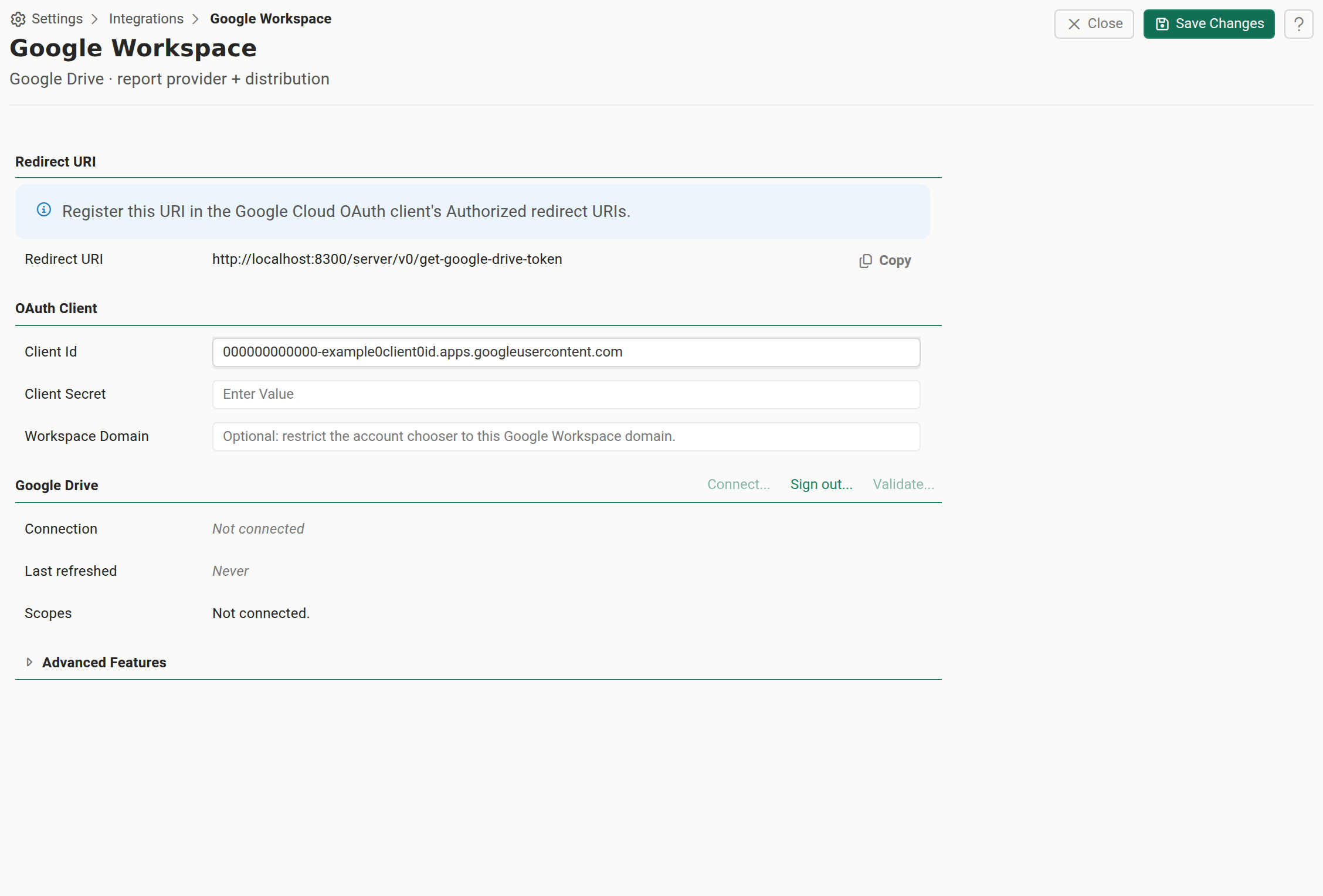
- Enter Client Id, Client Secret, and, optionally, Workspace Domain. Setting the domain adds Google's
hdparameter to the consent request, so its account chooser offers only accounts in that domain, which keeps you from accidentally landing on a personal Gmail account. Connect stays disabled until the redirect URI check above passes and both Client Id and Client Secret are filled in. - Save. If you select Connect with unsaved edits still pending, Reportworq stops you with "Please save changes before performing this operation." rather than starting a consent round-trip against values that were never stored.
- Select Connect. This opens Google's consent screen in a new tab.
- Sign in and consent as the dedicated Workspace account (next section), not a person.
- Back in Reportworq, the Connection row reads Connected as soon as the token is stored, then updates itself to Connected as the consenting account's address within moments, once Reportworq has confirmed the account in the background. A Last refreshed timestamp and the scopes granted against the scopes required also appear. If that background check fails (a revoked grant, for example), Reportworq surfaces it as an error notification rather than leaving the row silently stuck on "Connected".
- Select Validate to confirm the connection can actually reach Drive. A failed Validate reports the actual underlying error (for example, an expired or revoked grant), not a generic failure message.
Consent as a dedicated Workspace account, not a person#
The account you consent with is the Drive identity. There is one token behind each credential, shared by the roles that reference it, so whatever account signs into Google's consent screen is the identity every Drive read and every Drive write happens as, for the report provider and the distributor that point at this credential.
Use a dedicated Google Workspace account created for Reportworq, the same recommendation as Microsoft 365. If you consent with a person's own mailbox, every file Reportworq touches appears to be that person's activity, and the connection breaks the day they leave, their password rotates, or their second factor changes.
Shared Drive access is that account's normal membership, nothing Reportworq-specific: add the dedicated account as a member of each Shared Drive Reportworq needs to reach, at the access level each role needs (read access is enough for the report provider; Content Manager or higher for the distributor to write). This is the same Shared Drive membership mechanism service-account mode uses, just attached to a real, sign-in-capable account instead of a service account's robot email.
A single credential consolidates on one identity for every role that references it. If you need the provider to read as one identity and the distributor to write as a different one, point each role at a separate Google Workspace credential, each connected as its own account, or use service-account mode via Domain-Wide Delegation and a per-role Impersonate Email.
Scopes per role, and why drive.file is not offered#
| Role | Scope requested by default | Why |
|---|---|---|
| Report provider | https://www.googleapis.com/auth/drive |
The provider must be able to read anything a human can see in Drive, not only files Reportworq itself created. |
| Distributor | https://www.googleapis.com/auth/drive |
Delivery must create and update files inside folders a human created, which only the full drive scope can see and write to. |
Both roles default to the same, full drive scope. Reportworq requests the union of the scopes for whichever roles are enabled at the moment you Connect (both, if neither is configured yet); since both defaults are already drive, a fresh connection asks for that one scope regardless of which roles you enable first.
If you have a reason to run the provider read-only, narrow its scope list to https://www.googleapis.com/auth/drive.readonly in Advanced Features (below); a full drive grant already covers that narrower requirement, so Reportworq will not flag Re-connect required for it.
drive.file is deliberately not offered to either role, and this is not an oversight. drive.file only lets an app see files it created itself: a pre-existing folder, such as a shared Reports folder your team already uses, is invisible to a drive.file-scoped app. Reportworq resolves a destination folder by name and creates it if the search finds nothing, so under drive.file it would silently create a second, hidden Reports folder that only Reportworq can see, and deliver everything there, with Test Connection and Validate still reporting success. That is a silent-wrong-destination failure, not a loud one, so the broader drive scope is the honest default for both roles.
Tighten the scopes (optional)#
The connection editor's Advanced Features section is collapsed by default; expand it to edit the Provider and Distributor scope lists directly, one scope per line. Reset restores each list to its default. After changing a list, select Connect again so the new consent actually takes effect; Reportworq flags Re-connect required, missing scope next to Scopes whenever what was granted no longer covers what your configuration needs.
Lifecycle and limits#
- A refresh token idle for 6 months is invalidated by Google. Reportworq shows Last refreshed so you can see how current the grant is. A role that runs rarely, or a role you have since disabled, can silently go stale; revisit it periodically.
- Google keeps at most 100 refresh tokens per Google account per OAuth client, oldest dropped silently. If more than one Reportworq instance (for example production and a lab or test copy) connects the same Workspace account through the same Google Cloud OAuth client, repeated Connects from one instance can silently invalidate another's connection with no notification from Google. Register a separate OAuth client per Reportworq instance to avoid this.
- Enabling the second role later needs a re-Connect. The token's scopes are fixed at the moment you Connect. If you configure only the provider, Connect, and later enable the distributor (or the reverse), the existing token does not automatically gain the new role's scope. Reportworq flags it Re-connect required followed by the missing scope names; select Connect again to get a token that covers both roles.
- The consented account is the single point of failure for both roles. Revoking Reportworq's access from that Google Account's own security settings, or disabling or deleting the Workspace account, breaks the provider and the distributor at the same time.
Troubleshooting#
redirect_uri_mismatch#
The exact string in the Google OAuth client's Authorized redirect URIs no longer matches the one Reportworq sends at the moment you Connect: trailing whitespace, http where the client has https, or the instance having moved to a new host, port, or reverse-proxy address since you registered it.
Fix: reopen the Google Workspace connection in Reportworq, Copy the current redirect URI again, and confirm it is present, verbatim, in the client's Authorized redirect URIs list.
access_denied, or connected as the wrong account#
An Internal app already restricts consent to accounts inside your Workspace organization, but with several accounts available Google's chooser can still land on the wrong one.
Fix: set Workspace Domain before you Connect, so the account chooser only offers accounts in that domain. If the wrong account already granted access, Sign out in Reportworq, Connect again, and choose the correct account. Revoke the earlier grant from that account's own Google security settings if you want to remove it there too.
The connection works right after Connect, then stops about an hour later#
This is the symptom of an access token expiring and its refresh token failing to renew it.
Fix: Sign out and Connect again. If it recurs, check whether the account has exceeded the 100-refresh-token cap above, or whether something outside Reportworq revoked the grant.
Security recommendations#
- Consent with a dedicated Workspace account, never a person (see above).
- Register one OAuth client per Reportworq instance, in a Google Cloud project dedicated to the integration where practical.
- Set Workspace Domain so a future Connect cannot land on a personal account by mistake.
- Keep each role's scope list at its default unless you have a specific reason to narrow it, and re-Connect after any change.
- Rotate the client secret per your organization's policy. Paste and save the new secret in Reportworq before revoking the old one in Google Cloud, or the connection breaks in between.
- Periodically review this account's third-party access in its own Google Account security settings, and remove it when the integration is retired.
- Disable or delete the connection in Reportworq when it is no longer required; deleting it clears the stored client secret along with the token.
Validation checklist#
Before you suspect Reportworq, confirm:
- The Google Drive API is enabled on the Google Cloud project.
- The OAuth consent screen's user type is Internal.
- The OAuth client's application type is Web application.
- The redirect URI Reportworq shows is present, verbatim, in the client's Authorized redirect URIs.
- Client Id, Client Secret, and, if used, Workspace Domain are saved in Reportworq.
- Connect succeeds and shows Connected as the dedicated Workspace account, not a person's mailbox.
- Scopes granted cover every role you have enabled (no Re-connect required).
- Validate reports success.
- The dedicated account is a member of every Shared Drive Reportworq needs, at the access level each role requires.
Related pages#
- Set up Google Drive for the full provider and distributor walkthrough, and the service-account alternative.
- Source report providers for how the provider is consumed when authoring.
- Destinations for the full distributor catalog.
- The integrations hub for the shared add, test, and enable mechanics.
- Microsoft 365 OAuth setup if you are also connecting Microsoft 365, a separate connection with its own rules.
Feedback on this page
Comments, questions, requests, or something missing or unclear? Email us - the page you are on is filled in for you.
Email feedback on this pageOr write to support@reportworq.com directly.