
Import jobs from version 5#
When you move to version 6 gradually, you do not have to import the whole v5 repository again, or rebuild each job by hand. Export a distribution job, or a folder of them, from Reportworq 5 and import the zip straight into a v6 workspace. Do it again whenever the job changes in v5.
To bring over a whole v5 repository at once instead, see Upgrade from version 5.
Before you begin#
Reportworq 6. The import comes with the next Reportworq 6 release. It is not in 6.0.0.4, or in hotfix builds up to 6.0.1.13. The version is on the badge at the foot of the side rail.
Reportworq 5. Export is on the job tree in every supported version 5 build. For burst set recipients to be matched for you, the export must also list each recipient's name and email, which it does from the next official and hotfix Reportworq 5 releases. To tell whether yours does, import the job: if a recipient is not matched and the dialog adds that the export names each recipient only by an internal id, your v5 build does not include the list.
The job's source reports must be reachable from v6. Give the v6 source report provider the same name as in v5 (for a network folder, point both at the same folder) and the reports reconnect on their own.
Create the job's data sources in v6 with the same names as in v5. Parameters use a data source by its name.
Each burst set recipient is matched to a contact in the v6 address book or an enabled Reportworq user account, in this order:
- By id. This matches only in a workspace that came over from v5 with the repository import, which keeps the v5 ids.
- By email, then by name, when the export lists each recipient's name and email.
So before you import, make sure everyone the job bursts to is a contact or user in v6 with the same email as in v5. A recipient that is not matched still imports with its burst set and parameters; you pick the contact again after importing (see below).
Export from version 5#
In Reportworq 5, right-click the job, or a folder of jobs, in the job tree (or select its ⋯ button) and select Export.
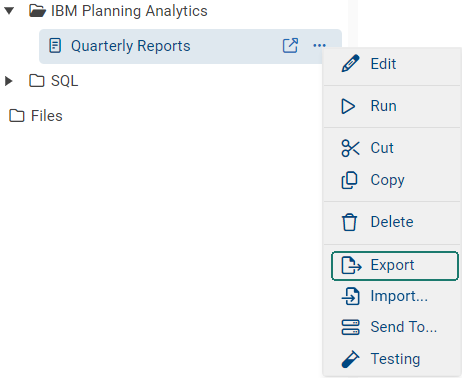
The Reportworq 5 job tree with a job's menu open and Export highlightedTap or click the image to view it full screen Your browser downloads the file (
ReportWORQ_Jobs_Export.zip). Do not unzip it.
Import into version 6#
In the v6 Workspace, open the folder the jobs should go in.
Select Upload and choose the zip, or drag the zip onto the folder. (Import on a folder's ⋯ menu works too.)
Reportworq recognizes a version 5 export and shows Import from Reportworq 5, listing what the jobs point at and what they will use here:
- Source report providers. Found means the reports will read from the v6 provider with that name. If it is not found, choose a provider of the same kind (for example another network folder provider) from the list, or leave it as exported to relink later.
- Data sources. Found means the parameters will use the v6 data source with that name. If it is not found, choose one of the same kind from the list, or keep the name and add a data source with that name later.
- Burst set recipients. How many recipients were matched here. Any that were not still import with their burst sets and parameters; you pick their contact again. If the dialog adds that the export names each recipient only by an internal id, your v5 build does not list recipients' names and emails, so only an id match was possible.
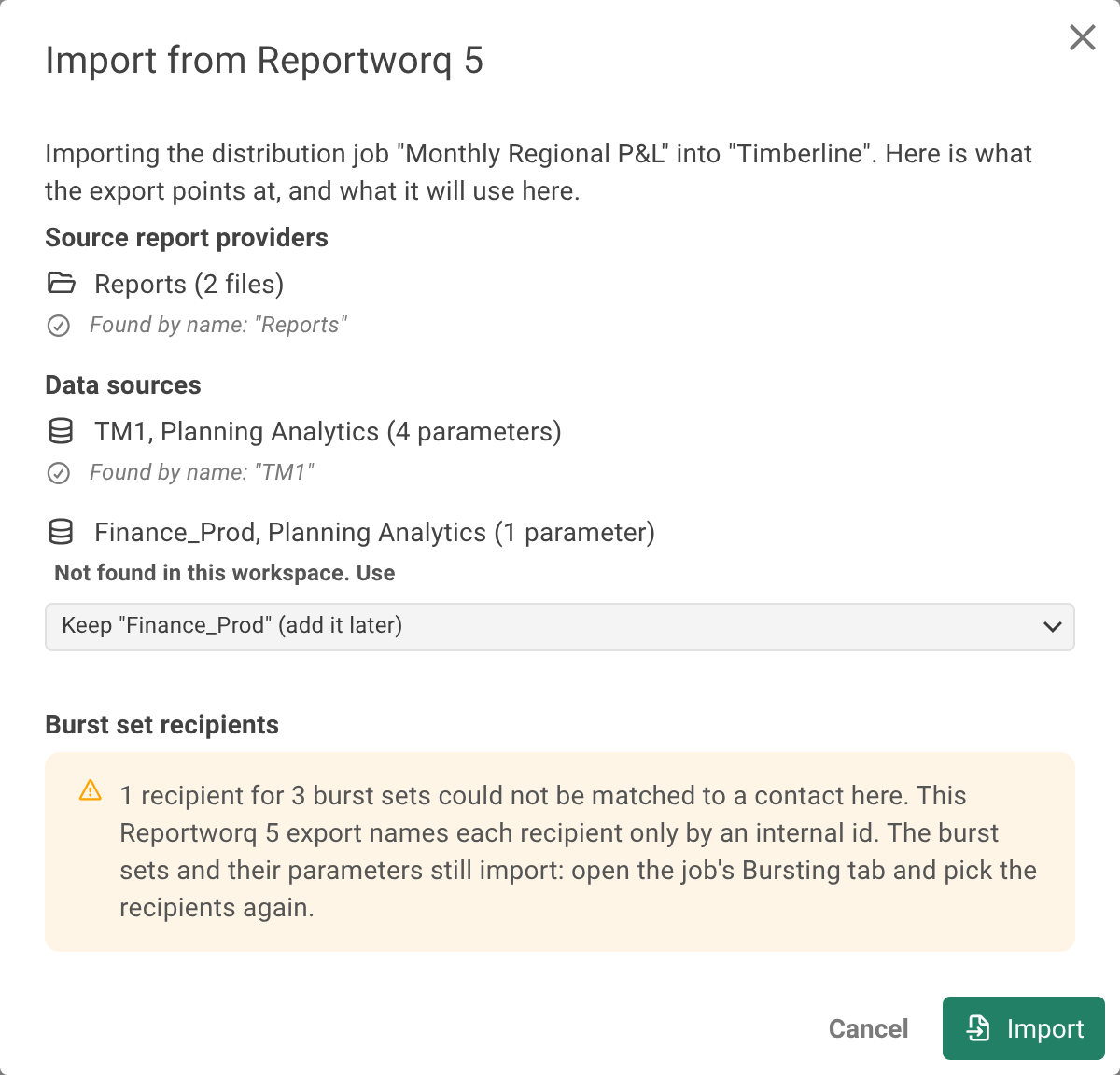
The Import from Reportworq 5 dialog: the provider Reports and the data source TM1 found by name, the data source Finance_Prod not found with a pick list, and a warning that one burst set recipient could not be matchedTap or click the image to view it full screen Select Import. The jobs land in the folder, keeping their folder structure, reports and worksheets, parameters, output formats, destinations and burst sets. A folder with the same name that is already there is used as it is, and other jobs in it are left alone.
If a job with the same name is already there, you are asked Replace existing? Select OK to replace its definition with the version from Reportworq 5, or Cancel to import nothing. A replaced job keeps its schedules and history; changes you made to it in v6 are overwritten.
Version 5 allows two jobs with the same name in one folder; version 6 does not. The second is imported as "Name (2)". When you import the same export again, it replaces that "Name (2)" rather than adding another copy.
The closing message tells you anything still to relink.
After importing#
- Open each job and check the Reports and Parameters steps. To re-pick a burst set's recipient, open Bursting.
- A newly imported job has no schedule. Schedule it in v6 when you are ready to stop running it in v5. Importing it again later keeps that schedule.
- Run it once with Test before scheduling it.
Troubleshooting#
- You are asked whether to extract the zip, or it is stored as a file, instead of being imported. Your Reportworq 6 build is older than the import (see Before you begin), the zip was unzipped and re-zipped more than one folder deep, or it is not a job export. Update Reportworq 6 if needed, then export the job from v5 again and import the zip as it is.
- "This Reportworq 5 export is damaged." A job file in the zip could not be read. Export the job from v5 again.
- "This is a Reportworq 5 contribution campaign export." Campaigns cannot be imported one at a time from version 5. Bring them over with the repository import.
- Recipients are not matched, although the people are in v6. If the dialog says the export names each recipient only by an internal id, your v5 build does not list recipients' names and emails; update Reportworq 5 to a release that does (see Before you begin) and export again, or pick the recipients in Bursting after importing. Otherwise the contact's email and name differ between v5 and v6: correct the contact in v6 and import again, or pick the recipient in Bursting.
- The reports show as missing after import. The provider was left as exported and v6 has no provider with that name. Add one with the v5 name, or open the job and relink the reports.
Feedback on this page
Comments, questions, requests, or something missing or unclear? Email us - the page you are on is filled in for you.
Email feedback on this pageOr write to support@reportworq.com directly.