
Accounts, groups, and entitlements#
Settings ▸ Security is where you define who can sign in to Reportworq and what they can do. It has a five-tab strip: Accounts, Groups, Entitlements, Workspaces, and Secured Lists. This guide covers the first three, plus the accounts import. Workspaces and their membership are covered in Workspaces, and row-level security in Secured lists.
An account authenticates. A group collects accounts so you can grant access once to a whole audience. An entitlement is a role that grants a capability, and most roles consume a license seat, so plan them deliberately.
When to use it. During onboarding and offboarding, when forming reporting audiences (groups), and when delegating administration.
Before you start#
- You need Administrator rights. The entire Security surface is administrator-only.
- The active authentication provider (Native by default) supplies the account store. See Sign-in and SSO.
- Know your licensed seat counts before you assign roles. See Licensing and entitlements.
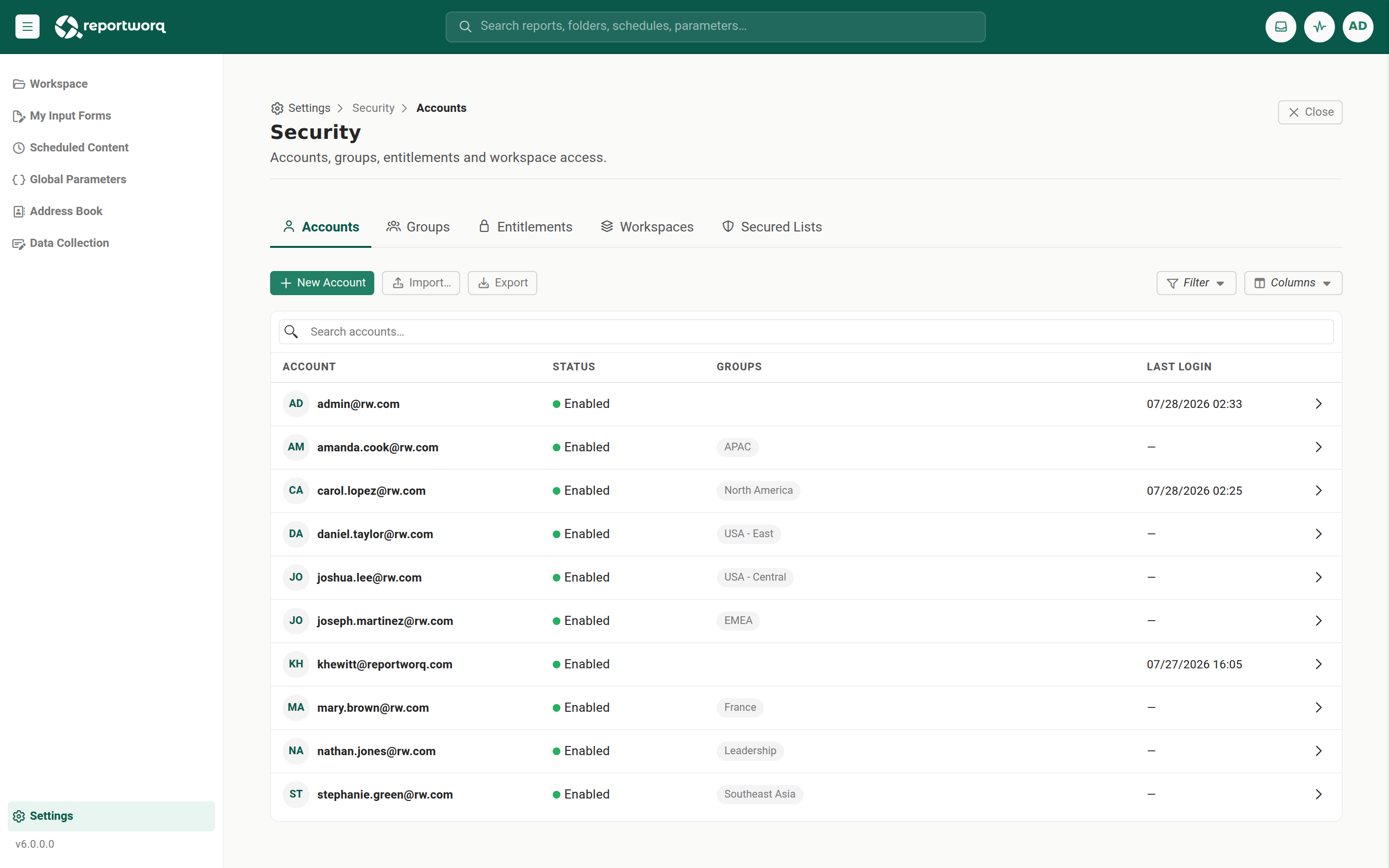
Create an account#
- Open Settings, select the Security card, and stay on the Accounts tab.
- Select New Account and enter the person's email address. The account is created as a new, enabled row.
- To disable an account, drill into it and turn off the Account Enabled switch. The switch is the commit, there is no separate Save, and the list Status badge updates immediately. A disabled account cannot sign in.
- To remove an account, drill into it and select Delete, then confirm the destructive prompt.
The account name defaults to the email. A new account's Name is set to the email address you entered. To give it a friendly display name, drill into the account and edit the Name field. Until you do, the name stays as the email.
Two ways to set up an account. You can build up an account across the Security tabs, adding it on Accounts, placing it in groups on Groups, and granting roles on Entitlements. Or you can drill into an individual account and edit it directly. Opening the account is where you set its Name, so use the direct path when you want to name the account rather than leave it as the email.
Offboard by disabling first. Rather than deleting a departing user's account right away, disable it so sign-in stops while their history and content ownership stay intact. Delete it later, after review.
Create a group and add members#
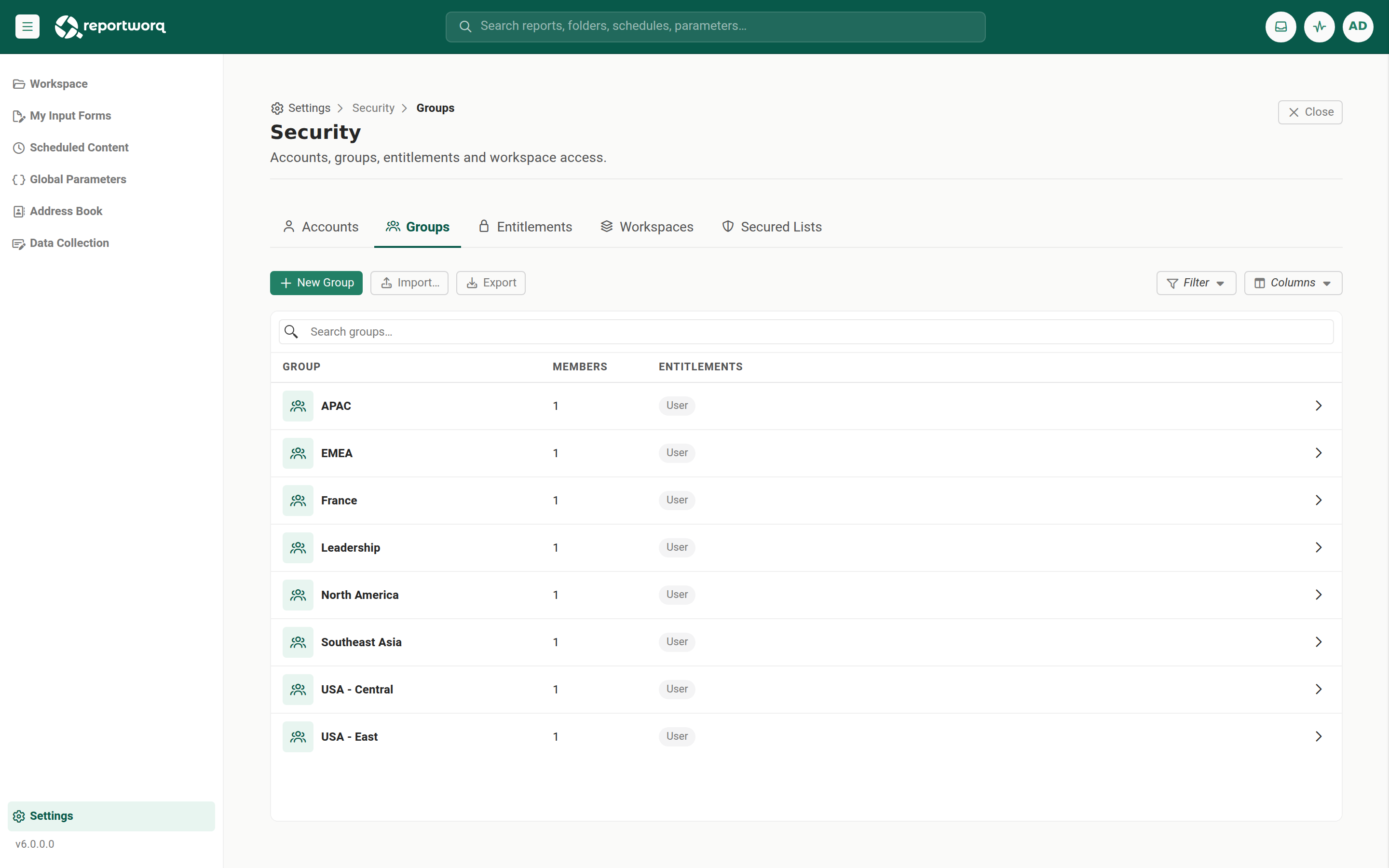
- Select the Groups tab, then New Group, and enter a name.
- Drill into the group and use its members picker, a filterable multi-select of accounts. Selecting an account adds it as a member.
- Membership edits apply to the group, not to the account. If you delete a group, its membership relations disappear with it.
Groups are the recommended way to grant access: define a Controllers group here once, then grant that group access to a folder in Workspace security or map it in a secured list, so membership governs who sees the content.
Dynamic groups driven by OIDC claims#
A group does not have to hold an explicit member list. A group can carry a claim string, and membership is then decided by the claims your identity provider puts on the token at sign-in. Anyone whose token carries a matching claim is a member of that group, and inherits whatever that group has been granted.
This is the cleanest way to run access at scale, because your identity provider stays the single place group membership is managed. It also changes three things you need to plan for.
Reportworq cannot count the members of an external group. Membership lives in your provider, not in Reportworq, and it can change without Reportworq being told. Nothing here will warn you that a claims-driven group has grown past what you are licensed for, so keep the provider-side group under the licensed count of whatever it grants, and audit it periodically. See Licensing and entitlements.
Seats are consumed at sign-in, one user at a time. A user matched by a claim is provisioned as they sign in, and the entitlement that group grants draws its seat at that moment, not when you configure the group. So an overage from a claims-driven group appears gradually, as people come online, and the first symptom is usually a user who cannot sign in rather than anything on the Security screen.
Changes sync at the next login, which is the trap when offboarding. If someone's provider-side group membership changes, Reportworq picks it up the next time they sign in. That is fine for a user who is still active. It is exactly wrong for a user being offboarded: someone removed from a group in your provider may never sign in again, so their entitlement, and its seat, can sit there indefinitely. For an offboarded user, act in Reportworq directly rather than waiting for a sync:
- Clear the account's Last Claims, which drops the stale entitlement immediately, or
- Disable the account.
Enabledis the only gate, and a disabled account is excluded from every grant, including All Users.
Do not rely on the provider-side removal alone.
Grant an entitlement (role)#
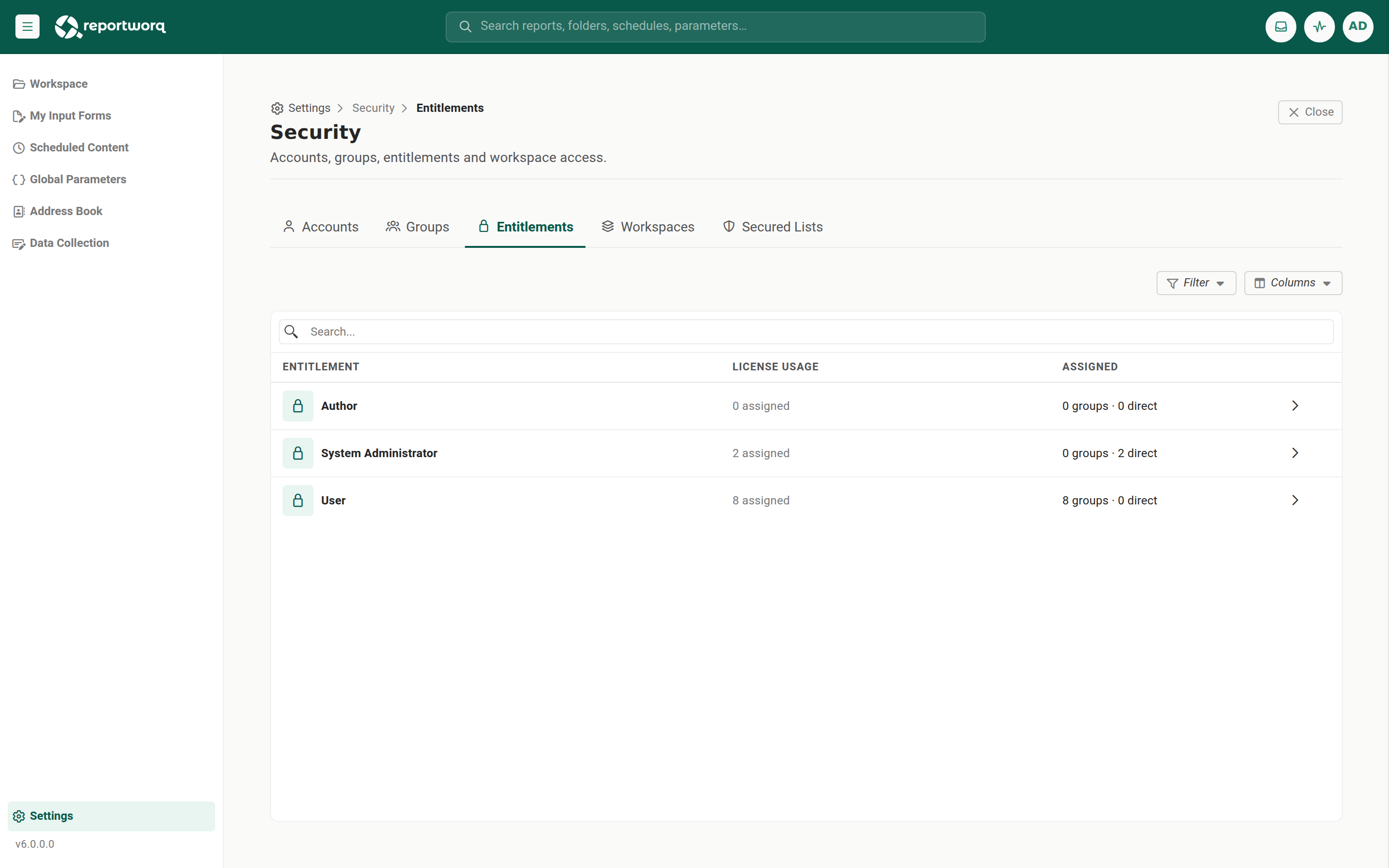
- Select the Entitlements tab. A licensed instance always exposes at least one entitlement.
- Drill into the entitlement you want to grant. Its detail carries an assigned-groups picker and an assigned-accounts picker, so you can grant a role to a whole group or to an individual account.
- Add the group or account, and the role takes effect on that subject.
The system-level entitlements map to the three licensed roles:
| Entitlement | What it grants | License seat it consumes |
|---|---|---|
| Administrator | Full server administration: authentication, datasources, report providers, distributors, and all of Security. Reaches every workspace automatically, and is the only role that bypasses content security. | One Administrator seat |
| Author | Authors Reportworq jobs (bursting and distribution), data models, and campaigns within the workspaces granted to them; gates the Excel authoring add-in. | One Author seat |
| User | Signs in to consume Reportworq: view output by ACL, participate in contribution campaigns as a contributor or approver (when the Contribution capability is licensed), refresh a distributed PowerPoint deck in the add-in, and reach content through the MCP server and the AI assistant. | One User seat |
At least one entitlement is required to sign in. Workspace access is granted separately on the Workspaces tab. Everyone listed on a workspace is a member, and membership is the only level, see Workspaces.
The Administrator entitlement was labeled "System Administrator" in earlier versions. It is the same entitlement under a shorter name. Exported workbooks and older license notes still use the longer form, and the export column is still
IsSystemAdministrator.
Contribution and PowerPoint are capabilities of the User role, not separate seats. There is no longer a "Contribution End User" or "PowerPoint End User" entitlement. A User participates in contribution campaigns when the installation licenses the Contribution capability, and any User can refresh a distributed PowerPoint deck through the add-in. See Licensing and entitlements for the installation-level capabilities.
Who can see and change content security#
Content security is the list of accounts and groups on a folder, a report, or the workspace as a whole. Who may look at those lists, and who may change them, follows one rule everywhere they appear.
| Role | Can see content security | Can change content security |
|---|---|---|
| User | No, anywhere. The Security tab is not offered on Properties, and the workspace security surface does not open. | No |
| Author | Yes, read-only, everywhere it is shown. | No |
| Administrator | Yes | Yes |
An Author who opens the Security tab of an item, or the workspace security surface, sees exactly who has access and a notice saying the list is read-only. There is no Save, no picker for adding an account or group, and no way to remove one. This is deliberate: an Author builds and runs content, and knowing who can see a report is part of that job, but changing who can see it is administration.
The same rule holds however you arrive. Opening a security surface from a bookmark, a pasted link, or browser history gives you exactly the access your role allows, not the access the toolbar happened to offer.
"Reportworq Administrator" on a license line is not an administrator. The Author entitlement is billed as Reportworq Administrator, and older exports and license notes use that name. It grants authoring, not administration, and it does not allow security changes. See Roles and what you can do.
All Users and the default access#
Reportworq has a built-in All Users subject that stands for everyone who can sign in. A fresh installation grants broadly to All Users so the instance is usable immediately: the root folder's security, the default workspace, and the Administrator entitlement all start assigned to All Users.
Tighten these defaults as you provision real accounts and groups. Grant named accounts and teams the access they need, then remove the All Users grants from the root folder, from the default workspace, and from the Administrator entitlement, so access is governed by the specific accounts and groups you intend rather than by everyone.
Protect your license seats and your access#
- Each role draws from its own seat pool. Administrator, Author, and User seats are counted separately, an Administrator seat is not an Author seat and an Author seat is not a User seat. Budget each pool against the roles you plan to assign.
- Always keep at least one Administrator. If you remove the last one, no one can reach Security, and you have to use the lockout recovery path in Sign-in and SSO.
- Membership costs no seat until first login. An entitlement granted through group or identity-provider claims is only materialized, and only consumes a seat, when the account next logs in and re-evaluates its claims. This is why a newly granted role may not show a seat used yet.
- Release a seat immediately by clearing "Last Claims." Because a removed role keeps holding its seat until the account next logs in, clearing the account's Last Claims drops the stale entitlement now, without waiting for the user's next sign-in.
Bulk-provision from a workbook#
- On the Accounts tab, select Export to download an accounts.xlsx workbook. Its header row is
Id · Name · Email · Enabled · IsSystemAdministrator · IsReportworqAdministrator · IsReader, followed by one TRUE/FALSE column per group. - Edit the rows: set the
Is...columns for entitlements, and the per-group columns for membership. The column names are legacy, but they map to the current roles:IsSystemAdministratoris the Administrator role,IsReportworqAdministratoris the Author entitlement, andIsReaderis the User entitlement. There is noIsContributionEndUser,IsPowerPointEndUser, orIsReportingEndUsercolumn in v6: those entitlements are retired, and any such column left over in an older workbook is ignored on import. Contribution participation is not set here at all, it follows from the Contribution capability plus the campaign's own contributor and approver assignments. Leave theIdblank on brand-new rows. - Select Import and choose the file. Each row is matched to an existing account by
Idfirst, then byEmail, and a new account is created when neither matches. The import is recorded in the audit log under Import permissions.
The import only adds and updates, it never deletes. Removing a row from the workbook does not delete that account. To remove an account, delete it on the Accounts tab.
Never edit the
Idcolumn.Idis the primary match key. Changing it re-targets the row to a different account or creates a duplicate. TheIdandIdcolumn fails the import.
Notes and limits#
- New accounts are enabled by default.
- This surface governs identity and role, not which specific folders or reports an account can open. Per-item access is set separately: a workspace has a root security policy, and each folder and item carries its own access list on its Properties, under the Security tab. So you can secure access at the folder level, not only at the workspace level. Both are administrator-only to change, see Who can see and change content security. See also Roles and what you can do and Workspaces.
- The workspace root policy is the top of everything. It decides who can see content across the whole workspace, and every folder and item inherits from it unless it is overridden. Removing an entry there removes that audience's view of the entire workspace at once, so treat it as the highest-impact security change in the product. Only an Administrator can make it.
- Workspaces themselves are created, renamed, and deleted on the Workspaces tab of this screen, alongside their membership. See Workspaces.
Going deeper. How groups, accounts, and roles combine into what a person actually sees is the access model. See Workspaces and Secured lists.
Feedback on this page
Comments, questions, requests, or something missing or unclear? Email us - the page you are on is filled in for you.
Email feedback on this pageOr write to support@reportworq.com directly.