
The repository metadata report#
The Repository metadata report is a single-click Excel export that documents a workspace's entire distribution configuration. It is the fastest way to inventory a large library, answer an audit question, or plan a migration, because it turns configuration that is otherwise spread across many screens into filterable spreadsheet columns.
Generate it#
- Open Settings ▸ Auditing.
- Select the System Log tab.
- Select Create Repository Report in the toolbar. A single action produces and downloads the
.xlsxfile, namedRepository Report_{date}.xlsx.
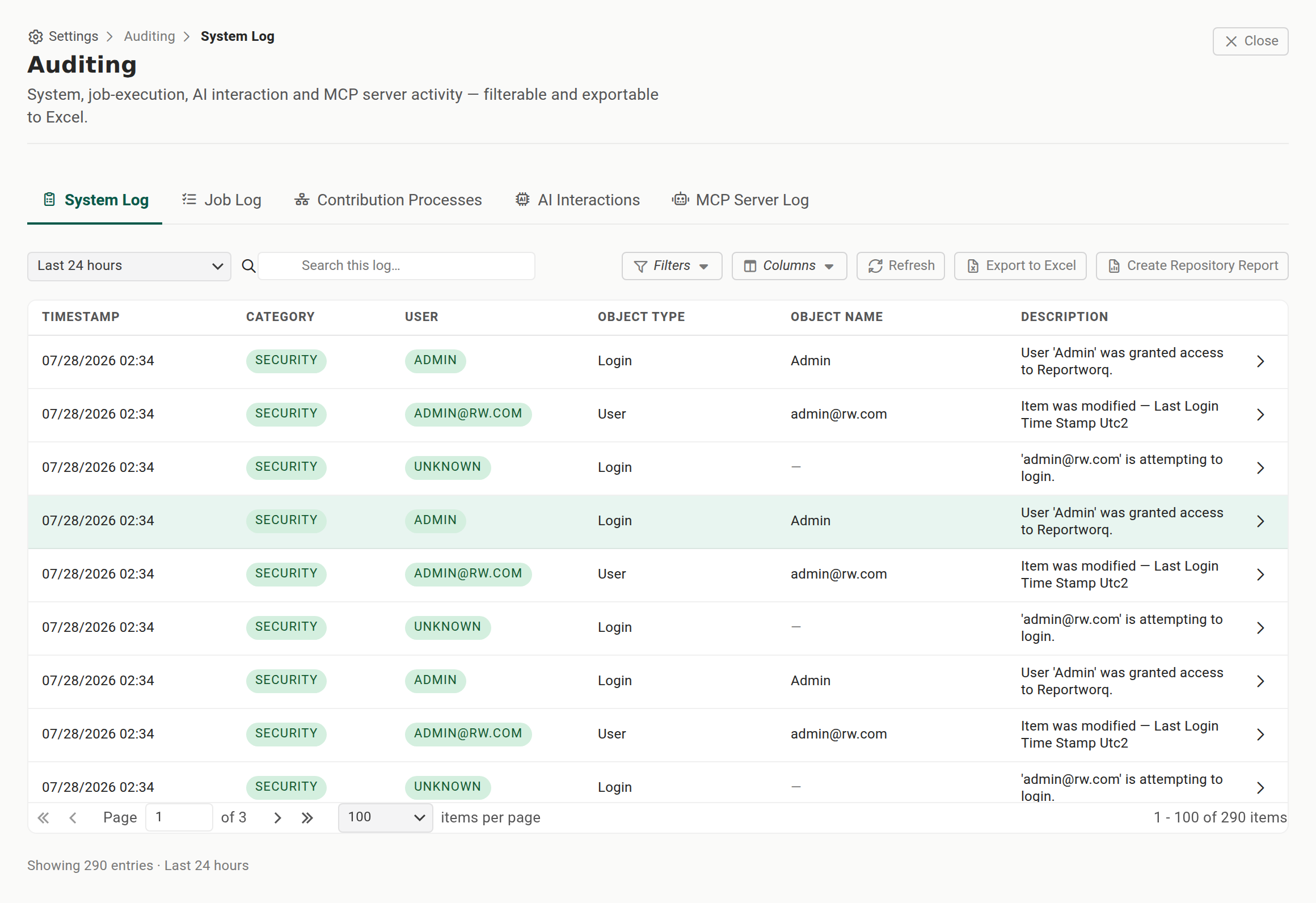
There is nothing to configure. The report covers the workspace you generate it in, as that workspace stands at the moment you generate it. On an instance with several workspaces, generate one report per workspace and switch workspaces between runs.
The seven worksheets#
The workbook has seven worksheets, each a table of one configuration object type. Every sheet except Contacts opens with a Workspace column naming the workspace the row came from, so exports from several workspaces can be stacked into one sheet and still be told apart.
| Worksheet | What it lists |
|---|---|
| Jobs | Every distribution job, with columns including Is Scheduled and Distribution type. |
| Reports | Every report, with columns including the source workbook File Path. |
| Report Parameters | The parameters attached to each report. |
| Parameters | Parameter definitions, with a Parameter Type column. |
| Static Burst Sets | The static burst sets defined in the instance. |
| Schedules | The schedules and what they run. |
| Contacts | The address-book contacts. |
Detail worksheets carry embedded cross-navigation hyperlinks that jump back to the related row on the Jobs sheet (and from Report Parameters back to Reports), so you can trace configuration relationships without matching IDs by hand.
Use it as an audit tool#
Because every column is a plain Excel column, you can filter and pivot the workbook to answer questions that no single screen answers directly:
- Find every job on a given delivery channel. Filter the Jobs sheet by
Distribution type, or byIs Scheduledto list only scheduled jobs. - Find every job using a parameter kind. Filter the Parameters sheet by
Parameter Type, for example to list everything that uses IBM Planning Analytics subsets. - Enumerate every referenced workbook. Extract the distinct
File Pathvalues from the Reports sheet to list every Excel workbook the instance's jobs depend on. This is invaluable for co-location and migration audits. - Inventory recipients. Read the Contacts sheet for the full contact directory in one table.
When to use it#
- Before a migration, to enumerate every referenced source workbook so nothing is left behind, see Migrate to a new server.
- During an audit, to produce evidence of what runs, on what schedule, to which channels.
- When taking over an unfamiliar instance, to understand the whole distribution configuration at a glance.
- When troubleshooting scope, to see every job affected by a shared parameter or datasource before you change it.
Notes and limits#
- The report is a point-in-time snapshot. Regenerate it after configuration changes.
- The report is scoped to one workspace. The Contacts sheet is the exception to the Workspace column, so label it yourself if you combine contact exports from several workspaces.
- It documents distribution configuration (jobs, reports, parameters, burst sets, schedules, contacts), not run history or logs. For those, see Audit logs.
- The report describes an instance; it does not restore one. It is a standalone Excel export, separate from the Configuration backup zip.
Going deeper. For the audit log tabs on the same Auditing screen, see Audit logs.
Feedback on this page
Comments, questions, requests, or something missing or unclear? Email us - the page you are on is filled in for you.
Email feedback on this pageOr write to support@reportworq.com directly.