
Server configuration#
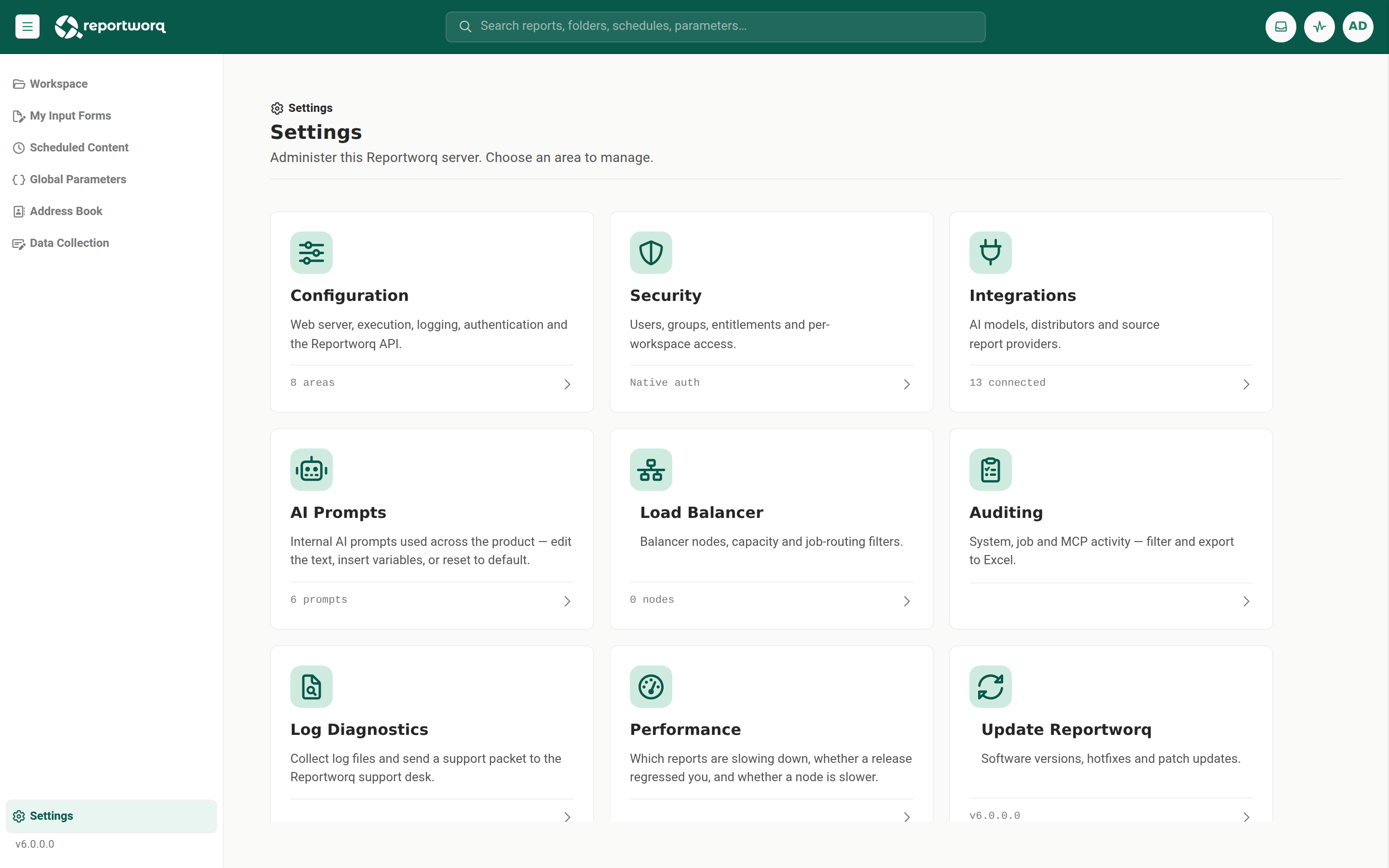
Settings, Configuration is the administrative editor for how a Reportworq instance runs. It is a single screen with a seven-tab strip, reached from the Configuration card on the Settings landing. Each tab edits its own view of the settings store, and most changes take effect only after you select Save Changes. A few settings (the web server port, SSL, and the Repository path) also require a service Restart.
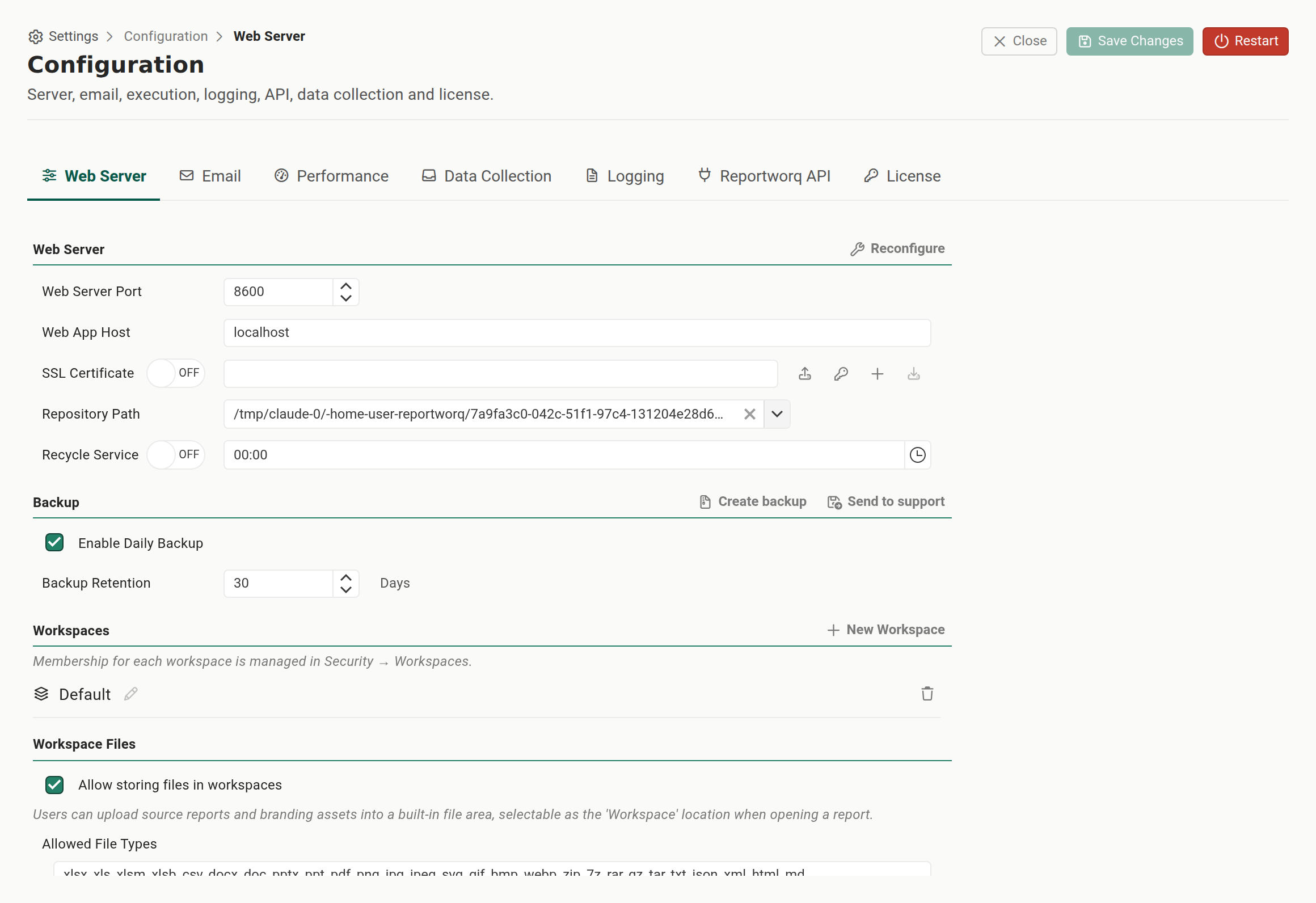
This page is a reference for every tab, the individual settings each one holds, and the three operational rules that cause the most trouble if you get them wrong: how peak memory scales with parallel execution, how to relocate the Repository safely, and the SSL self-signed certificate traps.
The header and the unsaved-changes guard#
The screen mounts on the Web Server tab and shows three header actions:
- Close returns to the Settings landing.
- Save Changes stays disabled until the active tab has unsaved changes.
- Restart restarts the Reportworq service. This is destructive to any in-flight work, use it deliberately.
Editing a field enables Save Changes and marks the tab with an unsaved-changes dot. If you switch away from a tab that has unsaved edits, or close the screen, Reportworq prompts you to discard those edits. Switching tabs or closing re-reads the store, so unsaved edits are discarded rather than kept. Save what you change before you move on.
Note: administrator-level settings live here. Authentication is not on this screen, it moved to the Integrations hub. MCP and AI-agent access also live in the Integrations hub now, under AI Agent Access, not on the API tab. See The integrations hub.
The seven tabs#
| Tab | What it configures | Notes and limits |
|---|---|---|
| Web Server | Port, host, SSL certificate actions, the Repository path and Reconfigure, Recycle Service, Backup (create and send), and Workspace Files | Workspaces themselves are not here, they are managed on Workspaces under Settings ▸ Security. Port, SSL, and Repository changes need a Restart. |
| Performance | Execution (history retention, job concurrency, out-of-process execution, fonts), Contribution (log level, warm pool, session cap, recycling), Reporting (out-of-process queries, timeouts, log level), and Advanced Features (three switches plus Clear Repository Cache) | Tunes job concurrency, the contribution runtime, and the reporting query engine. Advanced Features is collapsed by default. For how to size these against a workload, see Distribute the load. |
| Logging | Logging (retention, clear/download/send logs, a live Debug Logging switch) and Audit Logging (audit retention and enablement) | Debug Logging is a live instance-wide switch, outside the save flow. Audit settings feed the audit logs. |
| A provider dropdown (Basic, SendGrid API, Microsoft 365 SMTP, Microsoft 365 Graph), a Default From address, and a test-email action | The field set changes per provider. Graph uses the Azure app registration. The test email is blocked until email settings are saved. | |
| Reportworq API | Local API key (created with Regenerate, plus Clear); for administrators, Cloud API | Enabling the Local API with no key is a save error. The Cloud API category appears for administrators only. MCP and AI-agent access are no longer here, they moved to the Integrations hub. |
| License | License information, status, key, and Activate / Release / Manual activation | This tab has no Save or unsaved-changes flow. Its actions take effect immediately and reach the external license service, see Licensing and entitlements. |
| Data Collection | Write-back settings and mailbox settings (provider, protocol, host, port, credentials) | Available only with the licensed Contribution capability, which includes Data Collection; otherwise an empty state notes it is not in your license. |
Individual settings reference#
Defaults below are the shipped defaults. Settings marked Restart take effect only after a service restart.
| Setting | Default | What it does | Tab |
|---|---|---|---|
| Web server port | 8600 | The TCP port the web app listens on (Reportworq 6 default; earlier releases used 8300). The Real-time Event Hub bus uses this port plus one (8601). Open both in the firewall for remote and clustered access. Restart. | Web Server |
| Web App Host | machine name | The machine name, IP, or DNS name remote machines use to reach the web app. An empty value falls back to the machine name. Set this before starting any load-balancer nodes. | Web Server |
| SSL / HTTPS | off | Enables HTTPS and the certificate actions. HTTPS is required for the Excel add-in and every Microsoft 365 integration. On a fresh Windows on-premises install it is turned on automatically at first boot. Restart. | Web Server |
| Repository Path | <install>\Repository |
The root of the content and configuration store. Changing it affects all users. Relocate it safely with the Backup sequence below, never by moving the folder live. In a load-balanced deployment it must be a UNC network share reachable by every node. Restart. | Web Server |
| Recycle Service | off | An automatic daily application restart at a chosen time to free resources. Users refresh their browsers after the restart. | Web Server |
| Enable Daily Backup | on | An automatic daily Repository backup written as a restorable .zip. |
Web Server, Backup |
| Backup Retention | 30 days | How long a backup zip is kept before deletion. | Web Server, Backup |
| Parallel Job Execution | 4 (range 1 to 50) | Server-level concurrency, the maximum number of top-level jobs running at once. A load-balancer node's own settings screen carries a control of the same name that is a different setting, see the note below. | Performance, Execution |
| Tasks per Job | 3 (range 1 to 50) | Per-job concurrency, the maximum outputs or variations running within one job. | Performance, Execution |
| Enable Out of Process Job Execution | on | Isolates job execution from the web app process and frees memory after each run. Leave on unless support advises otherwise. | Performance, Execution |
| Default History Retention | 30 days | How long job history is kept before it is purged. | Performance, Execution |
| Compress History Files | on | Compresses job-history databases at rest. | Performance, Execution |
| Notification Email | blank | The address that receives job notifications. | Performance, Execution |
| Send notification on failures only | off | Restricts job notifications to failures. | Performance, Execution |
| Custom Fonts Folder | blank | A folder of fonts to make available to report rendering. | Performance, Execution |
| Enable Out of Process Contribution Sessions | on | Runs contribution form calculation in separate worker processes. | Performance, Contribution |
| Contribution Log Level | Warning | The log level passed to contribution worker processes. | Performance, Contribution |
| Warm Worker Pool Size | 0 (range 0 to 50) | How many contribution workers are kept started and waiting. 0 means no warm pool, so every session pays a cold start. | Performance, Contribution |
| Max Sessions per Worker | 1 (range 1 to 50) | How many contribution sessions one worker process hosts. At the default, every live form is its own process. | Performance, Contribution |
| Recycle Worker After Sessions | 25 | Recycle a contribution worker after it has served this many sessions. 0 never recycles. | Performance, Contribution |
| Warm Worker Idle Timeout | 30 minutes | How long an idle warm contribution worker is kept before it exits. | Performance, Contribution |
| Enable Out of Process Reporting Queries | on | Runs an analyst's interactive Excel add-in query in a dedicated worker rather than inline on their web session. Turn it off to fall back to in-process execution. | Performance, Reporting |
| Reporting Log Level | Warning | The log level passed to the reporting query worker. | Performance, Reporting |
| Worker Start Timeout | 90 seconds | How long to wait for a reporting worker to load its plugins and connect before failing the query. | Performance, Reporting |
| Query Timeout | 300 seconds | How long to wait for a single interactive query to return. | Performance, Reporting |
| App-log retention | 90 days | How long application logs are kept. | Logging |
| Debug Logging | off | A live instance-wide switch that raises the log level. It generates large logs and HTTP-Archive (HAR) files, turn it on only when support asks, and off again after the capture. | Logging |
| Audit retention | 90 days | How long each audit log is kept. A value of 0 keeps them indefinitely. | Logging, Audit Logging |
Size parallel execution against RAM, not just CPU#
Two Performance settings set concurrency: Parallel Job Execution (top-level jobs at once) and Tasks per Job (variations within a job). The theoretical maximum concurrency is their product, for example 5 by 5 is 25 concurrent tasks.
Two different controls are called "Parallel Job Execution". This one, on Settings ▸ Configuration ▸ Performance ▸ Execution, is this server's own job concurrency and accepts 1 to 50. A load-balancer node's own settings screen, and the max-jobs spinner on the main server's Load Balancer grid, carry a control of the same name that is that node's routing capacity and accepts 0 to 128. They are stored separately and do different work, so check which screen you are on before changing one.
The rule that matters for capacity planning: peak memory scales with the job count. If five jobs run in parallel and each needs roughly 2 GB, the instance needs about 10 GB free at the peak. Size the Performance tab against the RAM the server actually has, not just its CPU count. An under-sized box will run out of memory under load rather than simply running slowly. See System requirements for the baseline figures.
Capacity with a load balancer#
In a load-balanced deployment the concurrency limits apply per server. Each server runs jobs up to its own Parallel Job Execution and Tasks per Job, so the total capacity of the instance is the per-node figure multiplied by the number of nodes. Size the limits against the RAM and CPU of a single node, then scale total throughput by adding nodes rather than by raising the limits beyond what one node can hold. See Deployment topology for load-balancer setup.
Relocate the Repository safely#
The Repository Path is the root of the content and configuration store, so changing it affects every user. Never move the folder while the service is running, that risks corrupting the store the same way a live migration does.
Relocate it with this sequence instead:
- On the Web Server tab, under Backup, create a backup.
- Change the Repository Path to the new location.
- Restart the service.
- Restore the backup into the new location.
This gives you a clean, restorable copy and never leaves the store half-moved. The same backup zip is restorable to any Reportworq instance, so it also covers migration to a new server, see Migrate to a new server.
On a load-balanced deployment the Repository must be a UNC network share, for example \\fileserver\reportworq, reachable by every node rather than a local disk path, because all nodes read and write the one shared store. Set the path to the share before starting the additional nodes.
SSL and self-signed certificates#
HTTPS is mandatory for the Excel add-in and for every Microsoft 365 feature (Entra sign-in, SharePoint, Microsoft 365 email, and Graph). On a fresh Windows on-premises install, Reportworq turns on HTTPS for you at first boot with an auto-trusted self-signed certificate, so the first browse to the server is https:// with no manual step (see Deployment topology). To turn on HTTPS yourself, or to replace the certificate, use the certificate actions on the Web Server tab. A self-signed certificate is enough to unblock the add-in and Microsoft 365, but replace it with a certificate from a trusted authority as soon as you can.
Replace or regenerate the self-signed certificate#
Reportworq already creates and installs a self-signed certificate for you on a fresh install, so you use this action to replace or regenerate it, for example to cover additional host names or after a server rename. The Create Self Signed Certificate action generates a new certificate and turns on HTTPS if it is off. It prompts for one field:
- Certificate Names. Enter the names the certificate should cover, separated by commas, for example
localhost, <machine>, <machine>.<domain>. On a domain-joined server the field is pre-filled with the machine name and its fully qualified domain name. Include every name users will use to reach the server: a name the certificate does not cover produces a certificate warning in the browser.
On create, Reportworq installs the certificate into the server's Trusted Root store, so the server itself trusts it with no manual import. The certificate password is generated and held internally, there is nothing to copy down and nothing is shown.
Let client machines trust the certificate#
A self-signed certificate is trusted on the server automatically, but other machines' browsers do not trust it until you give them the public certificate.
- On the Web Server tab, select Download Trusted Root Cert (for client machines) to export the public certificate file,
Reportworq-TrustedRoot.cer. This action is available once a self-signed certificate exists. - Distribute that
.cerfile to each end-user workstation and import it into the machine's Trusted Root certification authorities, for example by Group Policy across the domain.
A certificate from a trusted public authority needs none of this client-side distribution, which is why it is recommended for anything beyond a quick test.
Install a certificate from a trusted authority#
A certificate from a public or internal authority is uploaded into the Repository, not typed as a path.
- On the Web Server tab, at SSL Certificate, select Upload Certificate and choose your
.pfx(or.p12) file. - If the file is password-protected, select Set Certificate Password and enter it.
- Restart the service, then browse the server over
https://to confirm.
Once a certificate is installed, the SSL Certificate row names it and when it expires, so you can check what the instance is actually serving without going to the file system. Where a public .cer companion exists, that name is also the link that downloads it for client machines.
Certificate notes#
- The certificate names must match the URL users type. Do not rely on
localhostfor remote users. If the certificate does not name the host users reach the server by, they get certificate warnings. This is the same rule as the Microsoft 365 advertised-address requirement, and the multi-name Certificate Names field lets one certificate cover every name in use. - There is no certificate-path field to fill in. Earlier releases had a free-text path box, which was the most common cause of "HTTPS will not start" and could not work at all on a container deployment. Upload the certificate instead, and Reportworq stores it in the Repository, where every node and every restart finds it.
- Behind a TLS-terminating reverse proxy there is no certificate to configure. When the instance is served over HTTPS by a proxy, the SSL switch is locked on and the row says so. Do not try to bind a certificate as well.
To confirm a certificate's names against the URL you access, dump it on the server with certutil -dump "cert.pfx".
Common tasks#
- Configure outbound email. On the Email tab, select your provider, enter the mailbox and Default From address, save, then send a test email to confirm delivery before you schedule any distributions.
- Tune for month-end. Before the close, raise Parallel Job Execution and Tasks per Job on the Performance tab so a large batch runs within the window, sized against available RAM per the rule above.
- Set audit retention for compliance. On the Logging tab, enable audit logging and set the retention to match your evidence-retention policy.
- Provision a new workspace. Workspaces are not configured on this screen. Create one and grant access to it on Settings ▸ Security ▸ Workspaces, see Workspaces.
- Enable the Local API. Regenerate a Local API key, enable the Local API, and save. A save with the API enabled but no key is rejected.
Notes and limits#
- The Authentication settings are not on this screen. Configure them in The integrations hub.
- The License tab does not participate in the save flow. Its actions take effect immediately and activate against the external license service.
- The Data Collection tab is inert without the licensed Contribution capability (Data Collection is part of Contribution, not a separate line).
- The port, SSL, and Repository Path settings can break the instance if set carelessly. Change them deliberately and restart as prompted.
Going deeper. For a one-click inventory of every job, report, parameter, burst set, schedule, and contact in the instance, generate the Repository metadata report from Settings, Auditing, System Log.
Feedback on this page
Comments, questions, requests, or something missing or unclear? Email us - the page you are on is filled in for you.
Email feedback on this pageOr write to support@reportworq.com directly.