
Log diagnostics and support packets#
Settings ▸ Log Diagnostics builds a support packet, a single zip of selected logs and diagnostic data, to send to the Reportworq support desk. It replaces the older blunt whole-folder send and clear actions with targeted selection, multi-node reach across a cluster, and a resilient build-then-upload-or-download flow. This guide is for the administrator preparing a support case.
When to use it. When troubleshooting a defect or performance issue with the support desk, especially across a load-balanced cluster. For compliance records instead, use Audit logs.
Before you start#
- You need administrator (author or system-admin) rights.
- Uploading needs connectivity to the support desk. Download works offline.
- Capture the right detail first, see the logging rules below, because you cannot add detail to a run that already happened.
Set logging before the run you want to diagnose#
The single most important rule: turn on the detail you need before you re-run the failing job, not after.
- Enable Verbose logging before the run. Per-run verbosity is set in the Run Job Options screen. Verbose is the normal diagnostic level. Turn it on, then re-run the failing job, so the detail is captured into that run's archive.
- Avoid Trace unless support asks. Trace is far more detailed and carries a real performance impact. Enable it only when support explicitly requests it, and turn it off afterward.
- Turn Debug Logging off after capture. The instance-wide Debug Logging switch, under Configuration ▸ Logging, emits HAR and HTTP-trace files that grow fast and can fill the disk. Enable it only on request, and disable it once you have the capture.
Choose what goes in the packet#
Open Settings ▸ Log Diagnostics. A toggle at the top switches between two selection modes.
Simplified mode (the common case)#
- Leave the mode on Simplified (the default).
- Turn on include log files in a date range and set the From and To pickers. A live hint shows how many log files fall in the range.
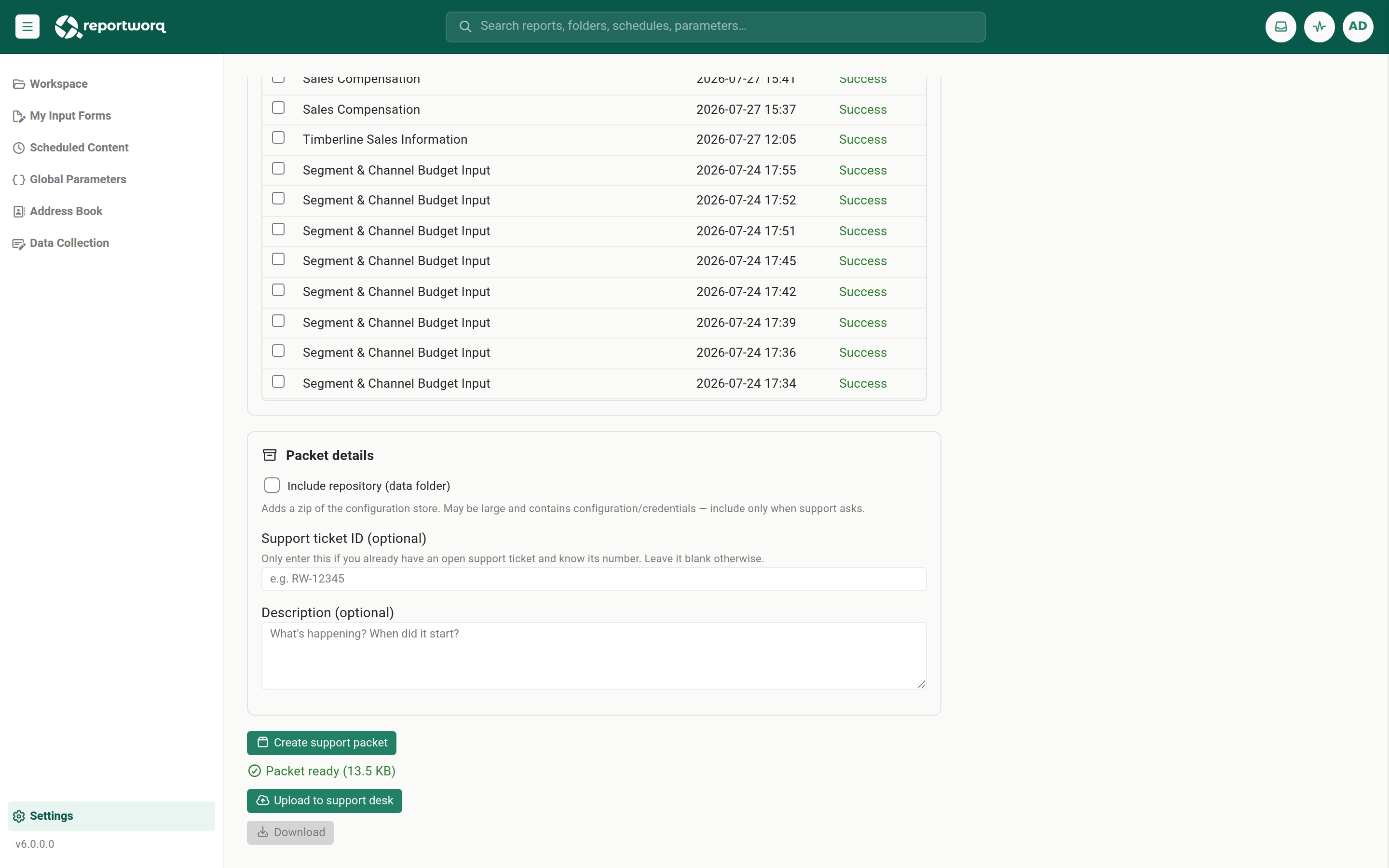
- Optionally tick the specific job runs to include; each ticked run adds its execution-database zip.
- If you already have an open support case, enter its ticket id, and add a short description of the problem. Both are optional and are written to
support-info.txtat the packet root. You do not create a case here; the ticket id only links this packet to a case that already exists.
Advanced mode (surgical selection)#
- Switch the mode to Advanced.
- On the Logs tab, tick individual files or whole folders from the install Logs folder (loose app logs, the Http folder of HAR and HTTP-trace files, and the ContributionSession folder).
- On the Load balancer tab, expand each cluster node and tick the logs to pull from it over the network. A single-node install sees "No load-balancer nodes are configured." An offline or slow node is omitted and the rest still build.
- On the Jobs tab, tick the job-history runs to include; each adds its execution-database zip.
Switching modes invalidates an already-built packet, because the two modes select different things.
Optional: include the repository data folder#
Both modes share a toggle, Include repository (data folder), that adds a zip of the repository data folder (the raw config-store data). It is off by default. It can be large and contains configuration and credentials, so include it only when support asks.
This is the raw config-store data zip. It is not the Repository metadata report, which is a separate, human-readable Excel export of the instance's jobs, reports, and schedules.
Create the packet, then upload or download#
- Select Create support packet. This is enabled once you have at least one selection. Assembling and caching the zip takes a moment while Reportworq gathers the selected files.
- When the packet is ready, Upload to support desk and Download buttons appear.
- Select Upload to support desk to send it, or Download to save the same prepared zip locally.
- If an upload fails on a large packet or a slow link, your selections and the built zip are kept, so you can simply Download and send it another way without rebuilding. Changing any selection clears the packet, so create a fresh one.
Send diagnostics from a single run#
For one failing execution, you do not need the whole packet. Open the run in job history, then Diagnostics ▸ Send to Support, to upload that execution's logs securely. This is the per-run counterpart to the Log Diagnostics screen. See Diagnose job failures.
Housekeeping#
- Delete removes a selected local file or folder.
- Clear all logs (except active) deletes every local log except the current active (locked) one, which is protected and keeps recording. Use it to free disk after an incident.
What is in the packet#
The zip is laid out as:
support-info.txtat the root: ticket id, description, generated time, instance id, version, and contents.local/…: the selected local logs.remote/{nodeName}/…: per-node logs collected across a cluster.jobs/{jobName}_{execId}.zip: the selected job execution databases.repository/data.zip: only if repository metadata was included.
Support intake checklist#
When you open a case, include the product version (shown in the app footer), a symptom description, the exact error text, the steps to reproduce, and any sample data or workbooks. Reach support at support@reportworq.com, at forum.reportworq.com, or through the "Create A Support Ticket" web form.
Notes and limits#
- This is a support-packaging tool, not the audit viewer. For compliance and change-tracking records, use Audit logs.
- The repository-metadata option contains credentials; include it only on request.
- Multi-node collection only does anything on a real cluster; a single-node install sees an empty Load Balancer tab.
Going deeper. For reading and AI-analyzing a single run's failure, see Diagnose job failures. For symptom-to-fix pairs, see Troubleshooting index.
Feedback on this page
Comments, questions, requests, or something missing or unclear? Email us - the page you are on is filled in for you.
Email feedback on this pageOr write to support@reportworq.com directly.