
Set up My Profile#
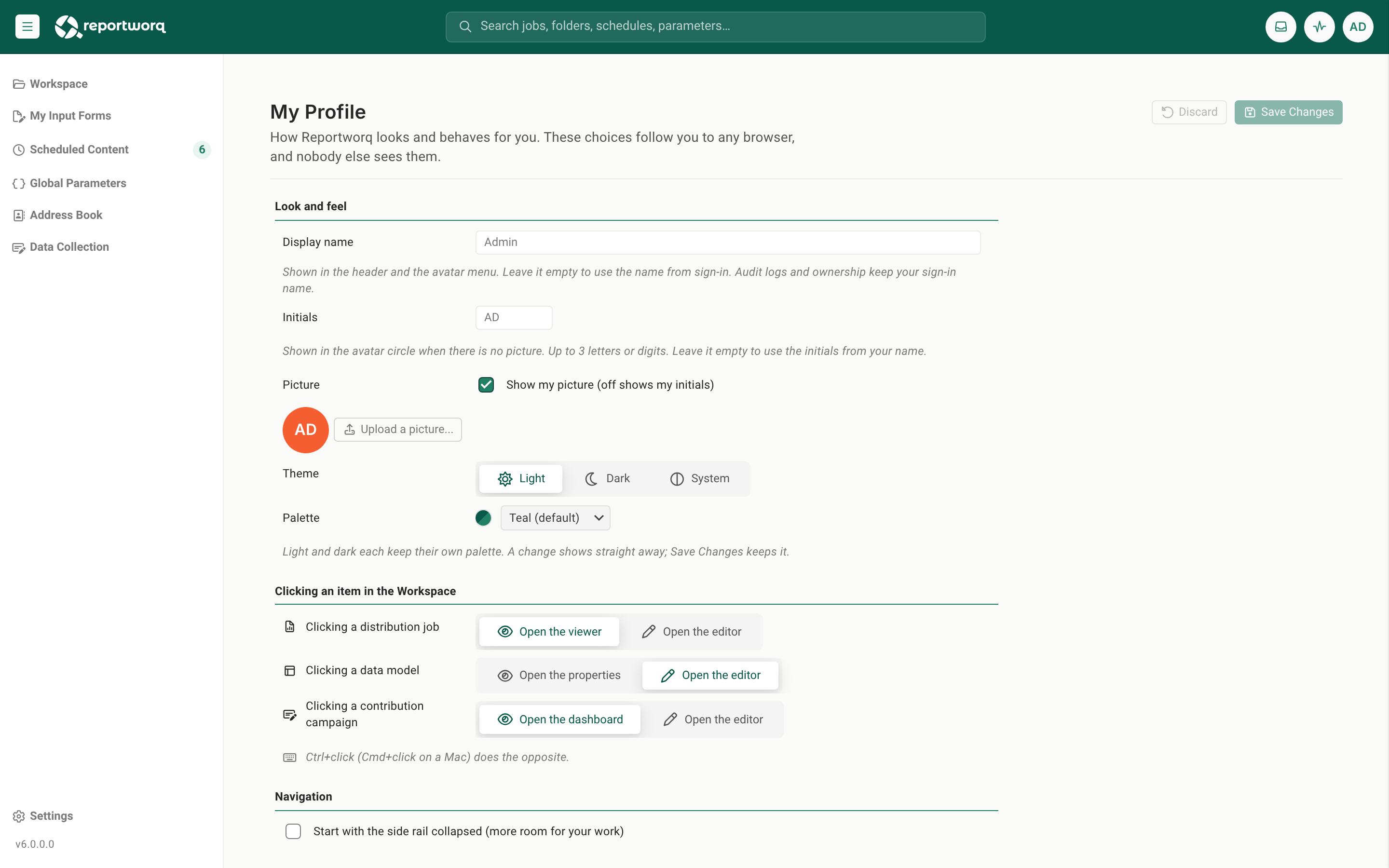
My Profile is a personal settings page. Everything on it changes how Reportworq looks and behaves for you only. Nobody else sees your choices, they follow you to any browser you sign in from, and none of them changes what you are allowed to do or see.
Open My Profile#
- Select the account menu, the circle with your initials or picture at the far right of the header.
- Select My Profile. It is the first item in the menu.
Every signed-in user has a profile, including users who only read outputs. The page has three groups: Look and feel, Clicking an item in the Workspace, and Navigation.
Save or discard your changes#
Change as many settings as you like, then use the buttons at the top right of the page:
- Save Changes stores your choices and applies them to the screen you are looking at straight away. There is no confirmation message. The button turning gray is the confirmation.
- Discard throws away the changes you have not yet saved and puts the page back to your saved choices.
Both buttons are gray until you change something.
Using Reportworq as another user? If an administrator is impersonating another account, My Profile shows that person's choices and is read-only: "You're impersonating another user, so this profile is read-only." Stop impersonating to change your own profile.
Look and feel#
Your name, initials and picture#
- Display name. The name shown in the header and at the top of the account menu. Leave it empty to use the name from sign-in. It is for display only: audit logs and item ownership keep using your sign-in name. You can use up to 100 characters.
- Initials. Shown in the circle when there is no picture. Use up to 3 letters or digits. Leave it empty and Reportworq works them out from your name.
- Picture. Select Show my picture to show a picture in the circle. Clear it to always show your initials.
- To use your own picture, select Upload a picture... and choose a PNG, JPEG, GIF or WebP image. Reportworq shrinks it in your browser first, so a large photo is fine. Select Remove to delete an uploaded picture.
- Select Save Changes to keep it. The circle on the page previews what you will get.
Your Microsoft 365 photo#
If your organization signs in with Microsoft Entra ID, Reportworq can use your Microsoft 365 profile photo as your picture, so you do not have to upload anything. It looks for the photo each time you sign in, and shows it when you have not uploaded a picture of your own. If you have no photo, or Reportworq cannot get it, you see your initials.
You stay in control of that copy:
- With Show my picture selected, Reportworq keeps a small copy of your Microsoft 365 photo on your account and refreshes it each time you sign in.
- Clear Show my picture and select Save Changes: Reportworq deletes its copy of your Microsoft 365 photo and stops fetching it. The page tells you this before you save.
- A picture you uploaded yourself is always kept (just not shown) while Show my picture is cleared.
Theme and palette#
Make Reportworq easy on your eyes and your own. These two settings sit together under Look and feel.
Theme. Choose how bright Reportworq is:
- Light is the default.
- Dark is easier on the eyes in a dim room.
- System follows your computer. When your operating system switches between light and dark, for example at sunset, Reportworq switches with it while you work.
Palette. Choose the accent color that runs through buttons, links, highlights and, in light mode, the header. There is one Palette list, and it always shows the palettes for the mode you are looking at. Light and dark each remember their own choice, so you can have a calm navy by day and a graphite look by night. With System, the list is for the mode your computer is in right now, and it changes with it. The other mode keeps its own palette, so switch your computer's mode, or choose Light or Dark, to pick that one.
| Mode | Palettes (default first) |
|---|---|
| Light | Teal (default), Teal and orange, Navy and teal, Navy and orange, Navy, Charcoal and teal, Charcoal and orange, Charcoal and blue, Plum and teal, Plum |
| Dark | Azure (default), Teal, Orange, Violet, Indigo, Rose, Gold, Magenta, Steel blue, Graphite |
The light palettes are two-tone: the first color is the header, the second is the color of actions. "Navy and orange", for example, gives a navy header with orange actions.
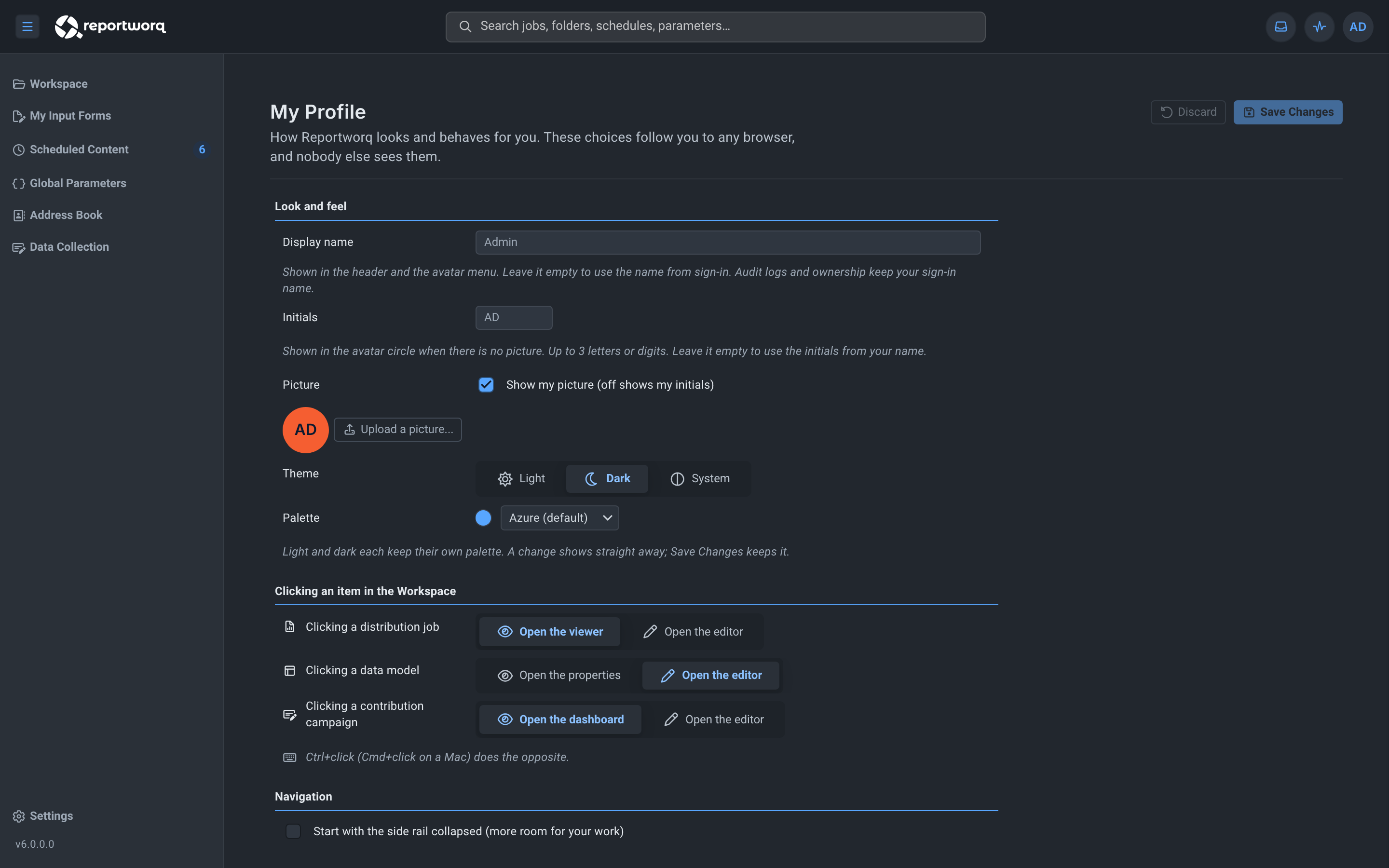
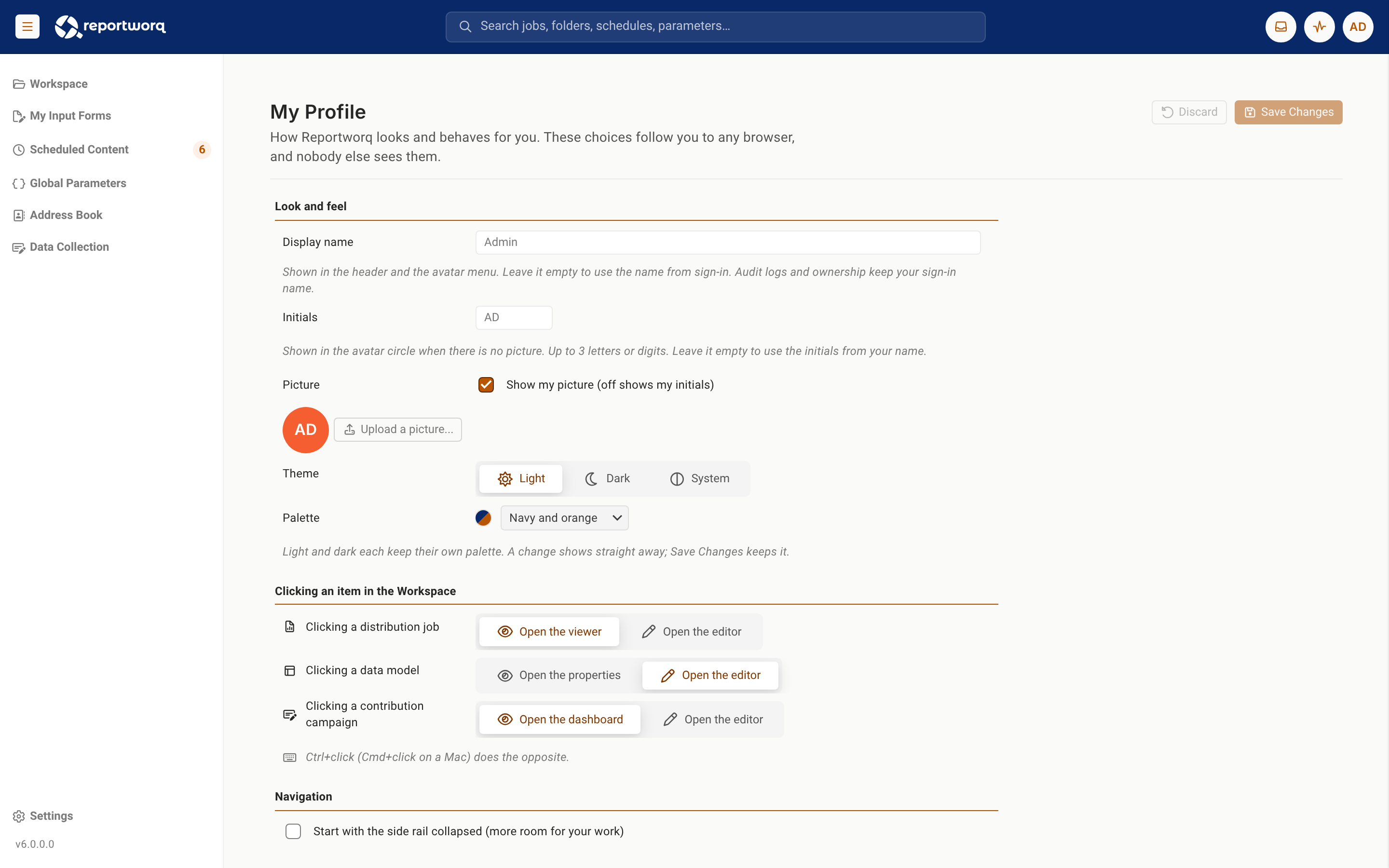
Try before you keep. Changing the theme or the palette shows the result straight away. Select Save Changes to keep it. Select Discard, or simply leave My Profile without saving, and Reportworq goes back to your saved look.
A few things to know:
- The three palettes with orange actions (Teal and orange, Navy and orange, Charcoal and orange) show warnings in amber instead of orange, so a warning never looks like a normal action. This applies to you only.
- Profile pictures and chart colors stay Reportworq teal in every palette.
- Reportworq remembers your palette in your browser so the page opens in your colors straight away. It forgets it when you sign out.
- If you are an administrator impersonating another user, the theme and palette are read-only, like the rest of the page.
Choose what a click opens#
Under Clicking an item in the Workspace, decide what happens when you click the name of an item in the Workspace:
| When you click a... | Choose one of | Default |
|---|---|---|
| Distribution job | Open the viewer (the latest output), or Open the editor | Open the viewer |
| Data model | Open the properties, or Open the editor | Open the editor |
| Campaign | Open the dashboard, or Open the editor | Open the dashboard |
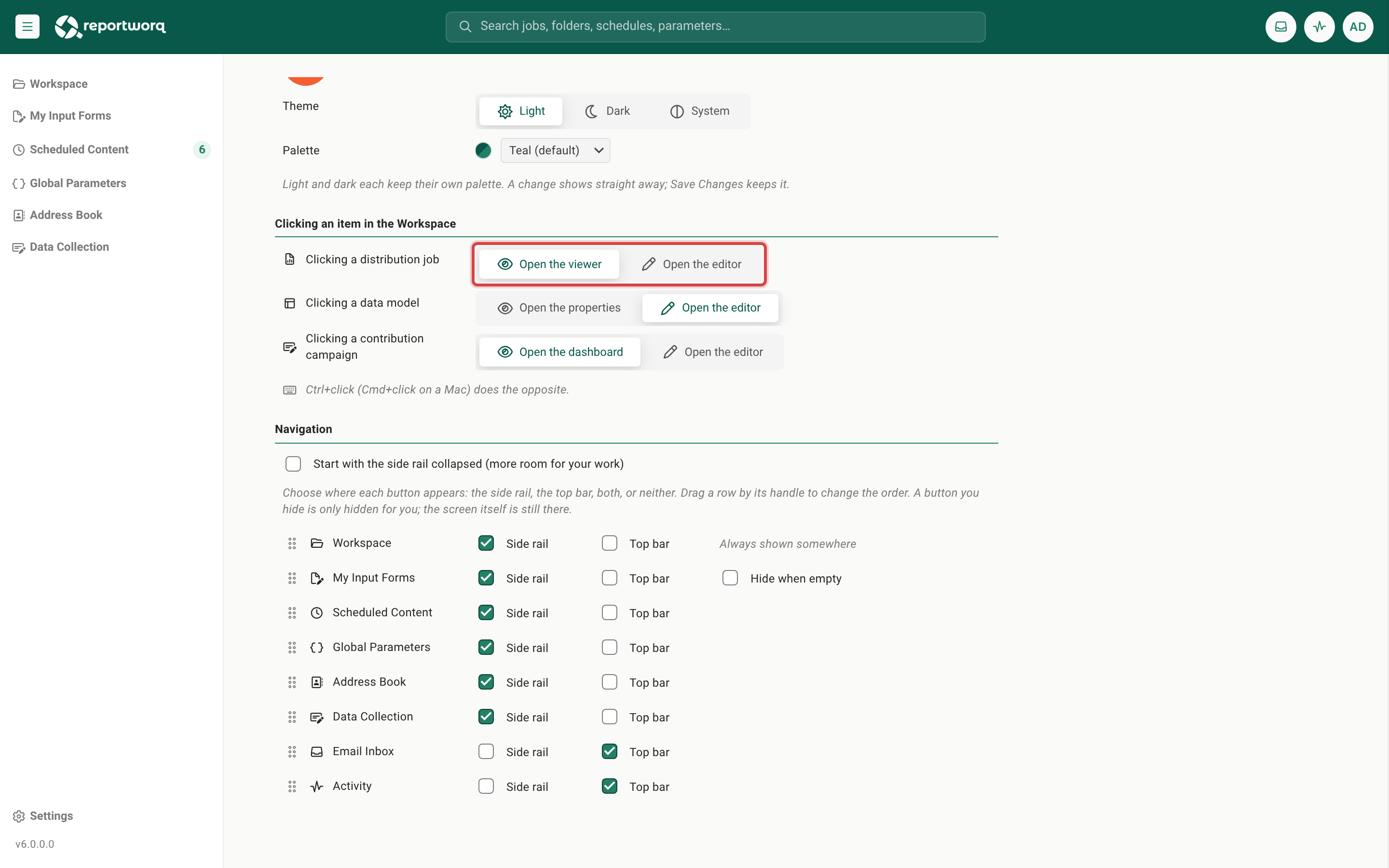
Hold Ctrl while you click (Cmd on a Mac) to do the opposite. If your choice for distribution jobs is Open the viewer, Ctrl+click opens the editor, and the other way round. This works for everyone, whether or not you have changed this setting.
A few things to know:
- Folders and files are not affected. They open as they always have.
- If you do not have editing rights to an item, its name always opens the read-only view (the viewer, the dashboard, or a data model's properties), whatever you choose. The page says so when this applies to you.
- The Edit, Run, info and ... actions on each row work as before.
Arrange your navigation#
Under Navigation, decide which buttons appear and where.
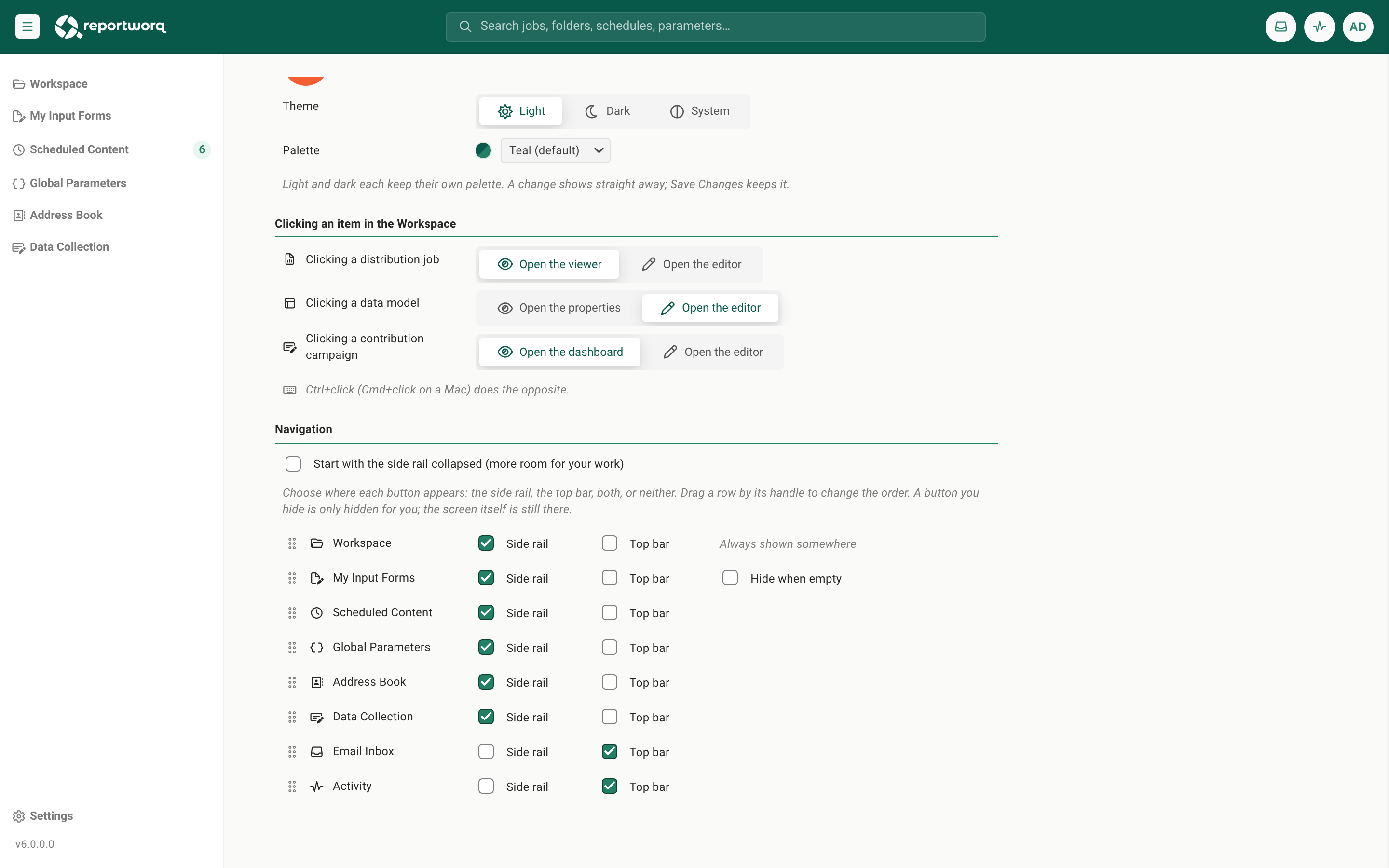
- Start with the side rail collapsed. Select this to open Reportworq with the rail shrunk to icons, for more room for your work.
- Choose where each button appears. Each row has Side rail and Top bar tick boxes. Tick both to show a button in both places, or neither to hide it. Workspace is your home screen and cannot be hidden: if you clear both boxes, it goes back to the side rail.
- Change the order. Drag a row by its handle, or select the handle and press the up or down arrow key. One order applies to both the side rail and the top bar.
- Hide when empty. On My Input Forms, select this to hide the button while no form is waiting for you.
The buttons you can choose from depend on your role, so you only see the rows that apply to you. By default, Email Inbox and Activity sit in the top bar and the rest sit in the side rail.
A hidden button is hidden only for you, and only as a shortcut. The screen itself is still there; hiding only removes the button.
Troubleshooting#
| What you see | Why, and what to do |
|---|---|
| My Profile is not in the account menu | Your server does not offer personal profiles (for example a load-balancer node). Use a regular Reportworq server address. |
| The page says Profile preferences aren't available on this server | Same cause as above. |
| Save Changes is gray | You have not changed anything yet, or you are impersonating another user. |
| Saving is refused with a message about initials | Initials can be up to 3 letters or digits, with no spaces or symbols. |
| An uploaded picture is refused | Pick a smaller image, or a PNG, JPEG, GIF or WebP file. |
| No Microsoft 365 photo appears | You may have no photo set, your organization may not allow Reportworq to read it, or Show my picture is cleared. Upload a picture instead if you want one. |
| A button you hid has disappeared and you want it back | Open My Profile and tick Side rail or Top bar on its row. |
Next steps#
- Learn the layout in Sign in and take the tour.
- See what each row action does in Item properties.
Feedback on this page
Comments, questions, requests, or something missing or unclear? Email us - the page you are on is filled in for you.
Email feedback on this pageOr write to support@reportworq.com directly.