
Manage scheduled content#
Scheduled Content is the single place to see and control every schedule in the workspace. It shows a grid of all schedules, a master on/off switch, at-a-glance health cards, and per-row actions to run, edit, enable, or delete a schedule. It is where you monitor whether automated runs are on time and healthy.
When to use it. As your daily check on automated distribution, and whenever you add, pause, run, or retire a schedule. What you see is trimmed by your role, so you view only the schedules and jobs your permissions allow.
Read the schedules grid#
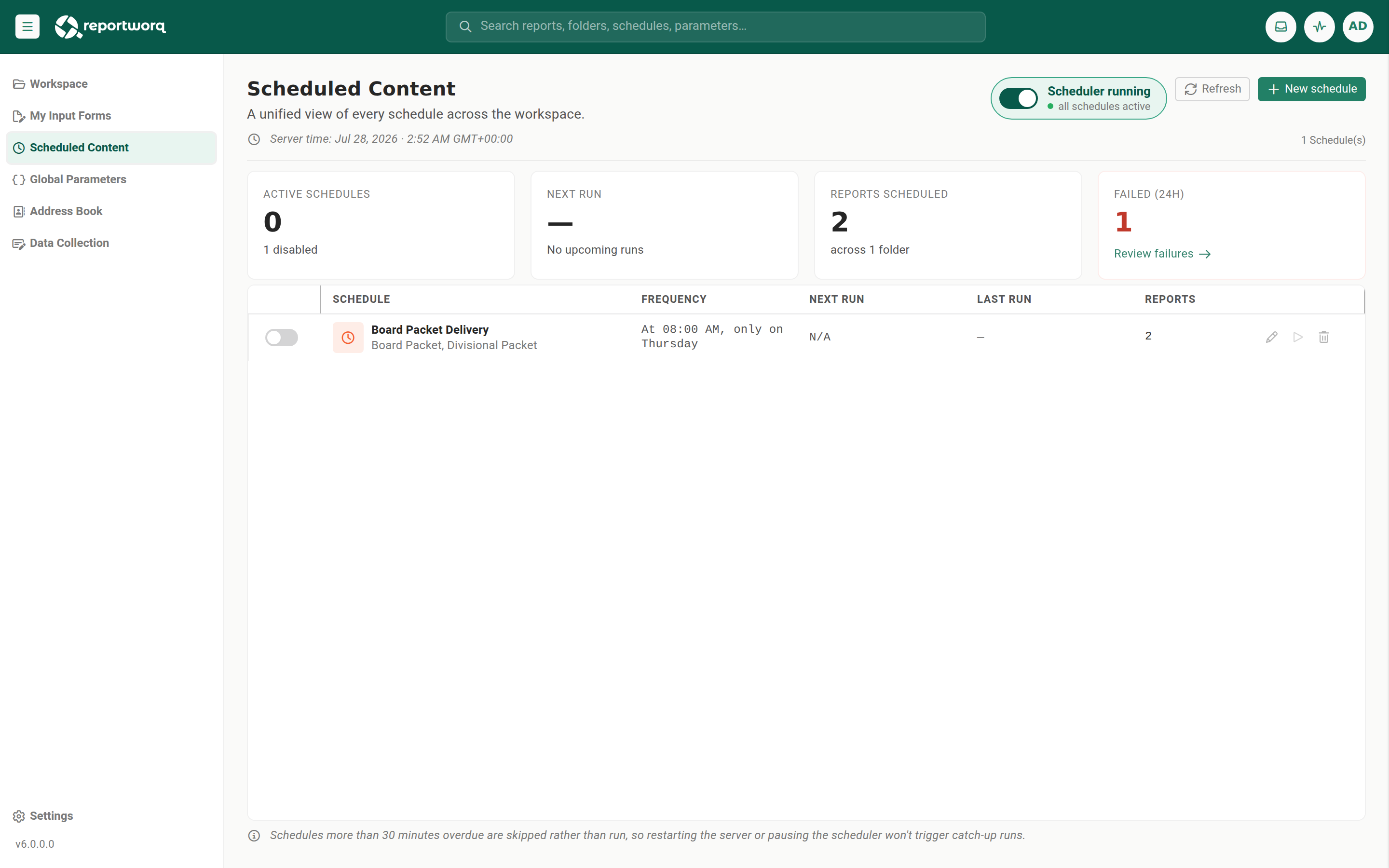
Open Scheduled Content from the side rail. Each row is one schedule, with these columns:
- Enabled toggle, Schedule (name), Frequency (the cron's plain-language description), Next Run, Last Run (the last actual run), and Jobs.
- All times are shown in server time, noted above the list.
Row actions include Run now and Delete. Selecting a row opens the Schedule editor.
Turn the master scheduler on or off#
The master scheduler switch in the top-right header is the global gate for all scheduling. A schedule runs only when the master switch is on and that schedule's own enabled toggle is on.
- In the header toolbar, find the labeled switch. On it reads "Scheduler running / all schedules active"; off it reads "Scheduler paused / no schedules will run."
- To pause everything, turn the switch off and confirm in the Pause Scheduler dialog. While paused, the grid also shows an inline note that no schedules will run until you resume. The side rail also shows Scheduled Content (Paused) with a pause icon (in the collapsed rail, the pause icon alone), so you can confirm at a glance that nothing will run without opening the page.
- To resume, turn the switch back on.
When to use it. Pause the master scheduler as a single, reversible kill switch during a maintenance window, a source-system upgrade, or a month-end cutover, so no automated run fires against a system that is offline or mid-change. Resume it when you are done. To stop just one schedule, use that schedule's own enabled toggle instead. The master scheduler defaults to on, except on an instance created by importing a v5 repository, where it starts paused until you turn it on, see Upgrade from version 5.
Only users with scheduler-management permission see the operable switch. Others see a read-only "Scheduler paused" indicator when it is off.
Run, edit, enable, or delete a schedule#
- Run on demand. Select Run now on a schedule's row to run it immediately without waiting for the next occurrence, for example after correcting data that needs to be redistributed now.
- Edit. Select the row to open the Schedule editor.
- Pause one schedule. Turn its Enabled toggle off. It is kept but does not run.
- Delete. Use the row's Delete action. Deleting prompts a confirmation before it removes the schedule.
Check schedule health#
A row of stat cards summarizes health: Active schedules, Next run (ETA), Jobs Scheduled, and a run-outcome card. When any run failed in the last 24 hours, an attention Failed (24h) card shows the count with a Review failures link into the diagnostics; when there are none, a neutral last-24-hours card is shown instead.
Use this as a morning operations check: confirm the master switch is on, the next-run ETA looks right, and there is no Failed (24h) count before the business day.
How missed runs are handled (catch-up)#
When the scheduler cannot run an occurrence at its due time, because the master scheduler was paused, the host was down, or a prior run was still going, that occurrence becomes overdue.
- An occurrence more than 30 minutes overdue is skipped, not run late. This is a fixed rule, not a setting. It stops a flood of stale, backdated runs after downtime, for example an every-15-minutes schedule replaying dozens of times when the scheduler resumes.
- An occurrence within the 30-minute window can still run. It runs through the same pipeline as an on-time run and uses the data as of the time it actually runs, not the missed due time.
- Overdue and next-run timing are evaluated in server time. The quiet footer under the grid restates the server time and this catch-up rule.
To force a run that was skipped, use Run now on that schedule's row.
Notes and limits#
- Scheduled Content manages schedule definitions and health, not the underlying distribution job's design. Edit that in the Distribution Job Editor.
- Actions and visibility are constrained by your role, so a limited-role user does not see a complete workspace view here.
Going deeper. To watch scheduled runs as they execute, release a held delivery, or review a run's output, see Track activity and run history.
Feedback on this page
Comments, questions, requests, or something missing or unclear? Email us - the page you are on is filled in for you.
Email feedback on this pageOr write to support@reportworq.com directly.