
Create an AI Profile for a distribution job#
The AI Profile step of the Distribution Job Editor lets you attach a plain-language description and audience metadata to a distribution job so that AI assistants, search, and recommendations know when the job's output should be referenced. It is metadata only: it changes how the job and its output are discovered and surfaced, not how the job renders or what it outputs.
This is Reportworq's "AI done differently" idea. Most AI systems try to reverse-engineer a business from raw databases. Reportworq instead presents AI with reports your finance teams have already curated, and the AI Profile is where you enrich a job with the structured business context, purpose, audience, strengths, limitations, terminology, and caveats, that teaches AI how your business already communicates. The result is lower token usage, greater confidence, and answers based on the same information your teams already trust.
When to use it. Fill in an AI Profile once a job is functionally complete, especially in a large library where people (and assistants) need help finding the right job. A well-described job is the one an assistant surfaces when someone asks a natural-language question.
Before you start#
- A distribution job to describe. The AI Profile is the fifth job editor step, before Test.
- AI Agent Access turned on, to edit the profile. AI profiles matter to AI clients that reach Reportworq through the MCP server. While AI Agent Access is off, the AI Profile step still appears but is read-only: its caption in the step list reads "AI Agent Access is off", and a notice at the top of the step explains that the Reportworq MCP Server lets AI clients such as Microsoft 365 Copilot, Claude and ChatGPT find your reports and read, preview and share their outputs, with a Learn more link. The profile you have already written is kept and is not changed. A system administrator can turn AI Agent Access on under Settings > Integrations; the step becomes editable again.
- The value is realized wherever AI, search, and assistant surfaces are in use. See AI in Reportworq.
- Writing the profile by hand needs nothing else. To have AI draft it instead, an AI connection has to be configured for your instance and the job has to have generated a sample output. See Speed it up with AI prefill and templates.
Describe the job#
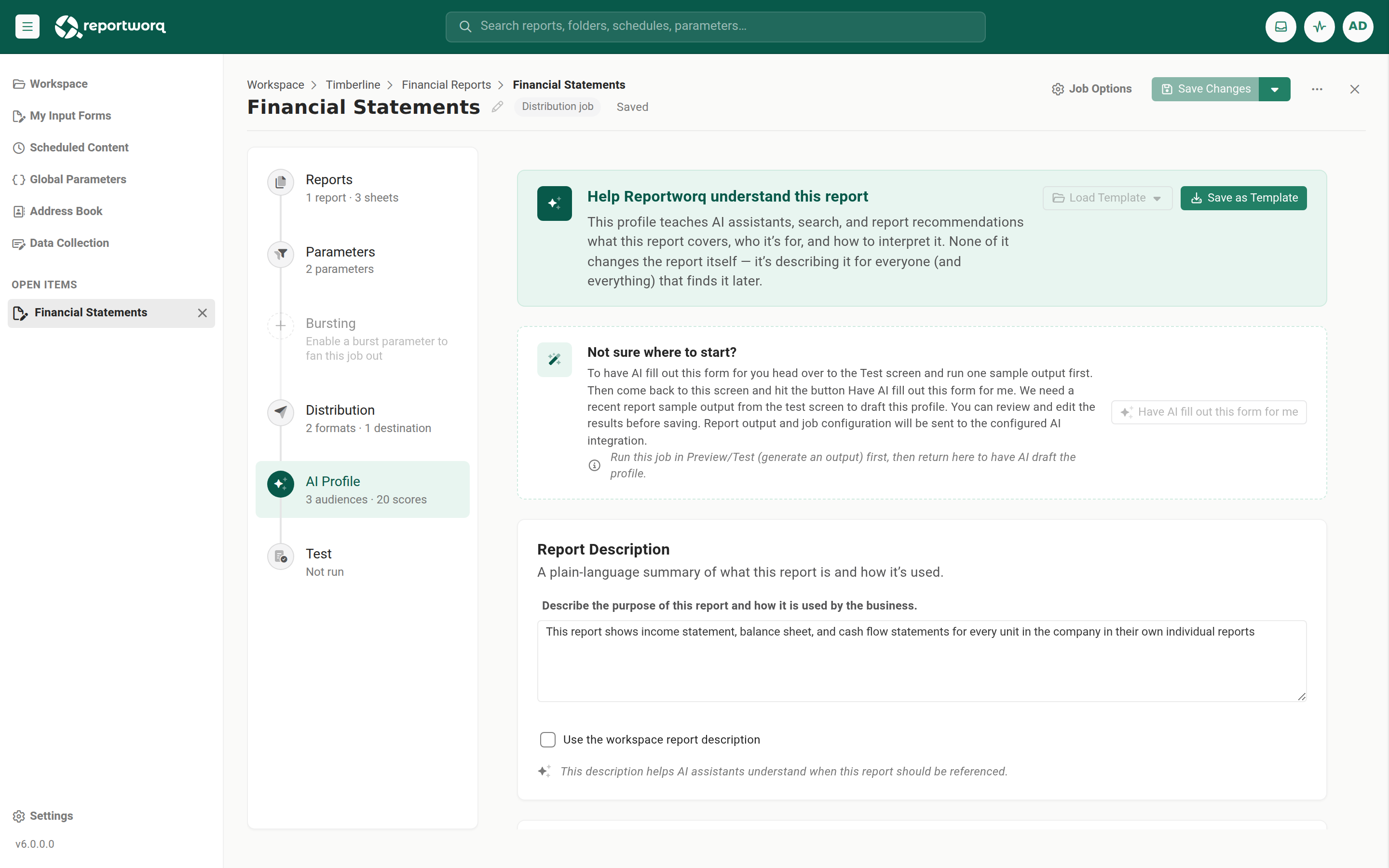
Open the job and go to the AI Profile step. Its banner reads Help Reportworq understand this distribution job.
Under Job Description, describe what the job's output contains, what questions it answers, and when it is relevant. Aim for the questions a reader would actually ask. Alternatively, select Use the job's workspace description to inherit the description from the job's Properties instead of writing one here.
Where descriptions come from. Every workspace item (a distribution job, a folder, a data model, or a campaign) carries its own free-text Description on its Properties panel, and that is what the workspace description above refers to. Descriptions are worth filling in for their own sake: they show in the item table and in search results. See Item properties.
Set the Audience and Data Types tags. Pick from the existing options or create new ones inline, so the lists grow with your library.
Under AI Relevance Scoring, for each business-dimension category, drag the 0-10 slider to say how strongly this job relates to that dimension. You can edit the categories themselves with Edit Categories. Each category appears once. A category list that an earlier build had saved with every category repeated is collapsed automatically, keeping the highest score for each, and the cleaned list is stored the next time you save.
Save the job.
Speed it up with AI prefill and templates#
Reportworq can draft the whole profile for you. Two things have to be in place first, in this order, and neither is optional: an AI connection, then a sample output from the job itself.
Set up an AI connection#
AI prefill uses your organization's own AI provider, not a model built into the product, so nothing AI-assisted works until a connection exists. An administrator creates it in Settings ▸ Integrations, in the AI Connections group: select the provider tile (OpenAI, Azure OpenAI, Amazon Bedrock, or Reportworq Hosted AI, depending on what your instance offers), enter its credentials and model, and turn on Enable provider. Use Test connection in the editor before saving, so a wrong key, endpoint, or model surfaces there rather than as a failed draft later. See Connect an AI provider.
Until a connection exists, the AI prefill panel does not appear on the AI Profile step at all. If you cannot find the button, that is the reason, and it is an administrator's task rather than yours.
Generate a sample output#
AI drafts the profile from the job's actual output, not from its definition alone, so the job has to have run and produced an output for AI to read.
- Go to the Test step of the job editor.
- Select Generate Output and let the run finish successfully.
- Return to the AI Profile step.
Until that run has produced an output file, Have AI fill out this form for me stays disabled, with the note "Run this job in Preview/Test (generate an output) first, then return here to have AI draft the profile." Not every output format can be read for a sample. If the format is not supported, Reportworq asks you to generate an Excel output and try again.
Draft the profile#
- On the AI Profile step, select Have AI fill out this form for me.
- If the profile already holds values, confirm the prompt to replace them. AI prefill overwrites the fields it fills.
- Review every drafted field and correct anything wrong. The draft is a starting point, not an answer.
- Save the job. Nothing is saved automatically.
The job's output and its configuration are sent to the configured AI connection to produce the draft. Treat that the way you treat any other data leaving your instance, and confirm the output's content is appropriate to send before using prefill on it.
Reuse a profile with templates#
Use Save as Template to keep a finished profile, and Load Template to apply it to a similar job. Templates need no AI connection. Load Template is unavailable until at least one template has been saved.
Notes and limits#
- The AI Profile is discovery metadata. It does not change the job's data, worksheets, parameters, or output.
- Audiences, data types, and scoring categories are author-chosen and extensible, not a fixed system list.
- The profile feeds AI-facing surfaces: the in-app assistant, AI and global search, recommendations, and Copilot or MCP access to distribution jobs and their outputs.
- AI prefill needs both an enabled AI connection and a successful Test-step output; with every AI connection disabled, the prefill option is hidden. It overwrites the fields it fills and never saves on your behalf, so review the draft and save the job yourself.
Going deeper. How governed AI works across Reportworq, which providers you can connect, and how assistants, Copilot, and MCP consume a job's context is covered in the AI & Integrations guide.
Feedback on this page
Comments, questions, requests, or something missing or unclear? Email us - the page you are on is filled in for you.
Email feedback on this pageOr write to support@reportworq.com directly.