
View and download results#
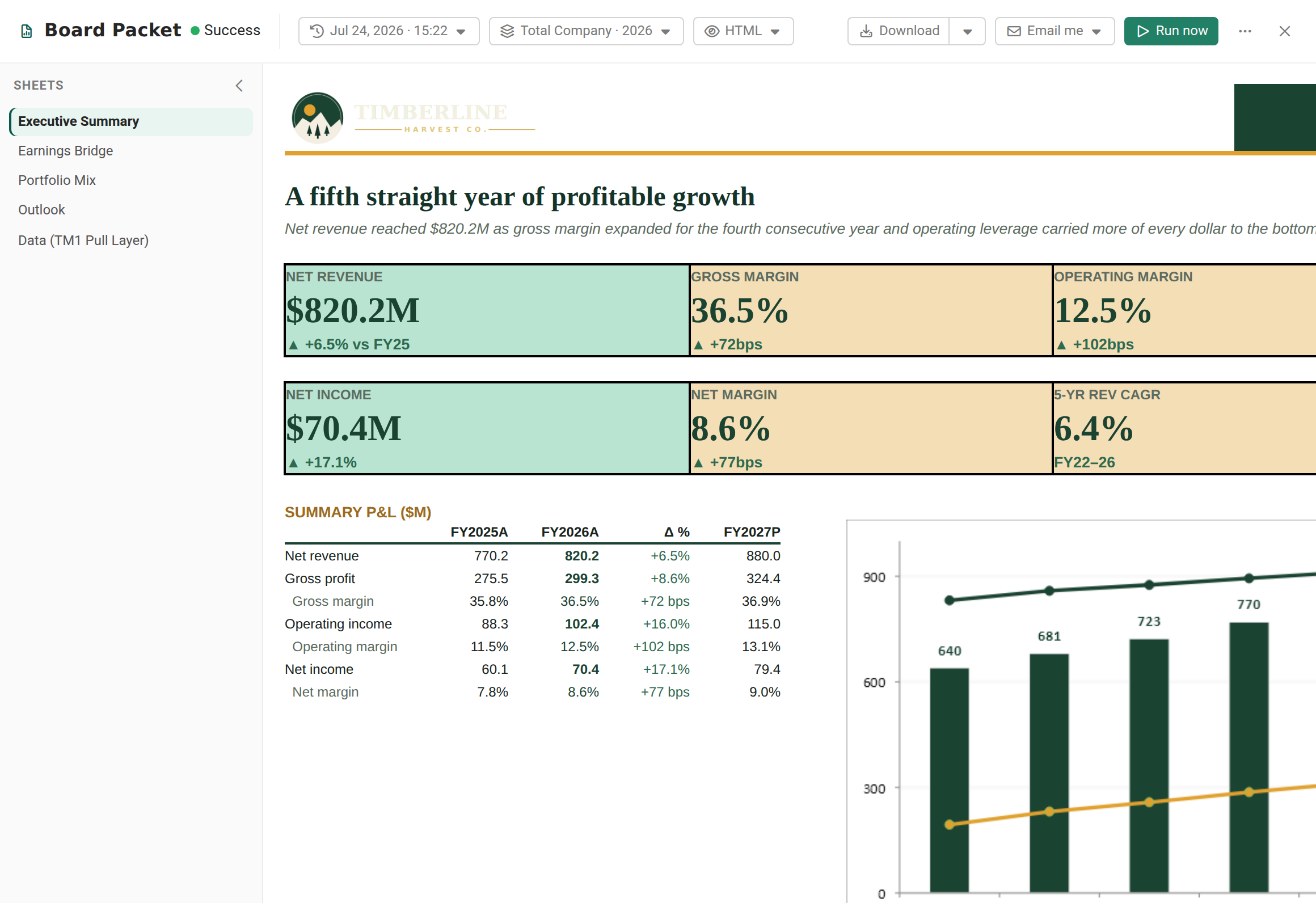
The output viewer shows the rendered output of a distribution job's run, without leaving Reportworq and without needing the file. You choose which run to view, which variant (for a burst run), and which format, then read it inline, download the files, or email a copy to yourself.
When to use it. After a run, to read the output on screen, download the deliverables, review a PowerPoint deck slide by slide before it goes out, or send yourself a copy. For Users, this is the main window onto job output.
Open the viewer#
- In the workspace browser, open a job row's ... menu and select View. The viewer replaces the browser in place. From the job's Properties or Run History, the ... menu's View output opens it too, and the same menu offers Edit Job, Run history and Properties.
- To return, select the back chevron ("Close, back to the workspace").
Choose the run, variant, and format#
- Run picker. Select which run to view. Runs are listed newest first; each shows its timestamp, a meta line (duration, variations, files, size), and a status chip. A newly finished run appears here automatically.
- Variant picker. For a burst run with more than one variation, pick the variation (for example a region). A single-variation run has no variant picker.
- View as. For a successful run, choose the format under View as. Markdown and HTML are always offered; PDF, Excel, PowerPoint, and CSV appear when the run produced a matching file. The default view is HTML.
- For an HTML view with more than one sheet, use the left rail to jump between sheets. If the run also produced a PDF for the same variation, the rail is titled Bookmarks and shows the PDF's bookmark tree instead of a flat sheet list. Select a sheet to view it, or select a heading to jump to its first sheet. This only appears when the PDF's bookmarks line up with the HTML sheets; otherwise you still get the plain Sheets list. A worksheet you omit from PDF bookmarks has no entry in the Bookmarks rail, so it can't be opened in the HTML view; view it in the PDF or Excel output instead. See Shape the PDF bookmark tree and table of contents to control what appears here and in the PDF itself.
- For a PowerPoint view, use the Slides rail to jump between slides; the selected slide renders full size. The rail scrolls when a deck or workbook has more entries than fit.
Download the output#
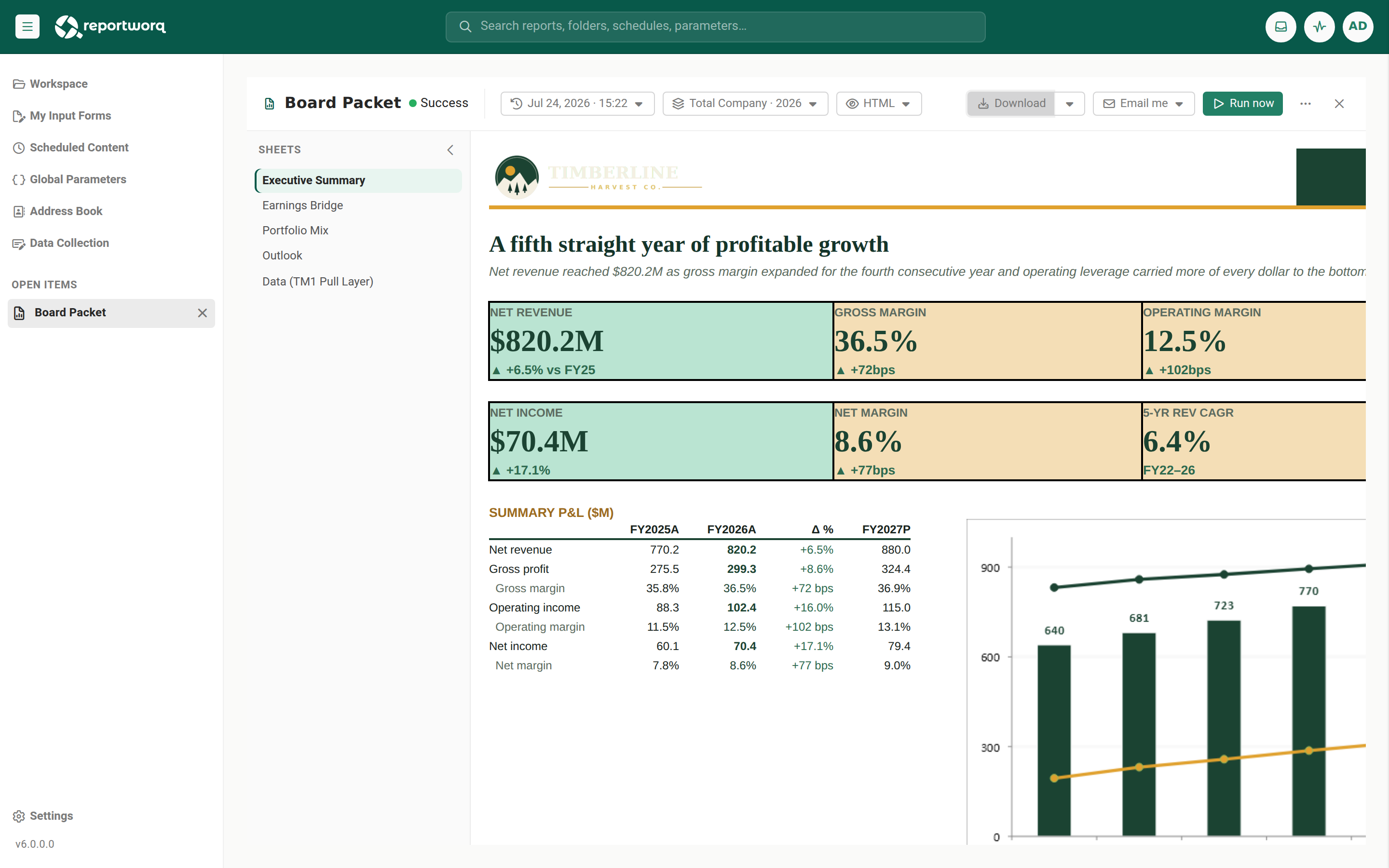
- Select Download to save the file backing the current view.
- Open the Download menu for more options: each output file (with its size), Download all in this
variant, and Download all in this run. Files are saved individually.
Email a copy to yourself#
- When the run has downloads, select Email me.
- For a single file, it is sent to your signed-in address. For multiple files, choose a per-format item or Email all formats.
- The result is confirmed inline, for example "Sent ... to {your address}."
Refresh the run list#
If a run you know has finished is not offered in the run picker, open the ... menu and select Refresh. Refresh rebuilds the list from the stored history rather than re-reading what is already in memory, so a completed run whose finish notification went missing appears straight away instead of after a delay.
Notes and limits#
- The viewer needs a successful run with output files; only Markdown and HTML are always available, the other formats depend on what the run produced.
- Downloads are per file; there is no zip bundle here.
- AI insights are not a viewer format; they appear in the run's history detail. For the run record, pins, and diagnostics, use Run History.
- A view-only User account gets an output-only viewer: view, download, and email, with no edit or run controls. A Reader is not offered Run now anywhere in the viewer (including the run-it-now button shown when a job has no runs yet or its last run failed).
Going deeper. To see all runs of this job, pin a run, or start diagnostics, see Track activity and run history. If a run failed, see When a job fails.
Feedback on this page
Comments, questions, requests, or something missing or unclear? Email us - the page you are on is filled in for you.
Email feedback on this pageOr write to support@reportworq.com directly.