
Item properties#
Every workspace item (a distribution job, a contribution campaign, a data model, or a folder) has a Properties panel. It gathers the item's metadata and per-item settings in one place, so you can see where an item lives, who can reach it, whether it is scheduled, and how it is described for AI and search, all without opening the full editor.
Open Properties#
From the workspace browser, open an item's row and choose the info action, or open the ⋯ menu and choose Properties. The panel replaces the browser; the Workspace breadcrumb (top left) closes it and returns you to the list.
Save and Close live in the top bar. There is no separate footer, and there is no separate Save button per field: editing any field marks the panel dirty and enables Save. If you try to leave with unsaved changes, Reportworq prompts you to discard them first.
Show or hide columns in the workspace list#
Keep the list to what you actually use, so a long list reads at a glance and fits a narrow screen.
Last run in the workspace list. In grid view the workspace list also shows a Last run column to the right of Modified. It shows when the job last ran (any run counts, whether or not it succeeded) as a short date and time in the same date format as Modified, with the full date and time when you hover over it, and Never for a job that has not run. You see only runs you are allowed to see, so a job whose runs are hidden from you reads Never. The column hides itself in a folder where nothing has run.
Choose which columns to show. In grid view, the Description, Type, Labels, Modified and Last run headers each have a small chevron. Click it and choose Hide this column to remove that column, or tick and untick columns in the Columns list to show or hide any of them. A hidden column comes back from the chevron on any column still showing. Name and the row actions are always shown, and the Name header has a chevron too, with just the Columns list, so you can bring columns back even after hiding them all. Clicking a header's title still sorts the list; the chevron does not.
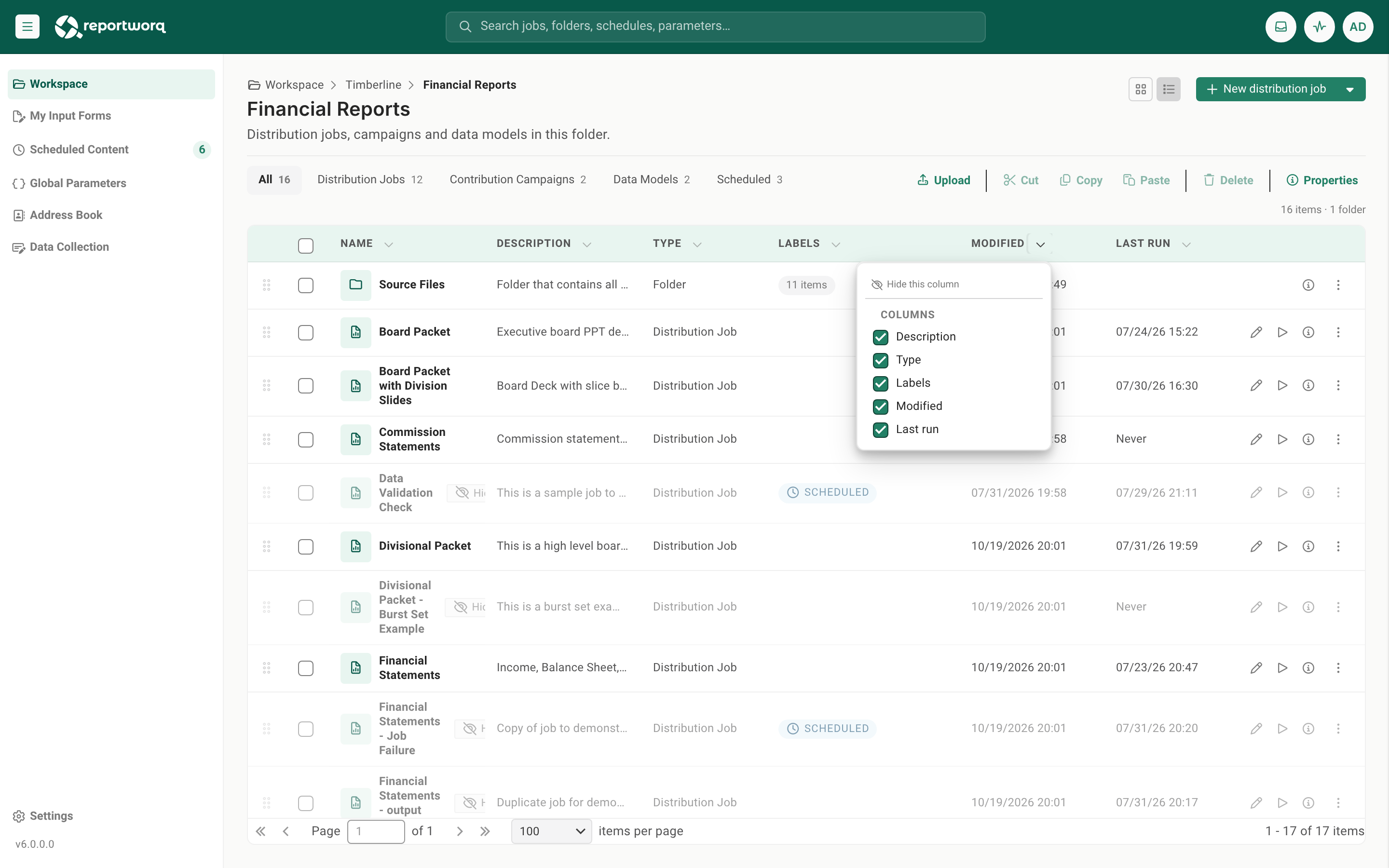
Reportworq remembers your choice for you, in every folder, and it is still there after you refresh or sign in again (nothing is saved while an administrator is impersonating you). Labels also hides itself when nothing in the folder has a label. A column that hid itself stays ticked in the Columns list, with a note under it saying why it is not showing. On a narrow screen the list scrolls sideways.
What each tab holds#
Which tabs appear depends on the item type and your role. A distribution job shows the most; a folder shows fewer; a user with view-only access sees Overview alone.
Overview#
- Description - a free-text description shown in the item table and in search results. Click it to edit; press Ctrl+Enter (or ⌘+Enter) to commit, since a plain Enter starts a new line. The title is editable the same way, committed with Enter.
- Retention - how long this item's run history is kept:
- Inherit - follow the folder chain, and ultimately the system default.
- Keep all history - never removed automatically.
- Keep for a period - a number of days, months, or years. A per-item choice overrides whatever the folder would otherwise apply. On a folder, this is the setting that cascades to the items inside it.
- Visibility - a Hidden switch that hides the item from readers while leaving it visible to authors and administrators. See Roles and what you can do.
- Details: read-only Path, Created, Modified, and, for a job, Last run, handy for confirming an item was moved to the right folder and recently updated.
- Used by: on a workspace file, the distribution jobs that use it as a source, if any. See Store files in the workspace.
Security#
The Security tab shows the item's access-control list - who can see and act on this specific item, layered over the workspace's overall policy. Who may view and change it is a product rule, not a per-item permission:
- A reader (view-only) does not see the tab at all.
- An author sees it, but read-only - the panel shows a note that only an administrator can change who can see the content.
- An administrator can edit it.
For the full role model, see Roles and what you can do.
Schedule#
The Schedule tab lists the schedules that run this item. The list is read-only here: each schedule has an edit (pencil) action that opens it in the full Scheduler, and a New schedule action that opens the Scheduler to create one. All schedule authoring happens in the Scheduler, not inline. A schedule appears only when you can see every job it runs. See Schedule a job.
AI Context#
The AI Context tab holds descriptive metadata that helps the AI assistant and search decide when this item is relevant. Its Relevance section shows each business-dimension category once, as a 0 to 10 bar, listing only the categories scored above zero and the highest score first. It is related to, but separate from, the AI Profile you set inside the Distribution Job Editor. For authoring a job's AI context in depth, see Create an AI Profile for a distribution job.
The Relevance group shows each business-dimension category once, as a bar out of 10. Only categories scored above zero appear, highest score first, and the group is hidden when no category has a score.
Which tabs you see#
| Item and role | Tabs |
|---|---|
| Distribution job or campaign, author or admin | Overview, Security (read-only for authors), Schedule, AI Context |
| Folder, author or admin | Overview, Security |
| Any item, view-only user | Overview (read-only) |
Notes and limits#
- Properties is for per-item governance: access, retention, visibility, schedule, and discoverability. A job's content (its reports, parameters, bursting, and distribution) is edited in the job editor, not here. See Choose the source workbook and worksheets.
- For a view-only user, Properties is often the only action available on an item's row, and it is read-only.
Feedback on this page
Comments, questions, requests, or something missing or unclear? Email us - the page you are on is filled in for you.
Email feedback on this pageOr write to support@reportworq.com directly.