
Track activity and run history#
Reportworq gives you two monitoring views. Activity is the live view, across all distribution jobs, of what is running, what is held for review, and what recently ran. Run History is the per-job record of every run of one job. Use Activity to watch and manage runs in flight; use Run History to trace one job over time.
When to use it. Open Activity during and just after a run: to watch a month-end burst move through, release a delivery you were reviewing, cancel a stuck job, or spot a failure. Open a job's Run History when you want the full record of that one job, its past outputs, and its retention.
Watch runs on Activity#
Activity presents one grid, "Running tasks, held deliveries, and recent run history," in a fixed order: Running, then Hold, then History.
- Open Activity (you also land here after launching a Run Jobs run).
- Each row shows a Category chip (Running, Hold, or History), the job Name, a Caller, Start time, Elapsed, a Status, and row actions.
- Caller shows who or what started the run: the name of the API key for a run triggered through the REST API, the schedule's name for a scheduled run, or your name for a run you started yourself. A small icon in front of the name shows what kind of caller it is (API, schedule, person, contribution, Slack, and so on); hover it to see the type in words, or the API key's name on a REST-triggered row. This shows the same way for a run that's still in progress as for one that has finished. A run from before this column existed, or from a source that does not report a caller (for example a contribution submission or an AI preview), shows how it was started instead of who started it.
- Two more columns appear when they carry information. Workspace appears on an installation with more than one workspace, naming the workspace each run belongs to. Server appears when runs record the node that executed them, which happens on a load-balanced installation. On a single-workspace, single-node installation both stay hidden rather than repeating a constant on every row.
- The Status of a running row tells you where the job is. For a job with one task, the Status column shows what that task is doing: Preparing (0%), Running 40% - 120 of 300 datapoints, Post-processing (90%), or Distributing (95%). Post-processing covers saving and merging the output files and other finishing work after the data is calculated. A one-task job that sends a combined email shows Distributing (95%) while that email goes out. For a job with several tasks, it shows overall progress, for example Running 40% - 1 of 3 tasks completed, because the percentage is an average across the tasks. Open a running job to see each task's own stage: Preparing (0%), Running 40% - 120 of 300 datapoints, Post-processing (90%), or Distributing (95%). Once a task's data is calculated, it moves to 90% and reads Post-processing, even if other work in the same task, such as a PDF pass-through, has not reported a higher percentage.
- The grid refreshes in place as runs progress and finish. Refresh re-queries on demand.
- Filter with the Status filter (All, Running, Held, Warnings, Failures) and the date range filter (Today, Last 7 Days, This Month, This Year, All). The date range scopes History rows only.
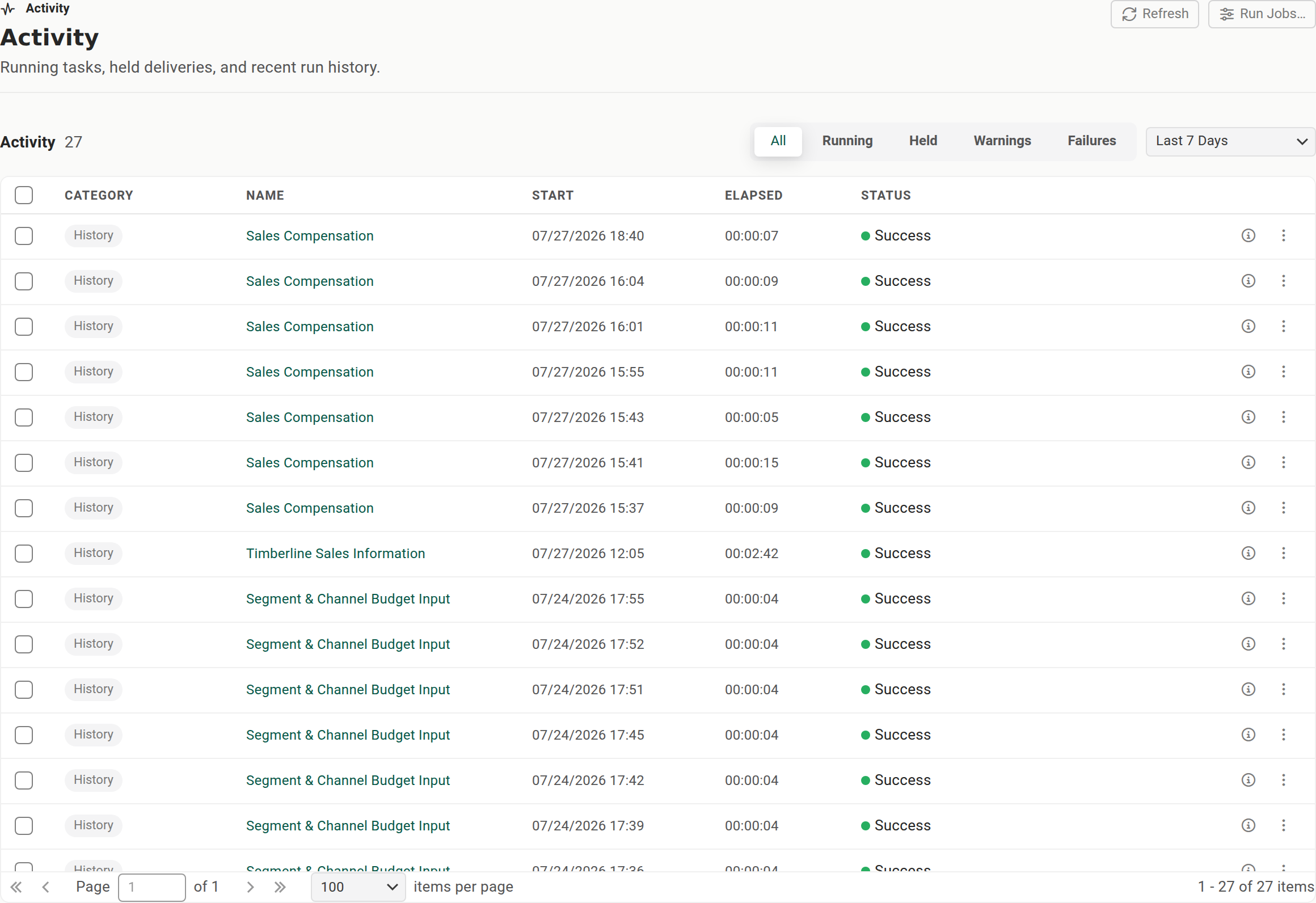
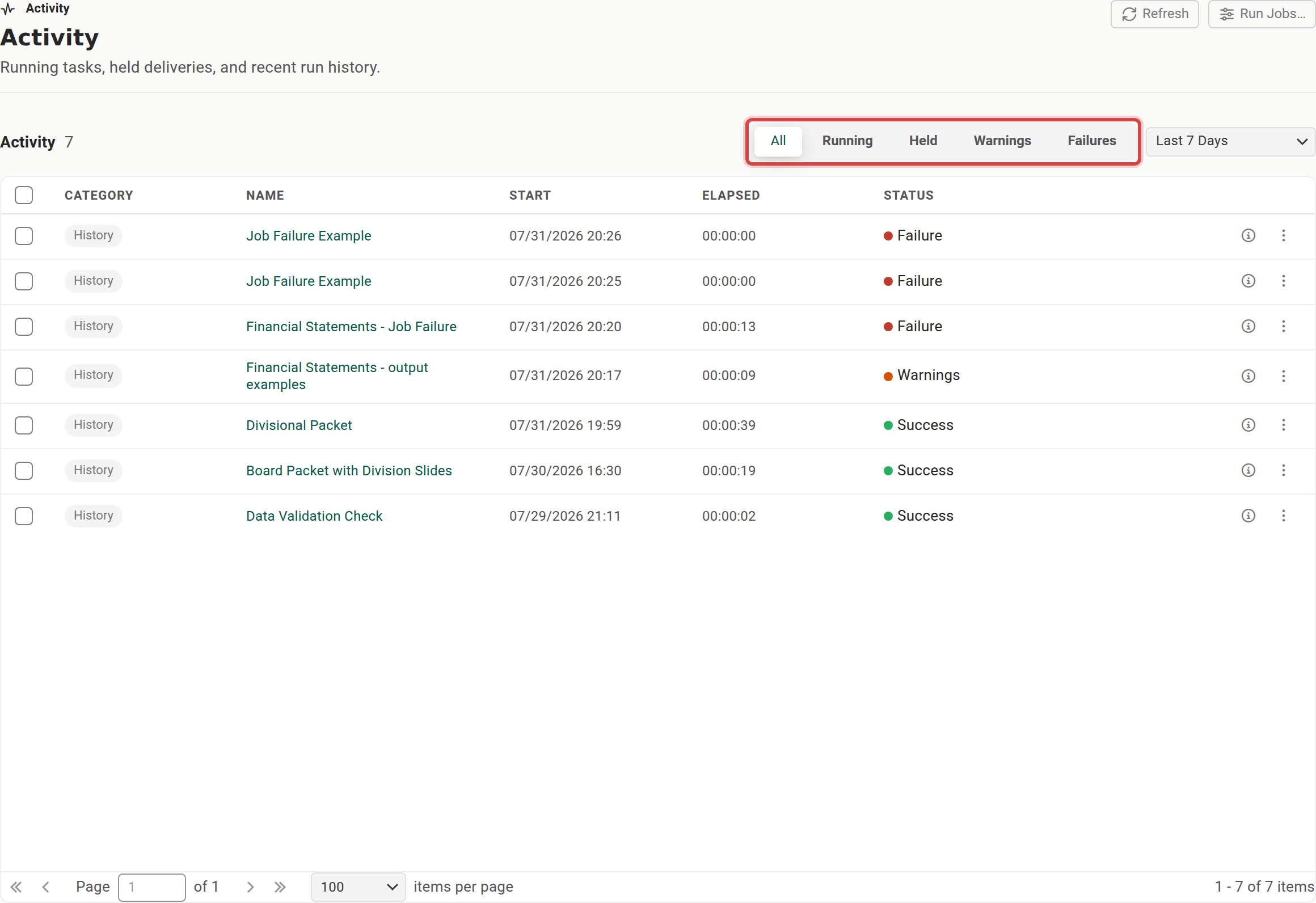
Read run success from a completed History row's status (Success, Warnings, or Failure) or from Run History, not from a Running row's progress text. Mid-run text can include the word "completed" while the job is still going.
Watching a running job, step by step#
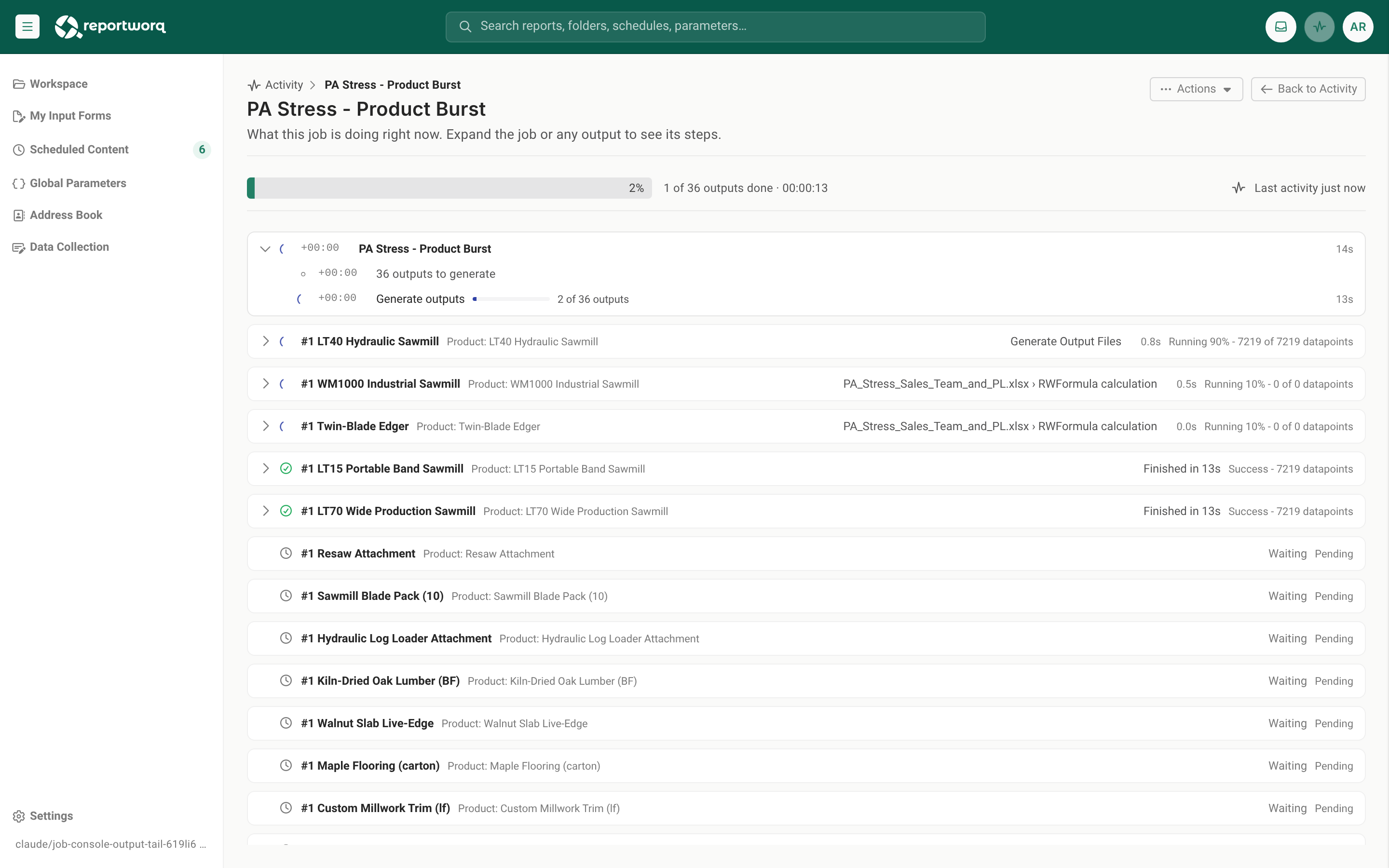
A long job can look the same whether it is working or stuck. A running job's details show what it is doing right now, in plain words, so you can see that it is making progress or see exactly where it stopped.
- A Running row shows the job's progress in its Status column. Select Watch progress… there (or the job's name) to open its details. Both are offered for a run in your current workspace.
- Read the top. A running job shows its progress bar, how many outputs are done, and the elapsed time. Last activity says how long ago the job last recorded a step. If it passes 2 minutes the line turns amber: the job is either on one slow step (a large TM1 read, a big merge) or is stuck, and the output marked as running below names the step to look at.
- Everything the job is doing is one tree of cards. The first card is the job itself: starting up, generating the outputs ("12 of 45 outputs"), distribution, and anything the job reports along the way.
- After it comes one card for each output the job makes (every burst of a burst set): the ones running right now first, then the finished ones, then the ones still waiting. Each card shows the output's name and parameters, where it is now (the workbook and step it is on, with "n of m" progress for long TM1 reads such as "Reading N values from cube 'X' on S", and how long the step has been running), and the status text from the engine. Once an output ends, its card shows how it ended and how long it took.
- Open a card to see inside. An output shows its stages (generating reports, generating output files, distribution) and each workbook. Inside a workbook, everything reads as a running log in the order it happened: each step with a check mark when it is done or a spinner while it runs, how long it took, and any message it wrote. While the job runs, only the job's own card opens by itself, so the page stays still: open the outputs you want to watch. The Actions menu at the top of the page has Expand all and Collapse all, and an Auto-expand running steps option (off by default) that opens whatever is running and folds it away when it finishes.
- Select Back to Activity to return.
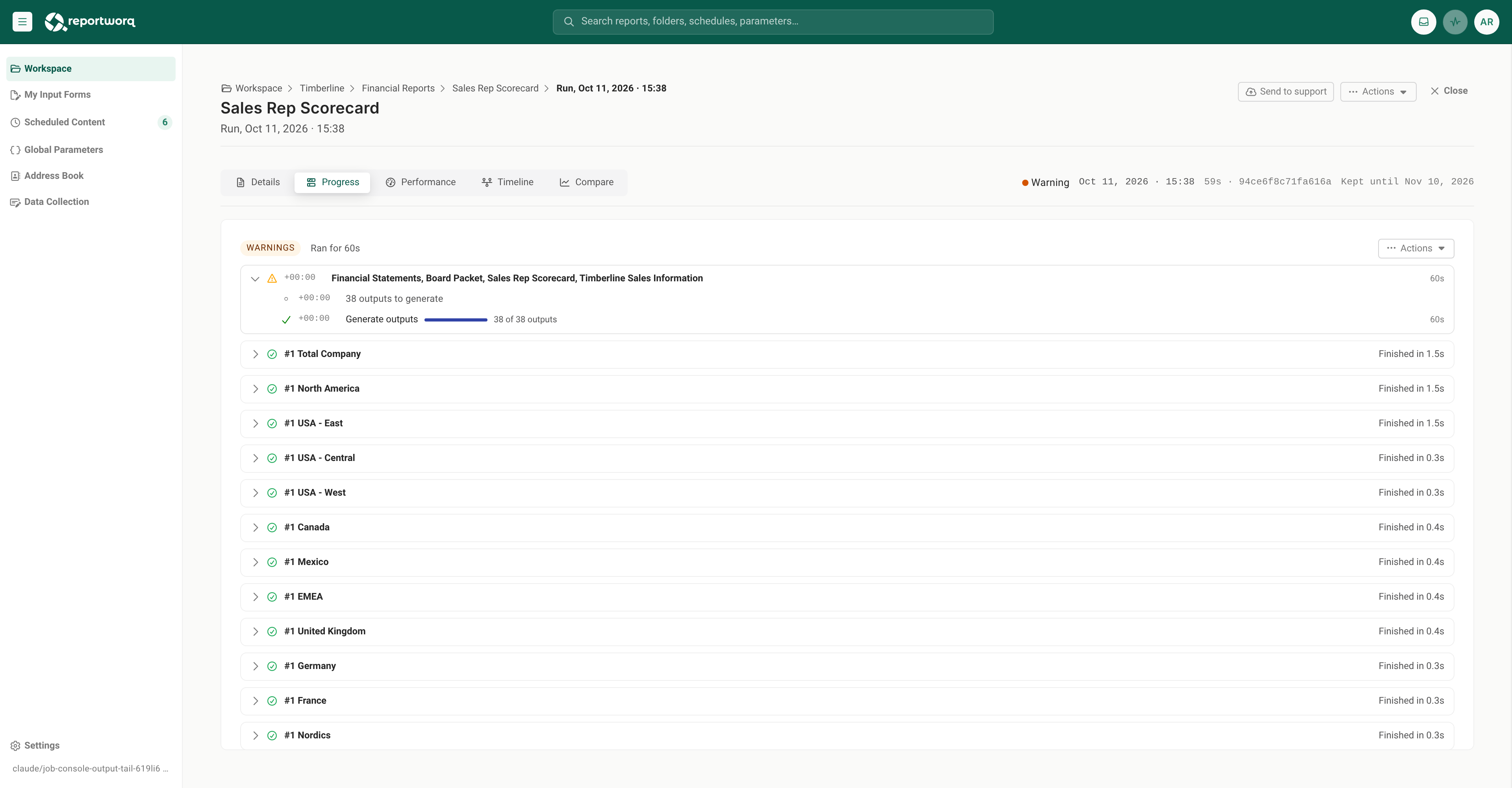
A finished run keeps this record as its Progress tab in the job's Run History. Open the run (it opens on Details; its tabs are Details, Progress, Performance, Timeline and Compare) and select Progress. It shows the same tree of cards as a running job, so you can see how the run went and what it built.
 To find out where the time went, use the Performance tab. A job that uses
 RWSETTING("Pause", n)
says so, so a deliberate wait is never mistaken for a hang. Steps that take less than half a second are left out
to keep the view readable. A run from before this record existed shows No console for this run; open the
Performance tab and its Advanced diagnostics section for the run's log instead.
For a very large run, every step is recorded until the record reaches a size limit; after that only outputs, workbooks, and warnings are, and the view says so.
Release or cancel a held delivery#
A run made in Hold for Delivery generates its outputs but pauses distribution, so you can review before anything is sent. Held runs appear in the Hold category.
- Review the held output first. Open the output viewer or the run's Details to see what was produced.
- On the held row, select Release All to distribute the held outputs and clear the hold. Confirm when prompted. Releasing ships what was already produced; it does not re-run the job.
- To keep the output internal and not send it, open the row's ... menu and select Cancel Hold, which clears the hold without distributing.
Either action moves the run into History.
Cancel a running job#
- On a Running row in your current workspace, select Cancel (stop).
- Confirm in the Cancel Job dialog.
- The run is given 60 seconds to finish and clean up before it is stopped, so a canceled row can stay Running briefly before it clears.
Other row actions#
- Details (History or Hold rows), or the run's name, opens that run in its job's Run History, right on the run, so you see its progress, performance and files together. A held run, a run from before Run History kept a structured record, and a run whose job has been deleted or is not available to you open the classic details instead. See When a job fails.
- Open in Workspace (in the ... menu) jumps to that job's Run History, on this run when it can.
- Classic details (in the ... menu) opens the original details view for the run, which can also re-send the run's outputs to any destination.
- Delete (in the ... menu) removes the run from the list. It asks you to confirm first, and it cannot be undone from Activity.
Review a job's Run History#
Run History is the full record for one distribution job, newest first.
- Open it from a job row's ... menu (Run history), or from a run's Open in Workspace in Activity.
- The run list shows each run's Status and Started time, three performance columns (Elapsed vs baseline, Trend, and Peak mem), then Outputs, Formats, and Delivery. Filter with the All / Success / Warning / Failed pills, each carrying a count. For what the performance columns compare a run against, see Review a run's performance.
- Open a run to inspect its outputs, per-file downloads, Distribution history, and any AI Insights. The run opens like a dialog over the list, on its Details tab, with Progress, Performance, Timeline and Compare beside it. A failed run shows its error on one line, with Run again and Show details, which opens the full message and trace. Select Close at the top right to return to the run list.
- In an open run, the Actions menu holds Pin, View log summary, Download history (the run's
whole record as a
.zip), Send to support and Delete. Send to support is also a button of its own beside the menu. You are asked to describe what you are sending, and you can add a support ticket number. Pin a run to keep it regardless of the retention policy, for example a final period-close run. The retention note on the list states how long runs are kept. Delete removes the run from the history list; it asks you to confirm, and warns that the run's stored output and execution log go with it. - If a run you know has finished is not listed, select Refresh in the ... menu. Refresh rebuilds the list from the stored history rather than re-reading what is already in memory, so a completed run whose finish notification went missing appears immediately. The same applies to Refresh in the output viewer.
Notes and limits#
- Activity is for authors and administrators. Users do not have access to Activity.
- Activity is the live view across all jobs; Run History is the per-job record. To read or download a run's rendered output, use the output viewer.
- Deleting a run cannot be undone from Activity or Run History. Neither screen has a restore action. The deleted run's stored output and execution log stay on the server until a background purge removes them, so a run deleted by mistake can sometimes still be recovered, but only as a Reportworq support task and only before the purge runs. Contact Reportworq support promptly if you need one back. To keep a run indefinitely instead, Pin it. See Output retention.
Going deeper. To read, download, or email a run's outputs, see View and download results. If a run failed or warned, see When a job fails. To find out why a run was slow, see Review a run's performance.
Feedback on this page
Comments, questions, requests, or something missing or unclear? Email us - the page you are on is filled in for you.
Email feedback on this pageOr write to support@reportworq.com directly.