
The Reportworq add-in for Microsoft Office provides additional features to the following Office applications:
- Excel -- The add-in enables users to author reports for Distribution Jobs, or to easily create input ranges, data validations, and other features in Contribution templates.
- PowerPoint -- The add-in enables Reportworq administrators to create PowerPoint presentations containing data that is linked to Reportworq Distribution Jobs. Presentations are distributed to end users who see only the data that is relevant to them.
Before you can use the add-in for the first time, you must install it. Each time you use the add-in, you must launch it. To install or launch the add-in, a Reportworq license is required.
Note for Administrators: SSL encryption is required to use the Reportworq add-in. For more information, see Configuration.
Installing the Reportworq Add-in#
Microsoft Office applications do not include the Reportworq add-in by default. It must be installed on your computer. After the add-in is installed, compatible Office applications include a Reportworq tab.
To install the add-in, a Reportworq license is required.
Note: For users of Excel 2016, and for Office 365 users who do not have permissions to install add-ins, the add-in must be deployed by a Microsoft Administrator. For more information, see the Technical Article, Deploying the Reportworq Add-in for Office 365.
The following are required to install and use the Reportworq add-in:
- Internet access
- A Reportworq user account
- Microsoft Office installed on your computer
To manually install the Reportworq add-in:
- Open the Microsoft Office application you want to use (Excel or PowerPoint).
- On the Home tab, select Add-ins. A list of add-ins appears.
- In the Search box, type Reportworq.
- The Reportworq add-in appears on the list.
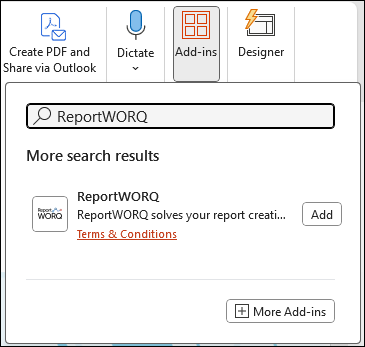
- Select the Reportworq add-in to review information about it, and then select Add.
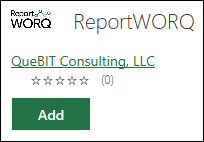
- When prompted about License terms and Privacy policy, select Continue. The New Office Add-in pane appears.
- Select Allow and Continue. If you are not logged in to Reportworq, the login prompt appears.
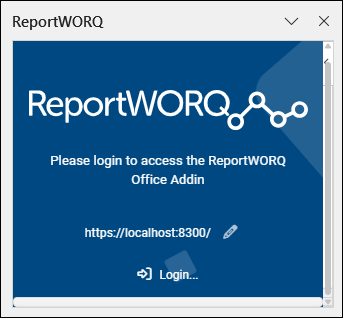
- If the login prompt appears, do the following:
- If Reportworq uses a port number other than 8300, or Reportworq is installed on a different computer, Select the edit icon
 , provide the correct URL for accessing Reportworq, and then select View.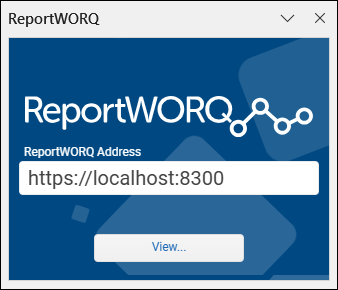
- Select Login, provide your User Name and Password as prompted, and then select Login. The add-in is installed and the Reportworq pane appears.
Launching the Reportworq Add-in#
You must launch the add-in each time you use it. A Reportworq license is required.
To launch the add-in after it has been installed:
- Open the Excel report (.xlsx file) or PowerPoint presentation (.pptx file) you want to modify.
- At the top of the application, select the Reportworq tab and then select the Reportworq open button.
 If you are not logged in to Reportworq, the login prompt appears.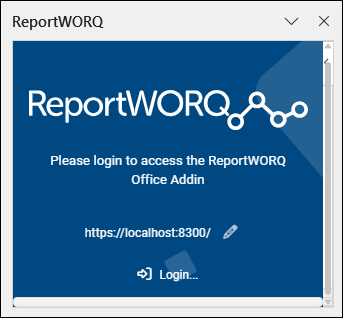
- If the login prompt appears, do the following:
- If Reportworq uses a port number other than 8300, or Reportworq is installed on a different computer, Select the edit icon , provide the correct URL for accessing Reportworq, and then select View.
- Select Login, provide your User Name and Password as prompted, and then select Login. The Reportworq pane appears.
Feedback on this page
Comments, questions, requests, or something missing or unclear? Email us - the page you are on is filled in for you.
Email feedback on this pageOr write to support@reportworq.com directly.