
Connect Google BigQuery#
Reportworq connects to Google BigQuery through a CData driver, which presents your BigQuery datasets as a relational, tabular source you query with the same table or SQL modes as any database. In the connector catalog the tile is Google BigQuery.
This page sets up an unattended connection that signs in as a Google Cloud service account, the setup we recommend for scheduled distribution jobs. For the shared CData add-and-test flow, see Connect CData sources.
Before you begin#
- You are an administrator. Only administrators can add or configure datasource connections.
- You have a Google Cloud project that holds your BigQuery data, and you can create service accounts and grant roles in it.
- You know the project's Project ID: the lowercase identifier shown in the Google Cloud console's
project picker, such as
acme-analytics, not the display name and not the project number.
Create a service account and its key#
- In the Google Cloud console, select your project and go to IAM & Admin > Service Accounts.
- Select Create service account, give it a name such as
reportworq-bigquery, and create it. - Grant the service account these two roles on the project:
- BigQuery Data Viewer, so it can read your datasets and tables.
- BigQuery Job User, so it can run queries. BigQuery runs every query as a job, so without this role the connection can see tables but cannot read them.
- Open the service account, go to Keys > Add key > Create new key, choose JSON, and
create it. Your browser downloads a
.jsonkey file.
Treat the key file as a secret. Anyone who holds it can query your data as the service account. Do not email it or store it in a shared folder, and delete the local copy once it is in Reportworq. If a key is exposed, delete it in the Google Cloud console and create a new one.
Add the connection in Reportworq#
Sign in to Reportworq as an administrator and go to Settings > Integrations.
Select Add integration, find Google BigQuery in the catalog, and select Add. The connection editor opens.
In the General section, select Enable Integration, give the connection a Display name, and choose its Availability. The display name is how models and formulas refer to the connection, so it must be unique across the instance.
Set the connection properties:
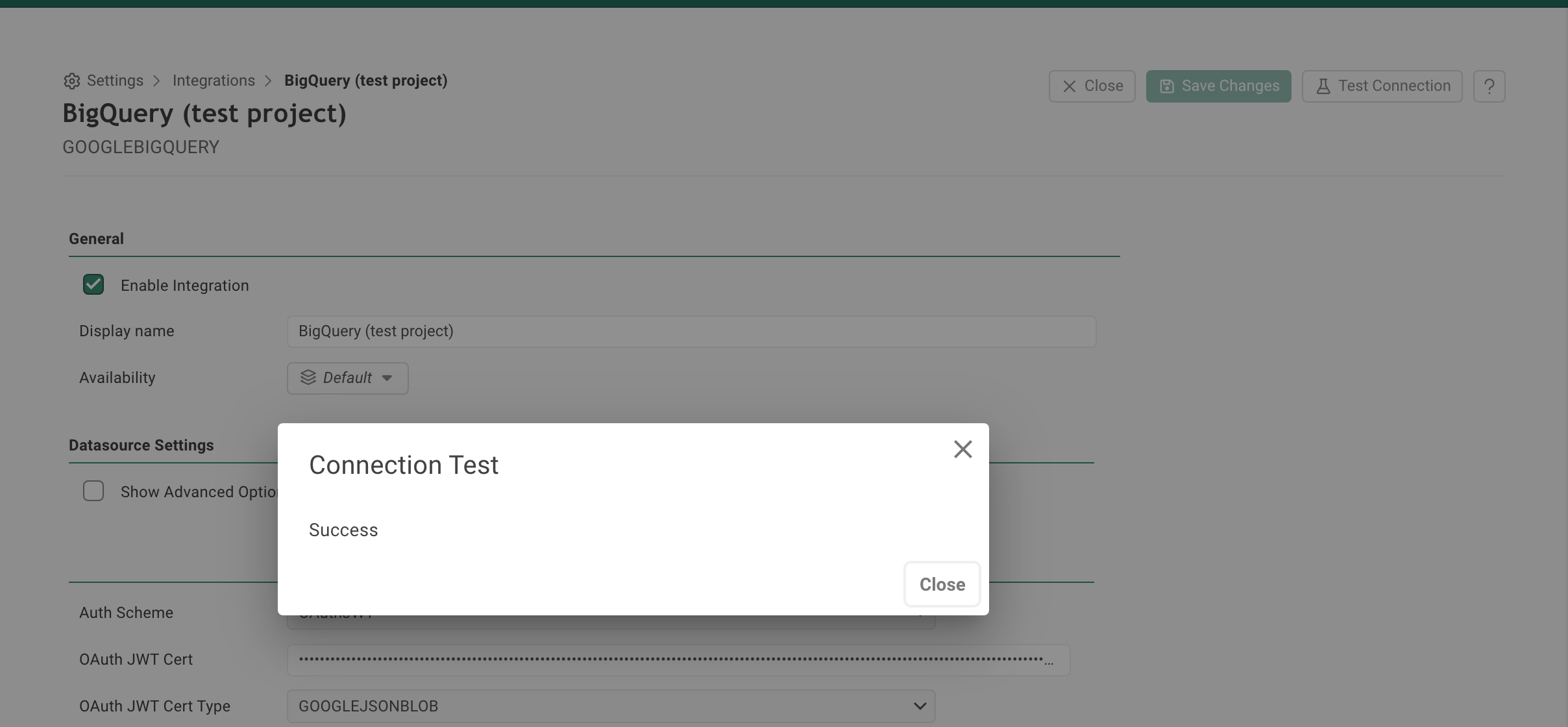
Property Value Auth Scheme OAuthJWT. This is the service-account sign-in. OAuth JWT Cert Paste the entire contents of the JSON key file, from the opening {to the closing}.OAuth JWT Cert Type GOOGLEJSONBLOB. See the note below: this is the setting most often missed. OAuth JWT Subject Leave empty. Initiate OAuth Leave at GETANDREFRESH. Project Id Your project's ID, for example acme-analytics.Dataset Id Optional. See Optional properties. Billing Project Id Optional. See Optional properties. Select Save Changes, then Test Connection. A working connection reports Success.
Choose GOOGLEJSONBLOB when you paste the key. OAuth JWT Cert Type offers two Google types. GOOGLEJSON expects OAuth JWT Cert to hold the path to a key file on the Reportworq server. GOOGLEJSONBLOB expects the JSON content itself, which is what you pasted. If the type is left at GOOGLEJSON with pasted content, the driver treats the JSON as a file name and the test fails.
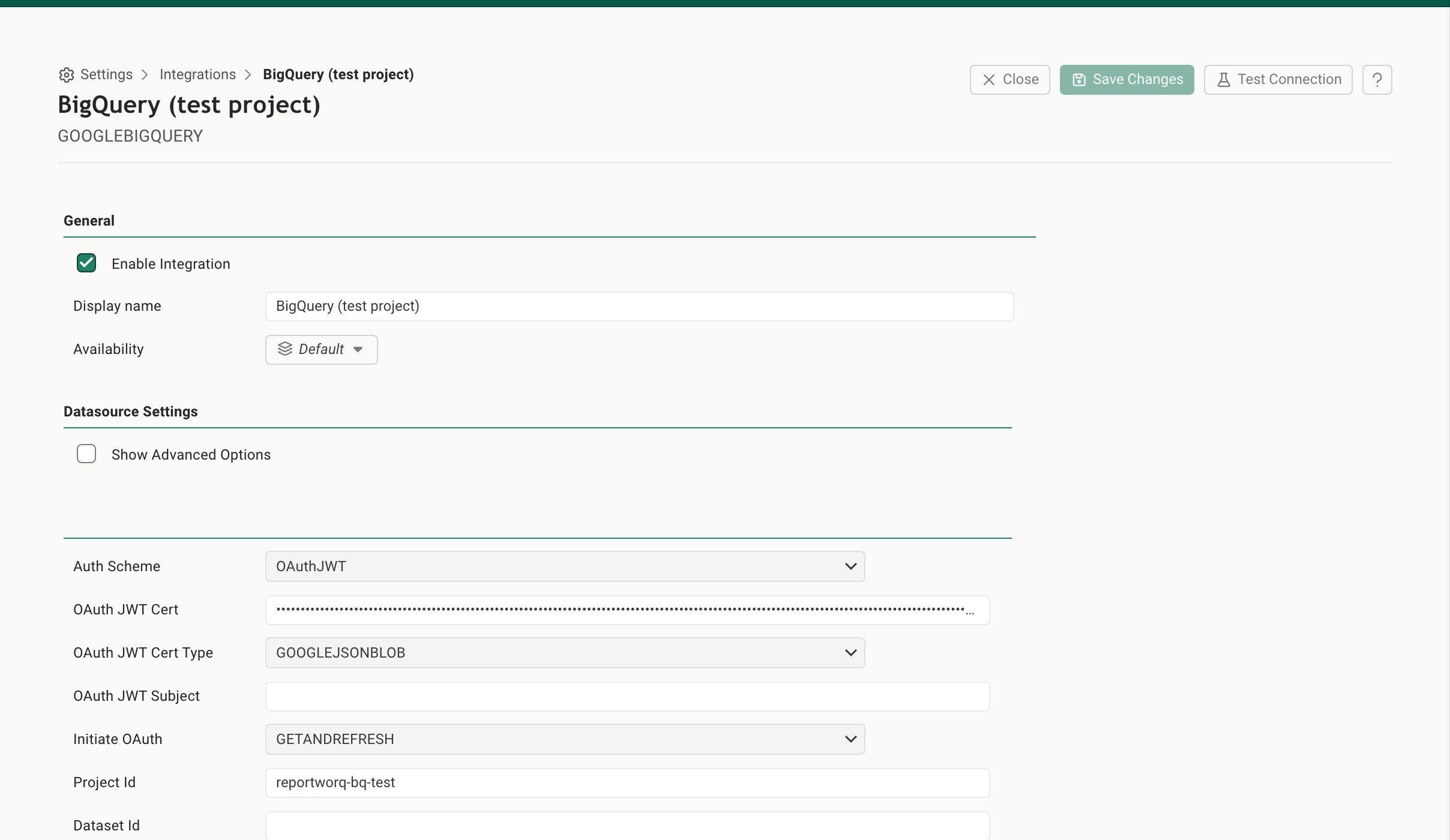
Once saved, the key is never shown again: OAuth JWT Cert is a password field, so the editor displays only dots.
Optional properties#
- Dataset Id sets the dataset that unqualified table names resolve to in SQL. Leave it empty to work
with every dataset in the project: the table list then groups tables by dataset, and SQL names a table as
dataset.table. Set it when all your reporting data sits in one dataset and you want to write plain table names. - Billing Project Id names the project that runs the query jobs. Leave it empty to run them in the Project Id project. Set it when your data lives in one project and your organization runs queries in another; the service account then also needs BigQuery Job User on that project.
- Destination Table and Insert Mode control writing query results and rows back into BigQuery. Reportworq only reads, so leave Destination Table empty and Insert Mode at its default.
- Select Show Advanced Options to see the driver's full property list. You do not need any of it for a service-account connection. CData's Google BigQuery ADO.NET provider documentation describes every property.
Query your BigQuery data#
Once the connection tests, a model author uses it like any other relational source:
- Create a data model on the connection, or add the connection as a source of an existing model. See Data models.
- On the model's Source screen, open the Tables tab. Reportworq reads BigQuery's own metadata and lists your tables and views, grouped by dataset.
- Select a table to preview its rows, read live from BigQuery.
- Build views over the tables on each view's Design tab, starting from a table or writing SQL. See Build a view with the designer.
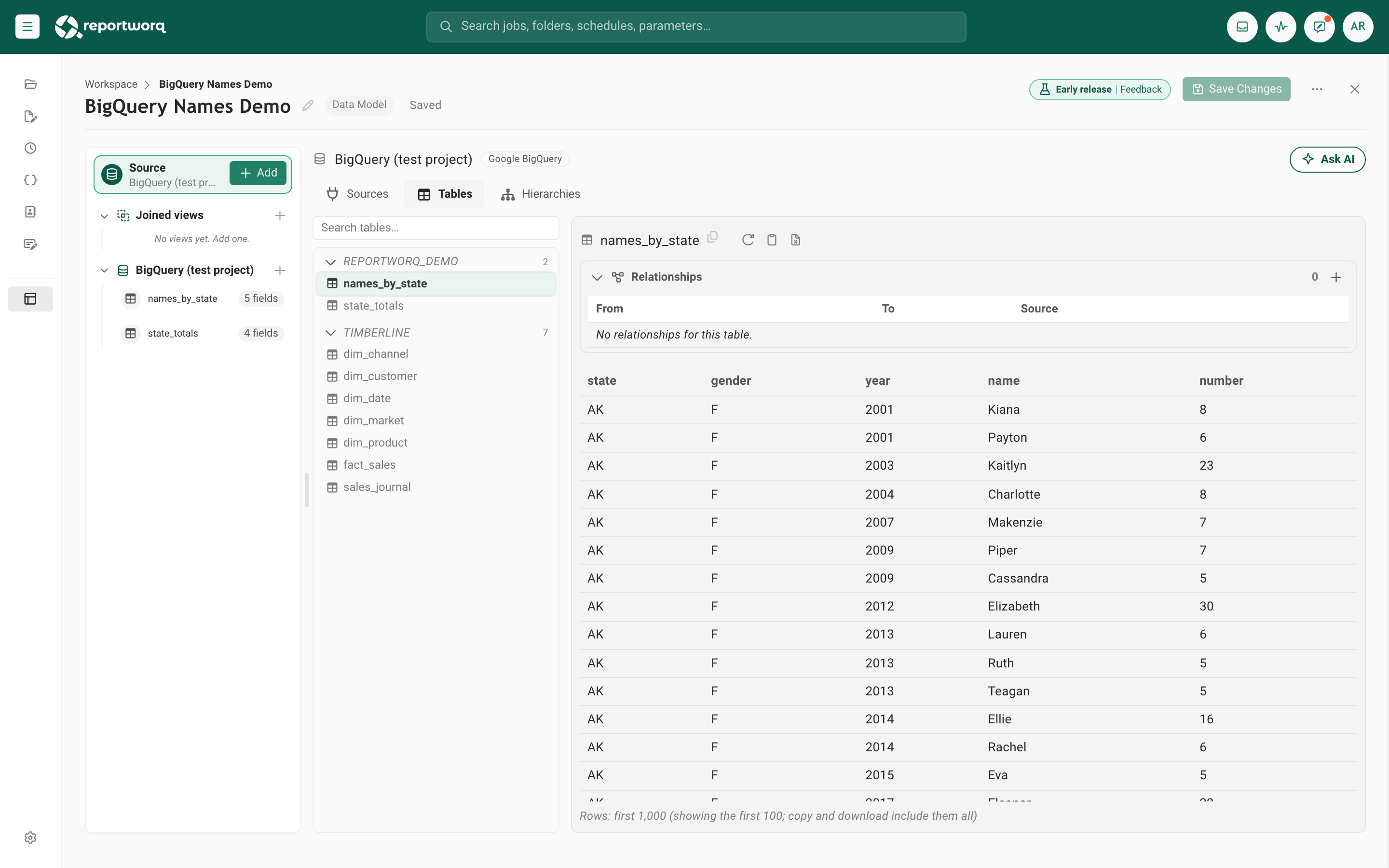
The preview reads the first 1,000 rows and shows the first 100. Copy and download include all 1,000.
How your key stays secure#
- The key is stored encrypted. Reportworq encrypts the OAuth JWT Cert value before saving it with the connection, and decrypts it only to open a connection to BigQuery.
- It is masked in the product and in logs. The editor shows only dots, and when Reportworq writes the
connection string to a log, the key appears as
***encrypted***. - Grant the least the service account needs. BigQuery Data Viewer and BigQuery Job User are enough. To limit what Reportworq can read, grant BigQuery Data Viewer on specific datasets instead of the whole project.
- Rotate the key the way your organization rotates other service-account keys: create a new key, paste it into OAuth JWT Cert, save, test, then delete the old key in Google Cloud.
Other sign-in options#
Auth Scheme also offers OAuth, a sign-in with a person's own Google account, and the workload identity schemes GCPInstanceAccount, AWSWorkloadIdentity and AzureWorkloadIdentity. This page does not cover them in detail. A service account suits scheduled jobs because it does not depend on one person's account; for the other schemes, see CData's Google BigQuery ADO.NET provider documentation.
Troubleshooting#
| Symptom | Likely cause | What to do |
|---|---|---|
| Test Connection fails with a file-not-found error, or says the key or certificate is not valid | OAuth JWT Cert Type is GOOGLEJSON (a file path) while OAuth JWT Cert holds pasted JSON, or only part of the key was pasted | Set OAuth JWT Cert Type to GOOGLEJSONBLOB, paste the whole key file again from { to }, save, and test. |
An access denied or permission error, often naming bigquery.jobs.create |
The service account is missing BigQuery Job User, so it cannot run queries | Grant BigQuery Job User on the project (and on the Billing Project Id project, if you set one). |
| Access denied when reading a table, or the Tables tab is empty | The service account is missing BigQuery Data Viewer on the project or dataset | Grant BigQuery Data Viewer on the project, or on each dataset Reportworq should read. |
| A project-not-found error, or the tables you expect are missing | Project Id is wrong: a display name or project number instead of the project ID, or a different project | Enter the project ID exactly as the Google Cloud console's project picker shows it, and grant the service account its roles in that project. |
| A query names a table that does not exist | Dataset Id points at a different dataset, or the SQL omits the dataset | Name tables as dataset.table, or set Dataset Id to the dataset that holds them. |
Related#
- Connect CData sources for the shared CData add-and-test flow.
- Connect Google Analytics, the other Google CData connector.
- Connector catalog for every connector Reportworq ships.
- Connect a data source for the general add, test, and manage flow.
- Data models for turning the connection into curated, reusable data for report authors.
Feedback on this page
Comments, questions, requests, or something missing or unclear? Email us - the page you are on is filled in for you.
Email feedback on this pageOr write to support@reportworq.com directly.